


Letting a contractor into the building (access details, keys and fobs)
What you'll end up with: the building's ways in, its door codes and its keys and fobs recorded in one place, and a firm given access to them for the days of their job only.
Before you start you need: the building's access details (codes, where keys are kept), and, for a firm to see them in their app, the firm on SynkroTech Trade with a work order for the job.
Door codes and keys are the building's security. Giving a firm access for a set period, tied to a work order, means they see the code while they need it and not after.
- Open the property, then its Access tab (under More if it is not shown).
- Check Access Points: each way in, how it opens, and the details a firm needs. Press Show to see a code, and Hide when you are done. Use Add Access Point for another way in.
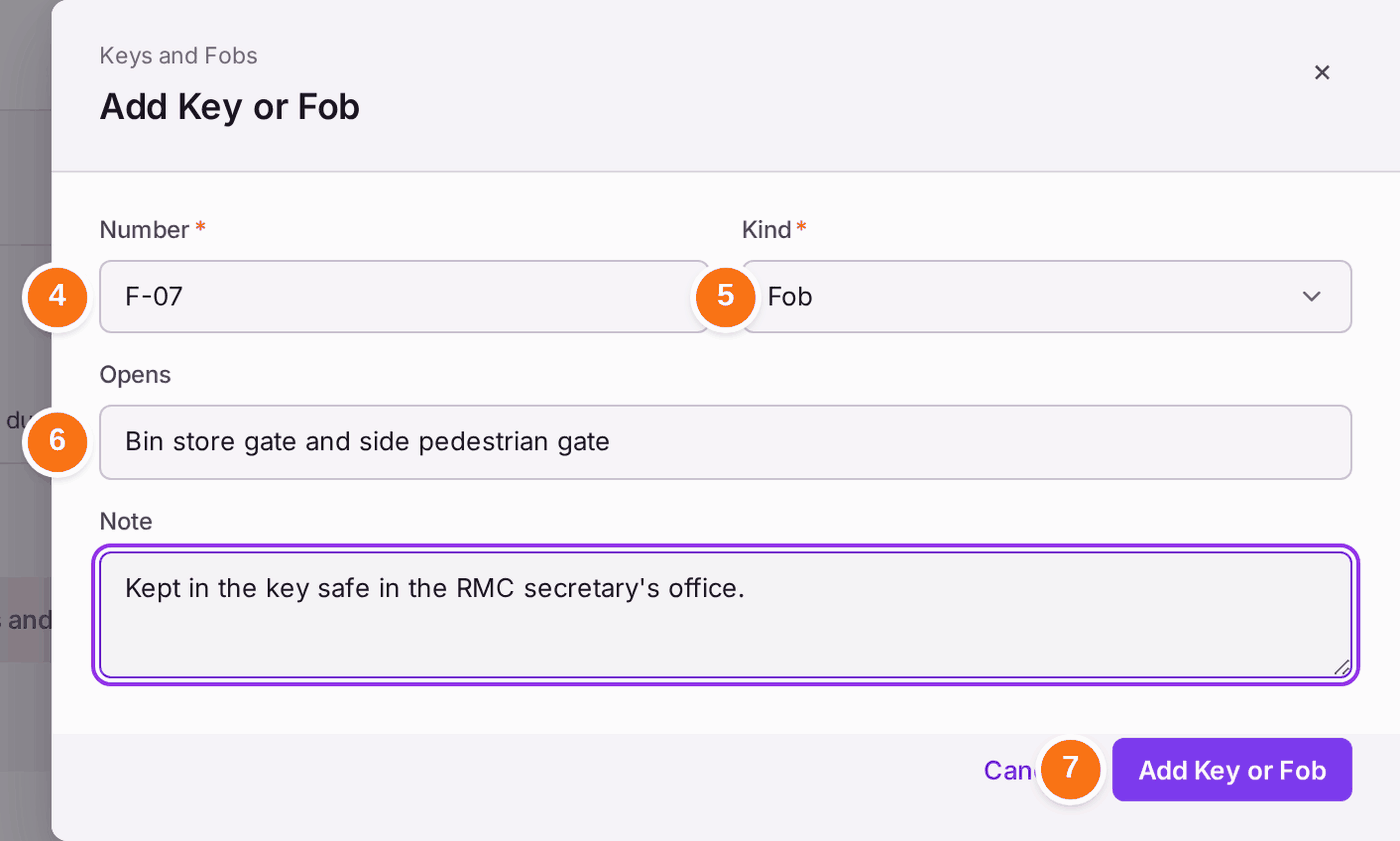
- Under Keys and Fobs, press Add Key or Fob.
- Type its Number, such as F-07.
- Choose the Kind: Key, Fob or Card.
- Type what it Opens, and a Note on where it is kept if it helps.
- Press Add Key or Fob. It is listed as Held. Press Issue when you hand it to someone.
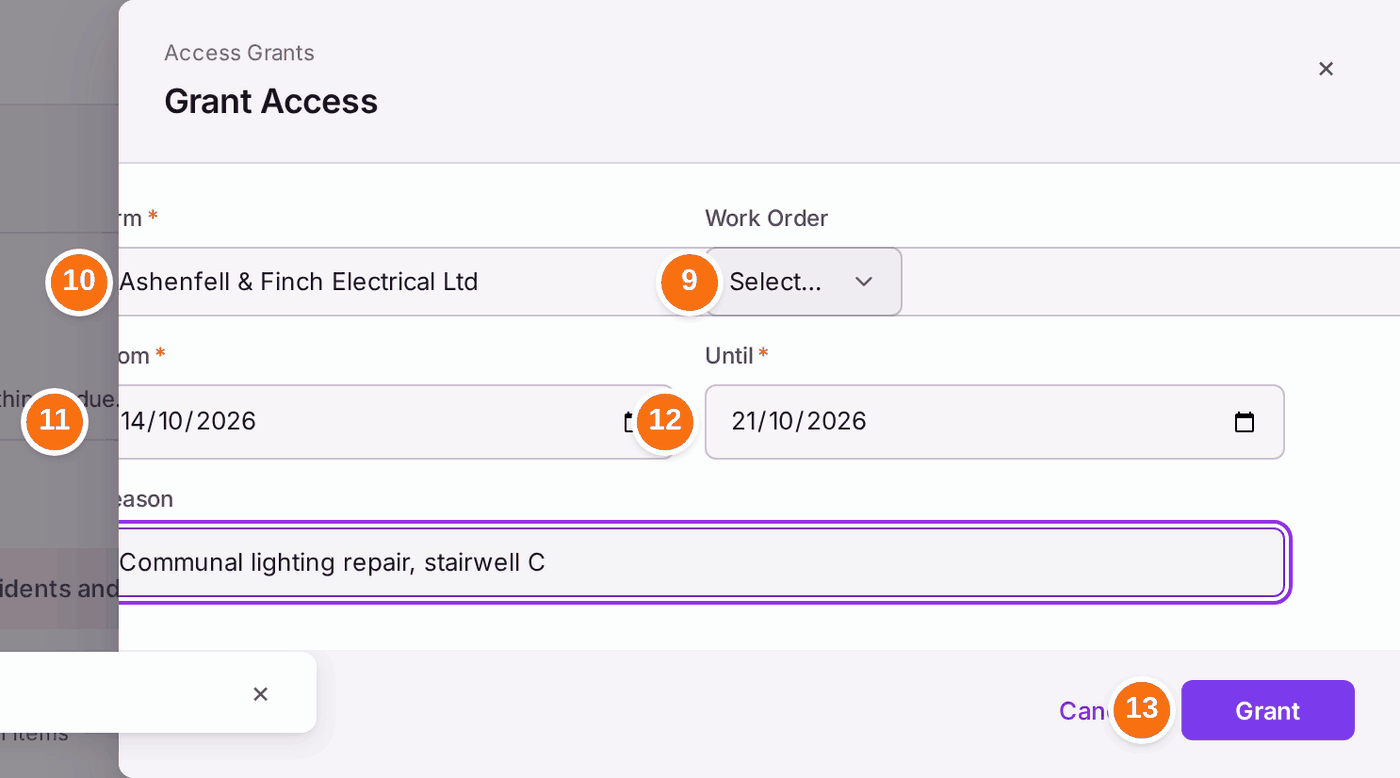
- Under Contractor Permission, press Grant Access.
- Choose the Work Order the access is for. The Firm is filled in from it, and when the job has a booked day, From and Until are filled in with that day and the day after, marked "From WO-… ’s booked day · check".
- Check the Firm. Choose it yourself for access with no work order.
- Check From: the first day they need access.
- Check Until: the last day.
- Type a Reason if it helps, then press Grant.

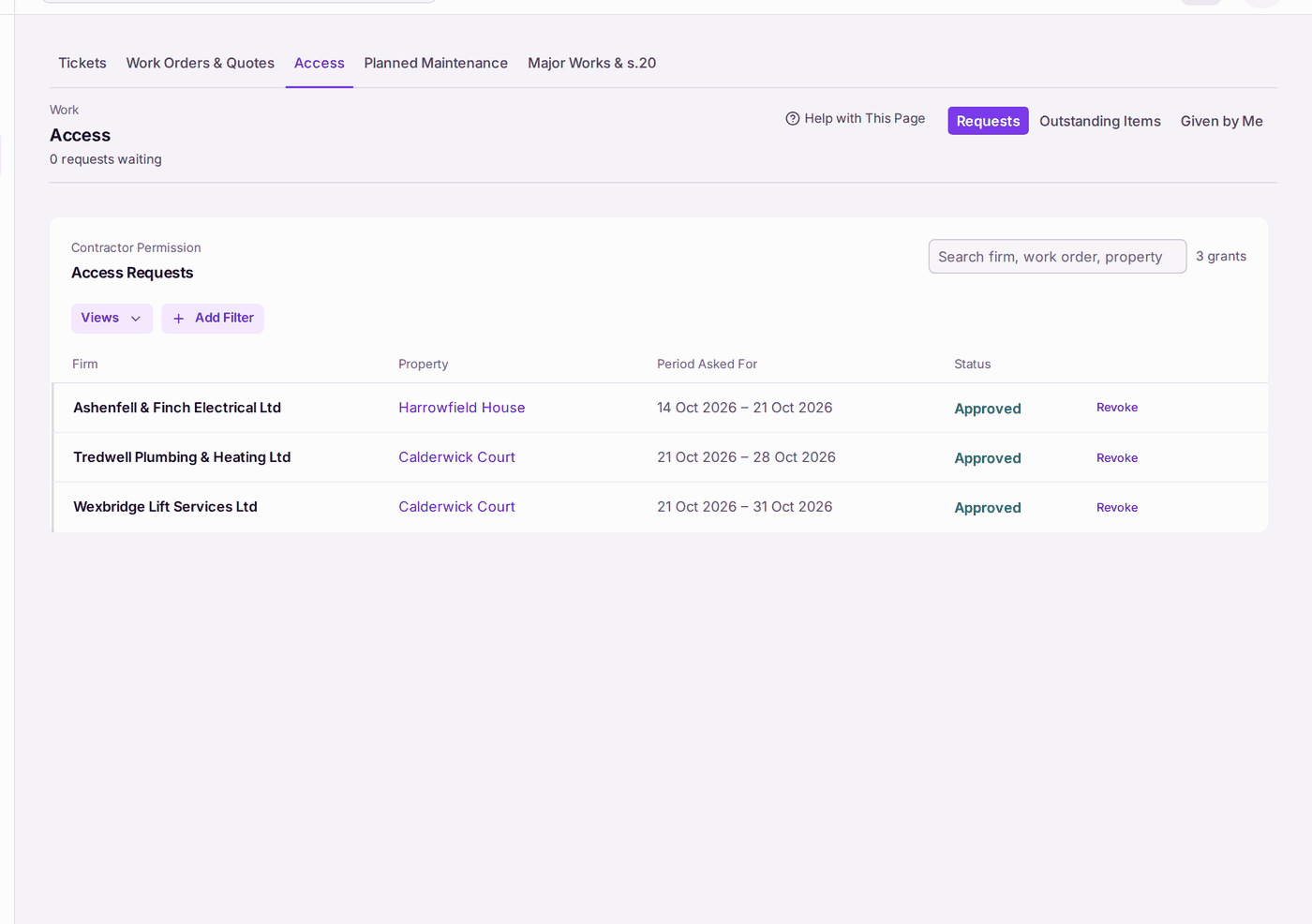
You'll know it worked when: "Access granted", and the grant is listed under Contractor Permission as Approved with its period. Work → Access lists every grant across your properties.

If something's wrong:
- The job finished early, or the firm was replaced. Press Revoke on the grant. The firm can no longer see the access details.
- A firm says they cannot see the code. They see it in SynkroTech Trade, during the grant's dates only. A firm not on SynkroTech Trade needs the details from you by phone (see Inviting a contractor onto SynkroTech Trade).
- Show reveals a dash. No code is recorded for that access point. Press Edit on it to add the code.
- You need to know what changed on an access point. Press View History on it: each change is listed with who made it and when.