


Closing the year and sending it to the accountants (year end)
What you'll end up with: a property's service charge year compared line by line with its budget, accruals and prepayments recorded, a pack (one ZIP: a workbook and the same sections as a PDF) sent to the accountant, the accountant's signature recorded with the date and the signed accounts, the surplus or deficit settled the way the lease says, any credit set against the same leaseholders' overdue demands, and the year closed.
Before you start you need:
- The year over: a year that has not run says "Year Not Run" with the date it ends.
- The year's supplier invoices entered and the bank reconciled (see Paying a supplier's invoice and Reconciling the bank account).
- The lease abstract's answer to what happens to a surplus (see Recording the lease terms (lease abstract)). Without it the year cannot be settled.
The accounts are due within a deadline counted from the property's year end; the budget page gives it ("Accounts due …").
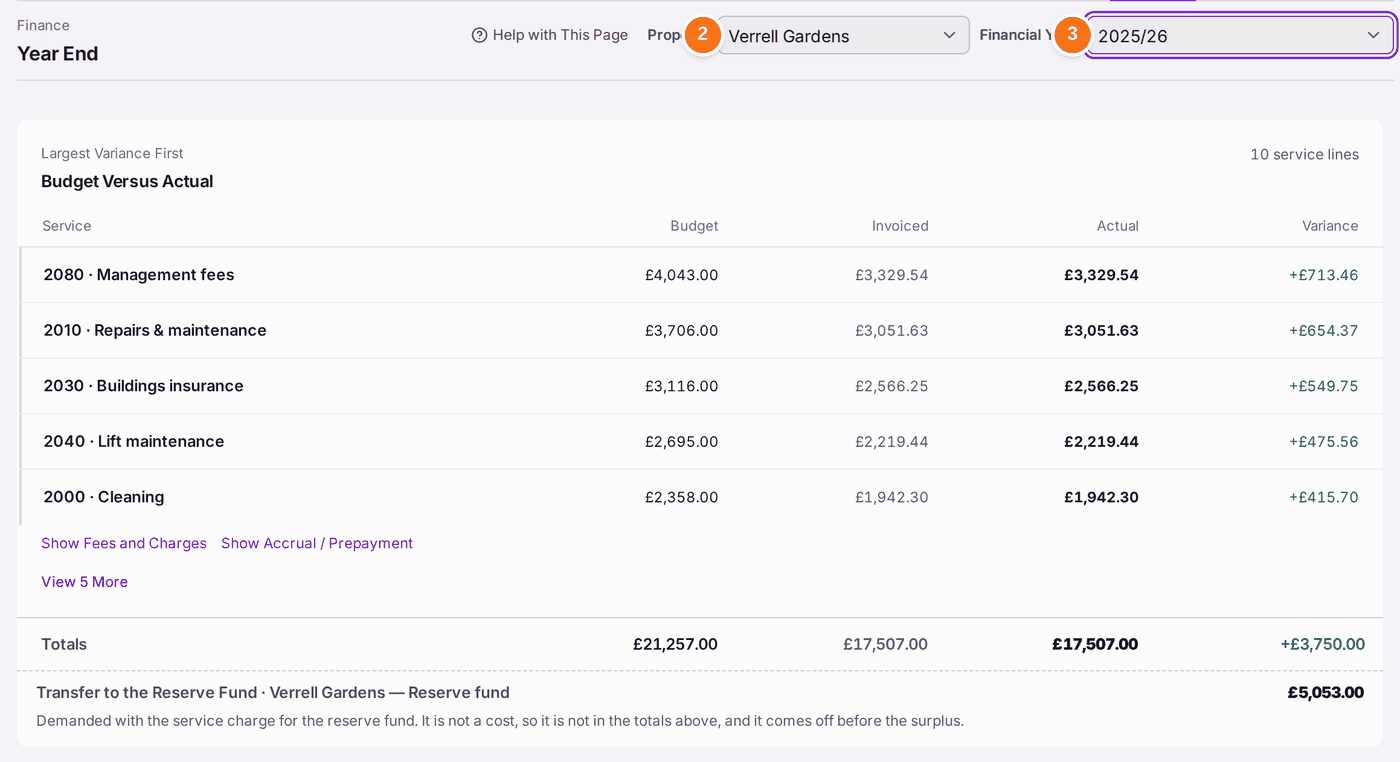
- Go to Finance → Year End.
- Choose the Property. Come back to Year End from the menu later in the same session (after checking the lease abstract, say) and it opens on the same property.
- Choose the Financial Year. A year still running says "still running".
- Read Budget Versus Actual: each service line's budget, what was invoiced, the Fees and Charges taken from the service charge fund without an invoice (management fees taken by fee runs, bank charges), and the variance, largest variance first. The cost is the service charge fund's: an invoice paid from the reserve fund is not in it, and is shown under the totals as "Paid from" the fund that paid it. The transfer to the reserve fund is shown on its own, because it is not a cost either. A year signed before 20 October 2026 is shown as it was signed, and says so.
- Record any Accruals (work done in the year whose invoice has not arrived) and Prepayments (money paid in the year for cover that runs into the next, such as insurance): press Add under each.
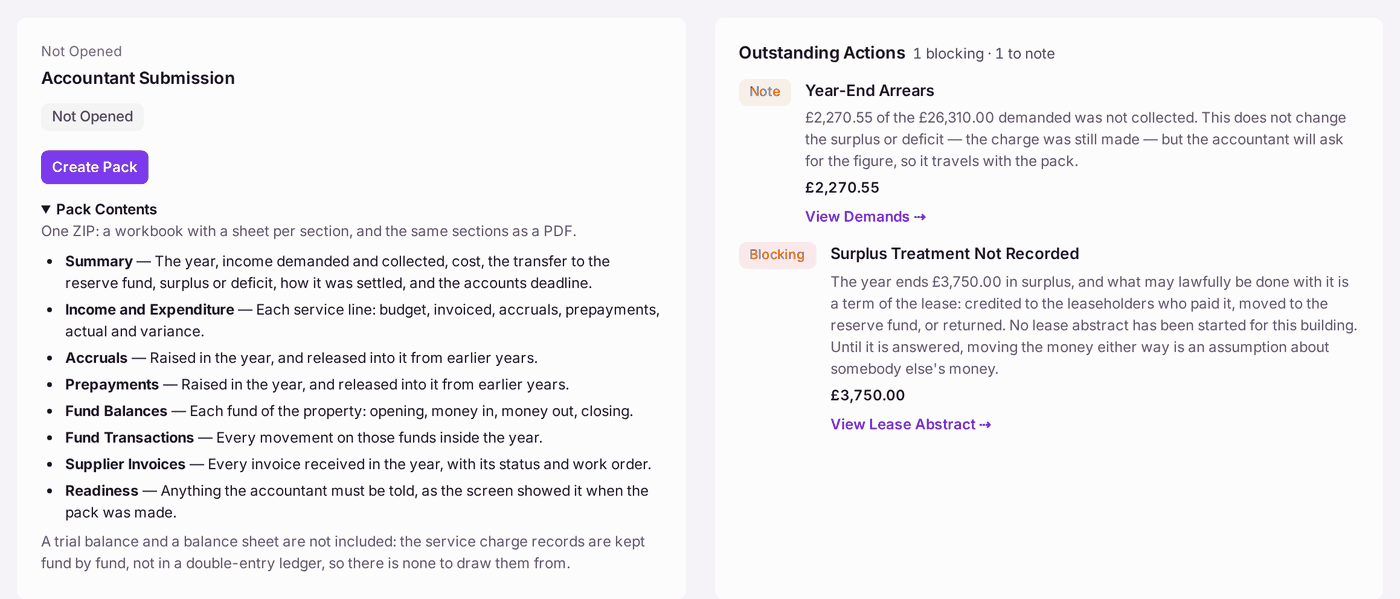
- Read Outstanding Actions. Each item is either Blocking (it would make the pack wrong) or a Note the accountant will ask about, with a link to what to fix.
- Clear every blocking item.
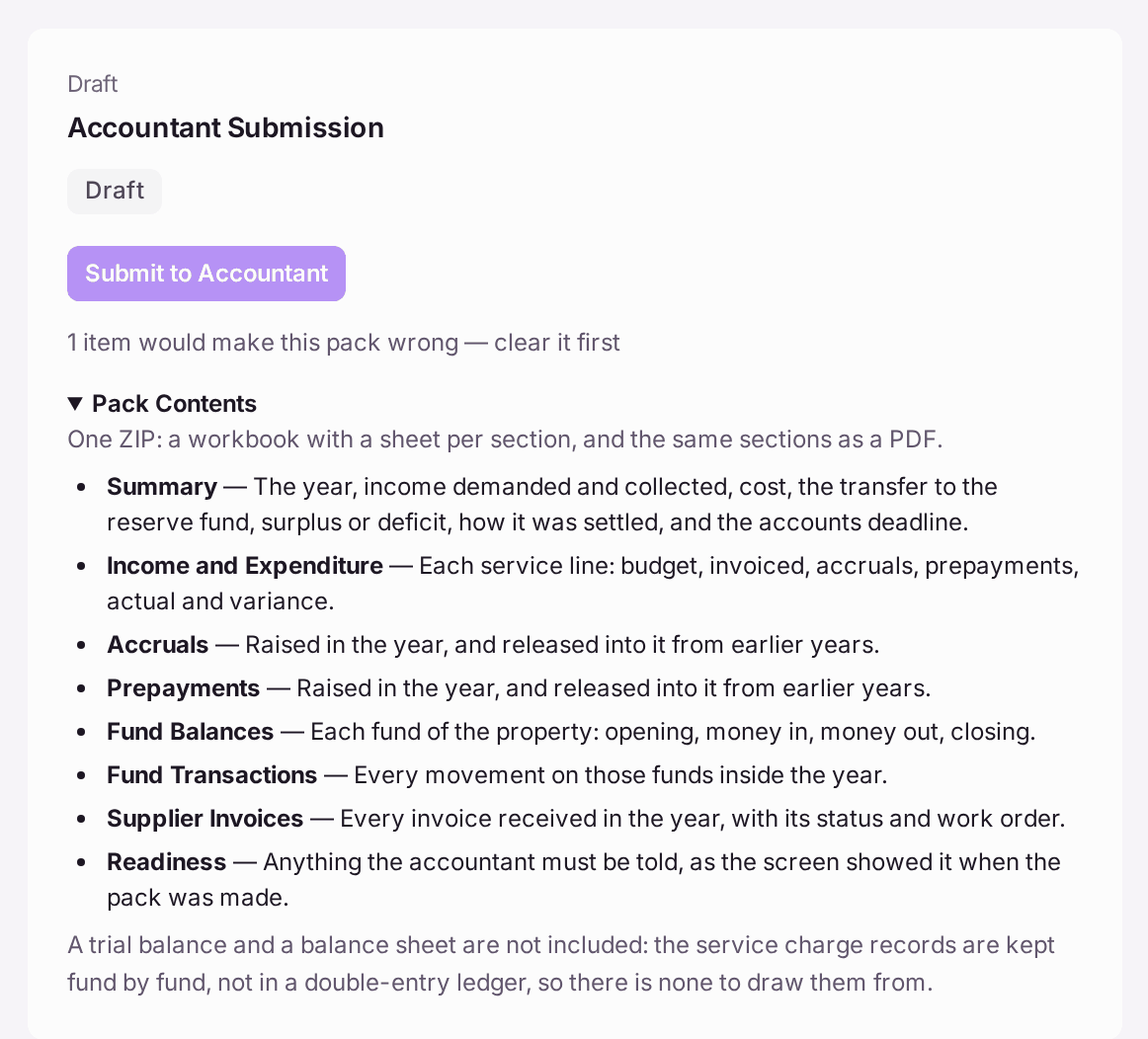
- Press Create Pack. The pack is made as a Draft.
- Press Submit to Accountant, with the accountant's name and email. The accountant you used last year is filled in. The line above Submit says what happens to the files.
- Press Send to Accountant under the pack. The pack is filed with the property's documents and one email, with the ZIP attached, waits in the Outbox; it goes when the mailing is sent there. The line under the pack says where the run stands: "Created · in draft mailing DR-… · Send" until it is released (press either link to open the run), then Queued, then Sent. (Where your mailbox is connected, Submit emails it straight away and says so.)
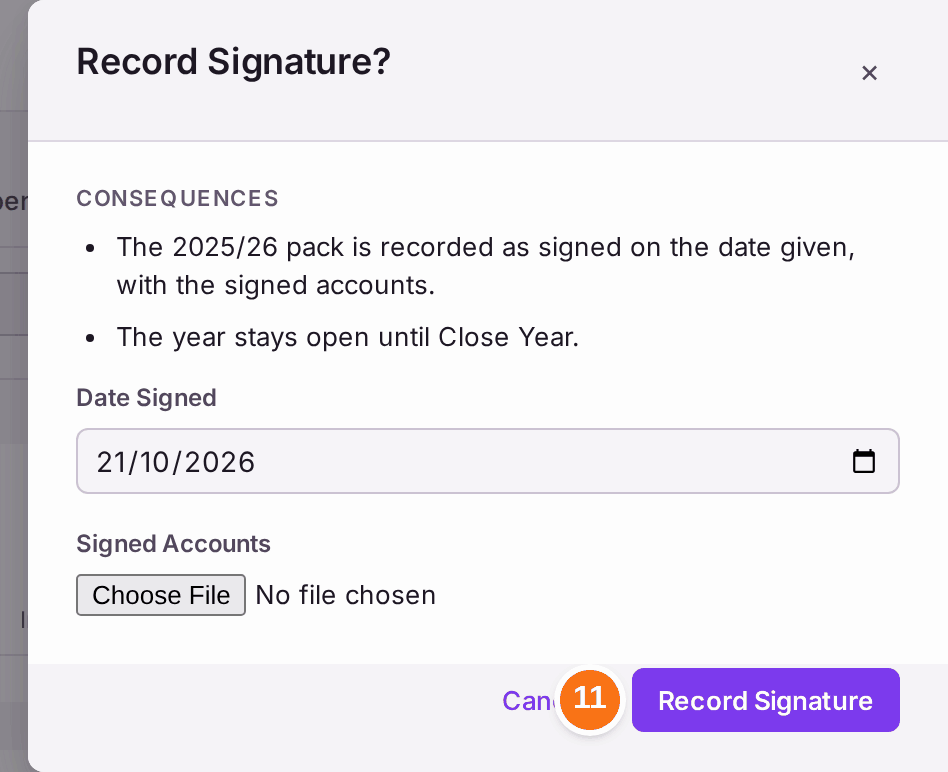
- When the accountant has certified the accounts, press Record Signature. Record Signature? asks for the Date Signed and the Signed Accounts (the PDF they signed; if the signed accounts are already uploaded under Year-End Accounts, those are used). Press Record Signature. The pack reads "Signed" with the date and the file, and the signed PDF is filed as the year's accounts under Year-End Accounts ("Uploaded"): there is no need to upload it again. The year stays open.
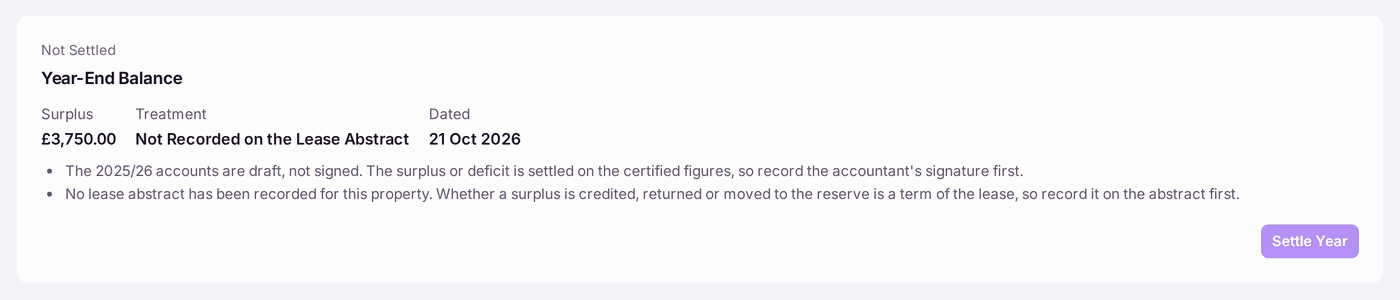
- Settle the year: press Settle Year. The surplus is credited, moved to the reserve or returned, or the deficit charged, as the lease says.
- Under the settled year, Money on Account lists the overdue demands the credits would settle, oldest first, for each leaseholder. Press Use Credit, then Use Credit again in Use Credit?, which says how many demands the credit settles and how many it only part-pays. Nothing moves until you confirm. (The same is offered on each leaseholder's record.)
- Press Close Year beside the signature. Close 2025/26? says nothing more can be posted into the year, and reopening needs a reason and an approver. Press Close Year.
You'll know it worked when: The Accounts Tracker shows the pack's stage, the year's balance reads settled, and the year is listed as closed under Year-End Accounts with its date and its signed accounts, ready to publish (see Publishing the signed year-end accounts to leaseholders and directors). A closed year does not offer Close Year.
If something's wrong:
- "Choose a property under Scope, at the top of the page". Choose it in Property, at the top of the page.
- "Surplus Treatment Not Recorded". "What may lawfully be done with it is a term of the lease." Press View Lease Abstract, answer Year-End Surplus Treatment, then come back.
- "Supplier Payments With No Invoice" (Blocking). Money was paid to suppliers from the service charge fund in the year with no supplier invoice behind it, so the year's cost reads too low (at worst £0.00) and the whole budget would be handed back as surplus. Settle Year is refused until the invoices those payments paid are recorded. Press View Invoices.
- "Payments Differ from Invoices". More was paid to suppliers from the fund than invoices were received for the year. The pack's cost of suppliers is built from invoices, so enter the missing invoices, or tell the accountant why.
- Management fees read £0.00 though fees were taken. Fees count when a fee run takes them from the service charge fund (see Charging your management fees); a fee taken some other way is not in the year's cost until it is.
- "Year-End Arrears". Money demanded in the year was not collected. It does not change the surplus or deficit, and it travels with the pack for the accountant.
- Settle Year is not ready. The page says why: "record the accountant's signature first", the lease's answer is missing, or a blocking item stands.
- "Attach the signed accounts as a PDF." Record Signature needs the signed file, or the signed accounts uploaded under Year-End Accounts first.