


Doing the inspection: answering the checklist, recording findings and photos
What you'll end up with: every question on the checklist answered, with comments and photographs where they help, and anything wrong recorded as a finding with how serious it is.
Before you start you need: an inspection in progress (see Booking or starting a building inspection). On site, a phone or tablet is easiest: each answer is saved as you give it.
The answers are the evidence of what you found. A photograph of a problem, and one of the same place when it is fixed, settles most arguments later.
- On the inspection, press Answer beside a section. The section's questions are listed, with the first one open beside them.
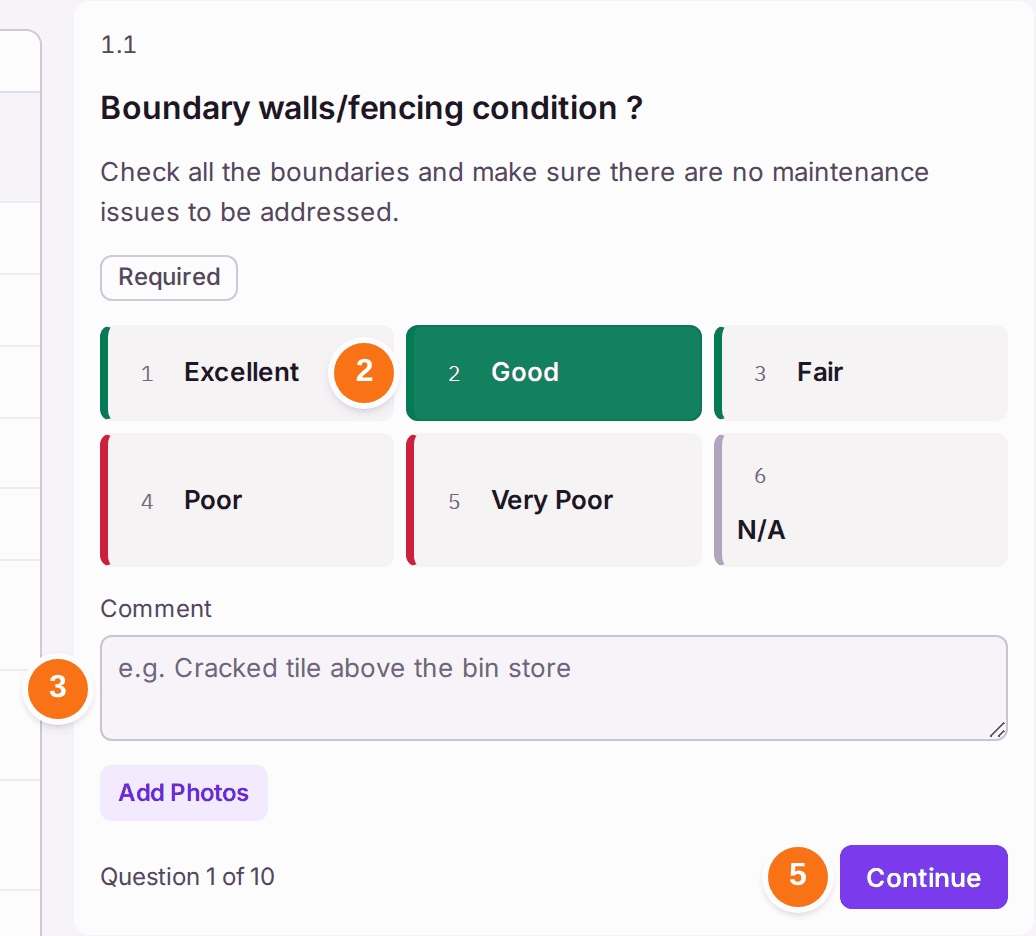
- Choose the answer. Good answers are marked green, poor ones red. You can also press the number shown on each answer.
- Add a Comment if it helps. Some questions require one.
- Press Add Photos to attach photographs. Some questions require a photograph.
- Press Continue for the next question. At the end of a section, press View Next Section.
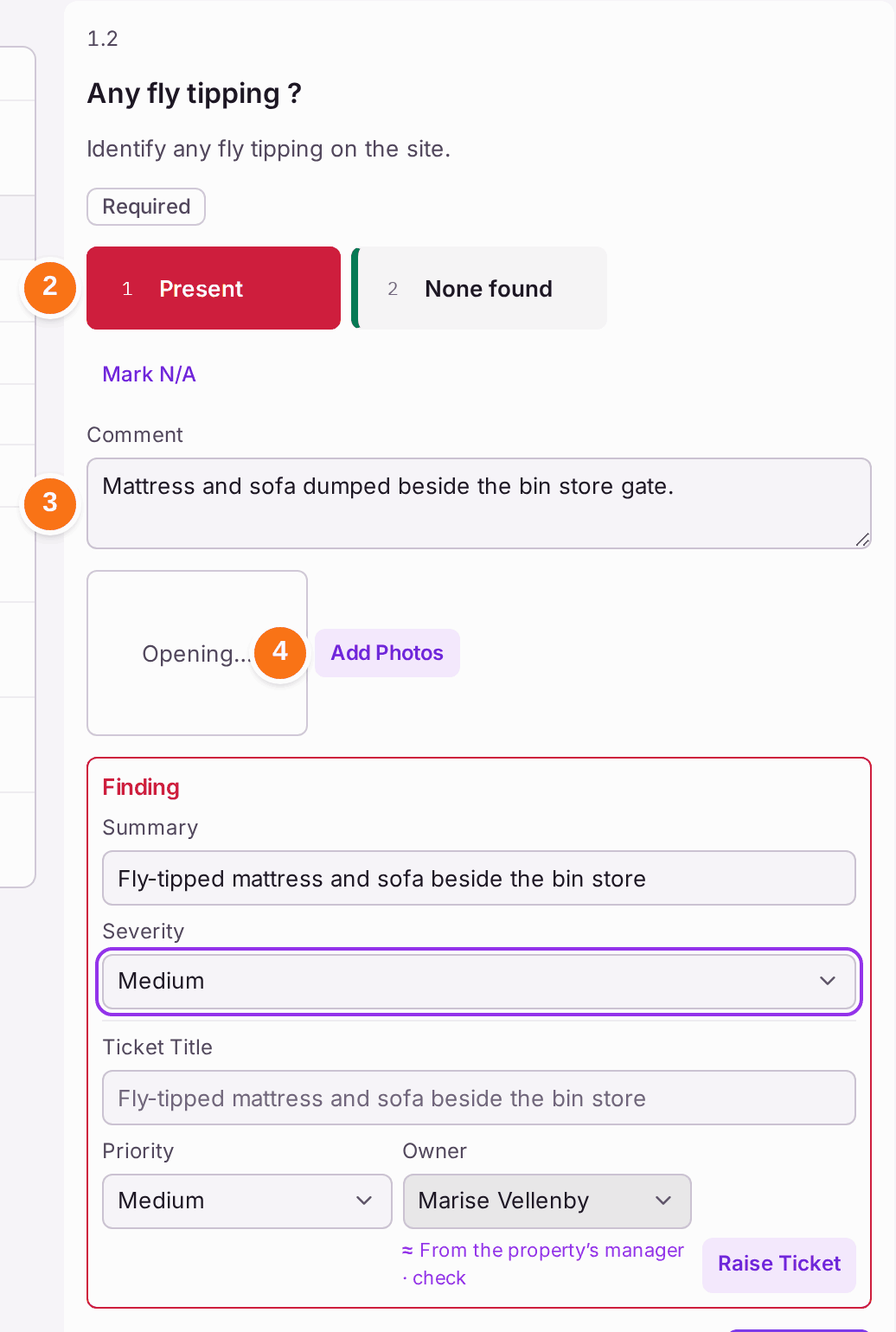
If a question does not apply, press Mark N/A and choose or type the reason.
A poor answer opens a Finding. Its Summary starts as your comment (marked "From the comment · check"), or the question's own words if you have not commented: change it to say what is wrong, and choose its Severity (Emergency, Urgent, High, Medium or Low). To raise a repair from it, see Raising a repair from something found on an inspection. Anything worth noting that no question covers goes under Observations on the inspection, with Add Observation.
You'll know it worked when: each question in the list shows its answer, the section's count reads, for example, "10 of 10 answered", and the inspection shows how many are answered and its score.
If something's wrong:
- A question is marked Required and you cannot answer it. Press Mark N/A and give the reason, such as no access.
- Your answer has gone. Answers are saved as you give them. Reopen the section from the inspection to check.
- A photograph shows "Opening…". It is still uploading. Give it a moment before you leave the question.
- You are not sure what a question means. The line under its title explains what to check.