


Booking a contractor's visit for a duty
What you'll end up with: the date and the firm booked to carry out a check, recorded on the duty, so the register shows it is in hand rather than only overdue.
Before you start you need: a date agreed with the contractor. Arrange the visit with them first, by phone or email, or send the firm a work order straight from the duty (steps 5 to 7).
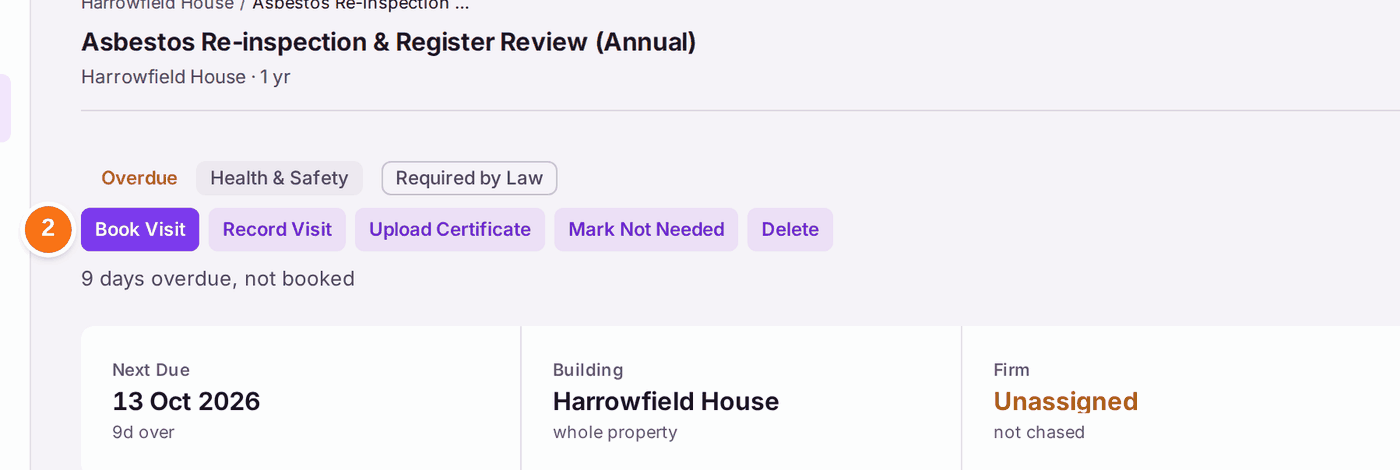
A duty that is due with nothing booked shows as Not Booked, and counts against the building. Recording the booking tells everyone looking at the register, including the directors, that it is arranged.
- Go to Compliance → Compliance Register and open the duty. You can also press the duty's row on the property's Compliance tab, or Book Visit on it, which opens the duty with the form ready.
- Press Book Visit, at the top of the duty.
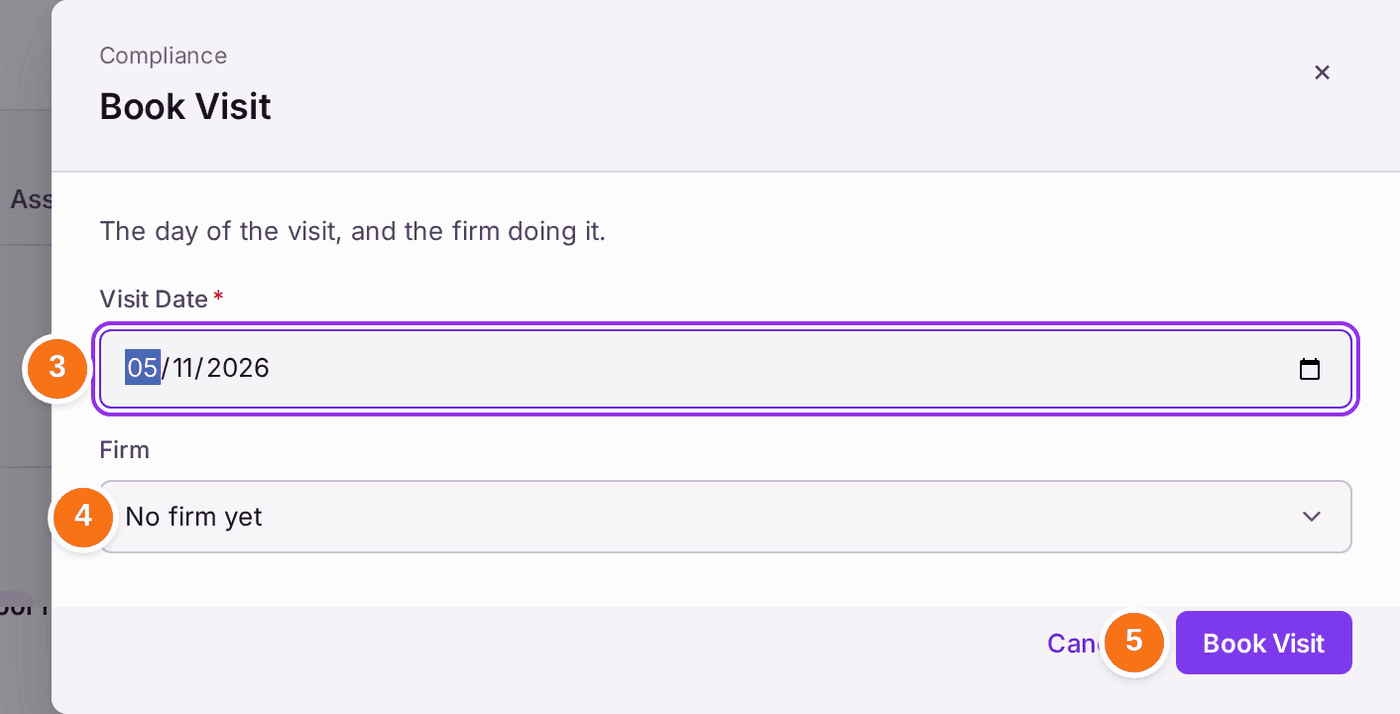
- Choose the Visit Date: the day the firm is booked to visit.
- Check the Firm. The duty's usual firm is chosen, marked "usual firm"; choose any other firm on your list instead.
- Press Book Visit. "Book Visit — recorded". The duty now names that firm.
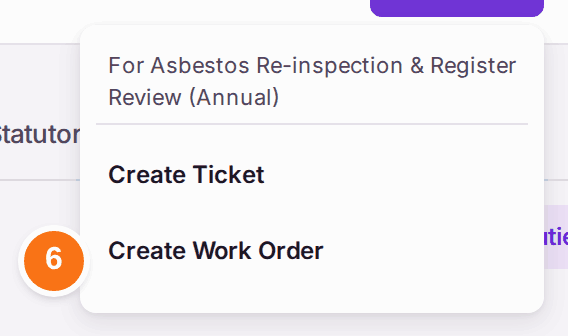
The firm sees the visit on their SynkroTech Trade page only through a work order. Under the duty's History, Sent to Firm reads No work order until one is sent: press Create Work Order beside it (steps 6 to 8).
Or send the firm a work order from the duty. One record, and one visit booked once.
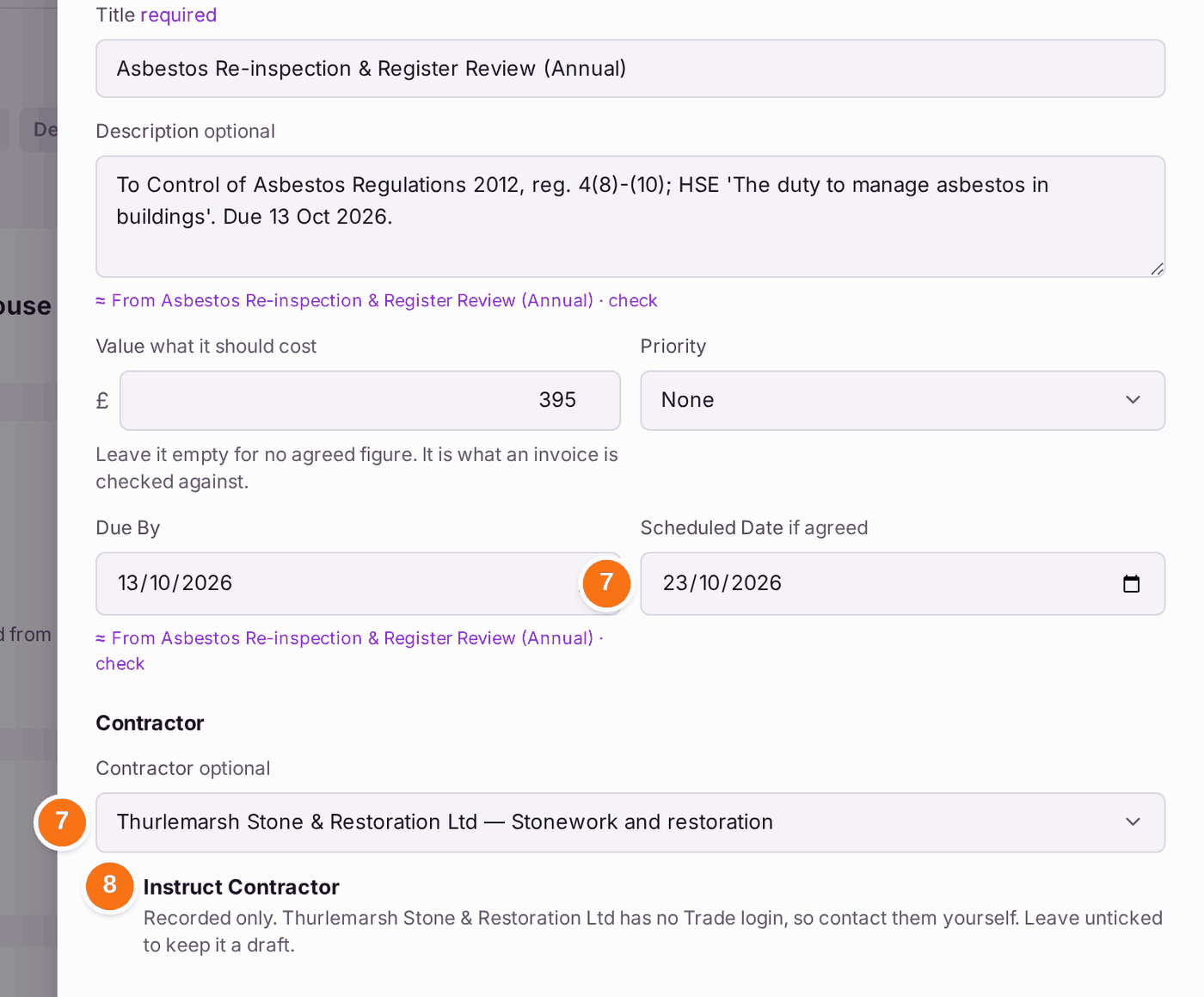
- On the duty, press Create, then Create Work Order. The panel is filled in from the duty: its property, its title, the firm already on the duty and its booked visit as the Scheduled Date. The Description (the standard and the due date) and Due By (the duty's due date, when it is sooner than the priority's) are filled in too, marked "From [duty] · check".
- Choose the Contractor, type the Value, and check the Scheduled Date.
- Tick Instruct Contractor and press Create and Instruct.
The duty follows the work order: its Contractor becomes the work order's firm (and changes with it if the job is moved to another firm), and the work order's booked day is the duty's visit. Book Visit on the duty books its work order too, and Book a Date on the work order books the duty, so the date is typed once. When the work order is completed, the engineer's attendance is recorded on the duty on that day, so Upload Certificate is accepted when the paper arrives.
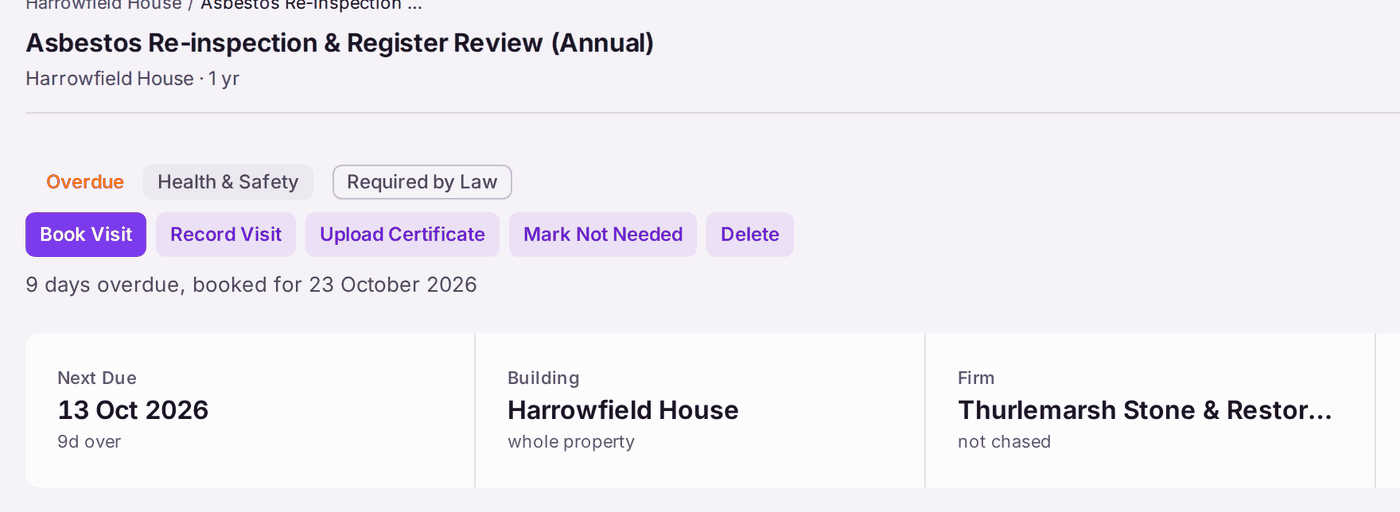
You'll know it worked when: the duty's status reads, for example, "9 days overdue, booked for 20 October 2026".
After the visit: press Record Visit when the firm has been (completing the duty's work order does this for you), and Upload Certificate when the certificate arrives (see Recording that a check was done (filing a certificate)). If it does not arrive, More → Send Reminder chases it.
If something's wrong:
- The duty still shows as overdue after booking. It is overdue until the certificate is recorded. The booking is shown beside it, so nobody needs to chase it in the meantime.
- The duty's Firm reads Unassigned. Choose the Firm when you book (step 4), or send the firm a work order from the duty (steps 6 to 8). It does not change while the duty is waiting on a certificate from the firm that attended.
- "WO-… is with [firm]. Book it with that firm, or move or cancel the work order first." The duty has a work order with another firm, and that work order is what the firm sees. Book with that firm, or move the work order to the new firm first.
- The firm is not in the list. A suspended or archived firm cannot be given the work. Reinstate it on the contractor's page, or choose another.
- The date moves. Press Book Visit again with the new date.