


Running a Section 20 consultation for major works
What you'll end up with: a major works project with each leaseholder's share worked out from their lease, the three statutory notices served in order (the Notice of Intention, the Statement of Estimates and the Notice of Award), each with its observation period honoured and recorded, and then each leaseholder's contribution demanded.
Before you start you need:
- The property's leaseholders and their shares (see Setting each unit's share of the service charge (apportionment)). The test of whether consultation is needed is worked out from them.
- An estimate of the cost.
- Later, at least two estimates from contractors (see Getting quotes and choosing one).
The law (section 20 of the Landlord and Tenant Act 1985) says that if any one leaseholder's share of a job is more than £250, they must be consulted first, in three stages, each with time to comment. Skip a stage, or cut a period short, and you can recover no more than £250 from each leaseholder; the rest falls on the landlord. SynkroTech works out the shares, refuses a stage out of order, and refuses to close a period early.
- Go to Work → Major Works & s.20.
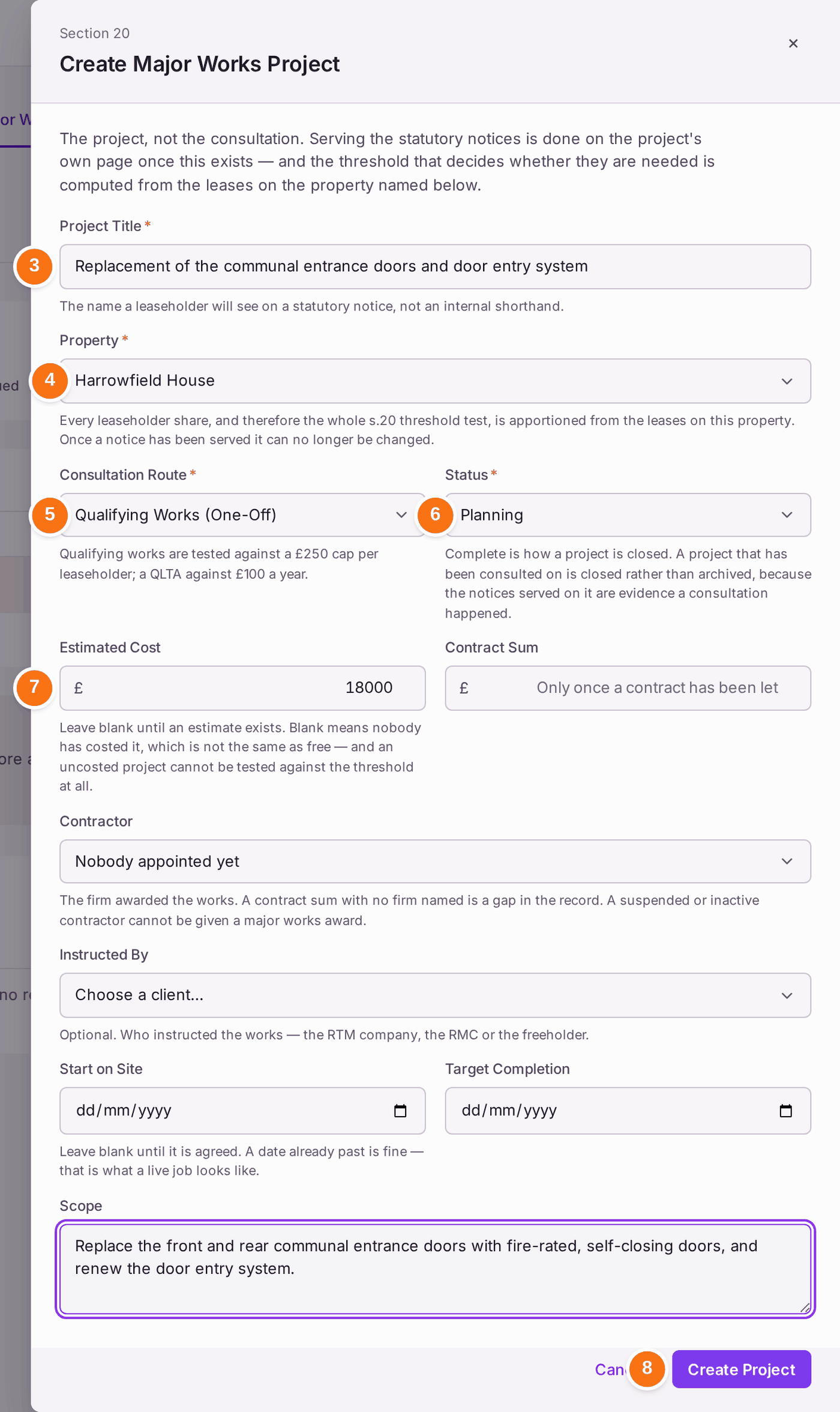
- Press Create Project.
- Type the Project Title. Leaseholders see it on the notices, so write it in plain words.
- Choose the Property.
- Choose the Consultation Route: Qualifying Works (One-Off) for a job, or Long-Term Agreement (QLTA) for a contract of more than a year.
- Choose the Status: Planning while you consult.
- Type the Estimated Cost, and the Scope of the works.
- Press Create Project. The message says whether consultation is required, and why: "the highest leaseholder contribution is £3,097.80, above the £250.00 threshold".
- On the project's page, under Section 20 Consultation, press Serve Notice on the Notice of Intention.
- Leave Write it here chosen. Choose Record service that already happened if you sent the notice outside SynkroTech.
- Press Use Starter Wording.
- Check the wording against the regulations and replace every "[To complete: …]" marker. The address for observations is already your office's address from Organisation Details; on the Statement of Estimates, so is the place the estimates may be inspected, and only the hours are left to type. Then tick Checked against the regulations; every [To complete: …] marker replaced. The notice will not serve while a marker is left in.
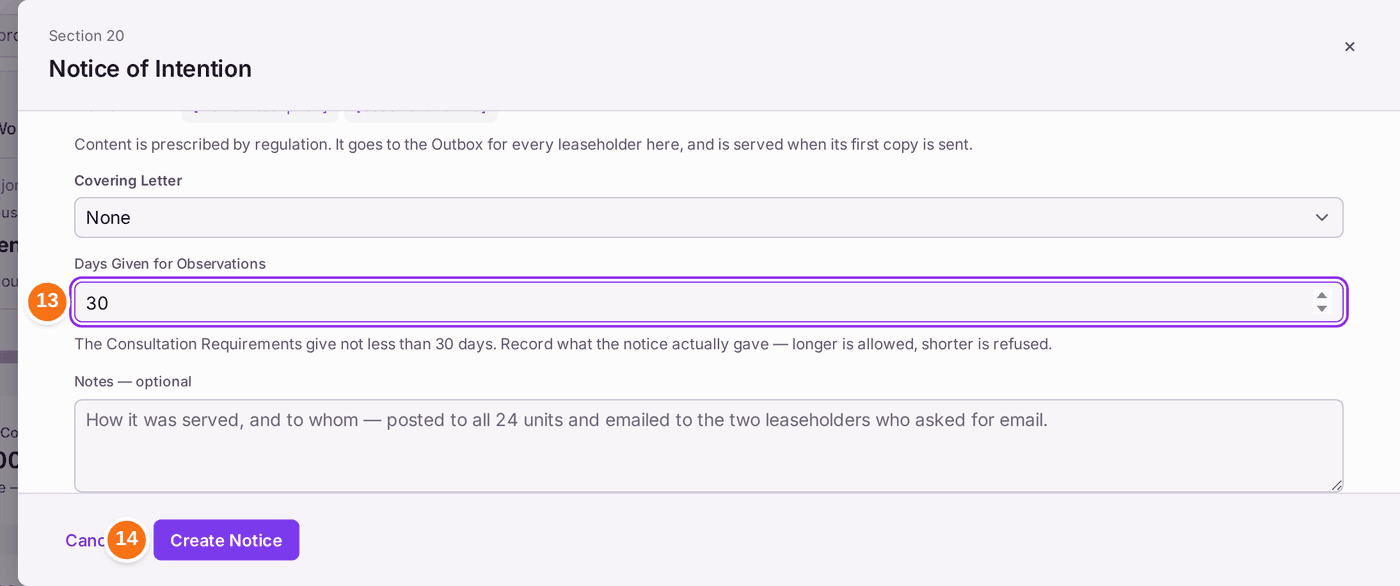
- Check Days Given for Observations: at least 30. To send a covering letter with the notice, choose it under Covering Letter, such as Section 20 notice of intention — covering letter. It is printed on its own page before the notice in each posted copy, with the works, the landlord and the last day for observations filled in; the notice is unchanged.
- Press Create Notice. A copy for every leaseholder goes to the Outbox as a draft, and its Check and Send opens. Back on the project, the stage reads In the Outbox with the mailing's reference, still Not Served.
- Send the mailing from Comms → Outbox. Email copies go when a mailbox is connected; letters are printed and posted by hand. The stage is served on the day its first copy is sent, and a notice released on a later day than it was written is dated the day it is released. A notice is served on each leaseholder when their copy is sent.
- While the period runs, record each leaseholder's comment with Record Observation, and any contractor they nominate with Record Nomination. Choose who it is From (and who Nominated By) from the property's leaseholders, listed by flat, and the Nominee from your contractors; choose Other… to type anyone else. A choice from a list is recorded as that leaseholder or that contractor, with the name as shown.
- When the 30 days have passed, press Close Observation Period on the Notice of Intention. Observations Received starts at the number recorded against the notice; add any received and not recorded. Until then, Activity counts them ("1 observation recorded so far").
- Get at least two estimates, then serve the Statement of Estimates the same way (steps 9 to 15), and close its period after 30 days.
- Choose the contractor, press Record Award, then serve the Notice of Award if the award needs one (it does not when you chose the lowest estimate or a leaseholder's nominee; the page says which).
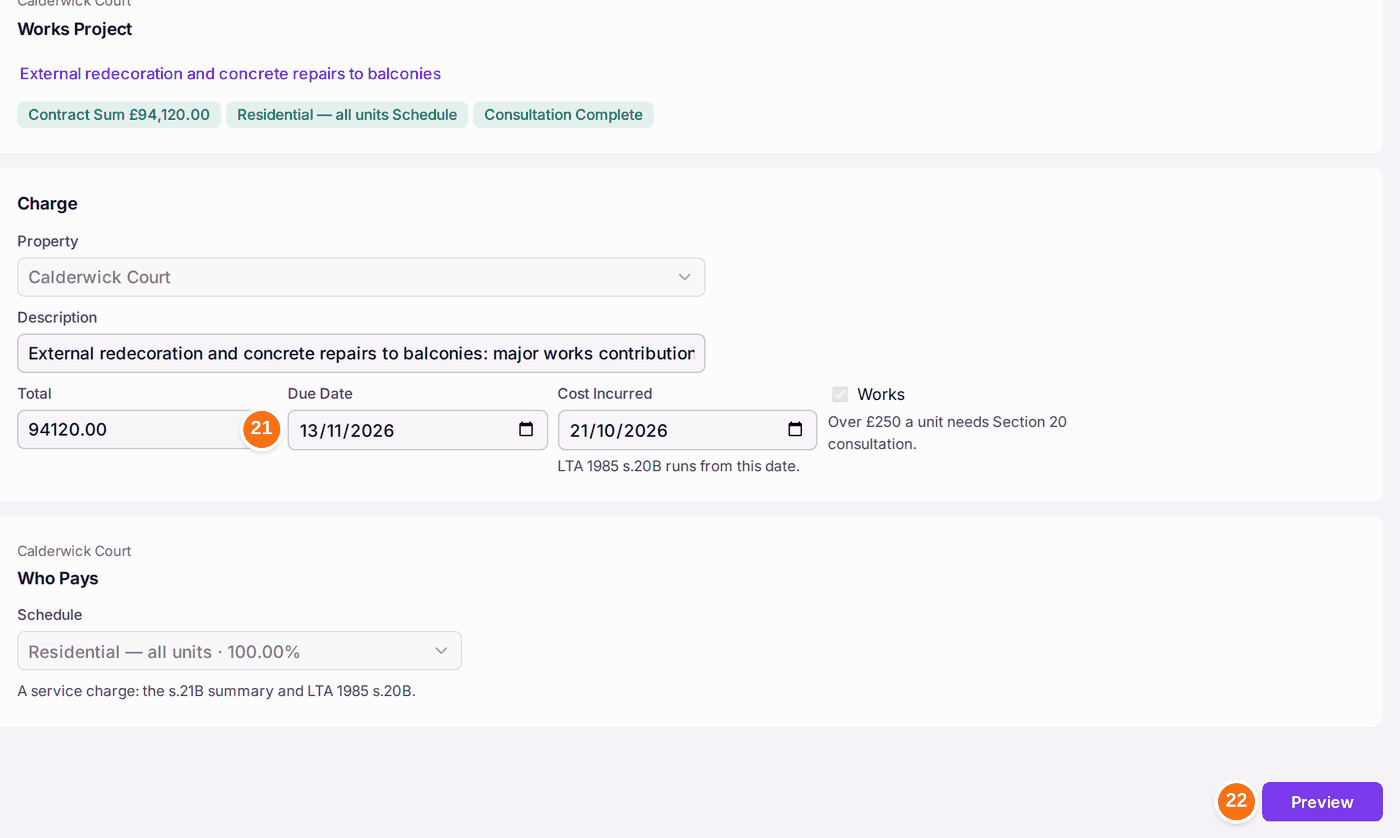
- When nothing is outstanding, press Raise Contributions at the top of the project's page. Once raised, the page reads Contributions Raised with the charge (for example "CH-0001 · £23,950.00 · 6 flats · 14 Oct 2026"), and Raise Contributions is no longer offered. Raise Further Contributions is offered only while what was raised is less than the project's figure. Raise a Charge opens with the project filled in: the property, the description, the contract sum as the total, and every unit paying its share of the schedule the works are charged to.
- Choose the Due Date, and check Cost Incurred (Section 20B runs from it).
- Press Preview. Each flat's contribution is listed, adding up to the contract sum.
- Press Issue 24 Demands (the number is how many flats pay). The demands carry the service charge summary of rights and wait in the Outbox; send the mailing from Comms → Outbox (see Raising a one-off charge (an administration charge, a recharge or a shared cost)).
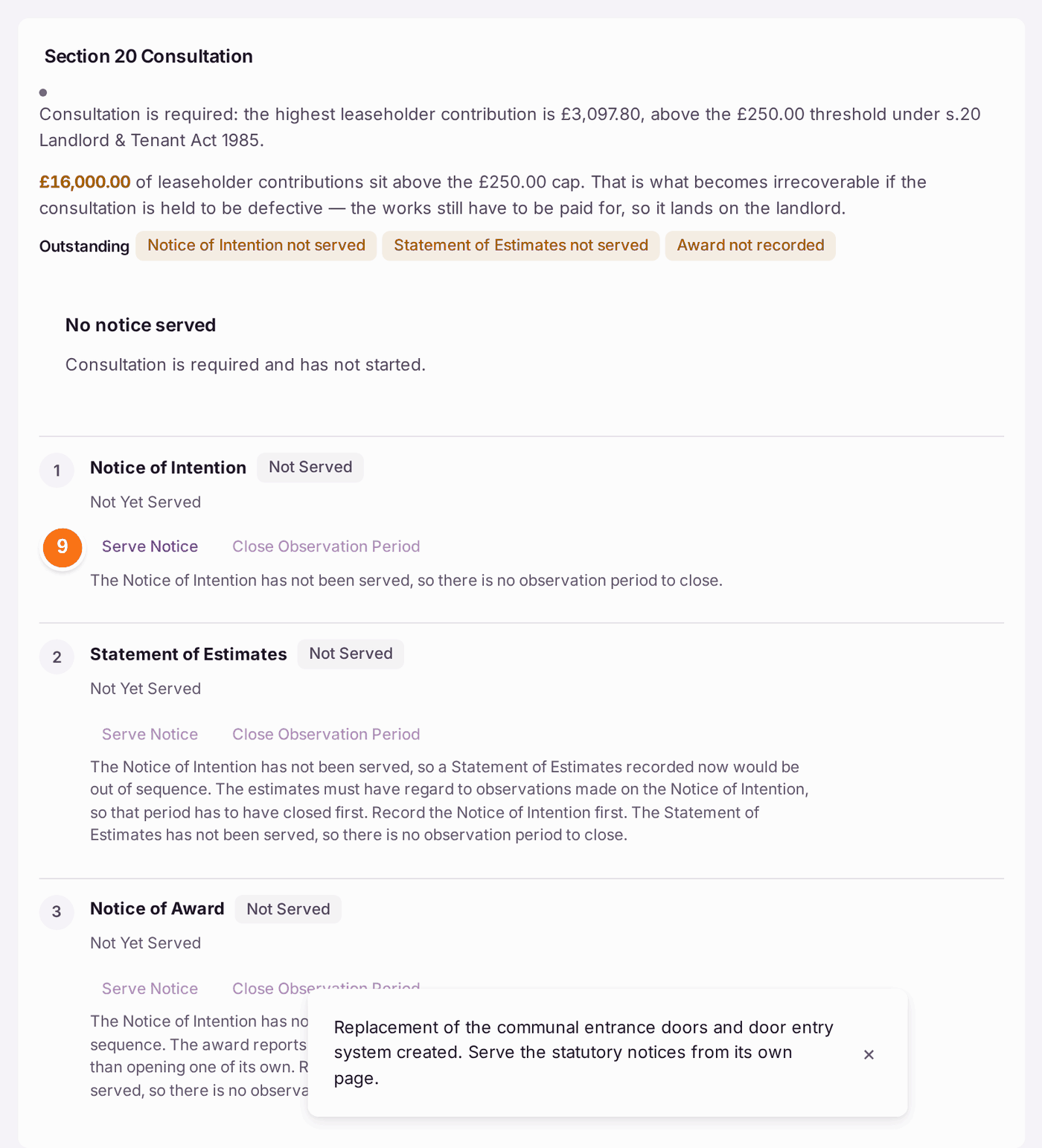
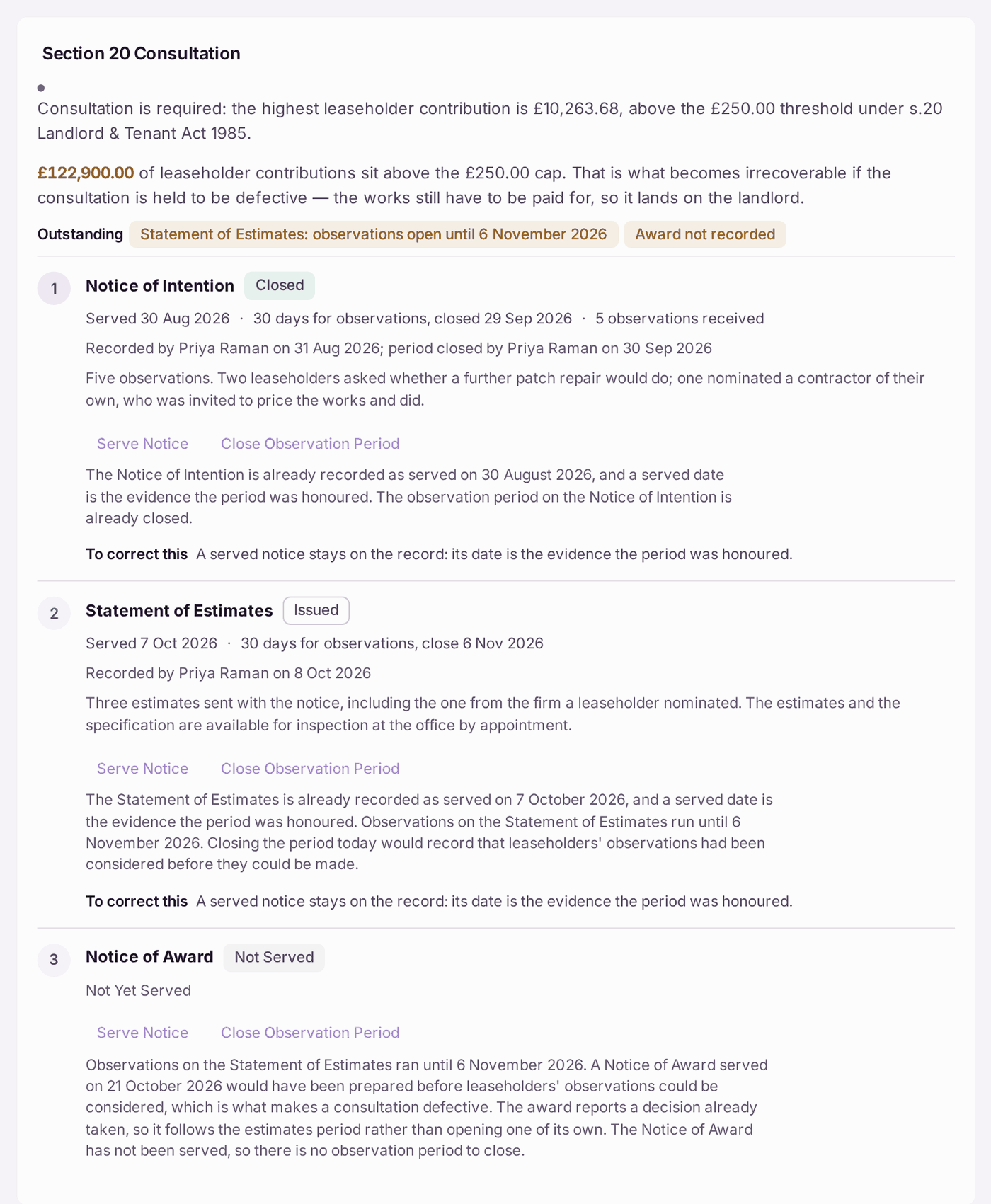


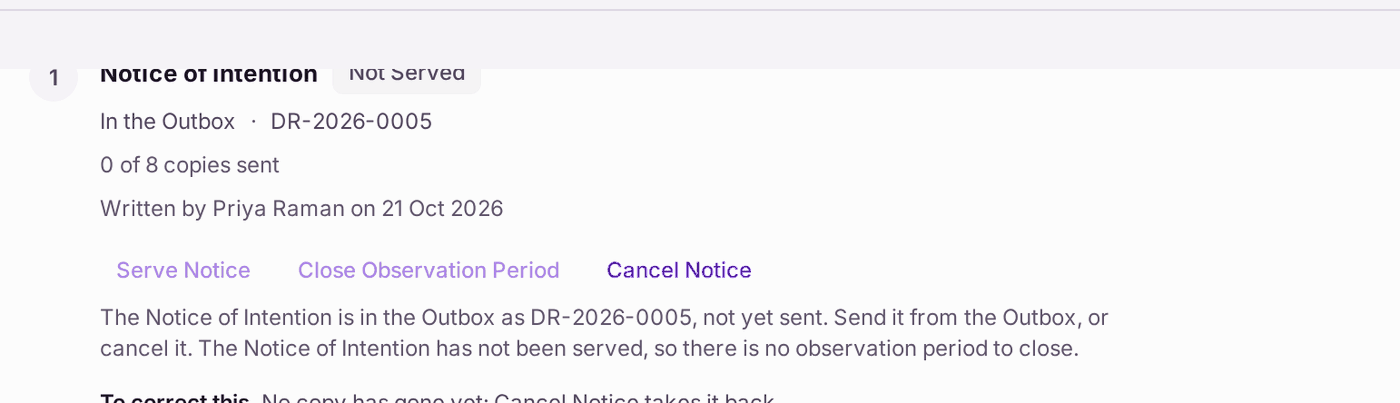
You'll know it worked when: before anything is sent, the Notice of Intention reads In the Outbox with the mailing's reference and Cancel Notice. Once its first copy is sent, it reads Issued, "Served 13 Oct 2026 · 30 days for observations, close 12 Nov 2026" (with your dates), with how many of the copies have been sent. At the end, Outstanding has gone and the contributions page shows the charge's reference, Issued, and the Outbox mailing the demands wait in.
If something's wrong:
"20 would make the consultation defective". Fewer than 30 days is refused. Record the period the notice actually gave, at least 30 days.
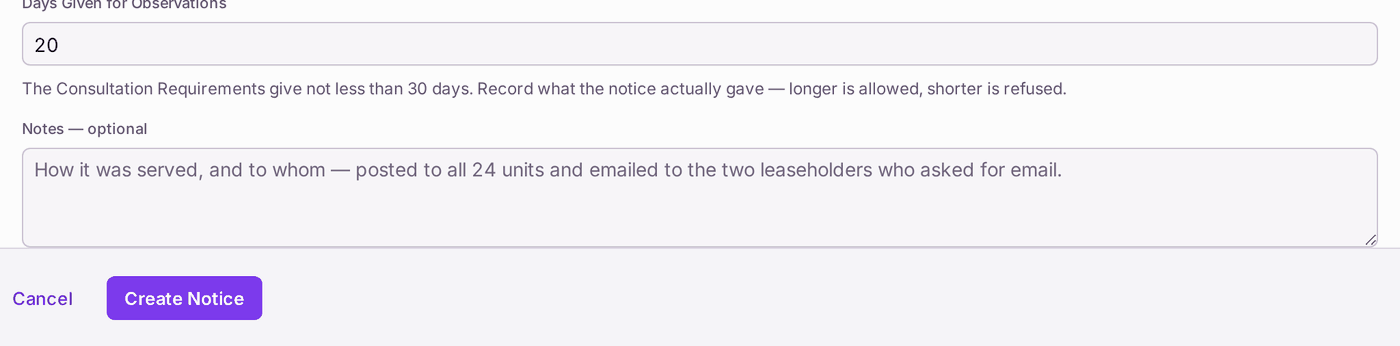
A longer period is allowed. - Create Notice stays grey. A "[To complete: …]" marker is still in the wording, or the box confirming you checked it is not ticked.
- The notice is wrong, and no copy has gone. Press Cancel Notice on the stage and give a reason, or delete the draft in the Outbox. The stage reads Not Served again, and the reason is kept on the project's record. Once a copy has been sent, the notice stays on the record.
- The next stage cannot be served. Each stage says why: the last notice is still in the Outbox, its copies have not all been sent, or its observation period has not closed. Send the copies from the Outbox, and wait for the period to end.
- Close Observation Period is refused. "Closing the period today would record that leaseholders' observations had been considered before they could be made." Wait until the date shown.
- A leaseholder has no usable address. The Outbox lists them under Leaseholders Without a Usable Address. Nothing is served on them until an address is traced, and the consultation is not complete without them.
- The tribunal gave dispensation. Press Record Dispensation and note it. It does not lift any stage on the screen; what was dispensed with is in the tribunal's decision.
- The estimate changes. Press Edit Project. Once a notice has been served, the property can no longer be changed.
Raise Contributions is greyed. The line beside it says what is outstanding, for example "The Section 20 consultation has not concluded. Outstanding: Statement of Estimates: observations open until 30 October 2026; Award not recorded." The same list is under Outstanding in Section 20 Consultation. Do those things first. If no leaseholder's share is over £250, no consultation is needed and the button works at once.

A project part way through. - The contributions were raised from Raise a Charge instead. Works over £250 a unit are refused there, with a link: Raise Contributions when the total you typed is the project's contract sum, otherwise Works Projects for the property. Raise them from the project.
- You raise them a second time. The preview says what was raised before ("CH-0003 already raised £94,120.00 of these contributions on 14 Oct 2026"). Check before issuing.