


Starting the day from My Work
What you'll end up with: the work that needs you today, each item with why it matters, who holds it and the one press that moves it on, and nothing late that nobody has looked at.
Before you start you need: nothing. My Work reads the records already on SynkroTech: tickets, work orders, quotes, inspections, duties, client requests, calls, supplier invoices, receipts, bank statements, arrears cases, proposed chases, and what an automatic send or check left undone.
A repair past its date, an invoice past its due day or a certificate about to lapse costs money or puts people at risk when nobody picks it up. My Work puts each one in front of the person who holds it, first thing.
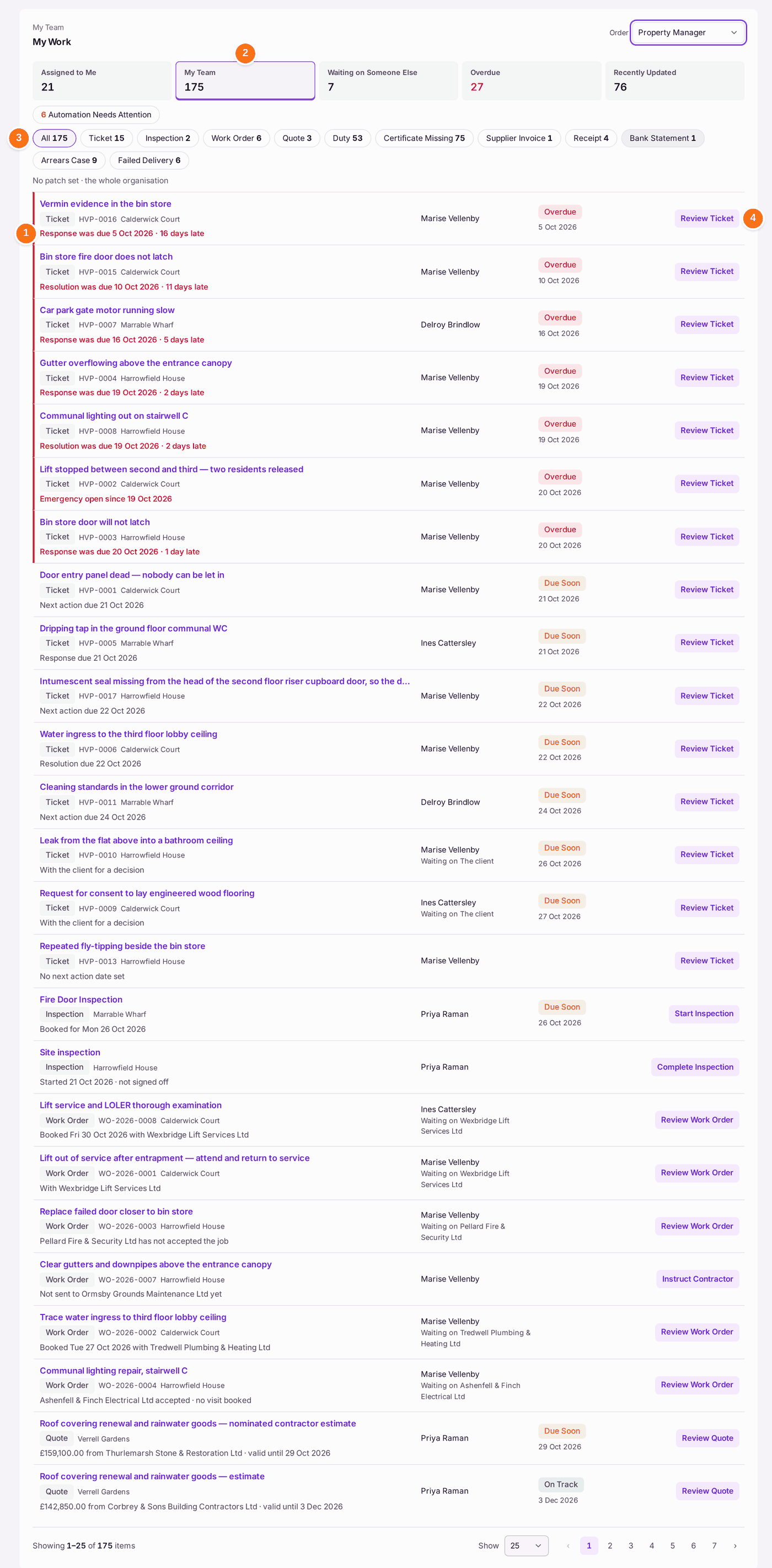
- Open Home. My Work is at the top. Each item says what it is, why it matters (for example "£4,210.00 of costs pass the 18-month limit on 3 Nov 2026"), who holds it (a name, or Unassigned) and when it is due.
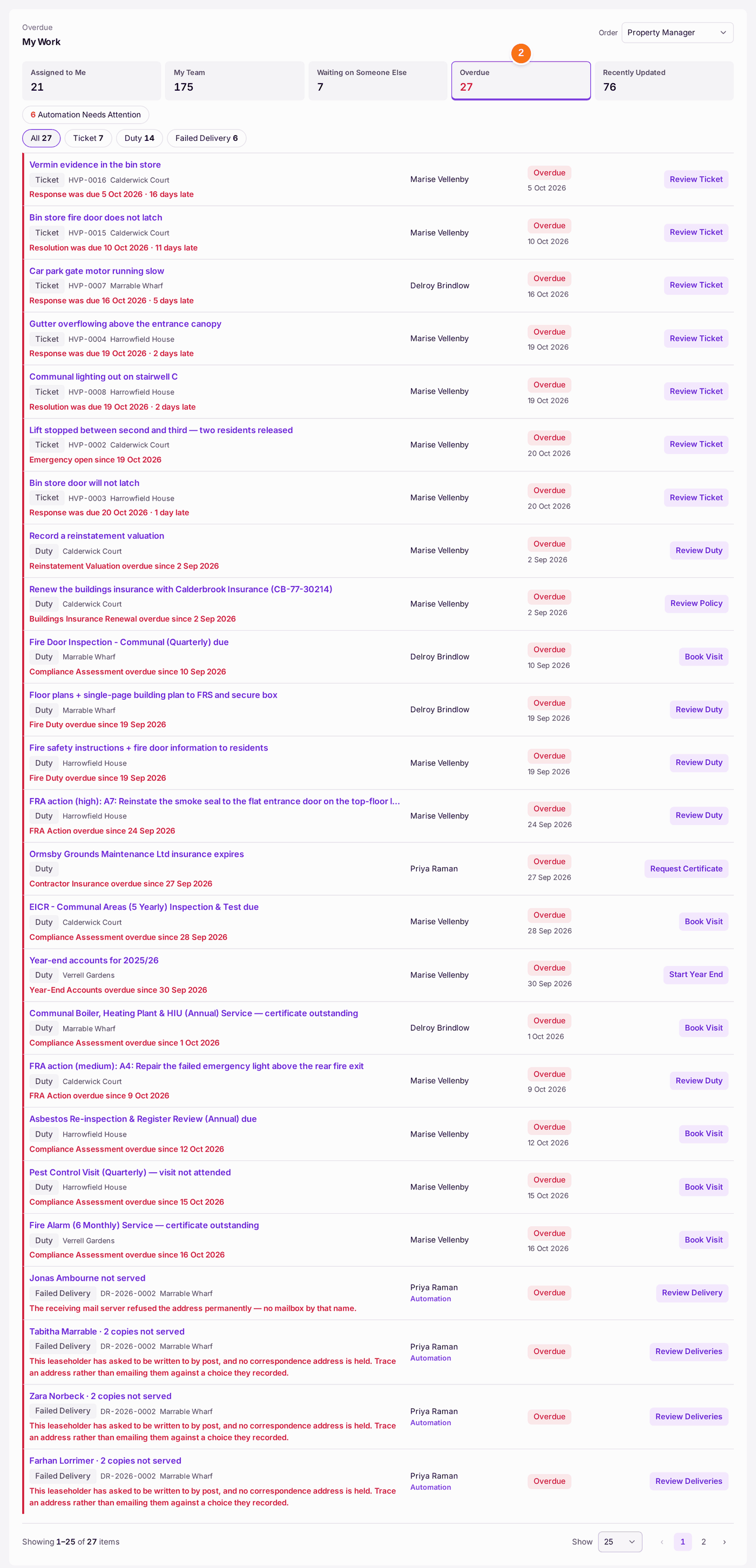
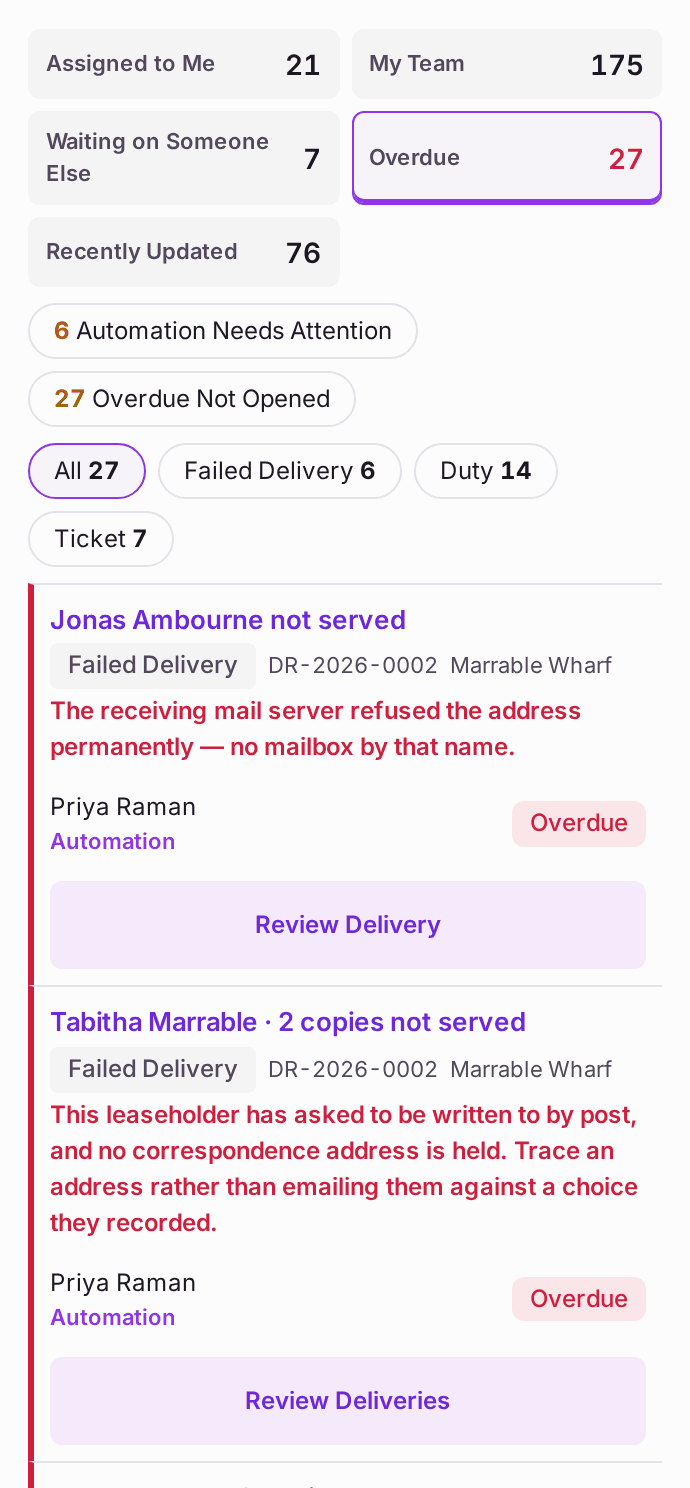
- Choose a view. Assigned to Me is yours. My Team is the work on your patch, whoever holds it, and the work of anyone who reports to you. Waiting on Someone Else is work where the next step is a firm's, a client's, a supplier's or a colleague's. Overdue is everything past its date. Recently Updated is what changed in the last 7 days. Each count is a button: press it to see the list it counted.
- Press a kind (Ticket, Supplier Invoice, …) to see only those.
- Press the button on the right of an item (Approve Invoice, Review Ticket, Match Receipt, …) to do the next step. It opens the record with that step in view. Press the item's title to open the record itself.
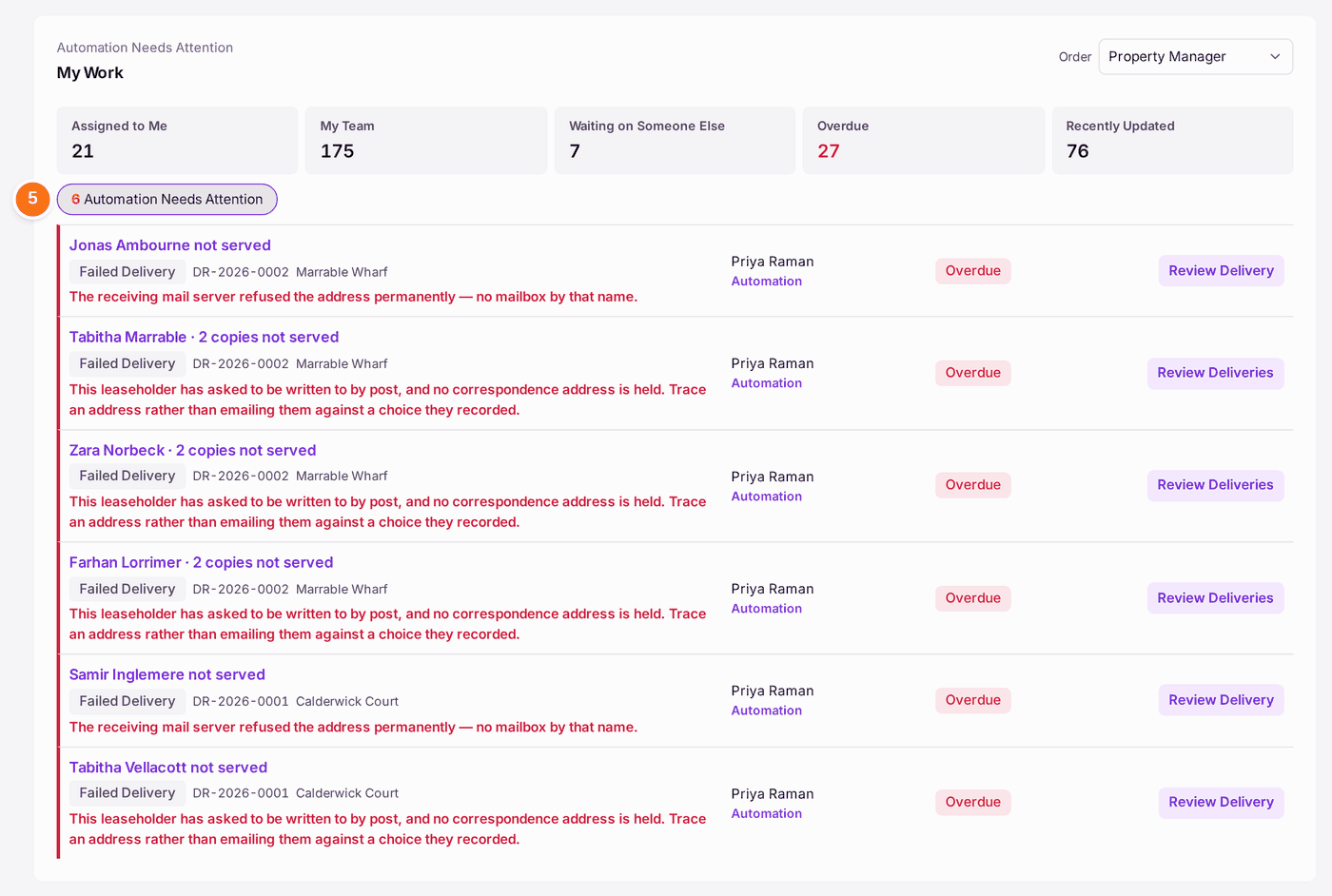
- Press Automation Needs Attention to see what an automatic send or check could not do: letters or emails that failed, a chase that was not sent, a connection that needs signing in again, a bank or Xero pass that failed. Failed letters are one line per person in each run, for example "Tabitha Marrable · 2 copies not served", with each reason given once. Review Deliveries opens the Outbox on that run with only that person's failed copies listed. These items say Automation under the name of the colleague who holds them: whoever made the run.
- If the run's maker cannot change leaseholders' records and a letter failed because no address is held, the item also reads Waiting on A colleague who can edit leaseholders. Press Ask in the Outbox to send the request to a colleague. The item then names them and leaves your Assigned to Me, staying under Waiting on Someone Else. When the address is set, it comes back to you to retry.
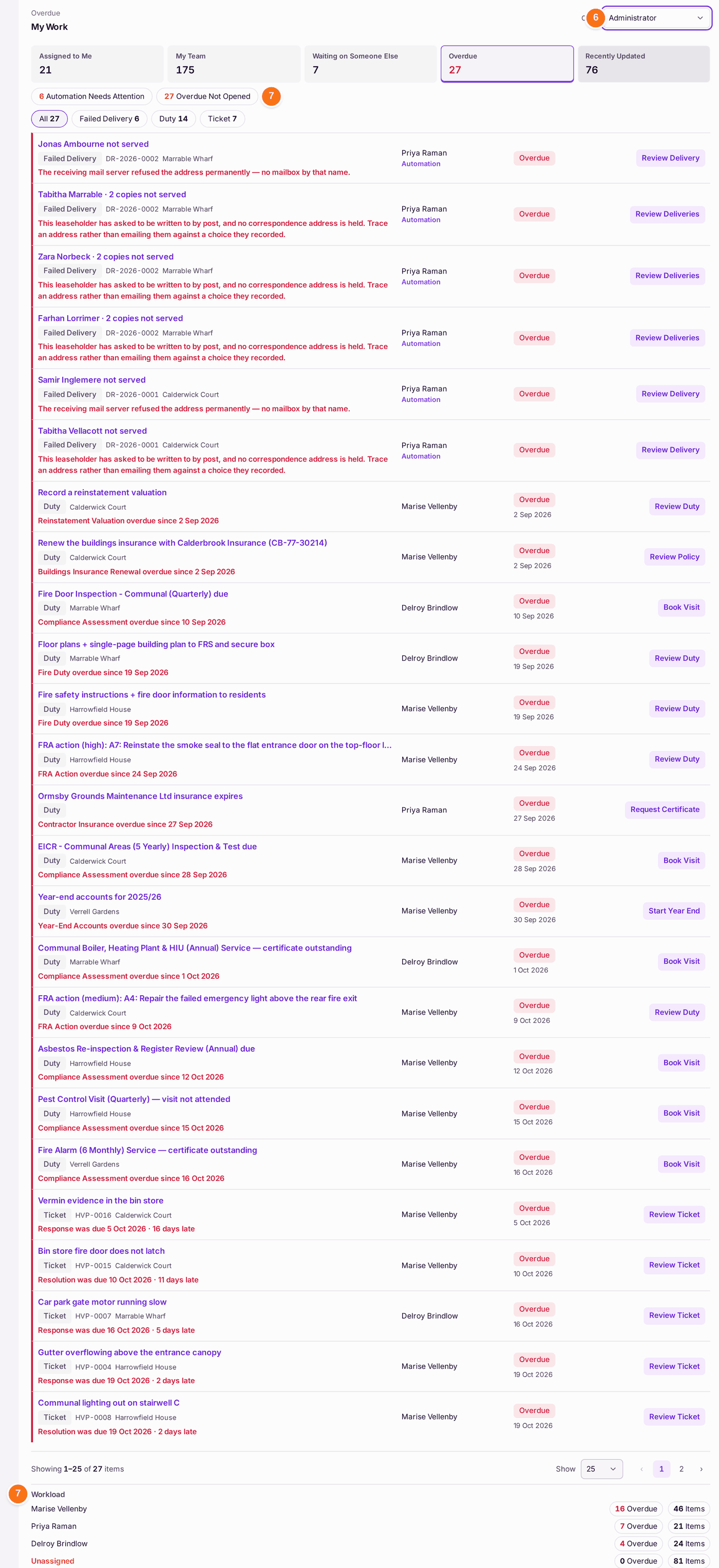
- Order puts your kind of work first: Finance leads with invoices and the bank, Property Manager with repairs, inspections and residents, Administrator with access requests and failed jobs. It starts from what you are allowed to do; change it if your work is different.
- With Administrator order, Overdue Not Opened counts the overdue items nobody has opened from My Work, and Workload shows who holds how much. Press a figure to see the items behind it.
You'll know it worked when: Overdue is empty, or every overdue item has a name beside it and has been opened.
If something's wrong:
- A kind of work is missing. It is under Permission required at the foot of the card: your role cannot see that register. An administrator can change what you can see (see Deciding what each colleague can do).
- An item has no button on the right. You can see it but not do the next step. Press its title to open the record, and ask a colleague who can.
- An item reads Unassigned. Nobody holds it. Open it and assign it, or pick it up yourself.
- My Team shows the whole organisation. You have no patch. An administrator sets your patch on the team screen.
- A count and a list disagree. They cannot: each count is the length of the list it opens. If a number changes after you press it, the work changed in between; press Refresh.
- A page reads "Page didn't load". Something stopped it being drawn. Press Retry, which opens the page again. After SynkroTech is updated, the next page you open loads fresh on its own, so you do not need to refresh.