


Grouping properties into portfolios
What you'll end up with: your properties grouped under portfolio names (a portfolio is a group of properties, for example by manager, by client or by area), so registers and reports can be read one group at a time.
Before you start you need: your properties on the register, and the names of the groups you use. You do not need portfolios to start: an organisation that never groups its properties never sees the word.
- Press Settings, then Portfolios at the top of the page.
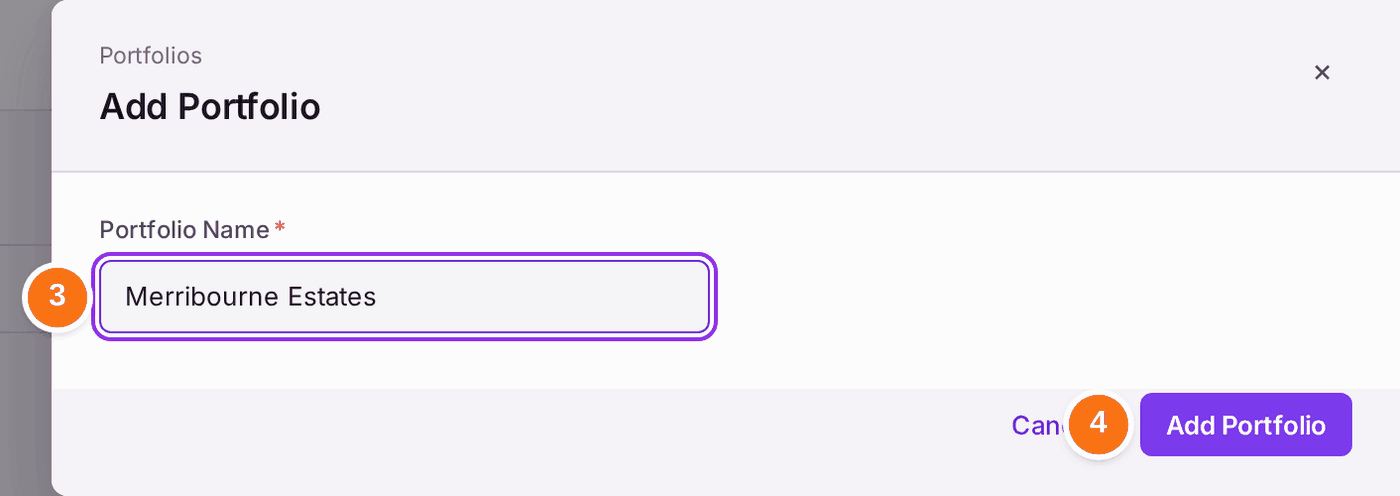
- Press Add Portfolio.
- Type its name in Portfolio Name, such as Merribourne Estates.
- Press Add Portfolio. A message says "Merribourne Estates added".
- Repeat steps 2 to 4 for each group.
- Open a property. Under its name and address, choose its portfolio in Portfolio. A message says "Portfolio set to Merribourne Estates".
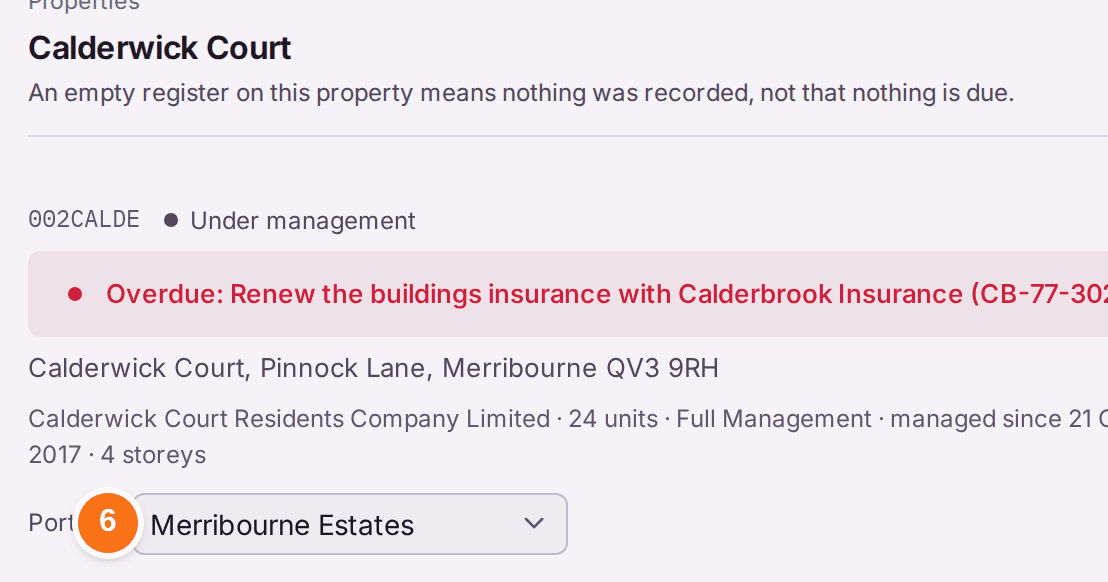
You'll know it worked when: Portfolios lists each group with its number of properties, and each property's page shows the portfolio it is in.

If something's wrong:
- "Portfolio Name is required." The name is empty. Type one, then press Add Portfolio again.
- There is no Portfolio choice on a property's page. The choice appears only once your organisation has at least two portfolios, because with one there is nothing to choose between. Add the second group first.
- A portfolio has the wrong name. Press Rename on its row. The properties in it stay in it.