


Setting next year's budget
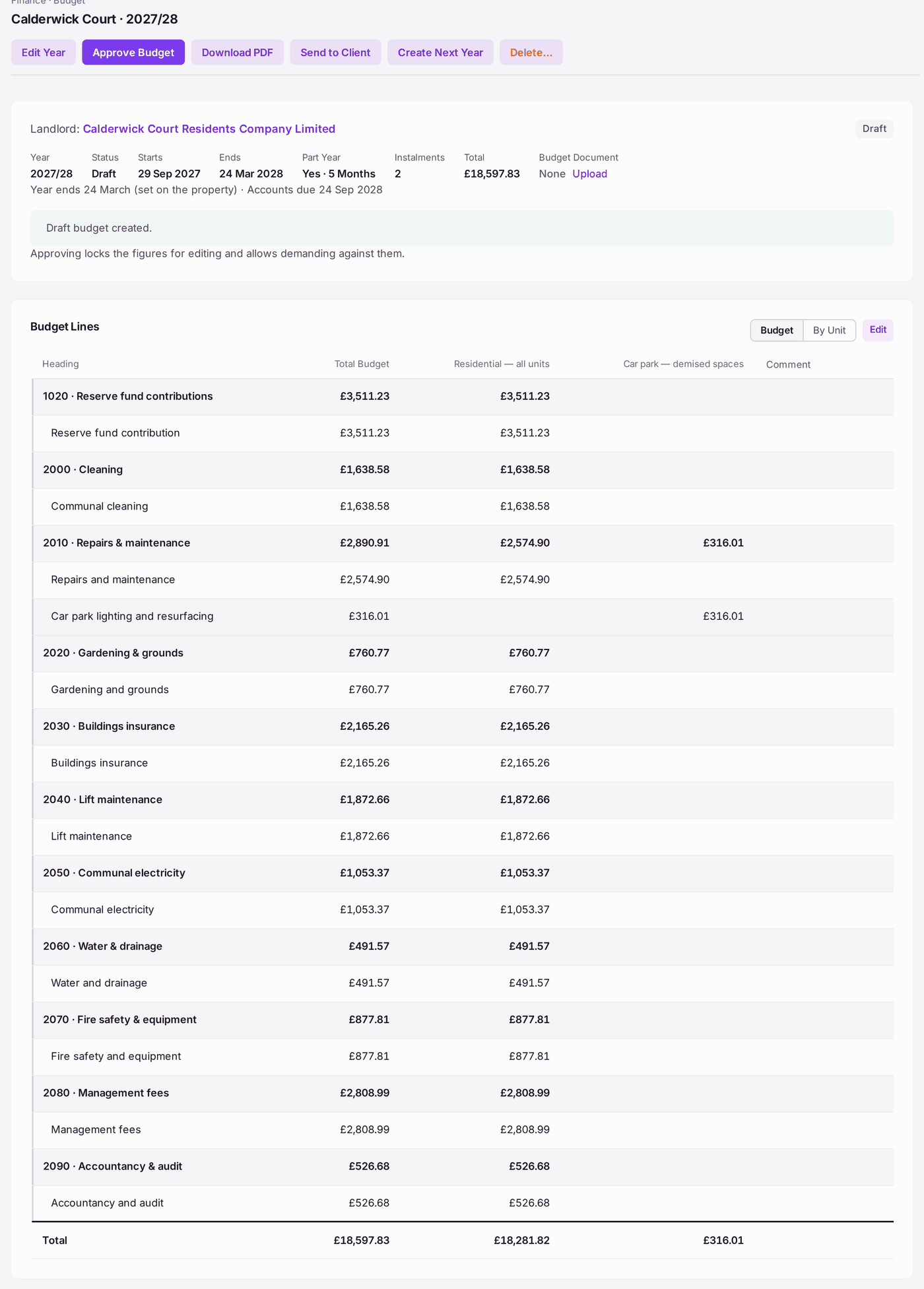
What you'll end up with: a draft service charge budget for the property's next year, its dates taken from the property's year end, each line with a cost head (its nominal account), the schedule that pays for it and the reason for its figure, ready for your client to agree.
Before you start you need:
- The property's year end set (see Setting a property's service charge year end). The budget's dates count from it.
- Its schedules adding up to 100% (see Setting each unit's share of the service charge (apportionment)).
- A client appointed to the property, because the budget names its landlord (see Adding a client and appointing yourselves to their property).
- This year's figures, and next year's estimates with the reason for each.
From this year's budget:
- Press Finance in the menu on the left, then Budgets & Apportionment.
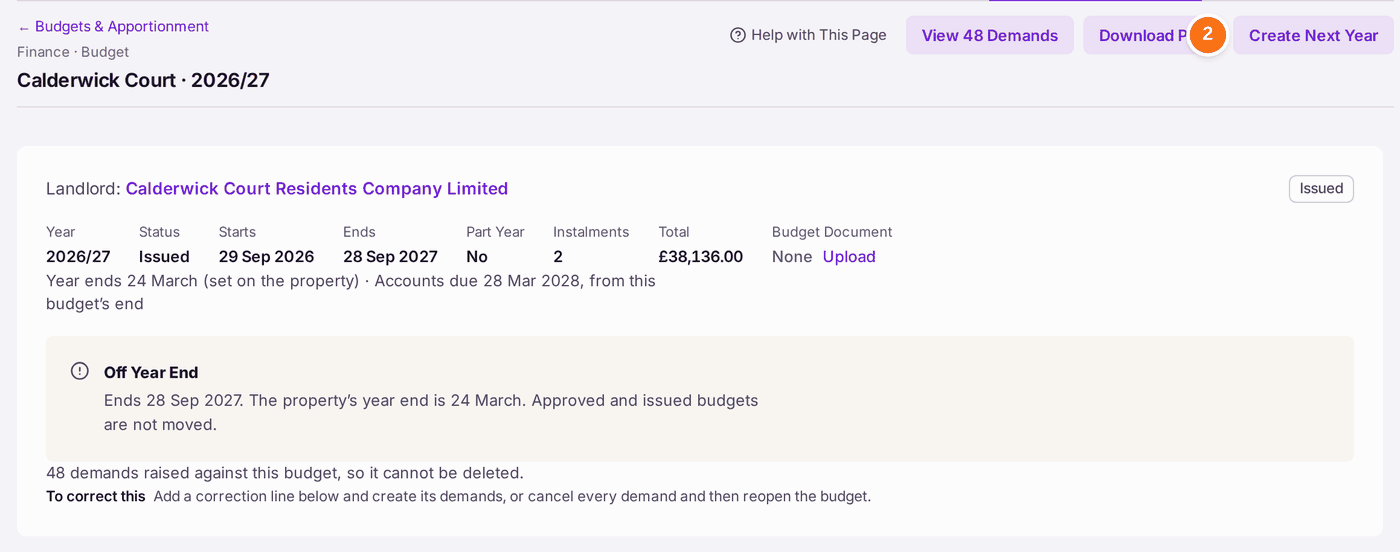
- Open this year's budget for the property.
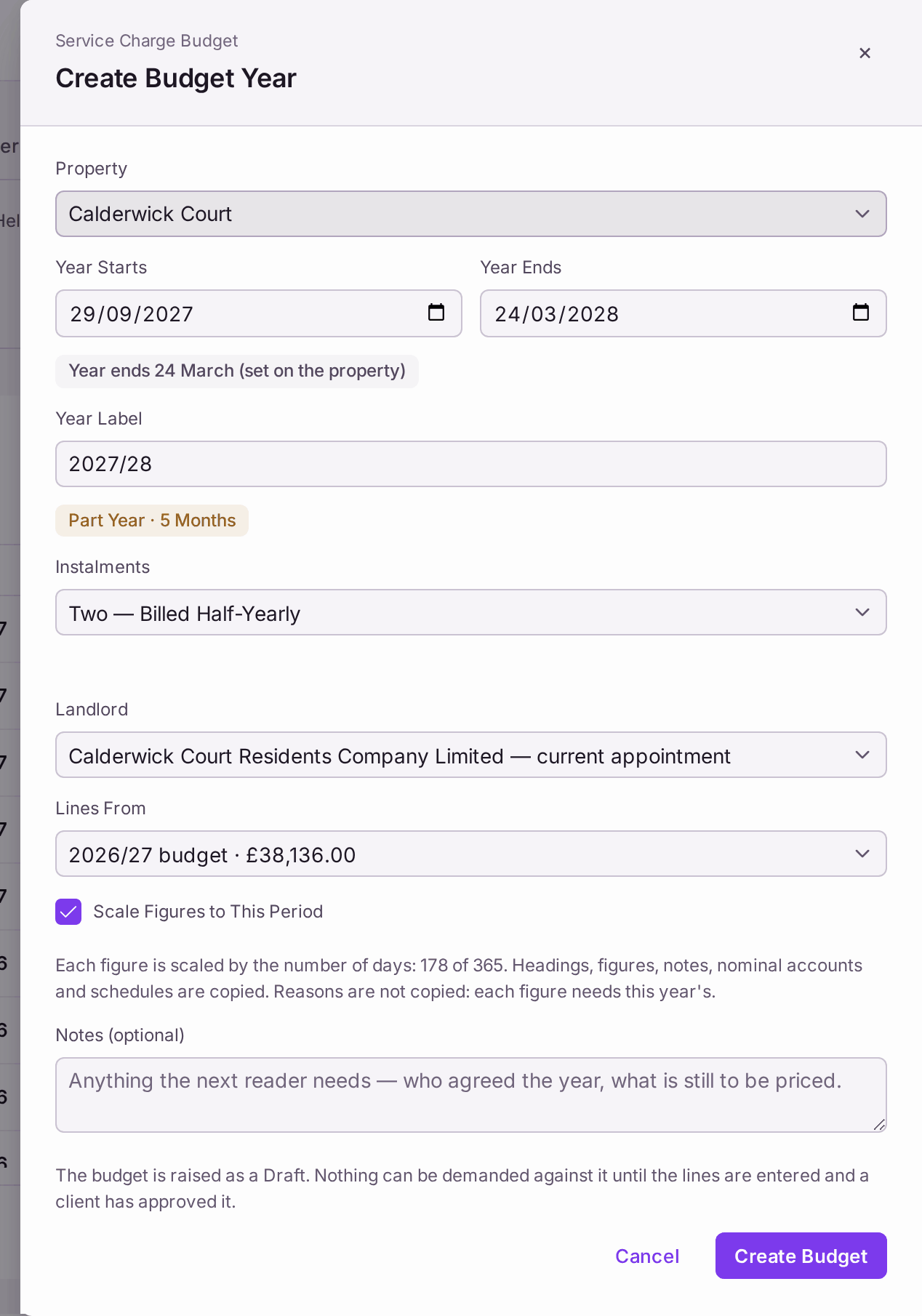
- Press Create Next Year. Create Budget Year opens with the dates filled in from the property's year end, and the line under Year Ends says so: "Year ends 24 March (set on the property)".
- Check Instalments: how many demands a year each leaseholder gets.
- Check Landlord. It is filled in when the property has one current appointment ("— current appointment").
- Choose this year's budget in Lines From to copy its lines, or None — an empty budget.
- Leave Scale Figures to This Period ticked if the new year is shorter or longer than the one you copy. The line under it gives the days, for example "178 of 365".
- Press Create Budget. The draft opens, saying "Draft budget created."
A property's first budget: press Create Budget on Budgets & Apportionment. Filtered to one property, the list opens it on that property. Year Starts is proposed from the year the property converted in (its Conversion Date and year end), marked "From Conversion Date · check": check it against the lease and the handover. Year Ends and Year Label follow it. For a property that already has a budget year, Year Starts is the day after that year ends.
Then the lines:
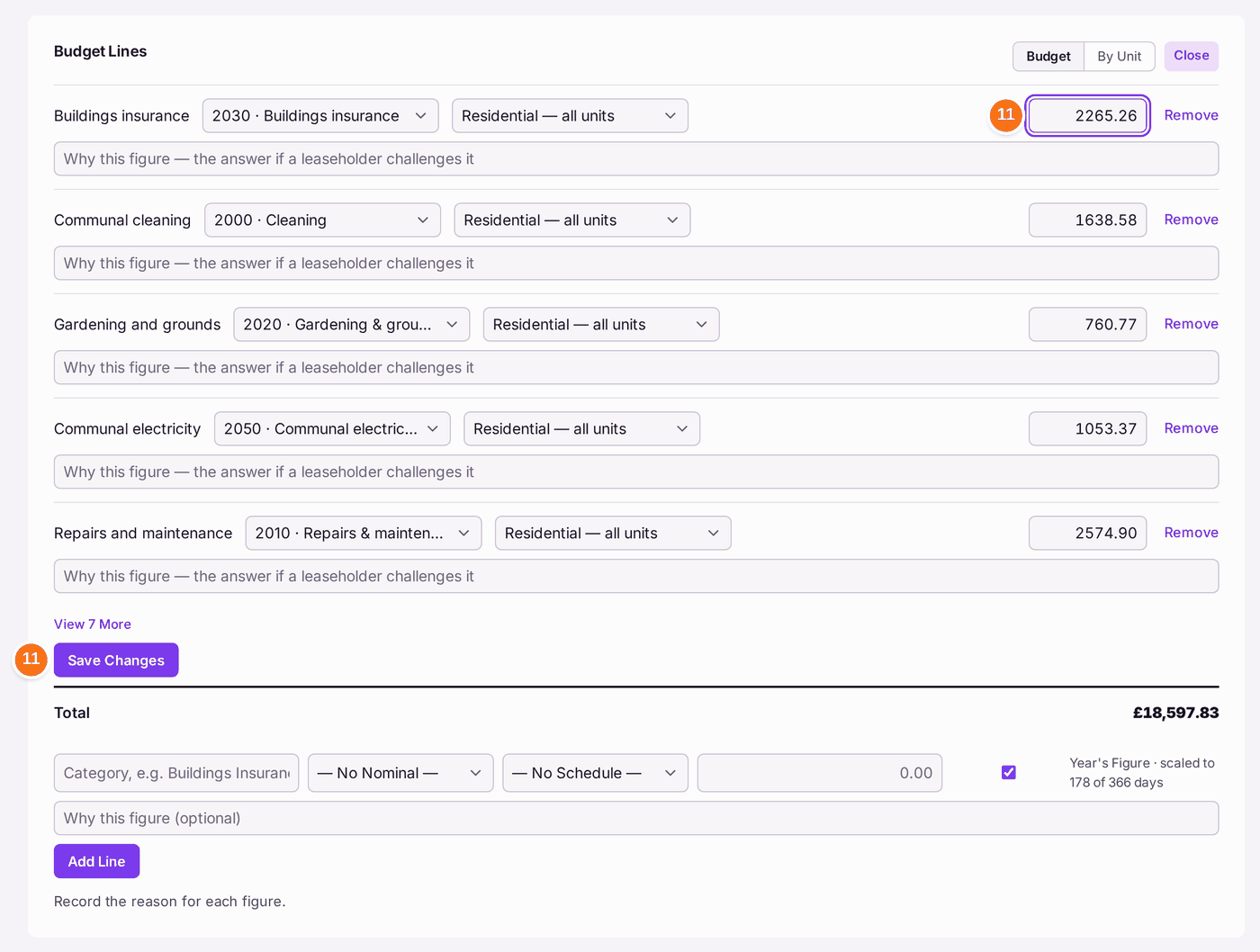
- Press Edit on Budget Lines.
- For each line, check the cost head and the schedule that pays for it, and type the reason in "Why this figure — the answer if a leaseholder challenges it".
- To change a figure, type over it in the line's amount box. The line keeps its cost head, its schedule and its reason. Press Save Changes under the lines to keep what you changed on every line; it reads "Changes saved". Leaving the page first asks "You have unsaved changes. Leave anyway?"
- To add a line, fill in the row at the bottom: the heading, the cost head, the schedule, the amount and the reason. Press Add Line. In a part year, Year's Figure is ticked: the amount you type is read as a whole year's and scaled to the period by the days, and the box shows what it comes to ("scaled to 178 of 365 days = £1,170.41"). Untick it if the figure you typed is already for this period.
- To take a line out, press Remove.
- Press Close to read the budget again.
Sending it to your client:
- Press Download PDF to print the budget or save it: the lines, and By Unit with each unit's share for the year, on your letterhead.
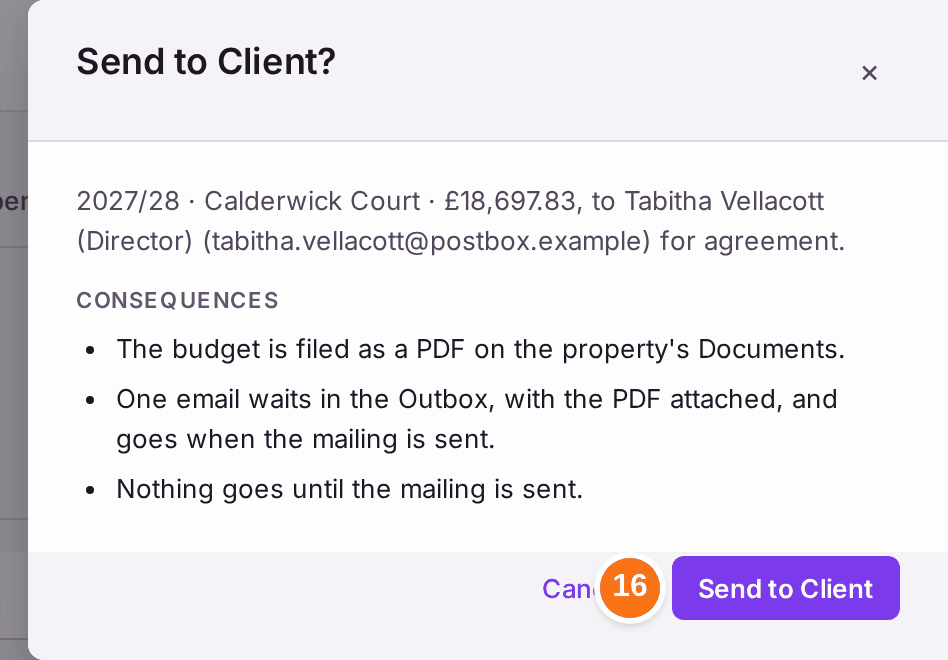
- Press Send to Client. Send to Client? names the client and their email. Press Send to Client again. The PDF is filed with the property's documents, and one email with it attached waits in the Outbox; it goes when the mailing is sent there. The line under the budget's header links to the run.
When the signed copy comes back, press Upload beside Budget Document to keep it. It is filed with the property's documents.
You'll know it worked when: the budget reads Draft, its Total is what you expect, the lines read as a table with a total per heading and a column per schedule, and Apportionment at the bottom says "Every schedule adds up to exactly 100.00%" with the total apportioned reading "reconciles". By Unit shows each leaseholder's share and figure.
If something's wrong:
- Create Budget stays greyed with "The year end must fall after the year start." The dates are the wrong way round. Correct Year Ends.
- The new year is a part year. The year before ended on a date that is not the property's year end, so the next year runs only to the year end. Keep Scale Figures to This Period ticked, or the copied figures are a whole year's charge for a part of one.
- A line's figure cannot be typed over. Demands were raised from it, so it is the record. Add a correction line instead (see Correcting or cancelling a wrong demand).
- "This property has no one current client to send the budget to." Appoint the client to the property (see Adding a client and appointing yourselves to their property), then press Send to Client again.
- The landlord is empty. No client is appointed to the property for this period, or more than one is. Appoint the client (see Adding a client and appointing yourselves to their property), then choose them in Landlord.
- A line has no schedule. It reads — No Schedule —. Choose the schedule that pays for it, or no demand can be created for that money.
- "Demand costs, or notify them in writing, within 18 months of being incurred." This line at the top of Budgets & Apportionment is the law (Section 20B). See Recording that leaseholders were told about costs inside the 18 months (s.20B notice).