


Removing or resetting someone's portal access
What you'll end up with: a person who should no longer see a property unable to sign in, or a person who is locked out given a new way in, with the change recorded in your name.
Before you start you need: the person on Portal Logins (see Giving a leaseholder, resident or director a portal login).
Access ends on its own when the reason for it ends: a tenancy's end date, a concierge's appointment. Use Revoke when it must end now, such as after a sale or a dispute.
- Go to Settings, then Portals & Access, then Portal Logins.
- Find the person. Add Filter narrows the list by property or status.
- Press View on their row.
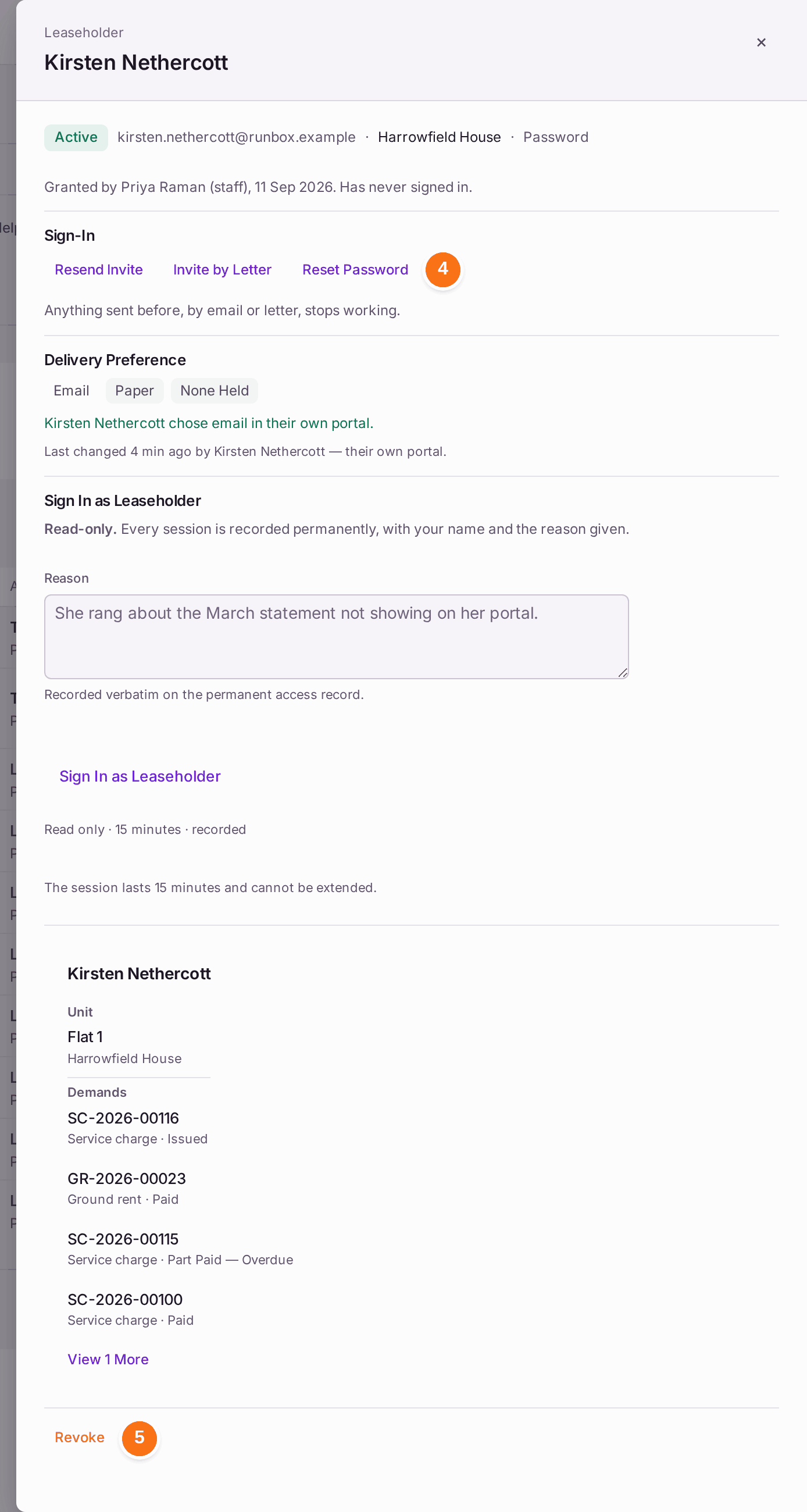
- To give them a new way in, press Reset Password. It acts at once, without a question.
- To end their access, press Revoke.
- Press Revoke Access in the question. It says "The login is suspended at once, not deleted."

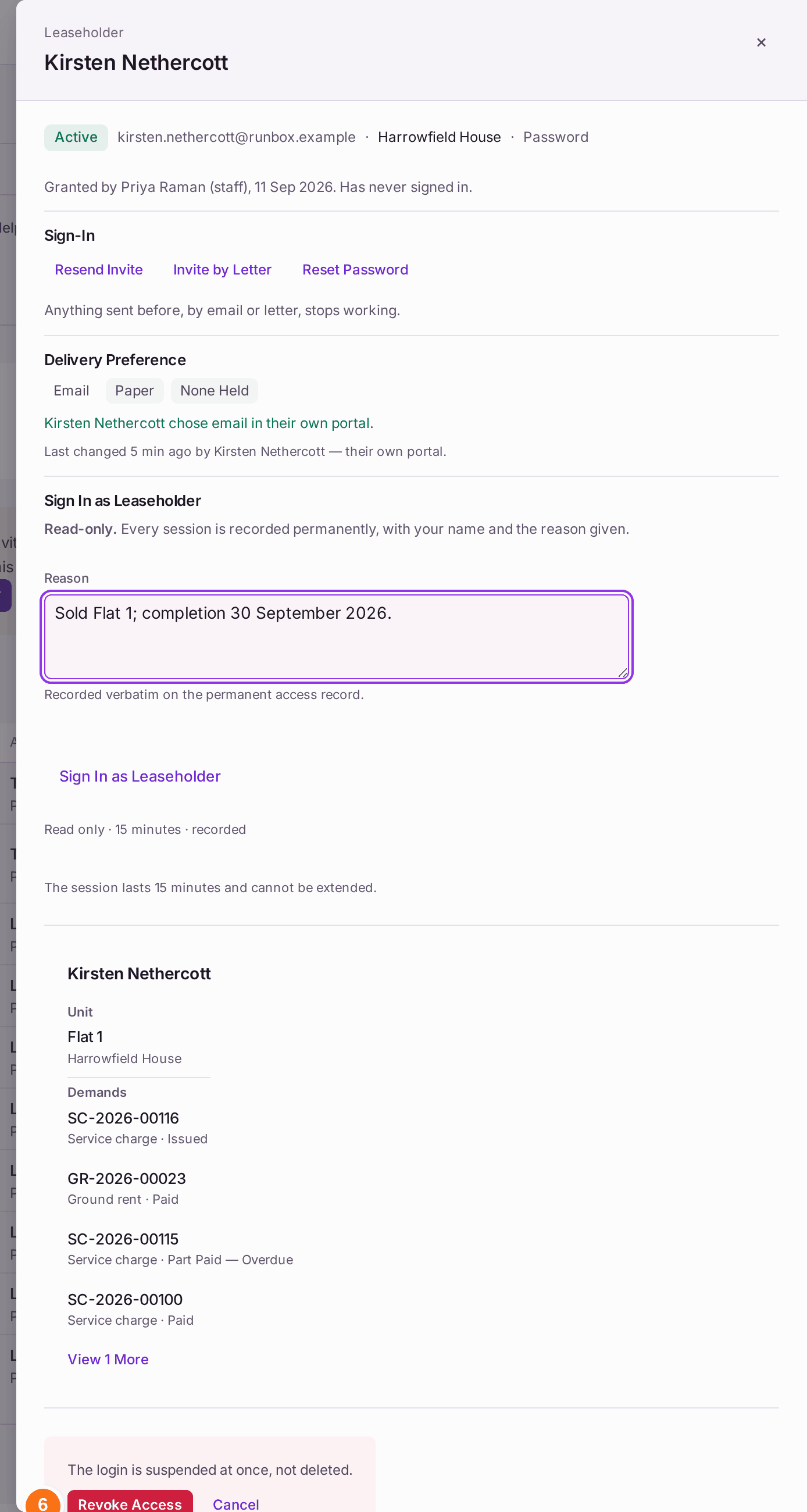
You'll know it worked when: "Kirsten Nethercott can no longer sign in. The row stays on the register." The row reads Revoked and the Revoked figure at the top goes up by one.
If something's wrong:
- You revoked the wrong person. Grant their access again (see Giving a leaseholder, resident or director a portal login). They are sent a new invitation.
- "That password could not be reset." Read the rest of the message. For someone who signs in with Microsoft or Google, the password is changed with that provider. If no email can go, print a letter from the note.
- They have lost the phone that gives their sign-in code. Open them with View and reset their two-factor authentication; their password stays the same.
- The row reads Lapsed. The tenancy, ownership or appointment behind the access has ended. Nothing more is needed.