


Charging a fee for a parking bay
What you'll end up with: a bay let on a licence or rental, to a leaseholder's unit or to someone from outside the building, with its fee raised on its own cycle and the payments matched from the bank into the fund your organisation chose for parking income.
Before you start you need:
- The property's bays recorded (see Recording a building's parking bays).
- A decision, from your accountants, property managers or directors, on which fund bay fee income goes into.
- The holder's name and email, the dates of the licence, the fee and how often it is charged.
A bay fee is not part of the service charge. It is a separate line on the holder's account, raised on its own cycle. A bay demised with a flat (held With the Lease) is paid for through the property's car park schedule instead, not through a fee.
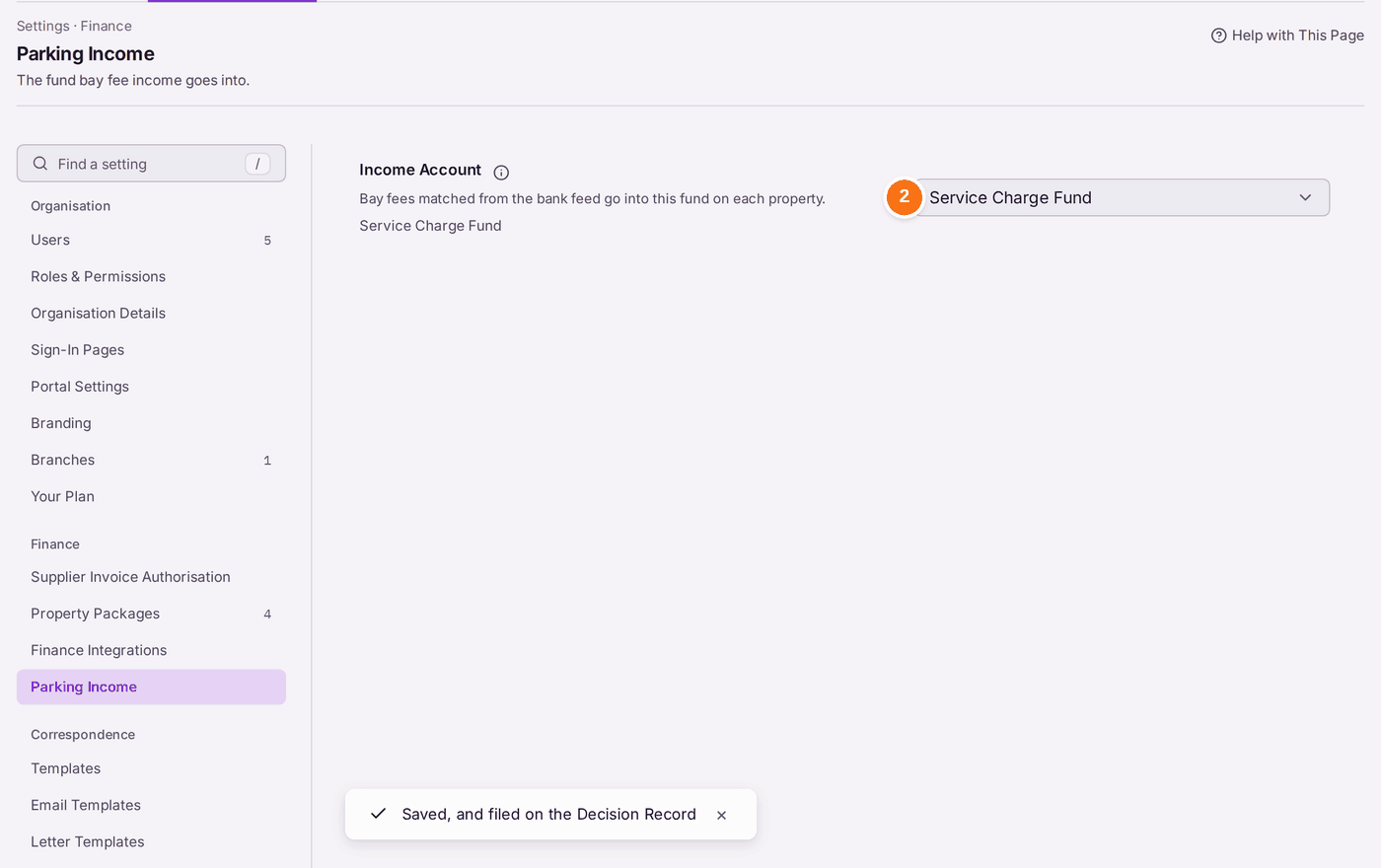
- Go to Settings → Parking Income. This is set once for the organisation.
- Choose the Income Account: the fund bay fees go into on each property. "Saved, and filed on the Decision Record".
- Open the property, then find the Parking card on its overview.
- Click the bay, for example Bay P20. Its panel opens.
- Press Assign Bay.
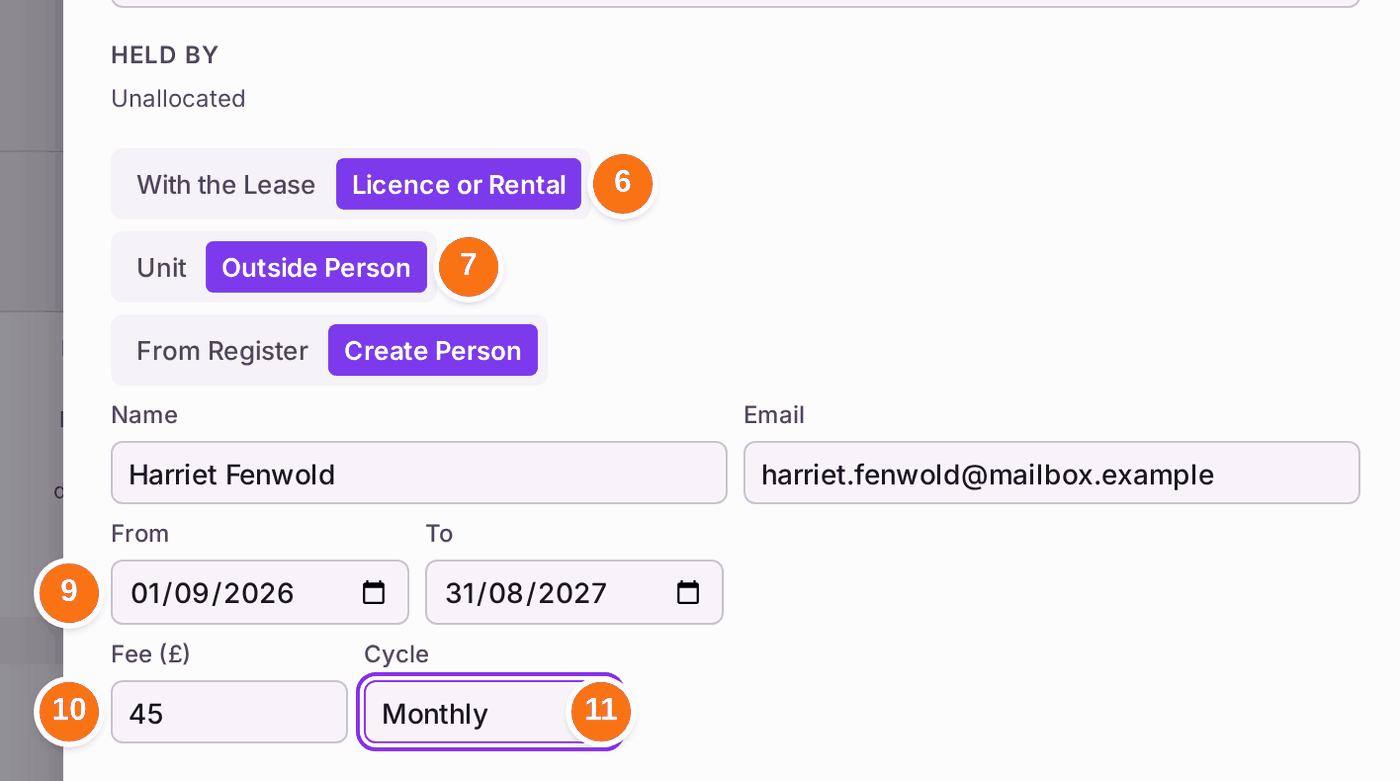
- Choose Licence or Rental.
- Choose Unit for one of the building's flats, or Outside Person for someone else. For an outside person, choose From Register to pick someone already recorded, or Create Person and type their name and email.
- Choose the unit, or fill in the person.
- Choose the From and To dates of the licence.
- Type the Fee in pounds.
- Choose the Cycle: Monthly, Quarterly or Annually.
- Press Assign. The bay reads "Licence · Harriet Fenwold" with the fee.
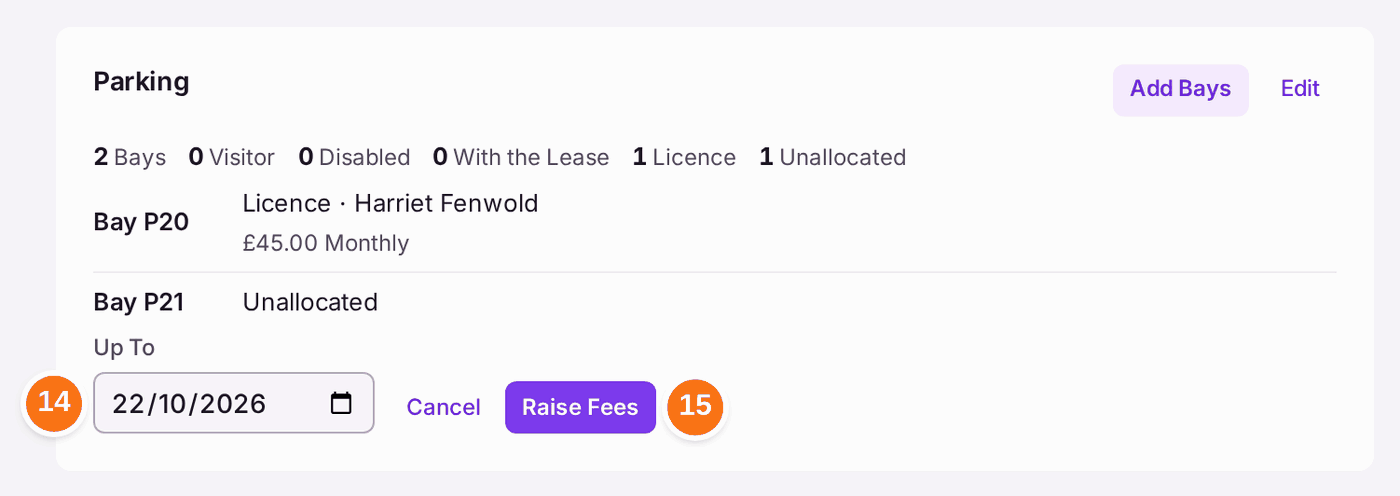
- Press Raise Fees on the Parking card.
- Choose Up To: fees falling due up to this date are raised.
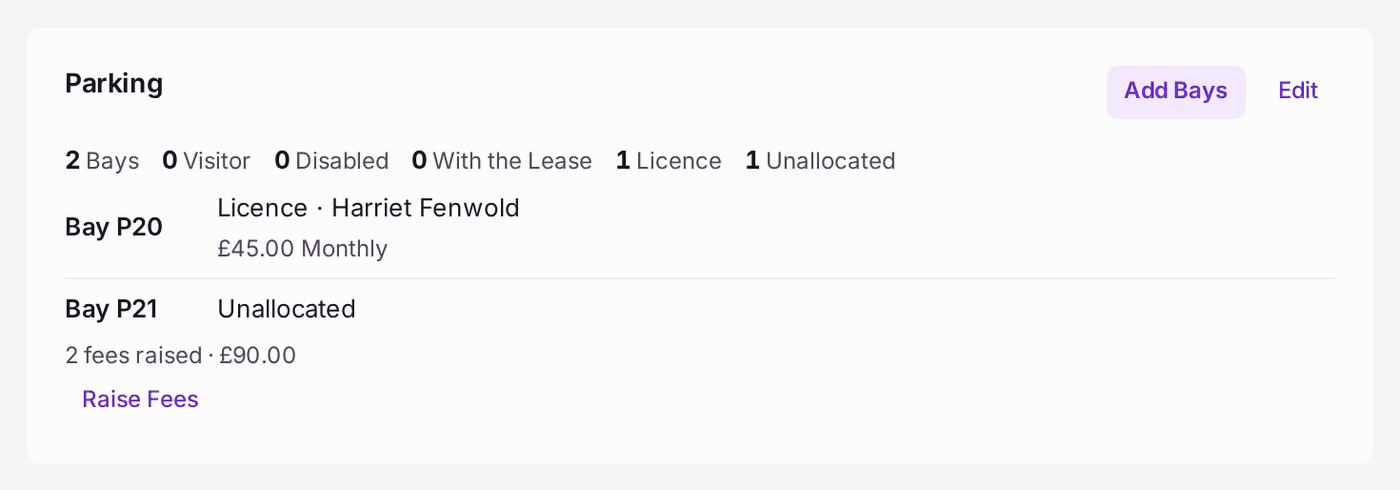
- Press Raise Fees. The card says how many fees were raised and their total.
- When the payment is in the bank feed, go to Finance → Receipts Inbox.
- Press Match Bay Fee on the payment.
- Check the fee chosen. The fees are listed best first: the reference quoted, the amount, the name.
- Press Match. "Matched to BF-0001, into the Service Charge Fund." (with your fee and fund).

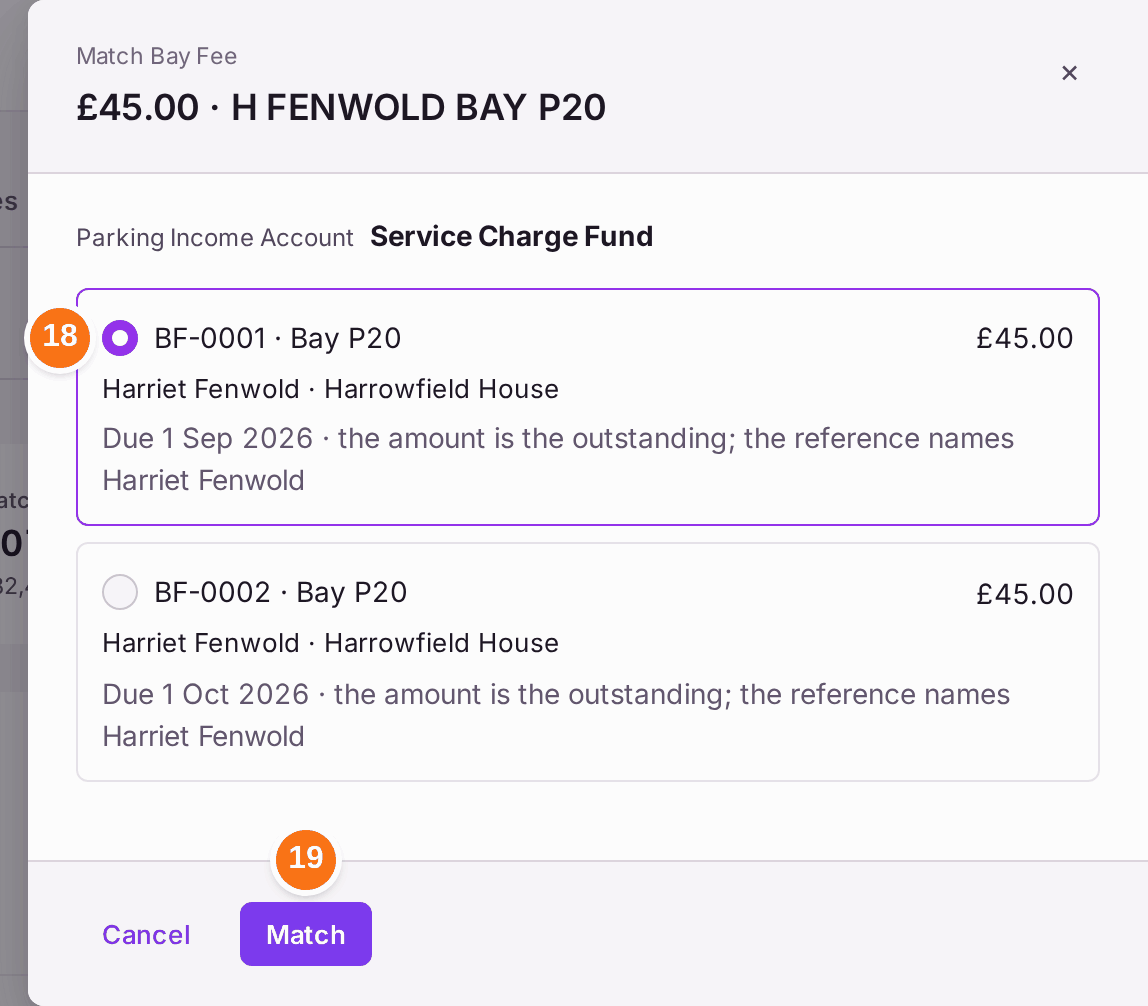
You'll know it worked when: the payment in the Receipts Inbox reads Allocated, with the holder, the bay, the fee's reference and the fund, and offers Reverse if it was matched by mistake.
If something's wrong:
The match panel says Parking Income Account "Not chosen", and Match is greyed. Nobody has chosen the income account. Press the Parking Income link beside it, or do steps 1 and 2.

No bay fee is matched until a fund is chosen. - "No open bay fee is owed this much or more." The payment is bigger than any fee still owed. Check the fees have been raised (steps 13 to 15). A payment covering several months is matched one fee at a time; match the rest with Assign or Match Several (see Recording money that has come in (matching receipts)).
- "No fees due up to …" Nothing falls due by the date you chose. Choose a later Up To date, or check the licence's From date and cycle.
- Assign stays grey with "Not set: the holder, the date or the fee". Fill in the unit or person, the From date and the Fee.
- There is no Assign Bay on the bay. The bay is already held, or it is a visitor bay. To change the holder, set End On for the current one, press End, then assign it again.
- A fee was recorded as paid by hand on the fee itself. That payment is not posted to a fund. Match bay fee payments from the Receipts Inbox instead.