


Seeing a portal exactly as a leaseholder, resident or director sees it
What you'll end up with: the person's own portal open on your screen, read-only, so you can see what they see while you talk to them, with the visit recorded.
Before you start you need: a reason, such as the caller's question. Your role must allow viewing as someone else. The person must have a portal login (see Giving a leaseholder, resident or director a portal login).
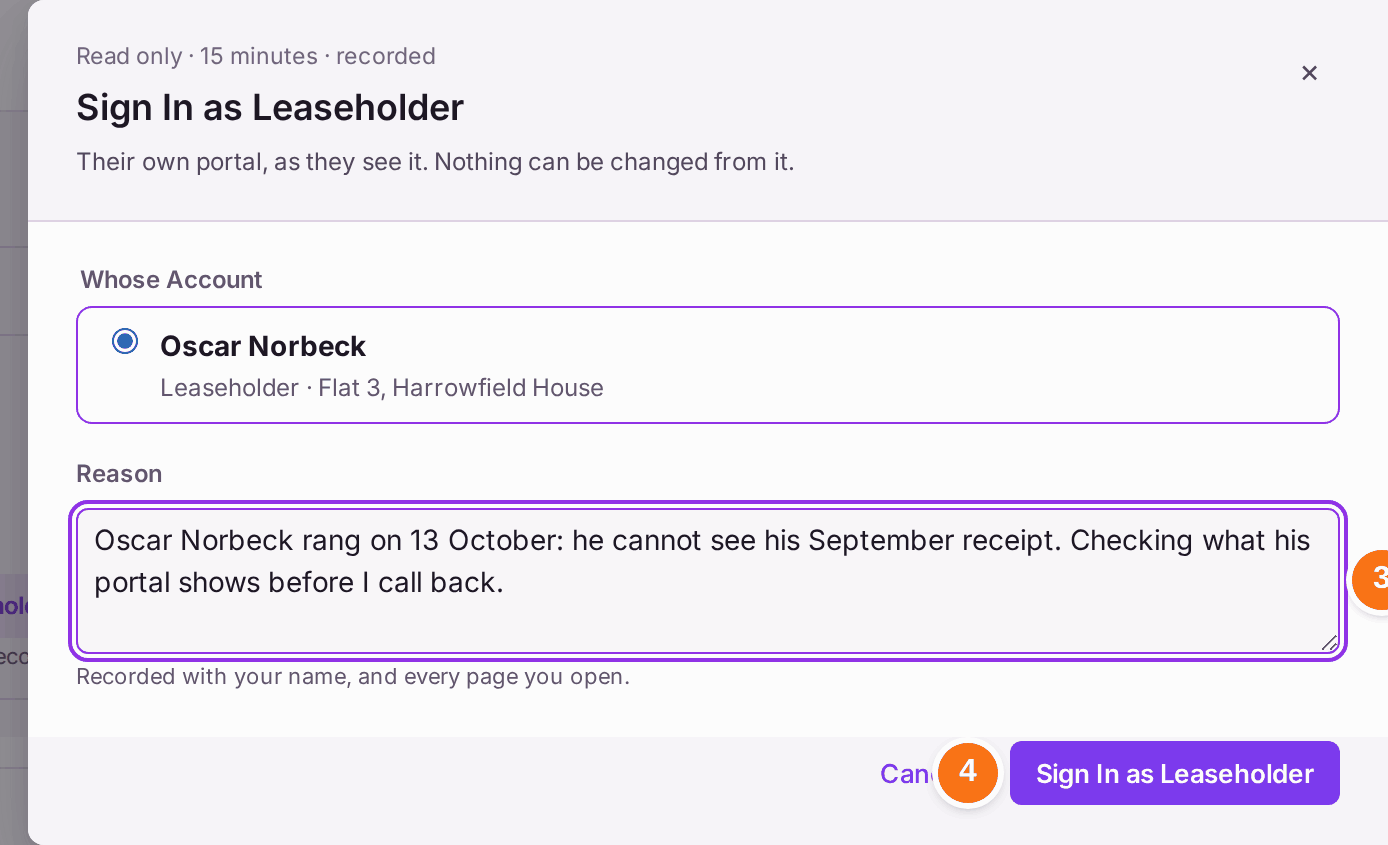
Nothing can be changed, sent or submitted while you are viewing. The session ends itself after 15 minutes and cannot be extended. Your name, your reason and every page you open are recorded.
- Open the leaseholder's record (see Finding a leaseholder and their account). For a resident, open the resident; for a director, open the property.
- Press Sign In as Leaseholder (or Sign In as Resident, or Sign In as Director).
- Type the Reason: who asked and why.
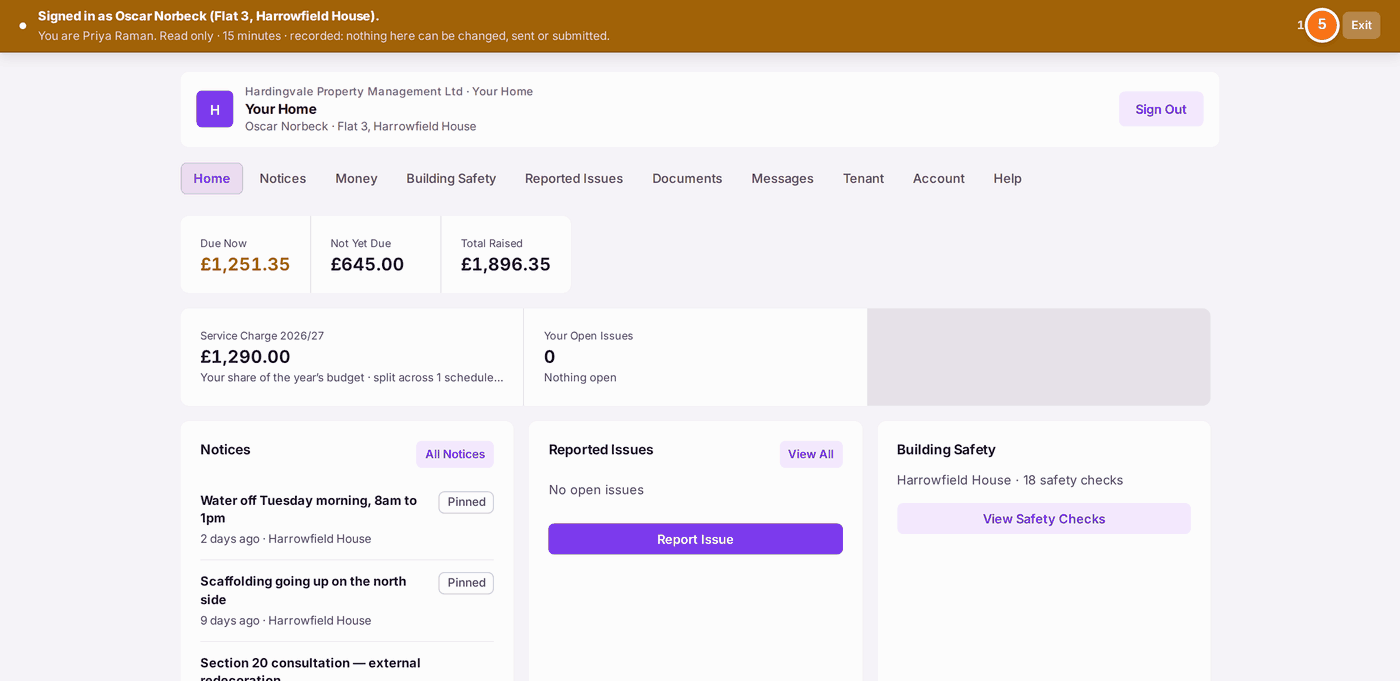
- Press Sign In as Leaseholder. Their portal opens under an orange bar: "Signed in as Oscar Norbeck (Flat 3, Harrowfield House). You are Priya Raman. Read only · 15 minutes · recorded".
- When you have finished, press Exit on the orange bar. You return to the record you started from.

You'll know it worked when: Portal Logins lists the visit under View-As Sessions, with your name, theirs, your reason, and when it opened and ended.
If something's wrong:
- The button is not there. Your role does not include viewing as someone else, or the person has no portal login. Ask an administrator (see Deciding what each colleague can do).
- For a director, the button is greyed. Choose which director first; the button then works.
- The portal closed in the middle. The 15 minutes ran out. Sign in again with a new reason.
- You need to change something you saw. Exit, and make the change in SynkroTech. Nothing can be changed from the portal view.