


A contractor's first sign-in to SynkroTech Trade
What you'll end up with: a firm with its own SynkroTech Trade account, signed in with a password and an authenticator, its trades, areas and certificates on file, waiting for SynkroTech to vet it; and, once an agency has connected it, the agency's jobs worked from the account, from accepting the job to sending the invoice. This is the contractor's side: send the firm this task, or talk them through it.
Before you start you need: nothing. A firm you invited follows the link in your invitation instead (see Inviting a contractor onto SynkroTech Trade); its account is made the same way and arrives with your invitation waiting.
A firm that signs itself up sees no managing agent's buildings, jobs, prices or people. It is not in any partner directory, and no agency can find it there, until SynkroTech approves it (see Vetting a firm that signed up to SynkroTech Trade). An agency can still invite it before then.
- On the SynkroTech Trade sign-in page, press Create Trade Account at the foot. (On the Trade Account page it is under New Firm.)
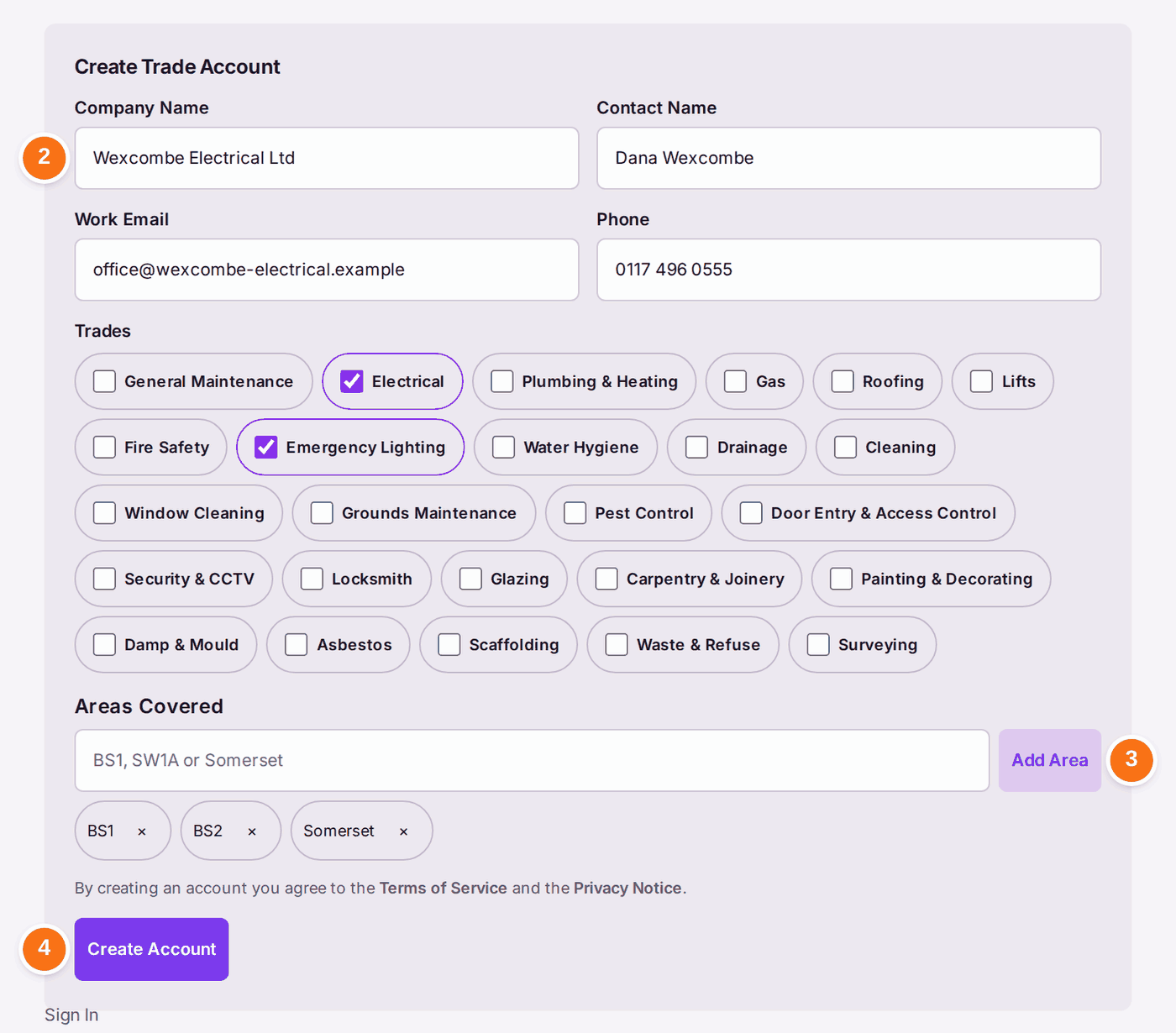
- Fill in Company Name, Contact Name, Work Email and Phone, and tick the firm's Trades.
- Under Areas Covered, type a postcode district (such as BS1) or a county and press Add Area. Add as many as the firm covers.
- Read the line above the button: creating the account agrees to SynkroTech's Terms of Service and Privacy Notice, and each name opens that page. Press Create Account. The page reads "Check your email. A link to confirm the address is on its way; it works once."
- Open the email "SynkroTech Trade — confirm your email address" and press Confirm Email Address.
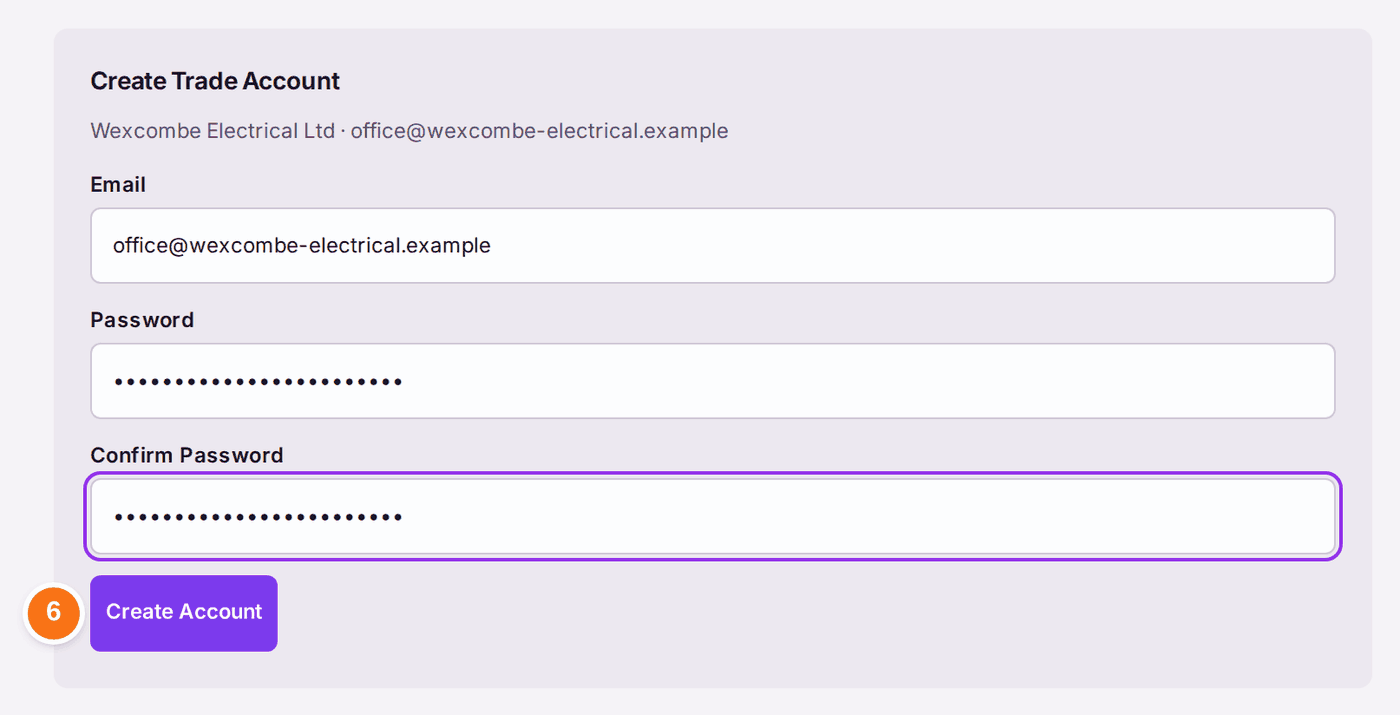
- The page names the firm and the address. Choose a Password of at least 10 characters, type it again in Confirm Password, and press Create Account.
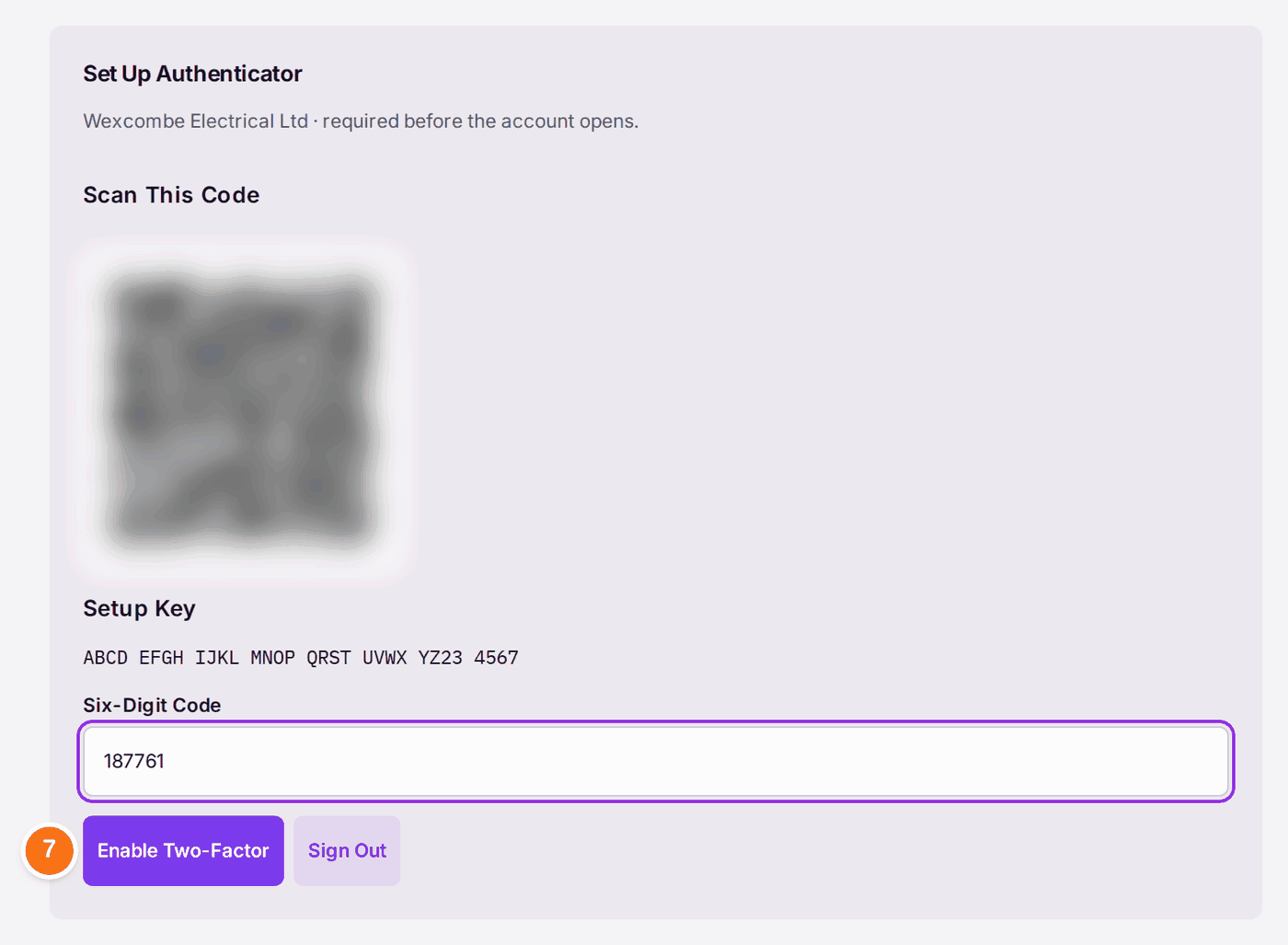
- Scan the QR code with an authenticator app on the phone, type the Six-Digit Code it shows, and press Enable Two-Factor.
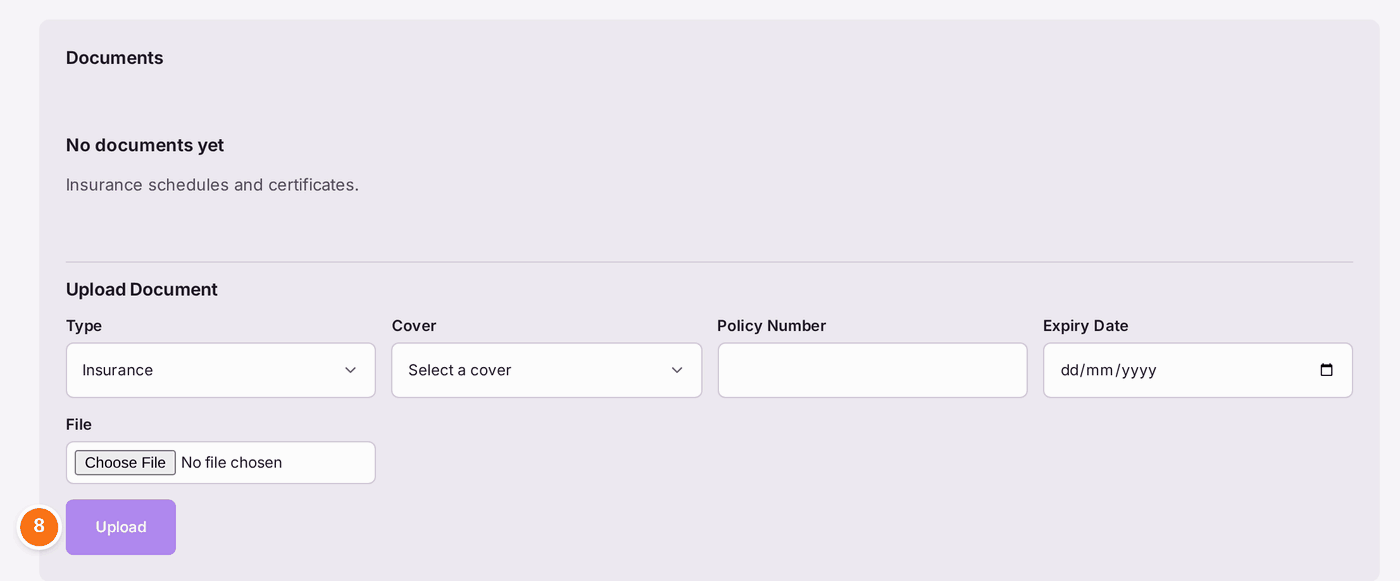
- The account opens on Jobs, with "Awaiting vetting by SynkroTech" at the top. Press Documents, then Upload each certificate (with its scheme and registration number) and each insurance schedule.
When an agency sends you a job. An agency that has invited the firm, once the firm has pressed Accept under Agencies, sends its work orders here.
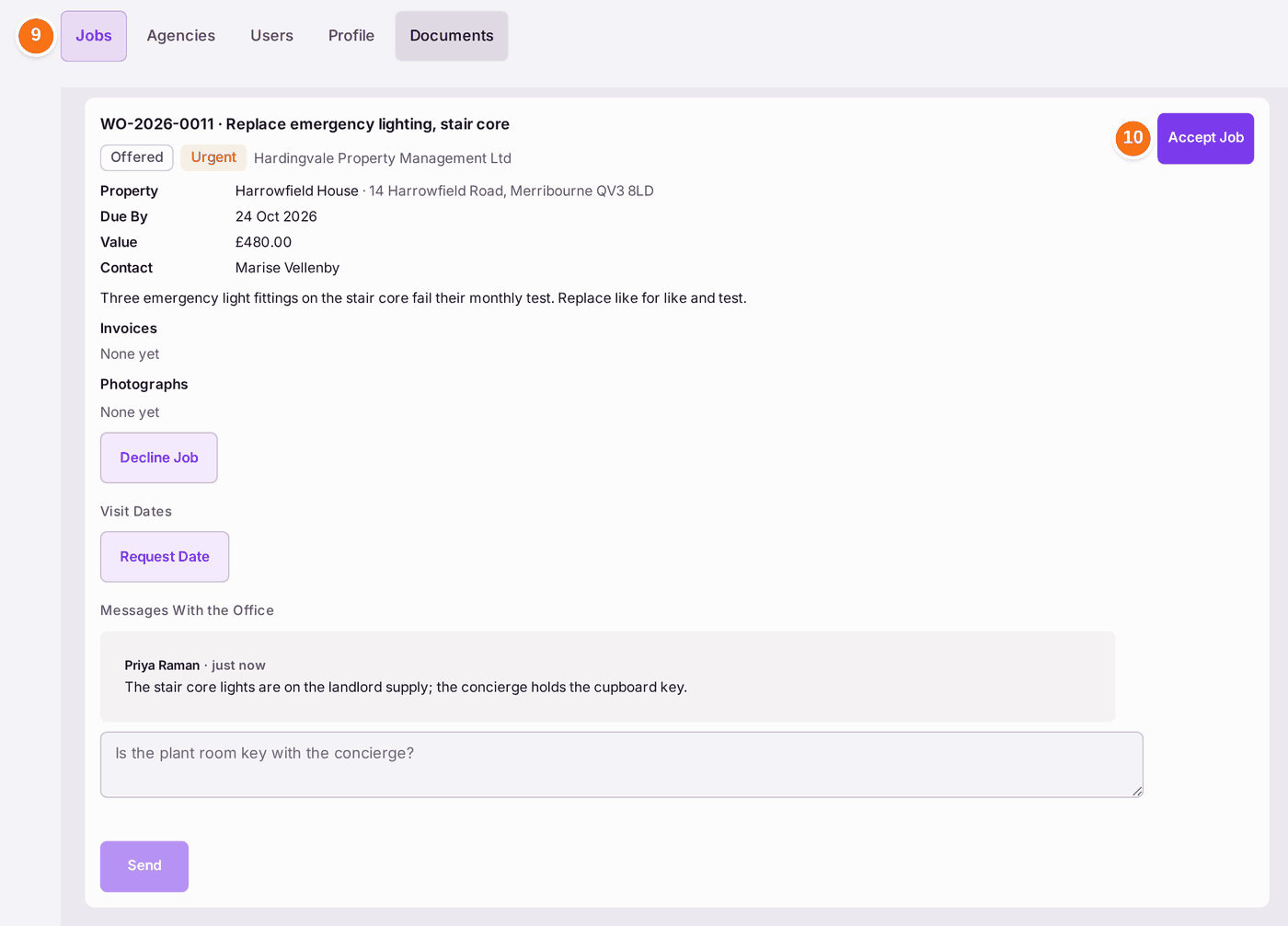
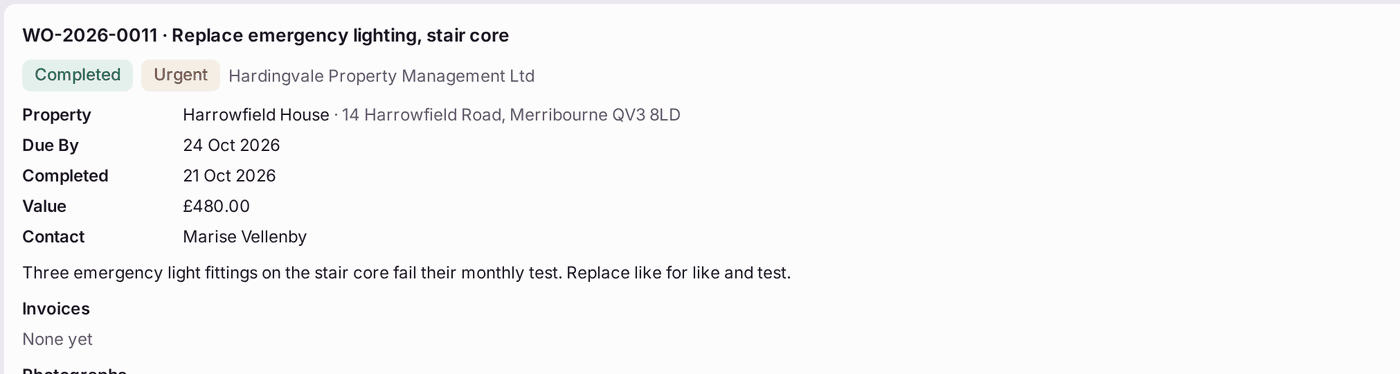
- Press Jobs. Each job lists the agency, the work order, its status and its priority, the property and its address, the day it is Due By, the booked day, the value, the office contact, its invoices, its Photographs, its Visit Dates and Messages With the Office.
- Press Accept Job. A job the firm cannot take: press Decline Job instead and give the reason.
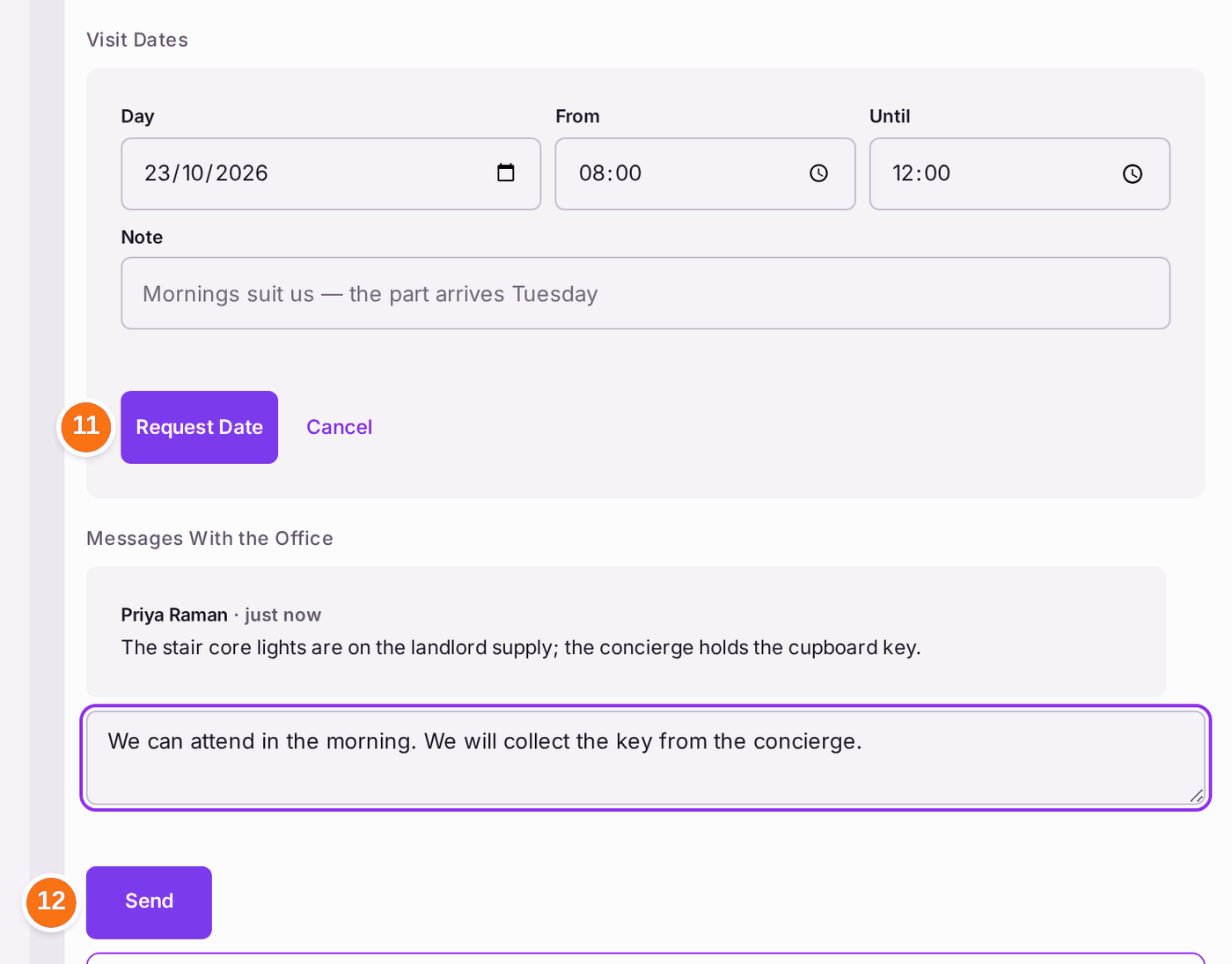
- To agree the visit, press Request Date, choose the Day, From and Until, and press Request Date again. The office books it, or sends another date: press Accept Date on that one. The booked day then shows on the job.
- What the office writes from the work order shows under Messages With the Office. To answer, type in the box under it and press Send.
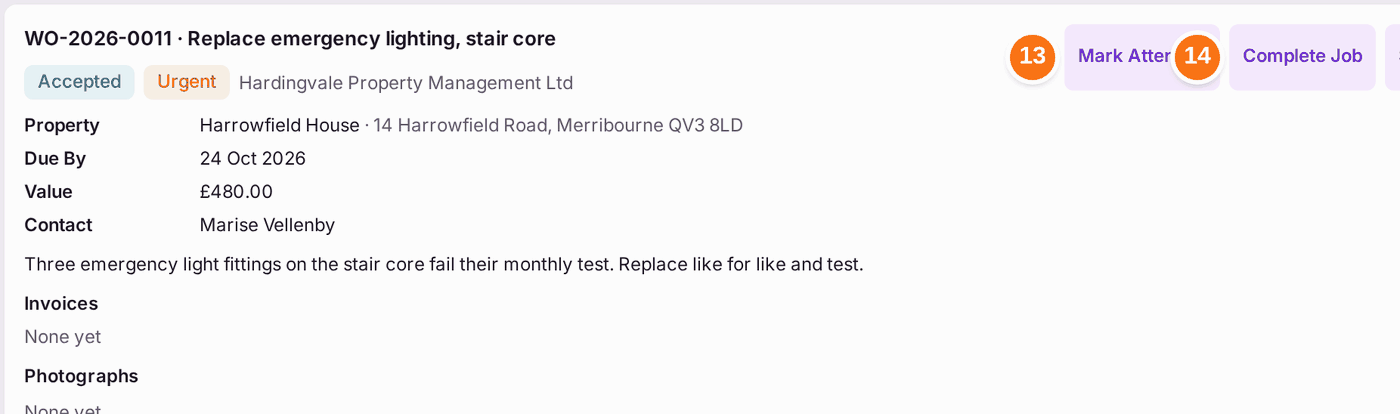
- When the engineer is on site, press Mark Attended. Under Photographs, choose the Stage (Before, During or After) and press Add Photographs; the office sees them on the work order.
- When the work is done, press Complete Job, type the Completion Note (the office reads it as the firm's report), and press Complete Job again.
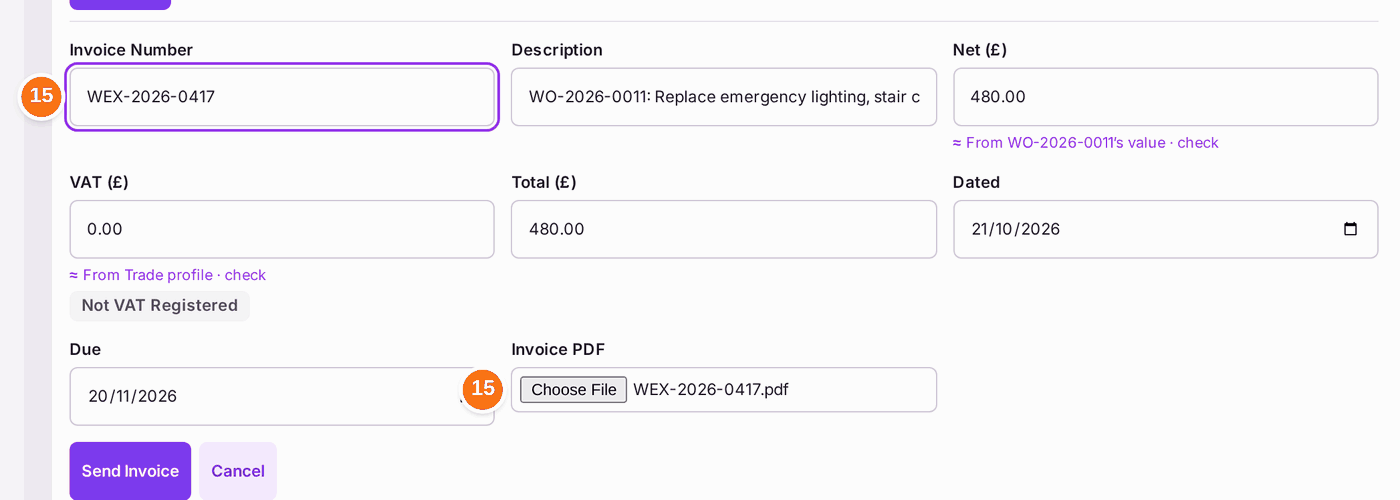
- An owner or admin presses Send Invoice. The description, the net, the VAT, the total, the date and the due date (from the firm's payment terms) are filled in from the work order. The VAT is 20% of the net when the firm's Profile says VAT Registered Yes, with its VAT Number; when it says No, the VAT is £0.00 and the form says Not VAT Registered. The net and the VAT are the work order's value, not yet your invoice's, so they are marked "From WO-… ’s value · check" until you change them. Type the Invoice Number, choose the invoice's file under Invoice PDF, check the figures against your invoice, and press Send Invoice.
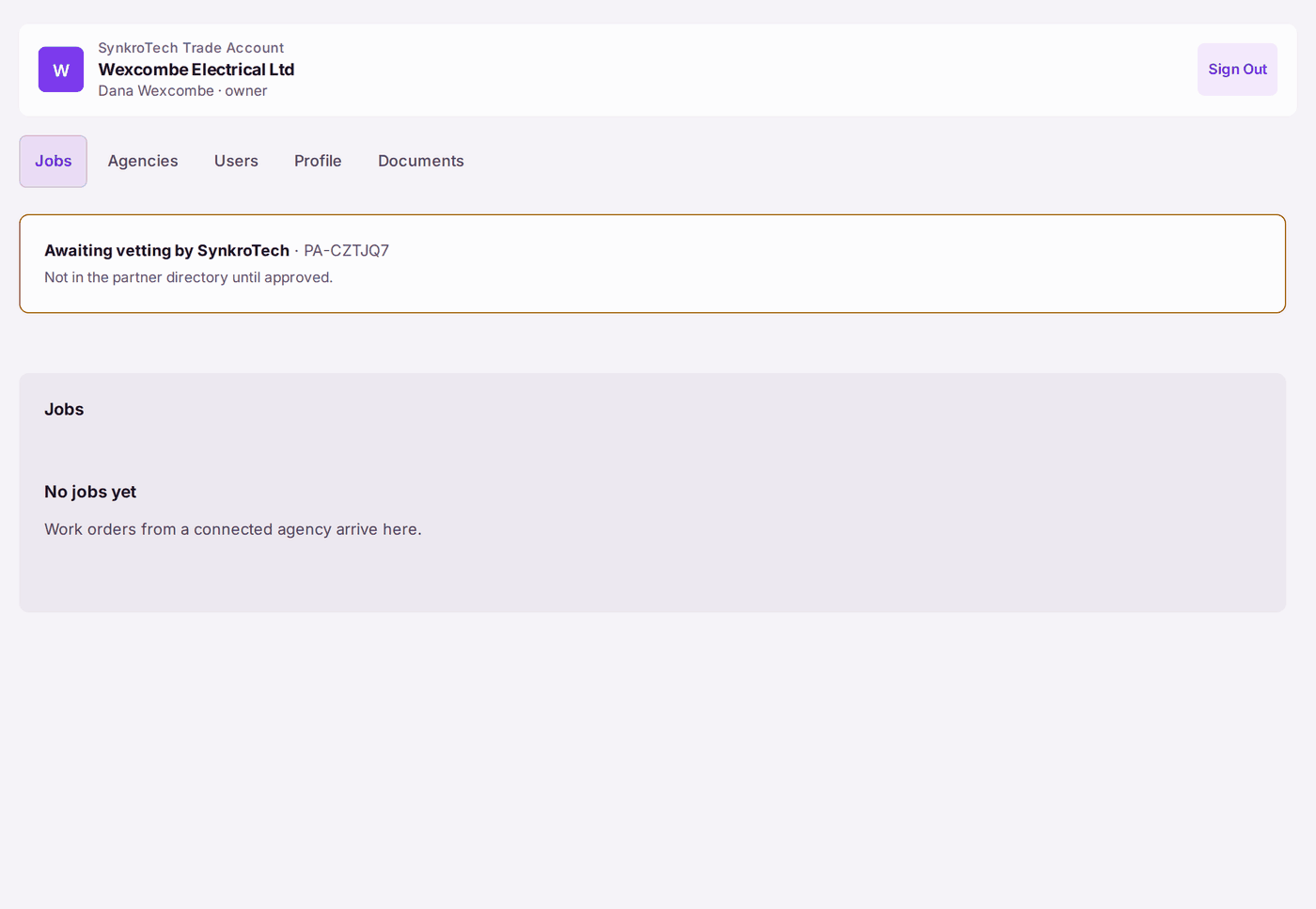
You'll know it worked when: the account opens with "Awaiting vetting by SynkroTech" and the firm's name at the top. When SynkroTech approves it, the line reads "Vetted by SynkroTech" and the firm is emailed. From then on it signs in on the Trade Account page (Trade Account on the SynkroTech Trade sign-in) with its email address, its password and a code from the app. A job sent reads Completed, and its invoice is listed under Invoices, Under Review until the office has coded it into its ledger, then In the Ledger, and Paid with the day once the office has paid it. Because the file went with it, the office's approver sees the invoice itself, not "No Document".
If something's wrong:
- No email arrives. Check the junk folder. The page gives the same answer whether or not the address can be used, so check the address too, and sign up again. One address is sent at most three emails a day. An address that already has an account is sent a note saying so, not a link.
- "This link has expired or is not recognised." The link lasts seven days and works once. Sign up again for a new one.
- "This link has been used." The account is already made. Sign in with that address.
- "That code did not match." Codes change every 30 seconds: type the one the app shows now. If it keeps failing, scan the QR code again.
- "Not Approved". The line under it gives SynkroTech's reason, which was emailed too. The firm is not listed in the partner directory, but an agency can still invite it. The firm can apply again 30 days after the decision: until then the line reads "New application from" and the date. Put right what the reason says (Profile, Documents), then, on or after that date, an owner or admin presses Submit New Application. The account reads "Awaiting vetting by SynkroTech" again.


- "Too many sign-ups from here." Wait an hour and try again.
- Jobs is empty. Jobs come only from an agency the firm is connected to. Accept the agency's invitation under Agencies; a job sent before then is not shown.
- The VAT reads £0.00, and the firm is VAT registered. Its Profile says No. An owner or admin opens Profile, chooses VAT Registered Yes, types the VAT Number (GB and nine digits) and presses Save; the next invoice is offered 20%.
- "The invoice must be a PDF, or a PNG or JPEG scan." Save the invoice as a PDF and choose that file. A file over 25 MB is refused too: send a smaller scan.
- There is no Request Date. A date is asked for on a job not yet started. Once the engineer has attended, write to the office under Messages With the Office.
- There is no Send Invoice. Only an owner or admin of the firm sends its invoices, and only one invoice is sent from a job. A job not yet accepted, or cancelled, takes none. An invoice the office sent back reads "Sent Back", and a corrected one can be sent.