


Answering the building questions so the right checks appear
What you'll end up with: every question about what a building has (a lift, communal heating, a water tank, a fire alarm, a car park and so on) answered, with the firm that maintains each, so the compliance register holds every check the building needs.
Before you start you need: the property on SynkroTech, and someone who knows the building: a site visit, the outgoing agent's handover notes or the last fire risk assessment.
A property with nothing on its register looks compliant on every screen. The property page says so in its own words: "Empty means nothing recorded, not nothing due." Each question says which checks a yes brings with it, so the answers are what put the right checks on the register.
- Open the property.
- Press More, then Building Knowledge. The top says how many questions are unanswered.
- Read a question and the line under it: it says why it matters, and "A yes here calls for" the checks it brings.
- If the building does not have it, press No. If you do not know yet, press Unknown, so the gap is on record rather than silent.
- Choose the firm in Who maintains it… (or Who provides it… for a service such as cleaning). Where the assets for a question all name one firm under Serviced By, that firm is already in the box: it is read from the asset register. Naming a firm answers the question yes ("Yes — Brightwork Cleaning Ltd named").
- To add a note (where it is, which entrance), type it in the box under the question and press Save beside it. The notes and The Survey (Surveyed By, Date of Survey) are kept only when you press Save; leaving the page with one typed and not saved asks first.
- Repeat for each question.
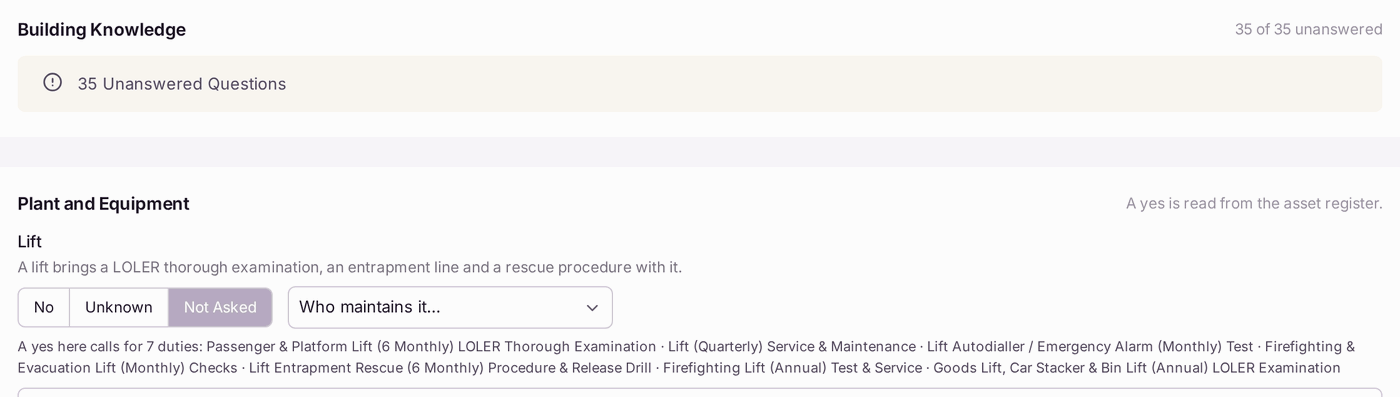

A yes is not pressed here. It is read from the asset register: when you add a lift, a boiler or a tank as an asset, the question reads "Yes — 1 on the asset register". So for each thing the building has, add the asset (see Recording an asset (plant) and its servicing). Adding it puts its checks onto the register, and the screen lists them.
Car Park is read from the property's Parking card: any bay, or any arrangement but No Parking, reads "Yes — Parking Card". Parking alone calls for no car park checks. The smoke extract, CO detection and underground structural inspection are for an enclosed or underground car park: they are called for once its Car park ventilation & CO monitoring is on the asset register. In the same way, Landlord's Utility Supply — Gas, Electricity, Water answered by an electrical intake calls for no gas pipework test; a Gas installation & pipework asset does.
- Open the property's Compliance tab.
- Read Required Duties. Under Suggested for This Building is each check the answers call for that is not on the register. A block of two or more flats also lists its Fire Risk Assessment (Annual) - Common Parts here, "Every block with common parts needs one", if the register does not hold it. A check the law requires for a building like this says "Required by law for this building".
- Press Add to Register on each one the building needs.
- For one it does not need (the building is built differently), press Mark Not Needed, type the reason, and press Mark Not Needed. It moves to Not Needed, with your name, the day and the reason, and is not suggested again.

You'll know it worked when: Building Knowledge says "All Questions Answered", Required Duties has nothing left under Suggested for This Building, and the Setup Checklist shows Complete Building Knowledge as Done.
If something's wrong:
- There is no Yes button. That is how the page works: a yes comes from the asset register, or from the firm named in Who maintains it…. Add the asset or name the firm; the question will read "Yes — 1 on the asset register" or "Yes — … named".
- "Answers Conflict with Asset Register". You answered No, and an asset of that kind is on the register. Either the answer or the asset is wrong. Check on site, then change the answer or archive the asset.
- A firm is greyed in Who maintains it…. It is marked "suspended, cannot be given work". Choose another firm, or reinstate this one on its page under Contacts → Contractors.
- You marked a check Not Needed by mistake. Press Add Back beside it under Not Needed. It goes back on the register with its history.
- A check marked Not Needed is suggested again. The building has changed since: for example, an asset that brings it was added. The line says what changed. Add it, or mark it Not Needed again.