


Signing in for the first time
What you'll end up with: your own password, two-factor authentication (a second check at sign-in, as well as your password) set up on your phone, and the Home page open in front of you.
Before you start you need:
- Your work email address, and one of these: a one-time password you were sent, or a link a colleague passed to you. SynkroTech gives the first administrator a one-time password; everyone added after that gets a link from a colleague.
- An authenticator app on your phone, such as Microsoft Authenticator or Google Authenticator. SynkroTech asks for a six-digit code from it every time you sign in, so that a stolen password on its own is not enough to open your clients' records.
- About ten minutes. You cannot reach any page until both steps are done.
If you were sent a one-time password:
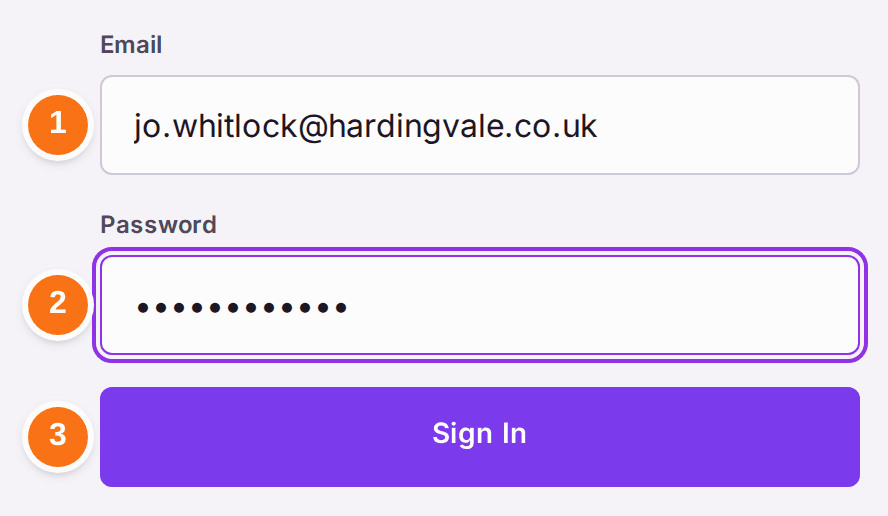
- Go to the sign-in address you were given.
- Type your email address in Email.
- Type the one-time password in Password.
- Press Sign In. The Change Password page opens.
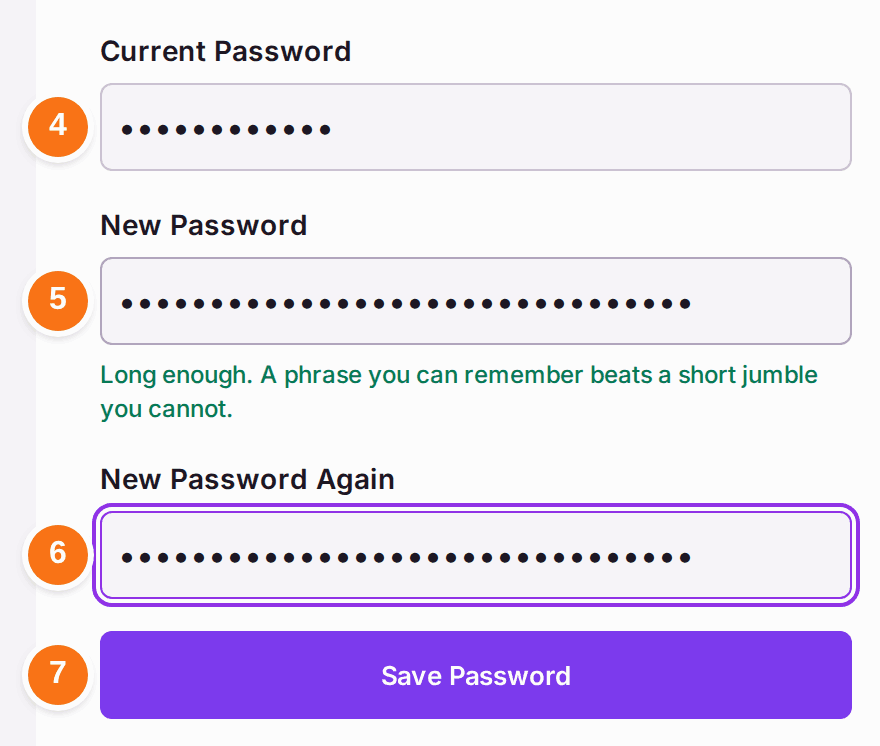
- Type the one-time password again in Current Password.
- Type a new password of at least 12 characters in New Password. The line under it counts down how many characters are left.
- Type the same password in New Password Again.
- Press Save Password. The Two-Factor Authentication page opens.
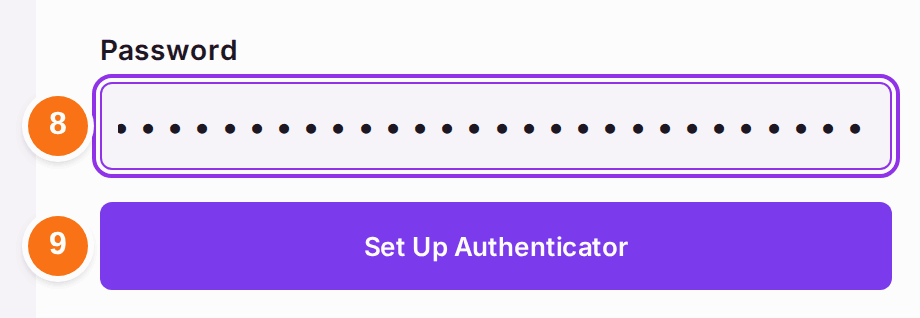
- Type your new password in Password.
- Press Set Up Authenticator. A Setup Key appears.
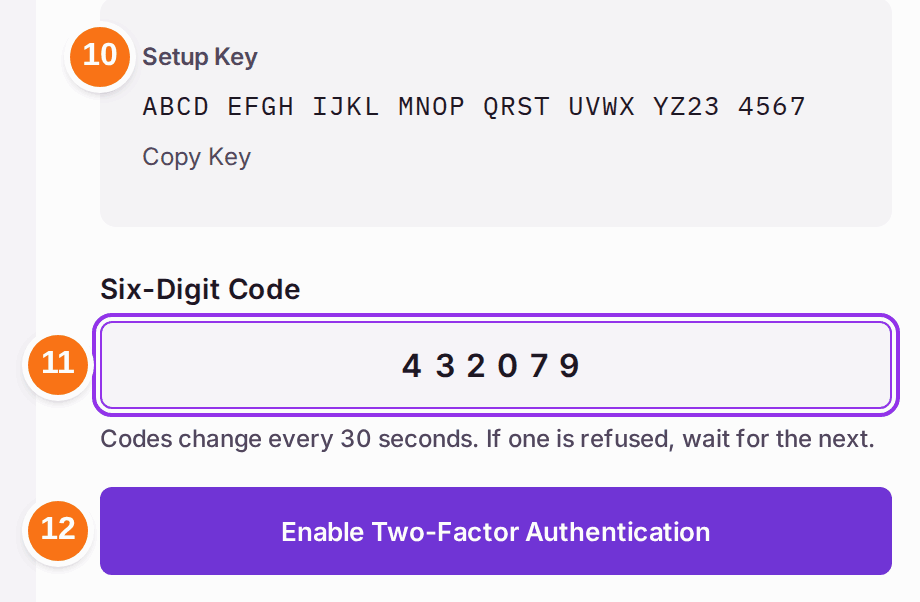
- Add the key to the authenticator app on your phone, by scanning it or typing it in.
- Type the six figures your app shows in Six-Digit Code.
- Press Enable Two-Factor Authentication.
If a colleague passed you a link: open the link. The Set Your Password page says which address it is for and the date the link stops working. Type a password of at least 12 characters in New Password, type it again in New Password Again, then press Set Password. Press Sign In on the next page, sign in with your email address and the new password, then follow steps 9 to 13 above.
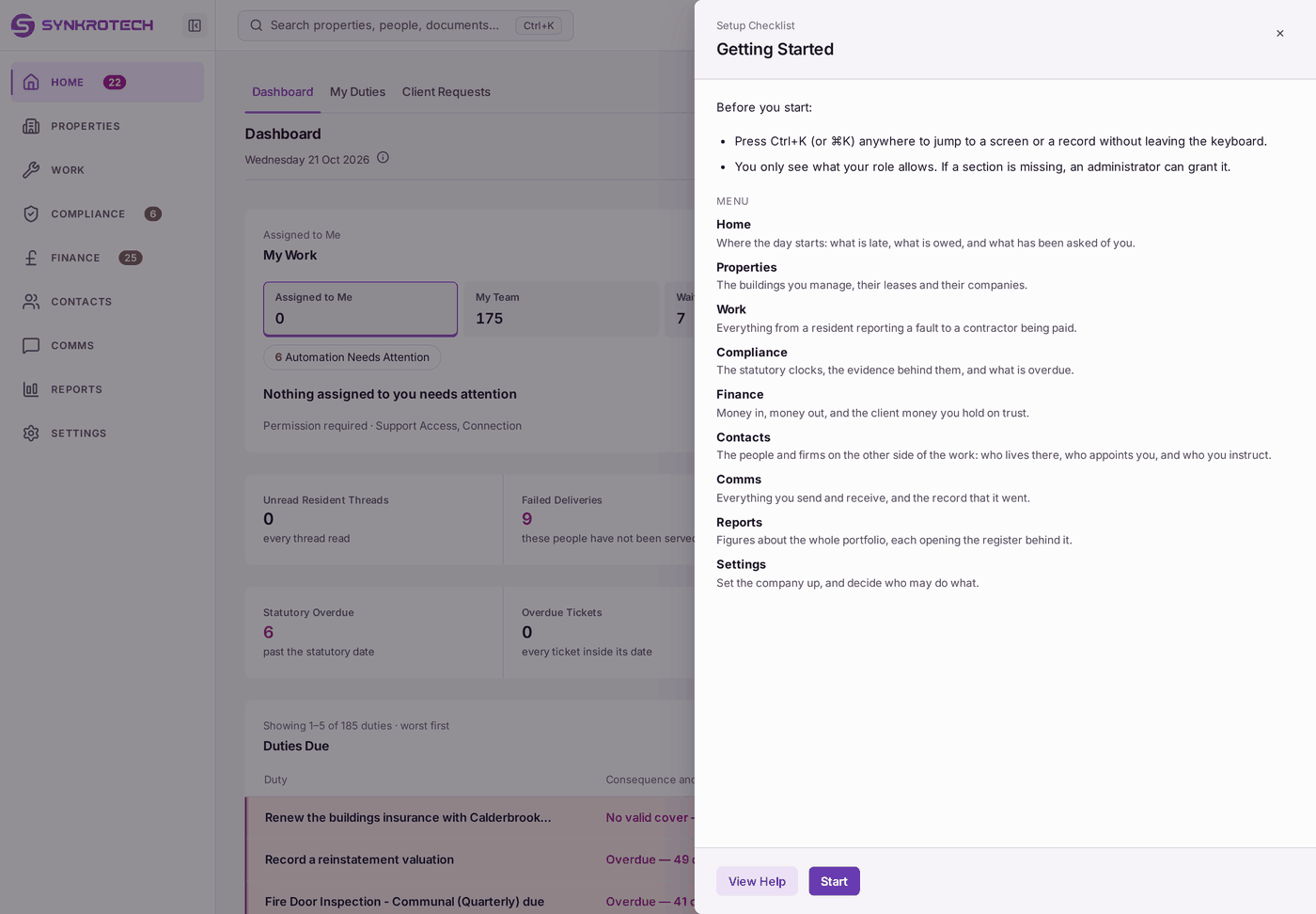
You'll know it worked when: the Home page opens with the Getting Started panel over it. Read the panel, then close it with the × in its corner. From now on, each sign-in asks for your email, your password and a six-digit code from your app.
If something's wrong:
- The one-time password is refused, or lost. It cannot be read back from SynkroTech, because only a scrambled copy of it is kept. Ask whoever set up your account for a new one. A colleague's link that has run out works the same way: ask an administrator to press Reset Login on your row on the Users page (see Adding colleagues and giving them a login).
Save Password stays greyed. The line under New Password says how many characters are still needed ("At least 12 characters — 3 to go."), and "These do not match yet." appears when the two boxes differ. Make the password longer, or type it again in both boxes.
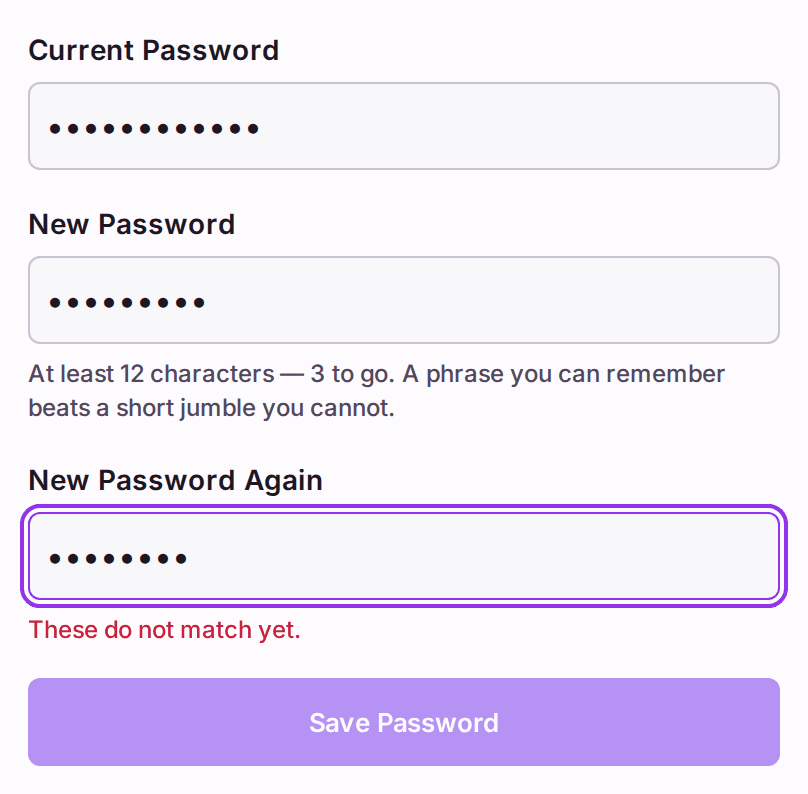
Both reasons on one screen: the counter under New Password, and the red line under New Password Again. The six-digit code is refused. The page says "That code was not right. Codes change every 30 seconds — try the current one." Wait for the app to show a new code, then type that one. If every code is refused, the clock on your phone may be wrong: set it to update automatically.
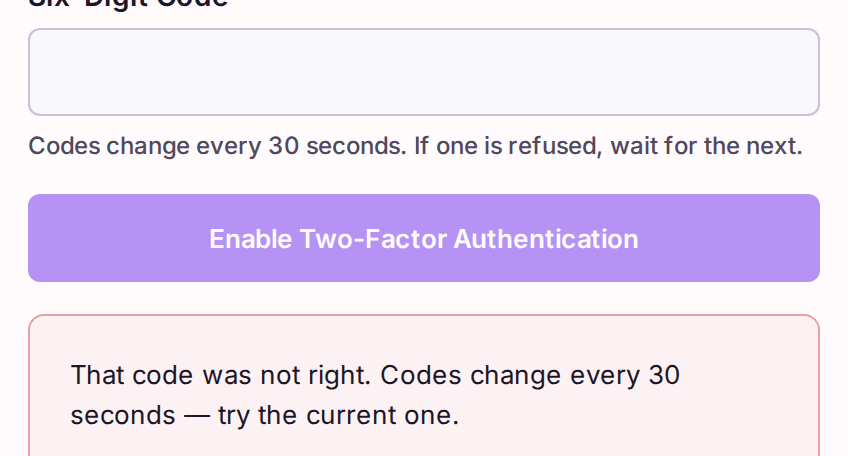
The red line under the button. The box empties so you can type the next code. - You have lost the phone with your authenticator on it. You cannot sign in without it. Ask an administrator in your office to open your row on the Users page and press Reset Two-Factor Authentication; at your next sign-in you set it up again on the new phone. If you are the only administrator, contact SynkroTech.
- The link says "This link has already been used". If you did not set a password with it, press Send Me a New Link on that page, or ask the colleague who added you for a new link.