


Setting up your organisation's details and letterhead
What you'll end up with: your firm's name, addresses, telephone and email set once, your logo and colour on every letter, demand, email and portal page, and the right return address on every envelope.
Before you start you need:
- Your trading name, and if you are a company, the registered name, company number and registered office as Companies House holds them.
- The redress scheme you belong to, and your membership number with it.
- Your office address, and the address cheques should go to if it is different.
- Your logo as a PNG or SVG file under 256 KB, ideally on a transparent background.
Do this before anything is sent in your name. Every letter, demand, statement and email prints these details, so a wrong address reaches every leaseholder.
- Press Settings in the menu on the left.
- Press Organisation Settings at the top of the page.
- Press Organisation Details in the list on the left of the page.
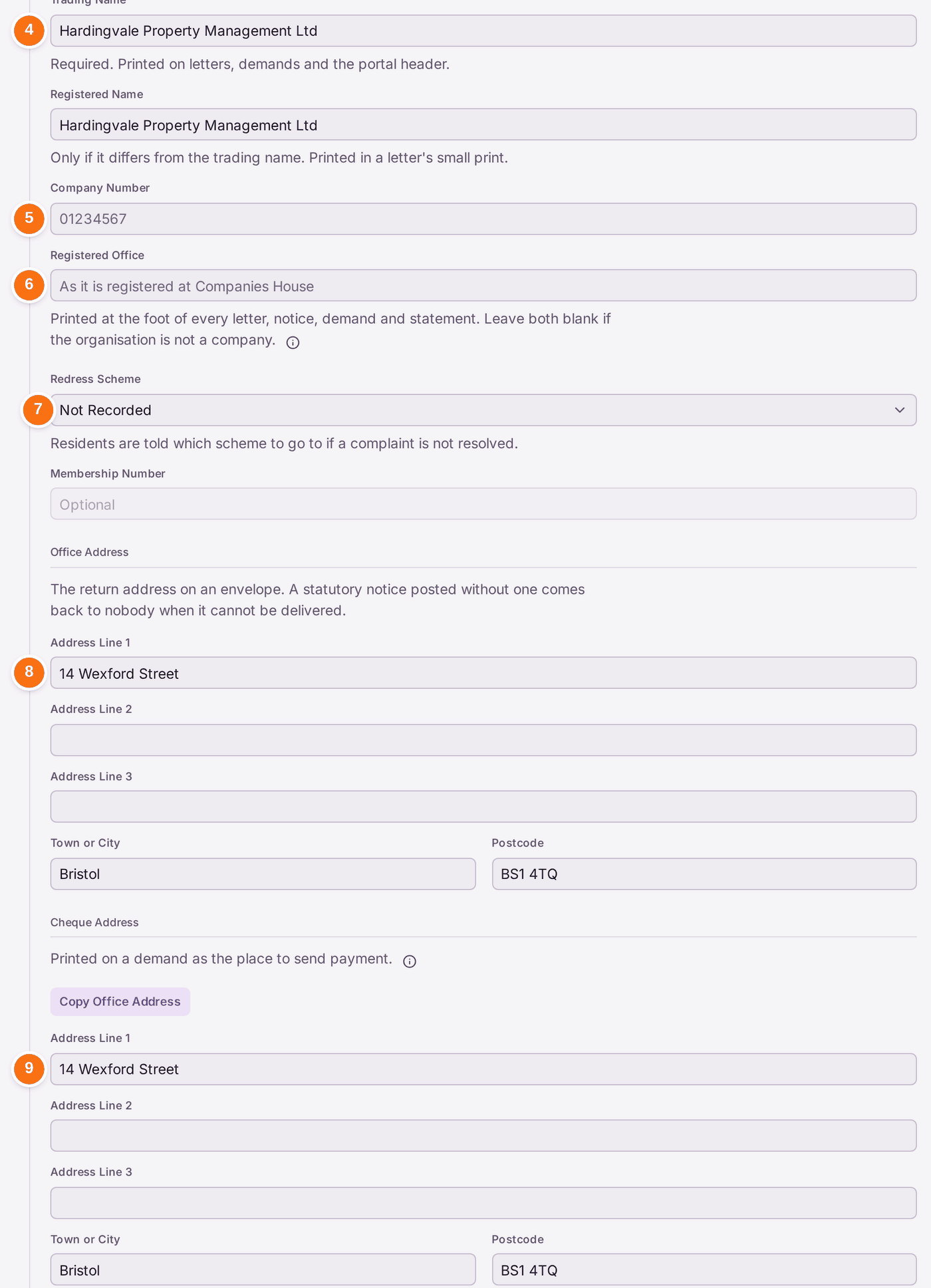
- Check Trading Name: it is printed on letters, demands and the portal header.
- If you are a company, fill in Company Number.
- Fill in Registered Office. It is printed at the foot of every letter, notice, demand and statement.
- Choose your Redress Scheme: The Property Ombudsman, Property Redress Scheme, or Other and type its name in Scheme Name. Fill in Membership Number if you have one. Residents are told which scheme to go to if a complaint is not resolved: the portal's Help names it, with the number, and so does the Managing Agent card of residents who rent. It is printed at the foot of every letter, notice, demand and statement, after the registered office.
- Check Office Address. It is the return address on an envelope: a statutory notice that cannot be delivered comes back here.
- Check Cheque Address, or press Copy Office Address if cheques go to the office. It is printed on a demand as the place to send payment.
- Check Telephone, Contact Email and Finance Email.
- Press Save These Details.
Then your letterhead:
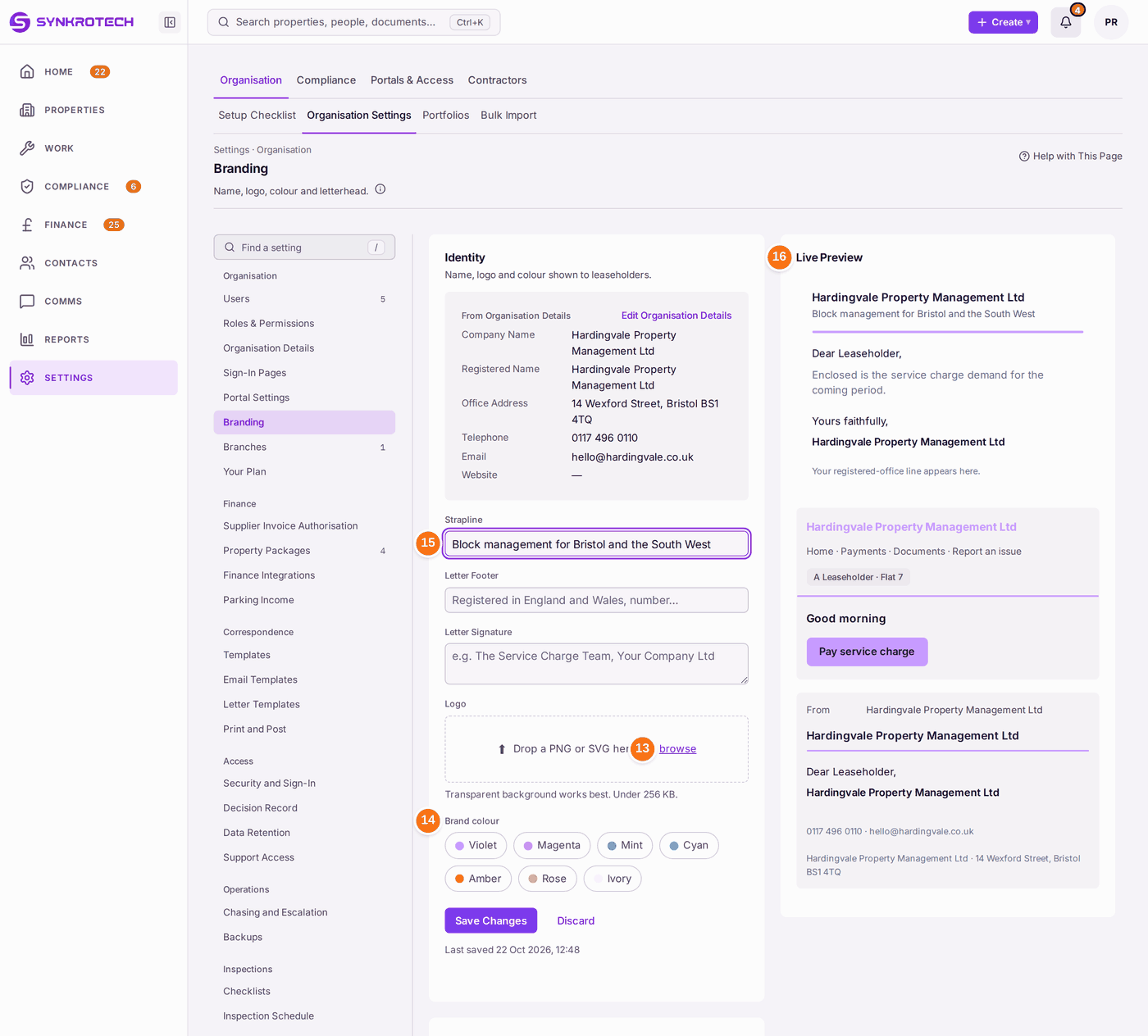
- Press Branding in the list on the left. The details you saved are shown at the top, under From Organisation Details.
- Under Logo, press browse and choose your logo file.
- Choose a Brand colour.
- Fill in Strapline, Letter Footer and Letter Signature if you use them.
- Check Live Preview on the right. It shows a letter, the portal's header and an email as they will look, and changes as you type.
- Press Save Changes.
Two more pages are worth a look while you are here:
- Branches holds each office's address and the inboxes replies go to. The main branch's address is what prints on demands, statements and letters, so check it matches your office.
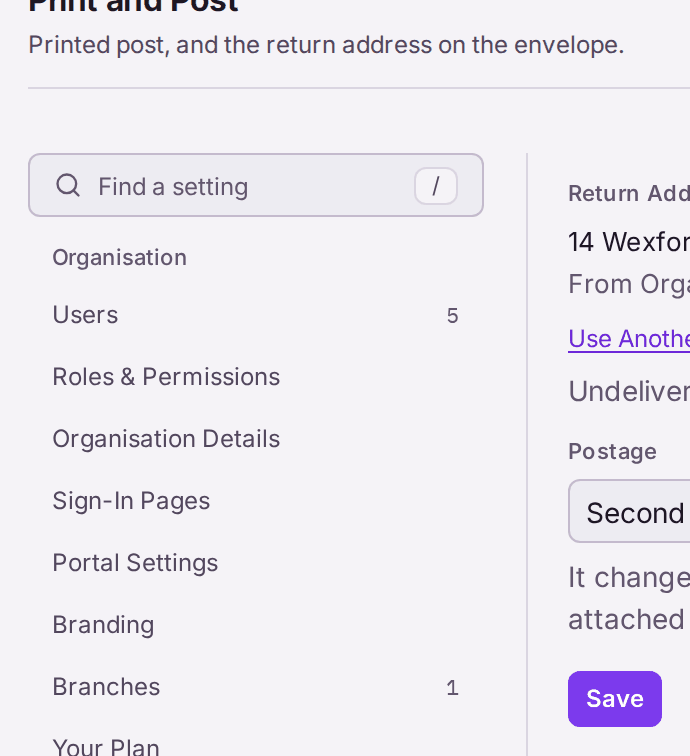
- Print and Post shows the Return Address on posted letters (from Organisation Details unless you press Use Another Address) and the Postage, first or second class. The class changes the postmark date, which matters for a notice with a deadline attached.
If your firm's email is on Microsoft 365, your demands and notices can go out from your own mailbox. On the Branding page, under Sending Address, find Microsoft 365 Mailbox and press Connect Microsoft Mailbox. Sign in at Microsoft with your work account and press Accept. Back on the page, press Use for Outbox. The card then reads "The organisation's Microsoft 365 mailbox is in use.", and the line under it says where each kind of email goes: "Demands, notices and other emails go out from" your mailbox's address, and "Account emails (invitations and password resets) go from SynkroTech, on your behalf." Group Email still goes from SynkroTech, on your behalf, and the next line says so. To send account emails from your mailbox too, choose From This Mailbox under Account Emails in the mailbox's box; the line then ends "Account emails (invitations and password resets) go from it too." From SynkroTech is the usual choice: invitations and password emails keep arriving while your mailbox needs reconnecting, and no colleague's Sent Items holds anyone's password link. While your mailbox is in use, an address typed in the Sending Address box is not used, and the box says so. The mailbox is also checked every quarter of an hour for replies to your matters and for invoices from your contractors. Microsoft 365 Mailbox only appears once SynkroTech has set up its Microsoft connection. (A Google mailbox is connected on the Mail page instead.)
You'll know it worked when: the Setup Checklist shows Review Letterhead as Done, and Live Preview shows your logo, colour and details. To see a real email, press Send Test under Sending Address on the Branding page: it sends one test message to your own address and no leaseholder.
If something's wrong:
Save These Details is refused. "Trading name required. Enter the agency's trading name." Every letter needs a name to print. Type it, then save again.
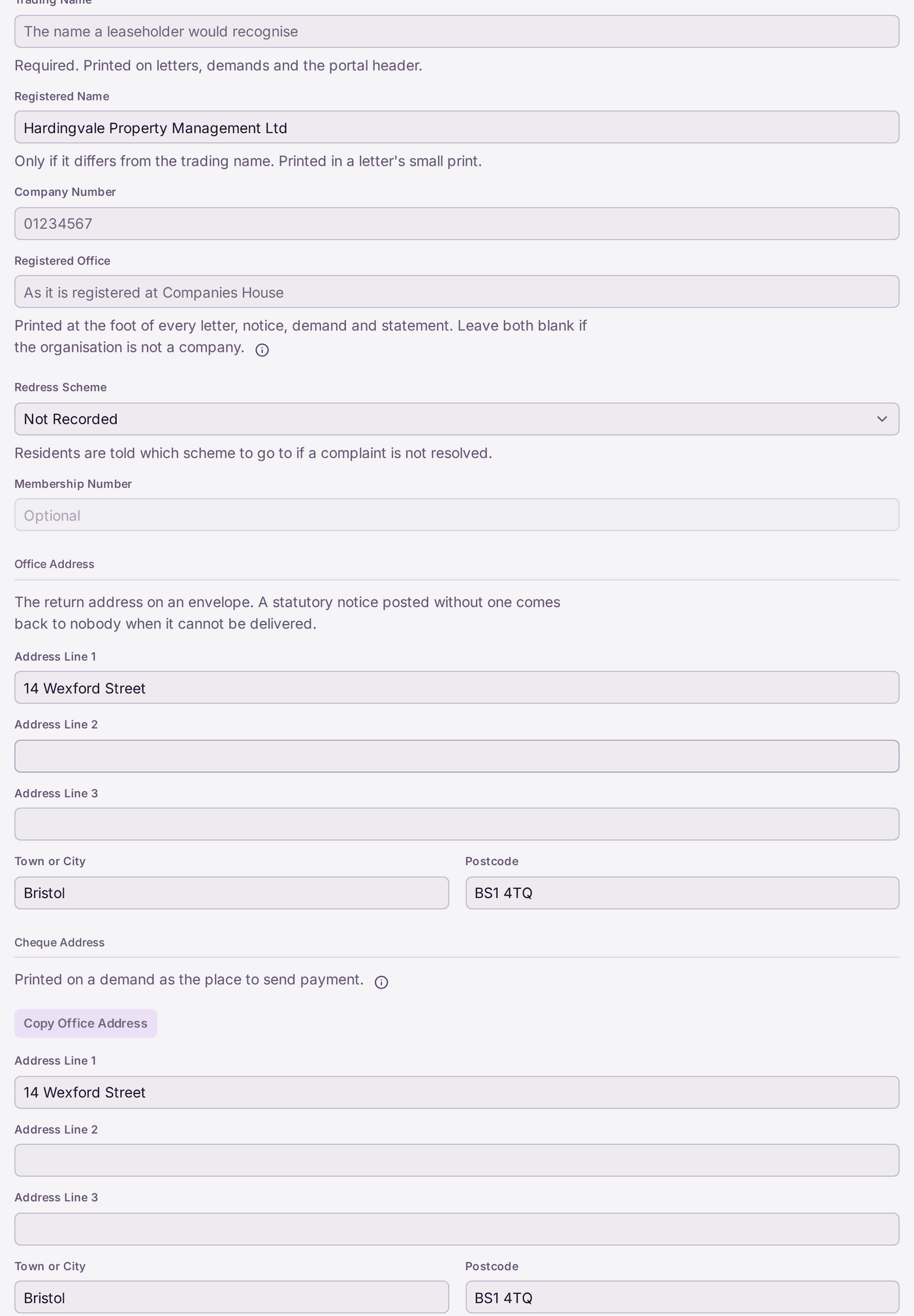
The message appears at the foot of the screen. Nothing was saved. - Save These Details is refused with "Scheme name required." You chose Other under Redress Scheme. Type the scheme's name in Scheme Name, then save again.
- The portal's Help says the redress scheme is not recorded. Nothing is chosen under Redress Scheme. Choose it, then press Save These Details.
- The logo will not load. Only PNG and SVG files under 256 KB are taken. Save your logo in one of those formats, smaller, then try again.
- Emails come from SynkroTech, not your own address. Under Sending Address the page says "Not set — email goes from SynkroTech, on your behalf." That is allowed: leaseholders see your firm's name. You can type your own address in Sending Address, but the line at the top of that card is what counts: it says "Sending as" and the address only when mail really leaves from it. If it still says "Sending from SynkroTech, on your behalf.", your address is not in use yet; the message beside it says why. To send from your own address, connect that mailbox as the organisation's mailbox: a Microsoft 365 mailbox on this card, a Google mailbox on the Mail page.
- Microsoft 365 Mailbox says Reconnect Needed. Microsoft no longer accepts the mailbox's sign-in (a changed password, or the permission was cancelled). Until you press Reconnect Mailbox, demands on email are not sent from it or from any other address: each one fails with Mailbox Needs Reconnecting and waits on My Work with Reconnect Mailbox. After reconnecting, press Retry on them in the Outbox. Invitations and password emails are not held up when Account Emails is From SynkroTech.
- A demand shows the wrong office. Demands print the main branch's address. Open Branches, choose the main branch, correct Correspondence Address, then save.