


Adding a client and appointing yourselves to their property
What you'll end up with: the client (the residents' company, right-to-manage company, freeholder or landlord who appoints you) on the register with their own address, and your appointment to manage their property recorded from the date it began.
Before you start you need: the client's name as written on your appointment, their registered address, and the date your appointment began. The property must be set up (see Taking on a new block by hand).
The client's registered address is printed on every demand as the landlord's address the law requires (section 47 of the Landlord and Tenant Act 1987). Your own office address will not do: until the client's address is on file, the service charge is not due from the leaseholders.
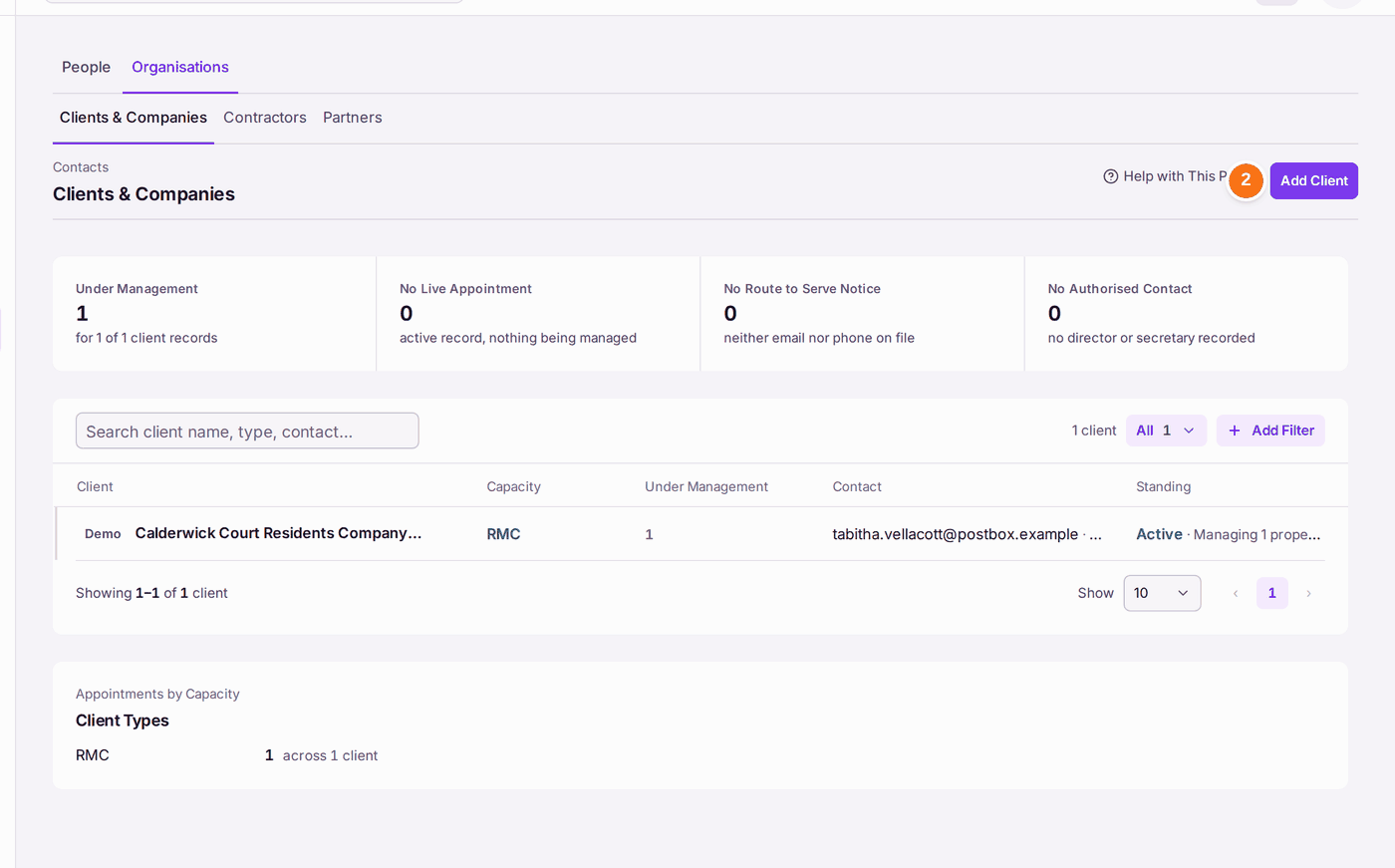
- Go to Contacts, then Organisations, then Clients & Companies.
- Press Add Client.
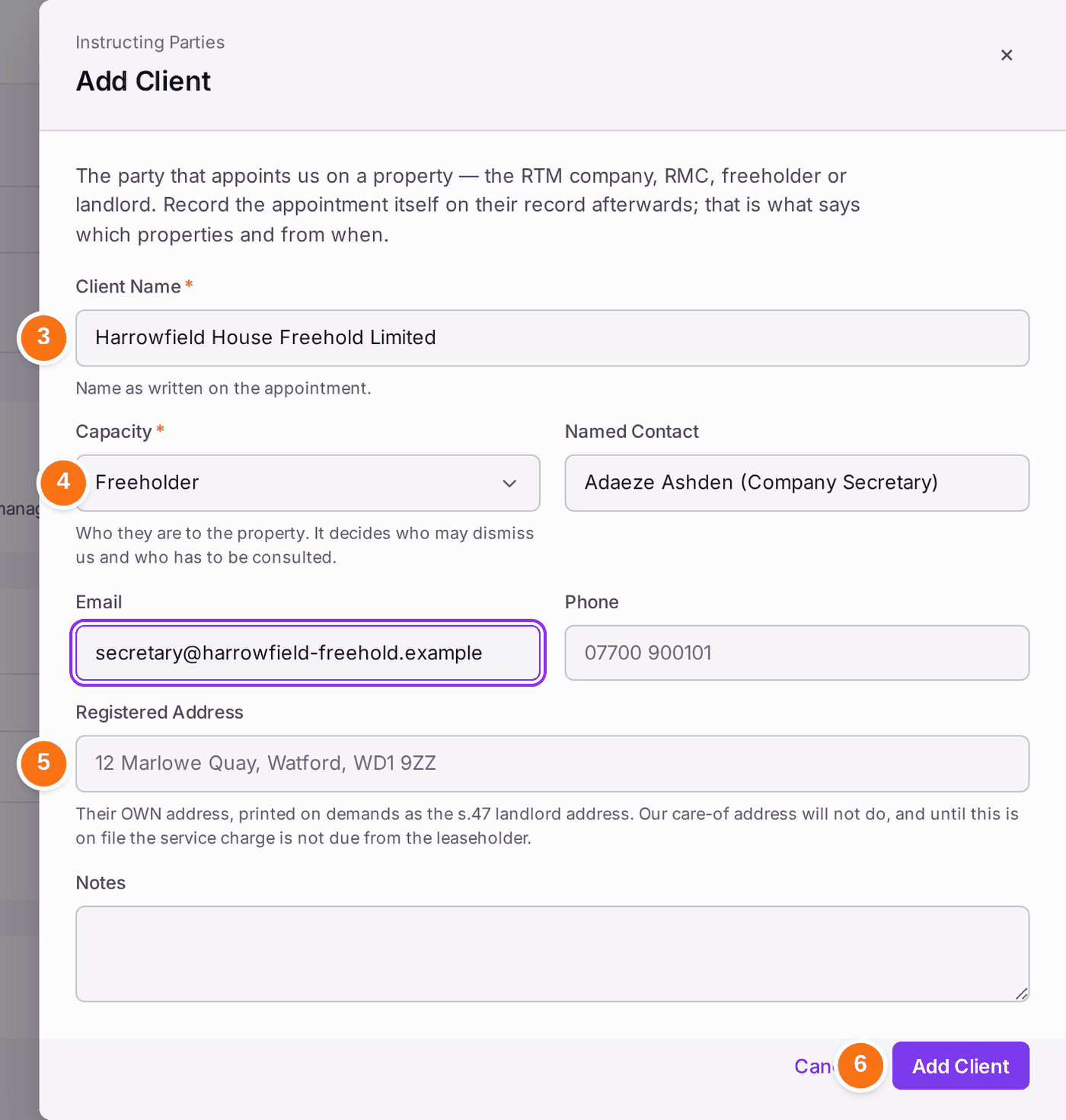
- Type the Client Name, as written on the appointment.
- Choose the Capacity: RTM Company, RMC (residents' management company), Freeholder or Landlord. "It decides who may dismiss us and who has to be consulted."
- Type the Named Contact, Email and Registered Address: the client's own address.
- Press Add Client. "Client added to the register."
- On the client's record, press Add Appointment.
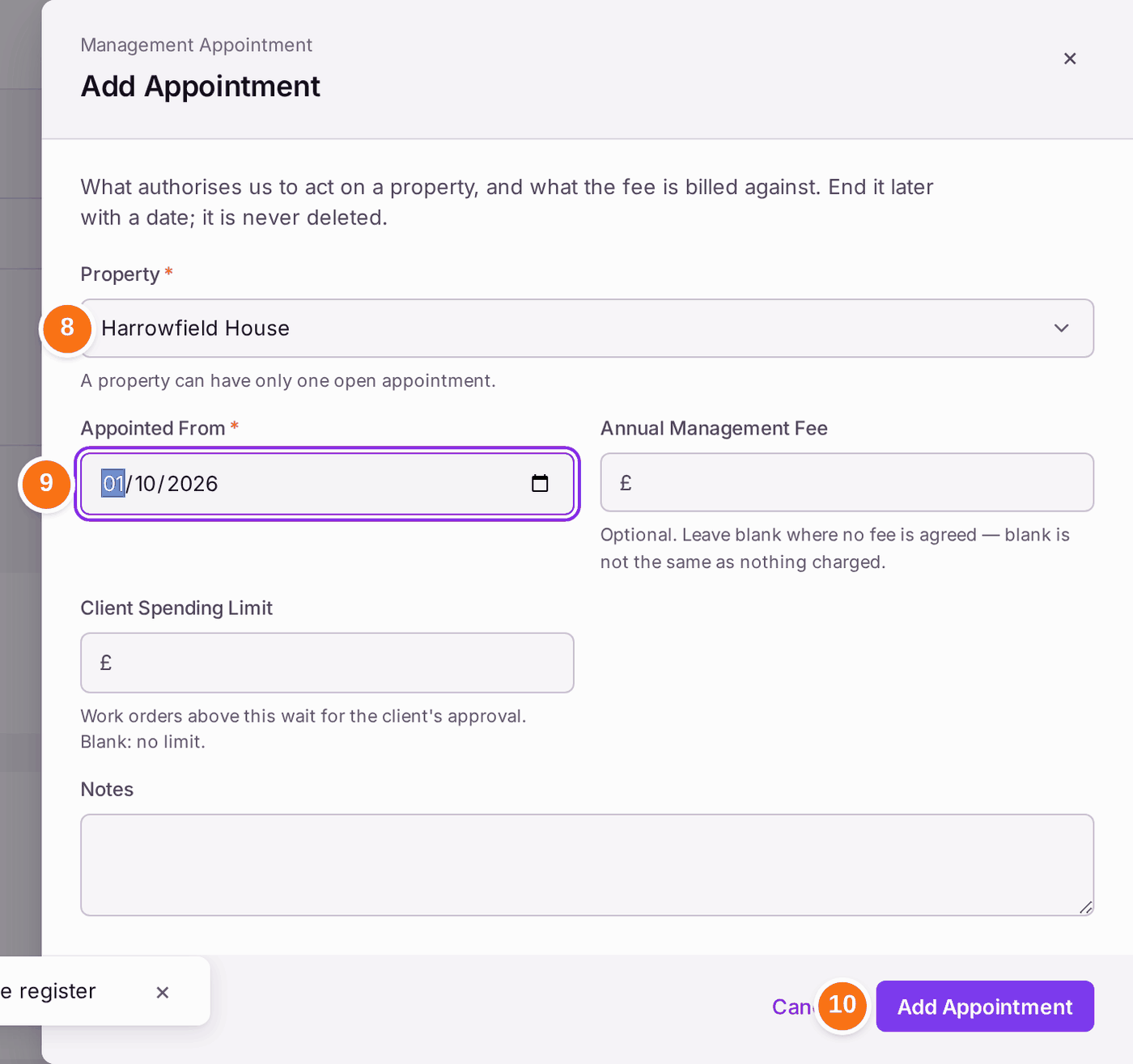
- Choose the Property. A property can have only one open appointment.
- Check Appointed From: the day your management began. It fills with the property's Contract Start, typed when the property was added; change it if the appointment began on another day. Add the Annual Management Fee if one is agreed; leave it blank if not. Add the Client Spending Limit if the management agreement sets one: a work order above it waits, Awaiting Client Approval, until you record the client's approval (see Instructing a contractor (raising a work order)). Blank is no limit.
- Press Add Appointment. "Appointment recorded."
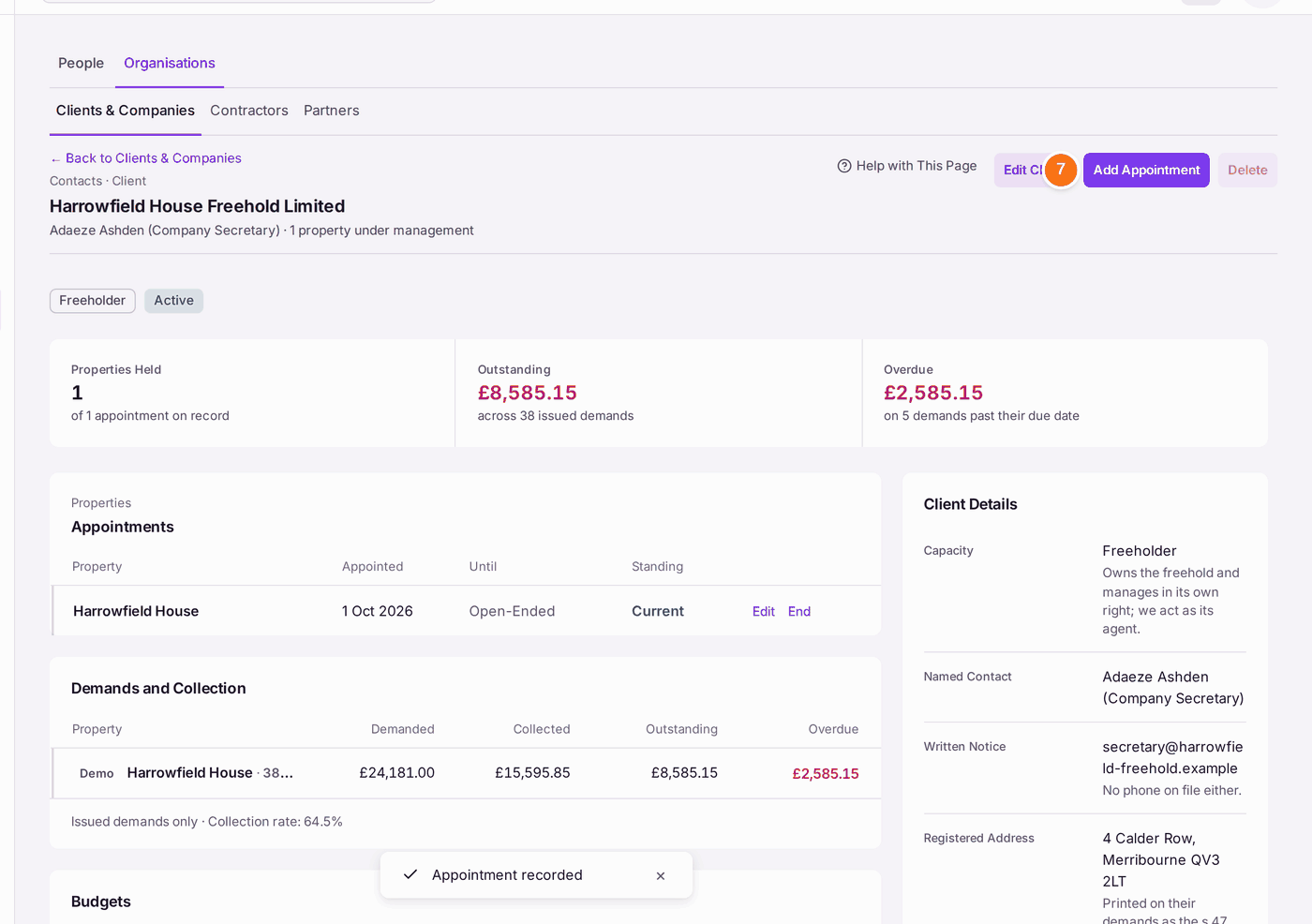
You'll know it worked when: the record reads "1 property under management", the appointment is listed as Current and Open-Ended, and the property's demands and budgets show under the client.
If something's wrong:
- The property is not offered, or the appointment is refused. The property already has an open appointment. End that one first, with End on the client who holds it.
- A budget cannot be approved for the property. No client is appointed to it. Add the appointment (steps 7 to 10).
- The client's details were wrong. Press Edit Client.
- The appointment date was wrong. Press Edit on the appointment.