


Posting a notice for a building
What you'll end up with: a notice on the building's noticeboard in the leaseholder and resident portals, pinned to the top for as long as you choose, and taken down when it no longer applies.
Before you start you need: nothing. A notice reaches people who have a portal login. To make sure everyone hears, send a group email too (see Writing to everyone in a building (group email)).
Notices are cancelled, never deleted, so the record shows what residents were told and when.
- Go to Comms, then Noticeboard.
- Choose the Property.
- Type the Title: say the thing, such as "Bin store gate code changes on Monday".
- Type the Notice.
- Choose who sees it: Everyone at the Property, Leaseholders Only or Residents Only.
- To keep it at the top, choose Pinned Until.
- Press Post Notice. It goes live at once: "Posted to Harrowfield House — everyone."

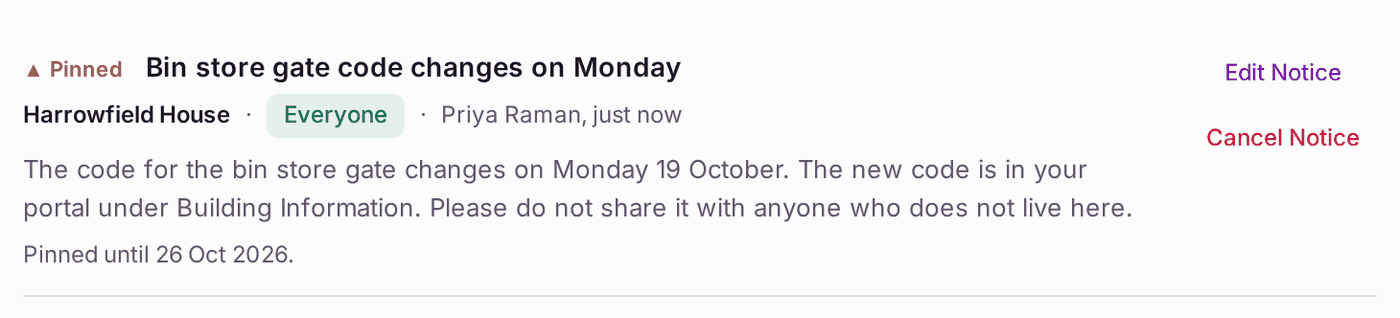
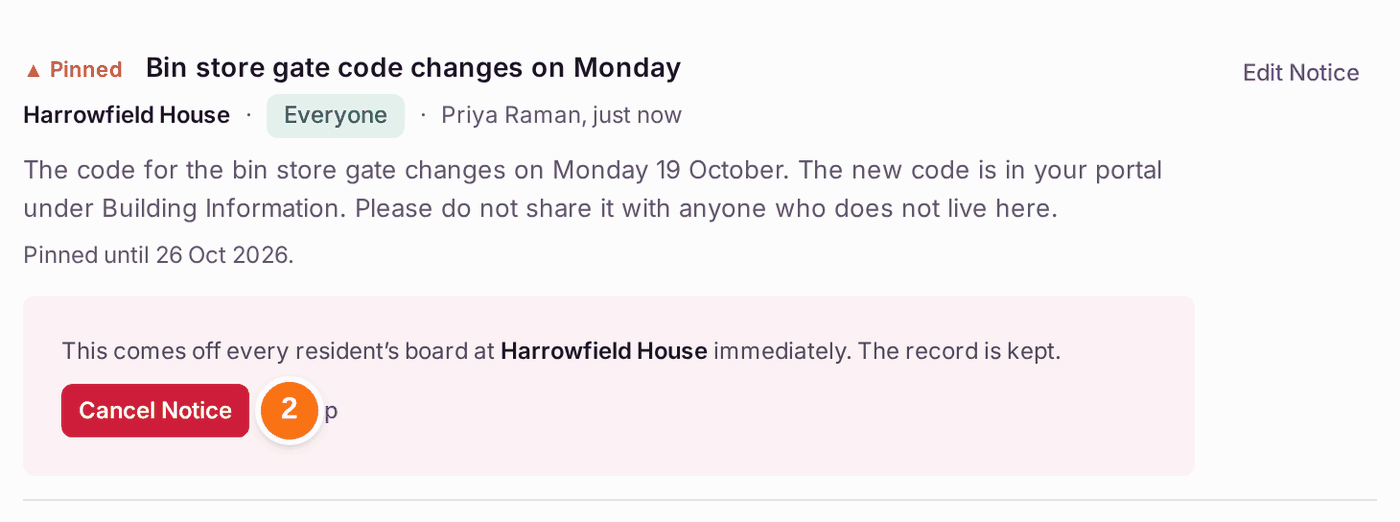
To take a notice down, press Cancel Notice on it, then Cancel Notice again (Keep leaves it up): "This comes off every resident's board at Harrowfield House immediately. The record is kept."
You'll know it worked when: the notice is at the top of the board with your name and "just now", and residents see it on their portal's Notices.
If something's wrong:
- There is a mistake in a notice. Press Edit Notice and correct it.
- A notice went to the wrong building. Cancel it and post it again for the right one.
- Cancel Notice and Edit Notice are greyed. Your role can read the board but not change it. Ask an administrator.