


Producing an inspection report for the client
What you'll end up with: a report of a signed-off inspection, with your organisation's name, every answer, the findings and the tickets raised, as a PDF to send or a Word copy to add a covering note to.
Before you start you need: a signed-off inspection (see Signing off an inspection). The report is made at sign-off.
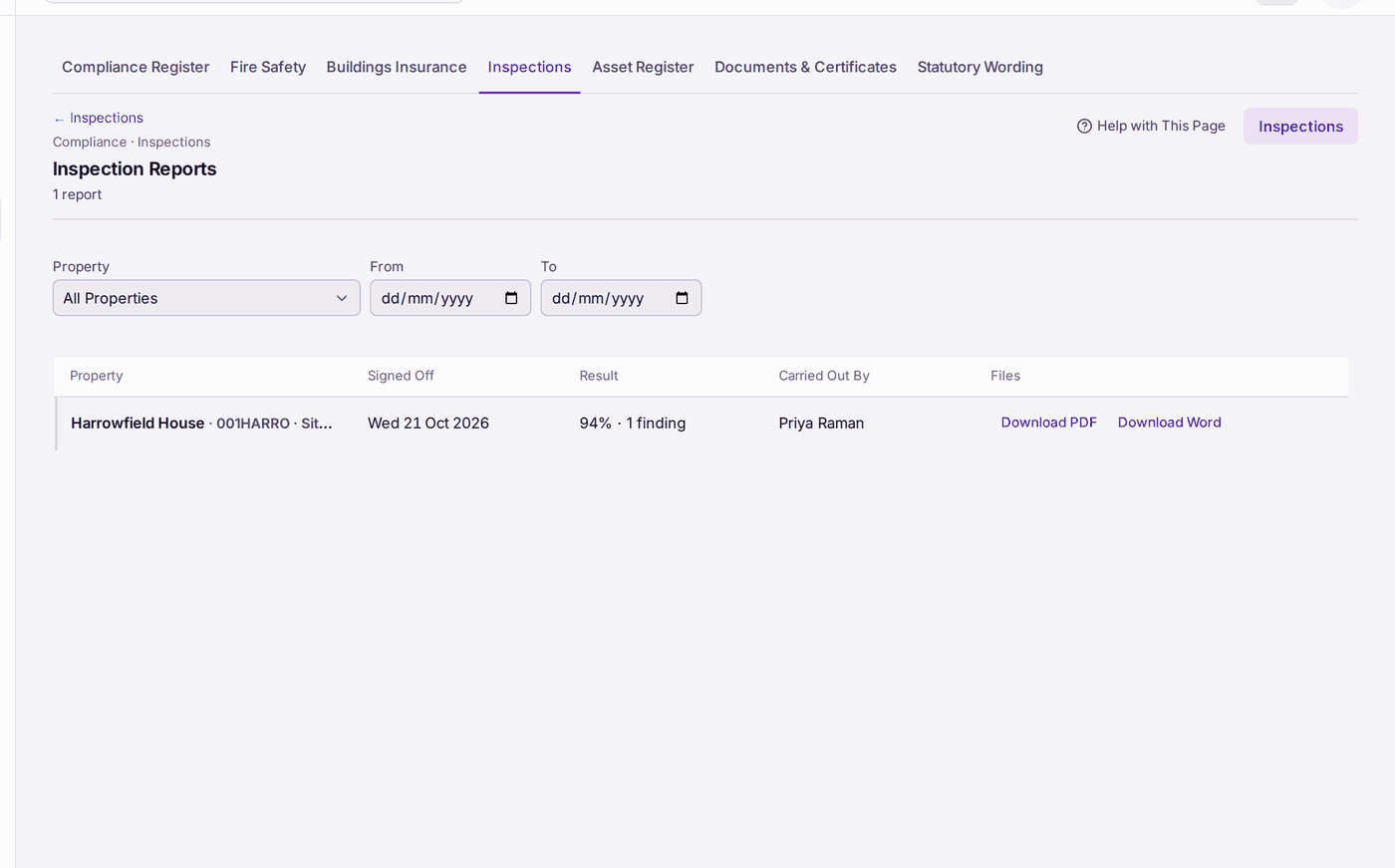
- After sign-off the report opens. To find it later, go to Compliance → Inspections, then Inspection Reports.
- Choose the Property, and From and To dates to narrow the list.
- Press Download PDF for the report as it stands, or Download Word to edit it before sending.
- On the report page, View PDF opens it; Make Again remakes it if a correction was made after sign-off.
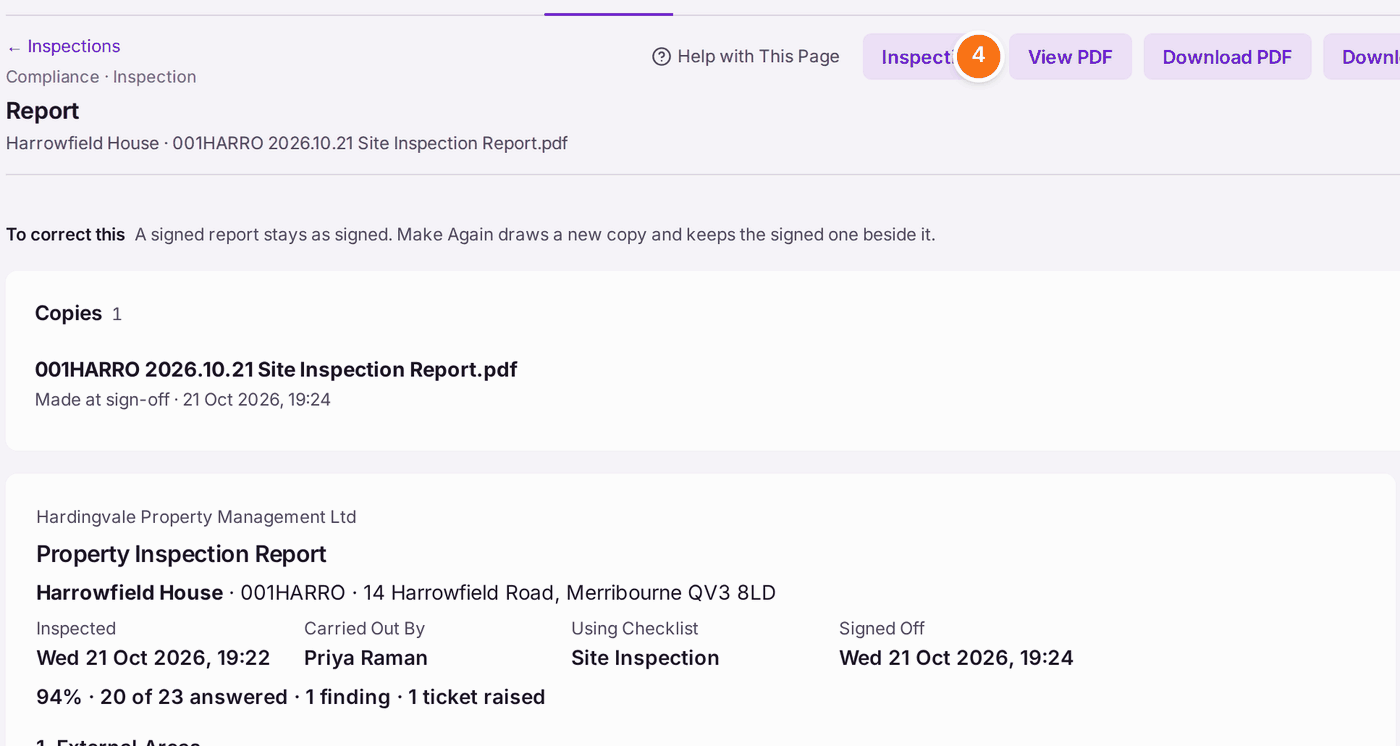
You'll know it worked when: you have the report file, with the score, the number of findings and the tickets raised on its first page.
If something's wrong:
- The report is not listed. The inspection has not been signed off. Open it and sign it off.
- The report shows an answer that has since been corrected. Press Make Again on the report page.