


Paying a supplier's invoice
What you'll end up with: the supplier's invoice recorded against the property, the fund that pays it and its cost head, approved by someone other than the person who entered it, and paid.
Before you start you need:
- The supplier on your contractor list (see Adding a contractor to your approved list), with bank details a second person has verified (see Recording a supplier's bank details, and checking a change). An invoice is paid only to verified bank details.
- Approval limits set (see Setting approval limits for supplier invoices), and a colleague with a limit high enough, other than you, if you are the one entering the invoice.
- Enough money in the fund that pays it.
"Queue · Approve · Schedule · Confirm." Only Confirm moves money. <!-- /piece -->
- Go to Finance → Supplier Invoices.
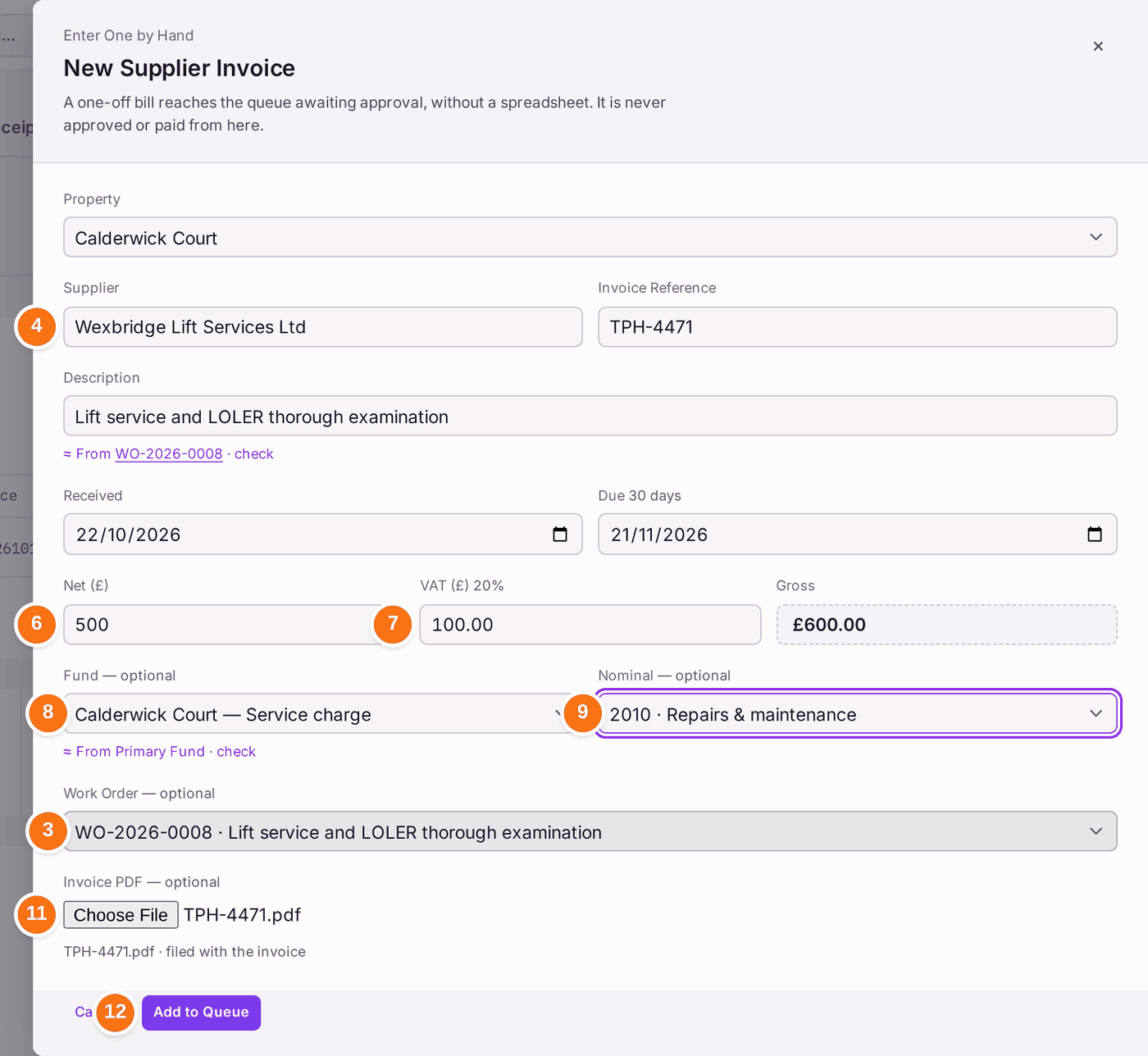
- Press Add Invoice. New Supplier Invoice opens. (Import Invoices… loads several from a spreadsheet.)
- If the invoice is for a work order, choose it under Work Order first: every property's work orders are offered, each with its property. The Property and the Supplier fill from it. The Description, the Net (£) (the work order's value) and the Fund (the property's primary service charge fund) are offered from it too, each marked "From WO-… · check": check each against the invoice and type over any that differ. With no work order, choose the Property.
- If it is not filled, type the Supplier's name as it is on your contractor list, and choose it from the list. The invoice is stored against that firm, so its remittance advice reaches the firm and the firm's spend counts it.
- Type the Invoice Reference, and a Description if it is not filled.
- Type the Net (£) figure from the invoice. VAT fills itself at the supplier's rate (20%, or 0% for a supplier not VAT registered), and Due fills itself from Received plus the supplier's payment terms (30 days unless set otherwise on the supplier). Both can be changed.
- Check Gross.
- Choose the Fund that pays it, if it is not the one offered. A reserve fund pays only reserve expenditure: choosing one shows Reserve Expenditure. Tick it and type what the reserve pays for, such as roof covering renewal, or choose another fund.
- Choose the Nominal (the cost head).
- If the work was never ordered, press Create Work Order under Work Order: the ordinary work order panel opens for this property and supplier, and the new work order goes onto the invoice.
- Under Invoice PDF, choose the file the supplier sent. It is filed against the invoice when you save, so the approver has it to check against. (A PDF can also be added later with Upload Document on the invoice's own page, at any stage.)
- Press Add to Queue. A message says it is "awaiting approval", and names the file filed.
Approving and paying it:
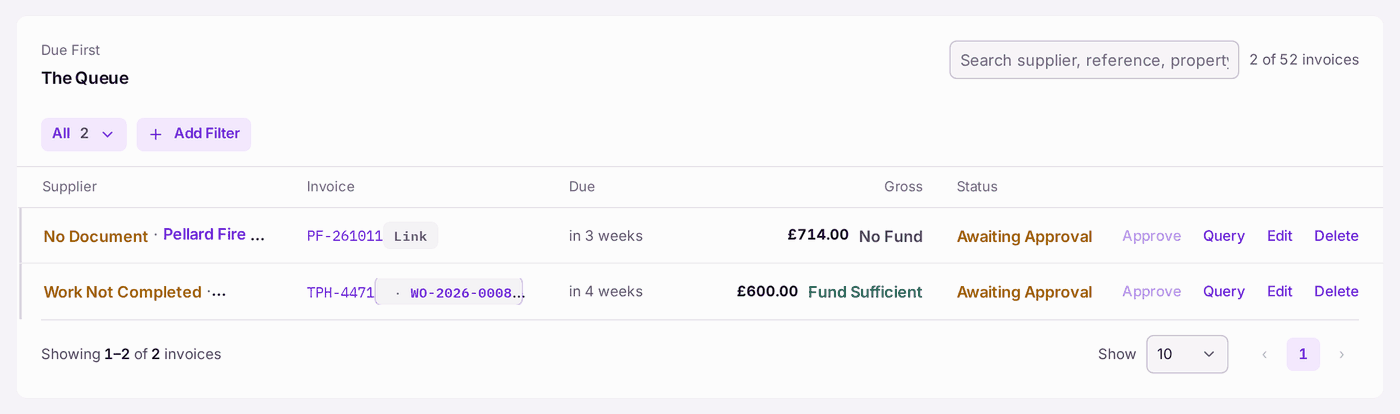
- The approver reads the invoice's flags: before the supplier in The Payment Queue (the flag, or how many; hold the pointer over it to read them all), and in full at the top of its own page. An invoice is flagged Over Work Order (its net, with the job's other invoices, is more than the work order's value, and the flag says by how much), Work Not Completed (its work order is not Completed), or No Document (no file is attached).
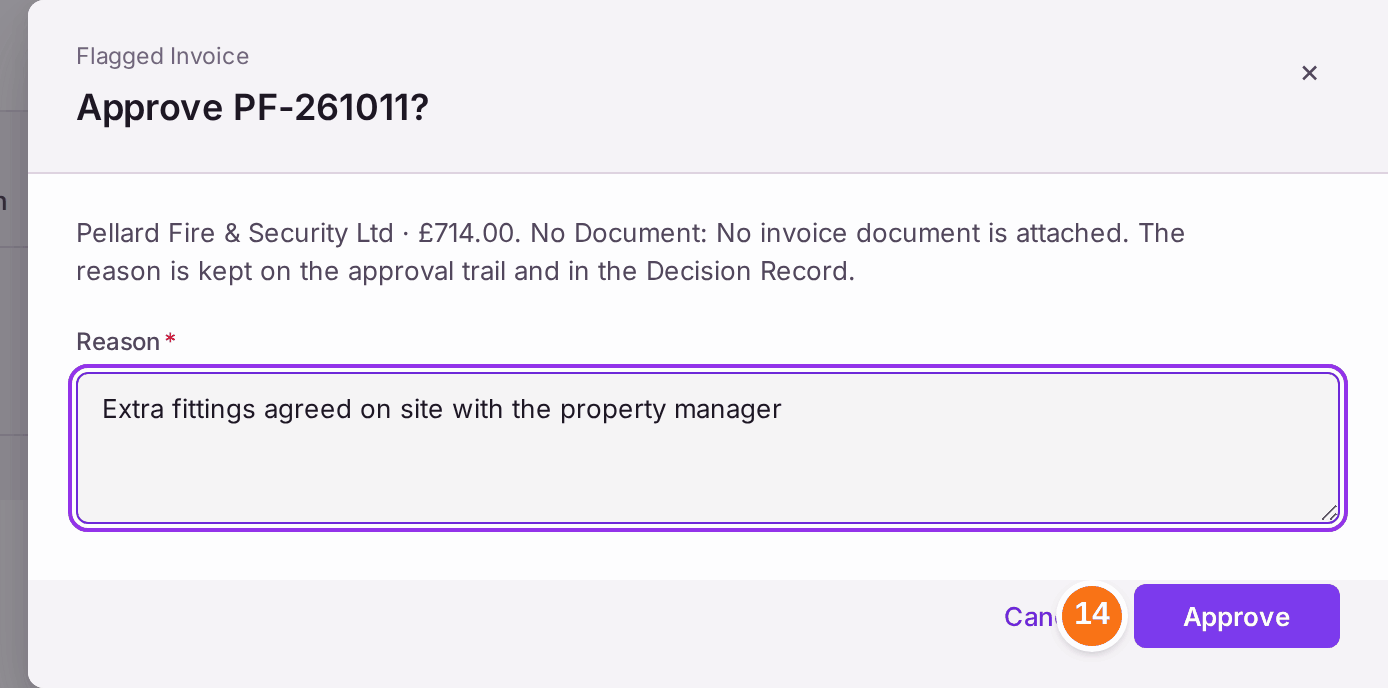
- The approver presses Approve. It must be someone other than whoever entered it, and the invoice must be within their limit; one over their limit goes to whoever Receives Over-Limit Invoices. A flagged invoice asks first: Approve INV-…? lists the flags, and the Reason is required. It is kept on the approval trail and in the Decision Record.
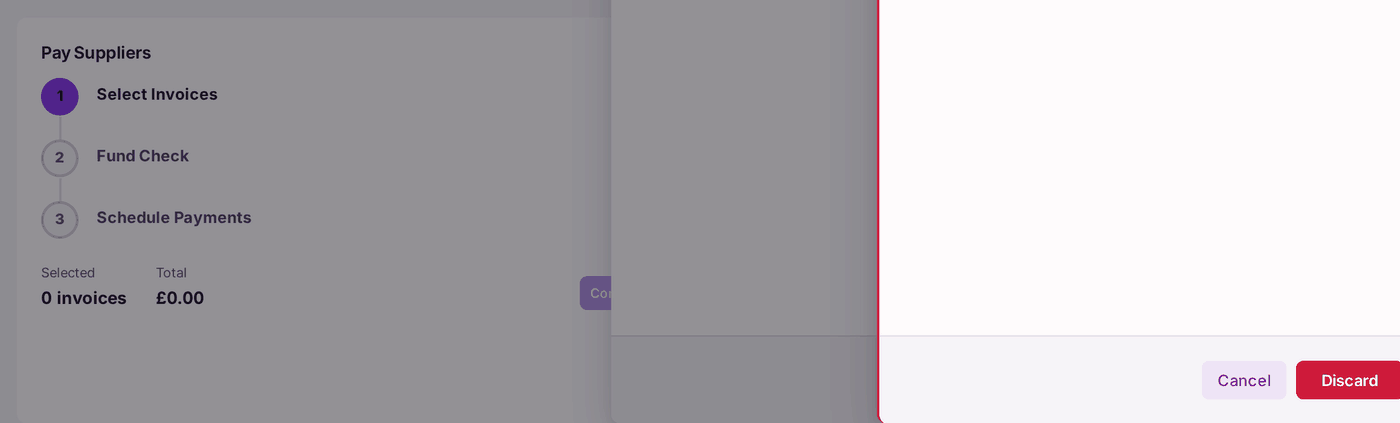
- Under Pay Suppliers, tick the approved invoices to pay (Select Invoices).
- Press Continue. Fund Check shows whether each fund can pay; Fund Headroom beside it shows what each fund holds after what it already owes.
- Press Continue again, then press Schedule Payments.
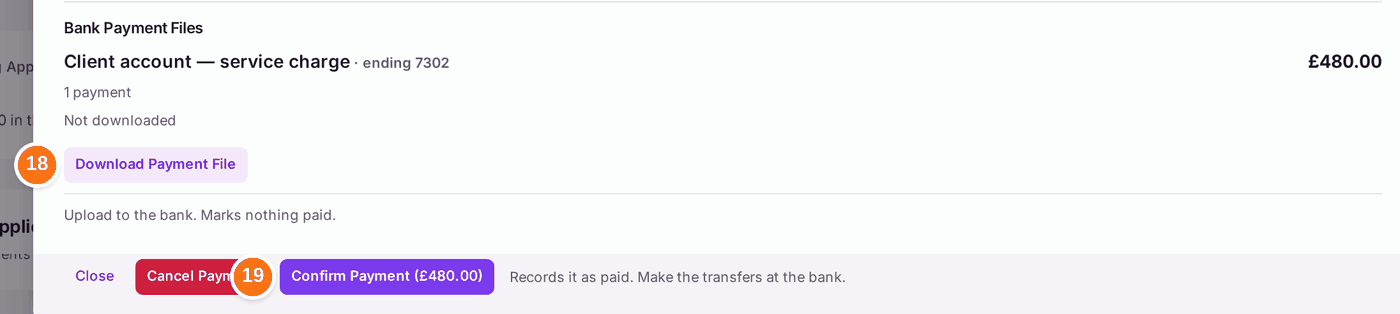
- Under Scheduled, open the payment. Under Bank Payment Files, press Download Payment File for each client account it pays from. Each file lists one payment per firm (the firm's verified account name, sort code and account number, the amount, and the payment's reference) and is recorded with who downloaded it. Upload it to your bank's online banking as a bulk payment. It marks nothing paid.
- Once the bank has made the transfers, press Confirm Payment. Only this moves money: each fund is debited, and the payment moves to Paid. If a firm's bank details were changed in the last 30 days, the payment lists them: check them with each firm on a number you already held, then tick Checked With Firms first.
You'll know it worked when: the invoice leaves Awaiting Approval, appears under Ready to Pay, and once the payment is confirmed reads as paid, with the money out of the fund and on the property's Budget Against Actual. An invoice linked to a work order the firm had not yet marked complete completes the work order too, with "Completed when invoice [number] was paid." on its Decisions. Its Activity names that completion as Automatic · Paid Invoice Completes Work Order, never as the person who paid.
An invoice a firm sends through SynkroTech Trade waits under Contractor Submissions until it is reviewed. Its completed work order says so at the top, Invoice to Review, and Review Invoice there opens it. The invoice's own Activity opens on Whole Job: the repair it paid for, from the report to this payment, with the job's cost (see Seeing everything that happened with a repair, and what it cost).
If something's wrong:
- "The payments were not scheduled: … has no verified bank details." Or "… is not on the contractor register", or "…'s bank details are waiting to be verified by a second person". Pay Suppliers says so before you press, with No verified bank details and the firm. Open the firm and add its bank details, or have a colleague verify the ones waiting (see Recording a supplier's bank details, and checking a change), then untick and tick the invoice again.
- Confirm Payment: "You entered the bank details in use for …". Whoever entered a firm's bank details does not confirm a payment to it. A colleague who pays suppliers confirms it.
- "Not in a file: …" under Bank Payment Files. A firm on a payment scheduled before 22 October 2026 with no verified bank details, or a fund that names no bank account, is left out of the files. Pay it at the bank by hand, or cancel the payment and schedule it again once the details are verified.
- Approve is greyed: "You put … on the ledger, so somebody else has to approve it." Nobody approves an invoice they recorded. The message names a colleague who can.
- Approve is greyed: "… does not say which fund pays it, so it could never be paid." Press Edit, choose the Fund, then press Save Changes. The row reads No Fund until then.
- The row reads Will Not Pay. The fund chosen does not hold enough to pay it after what it already owes. Check Fund Headroom, then choose another fund or wait for money to come in.
- "… is a reserve fund, spent only on what it was collected for." The invoice names a reserve fund without saying why (from 20 October 2026, D167). If it really is reserve expenditure, press Edit, tick Reserve Expenditure, type what it pays for and press Save Changes; otherwise choose the service charge fund. An invoice already approved is held back from payment until then: undo its approval first (Undo Approval, under More). The invoice's page shows Reserve Expenditure with the reason, who gave it and when.
- "That fund belongs to a different property." An invoice is paid only from its own property's funds. Choose one of this property's funds.
- The row says Set Nominal. No cost head is chosen, so the invoice counts only in the total on the budget, not against a line. Press Edit and choose the Nominal.
- "… is flagged: … Say why it is approved." The reason was missing or too short. Type why it is right to pay it (for example, extra work agreed on site), then press Approve.
- The remittance advice says "No email address and no postal address on the contractor record". The invoice was entered with a name that is not exactly the firm's on your contractor list, so it is not stored against the firm. Press Edit and choose the supplier from the list.
- You dispute the invoice. Press Query to put the invoice on hold with the supplier; the clock pauses until it is answered.