


Keeping documents and certificates in one place
What you'll end up with: every certificate, report, insurance schedule, lease and contract filed against the right property, tied to the duty it proves where it is a certificate, with its expiry date, so anyone in the office can find it.
Before you start you need: the documents as files (PDFs or photographs), and for each one the property it belongs to.
A record that a check was done is not proof of it. A client, an insurer, the fire service or a buyer's solicitor will ask for the document. From 2027 a leaseholder can ask for six years of building information. Filing each document as it arrives avoids a search later.
- Open the property, then its Documents tab. It shows how many documents are missing.
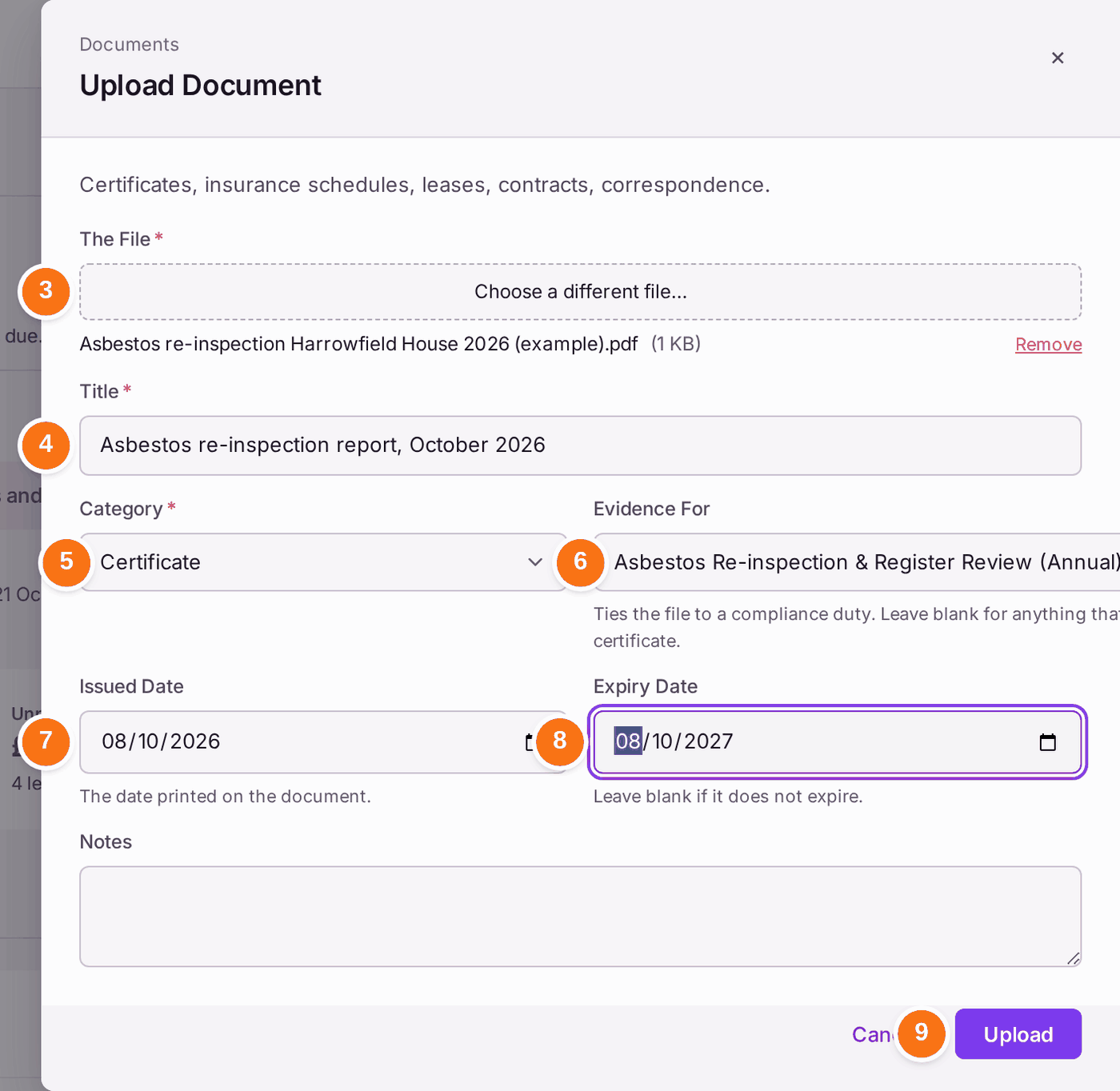
- Press Upload a Document.
- Choose The File.
- Type the Title, in words someone else would search for.
- Choose the Category: Certificate, Insurance, Lease, Contract, Accounts, Report, Photograph or Other. Four more are for the papers every resident is given without asking, and show in the leaseholder and resident portals under Building Safety: Fire Safety Instructions, and for a higher-risk building Safety Case Summary, Residents' Engagement Strategy and Complaints Procedure (see Talking a leaseholder through their portal). A report for the Building Safety Regulator, such as the safety case report, never shows in the portals unless you file it under one of these four.
- For a certificate, choose the duty it proves in Evidence For. Leave it blank for anything else.
- Choose the Issued Date printed on the document.
- Choose the Expiry Date, or leave it blank if it does not expire.
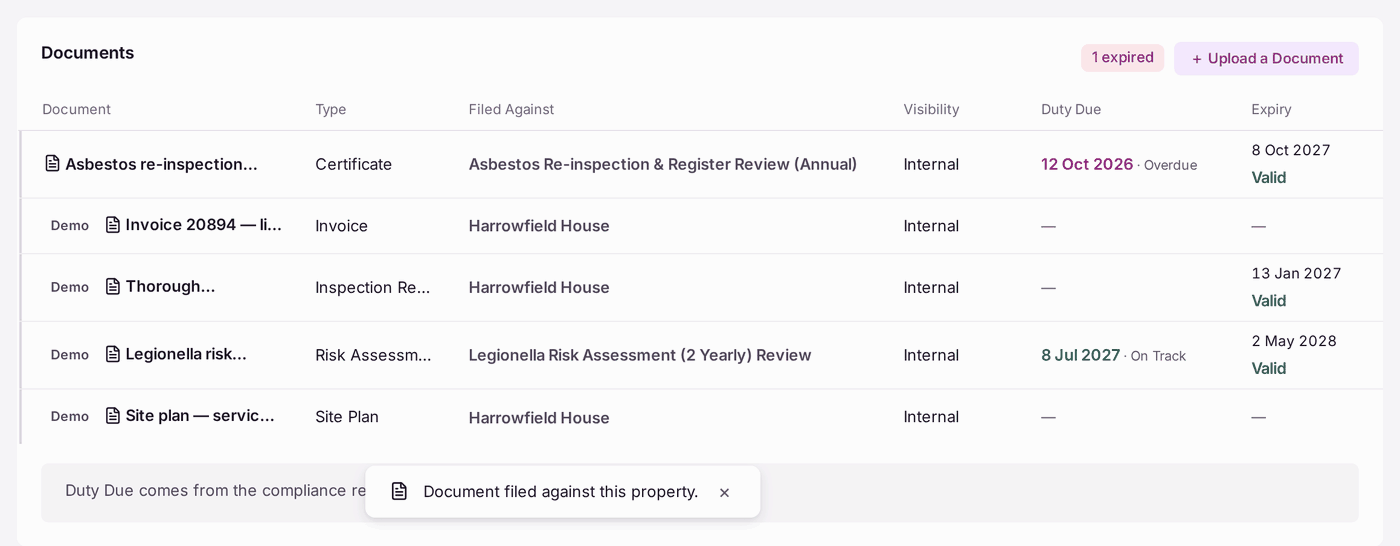
- Press Upload. "Document filed against this property."
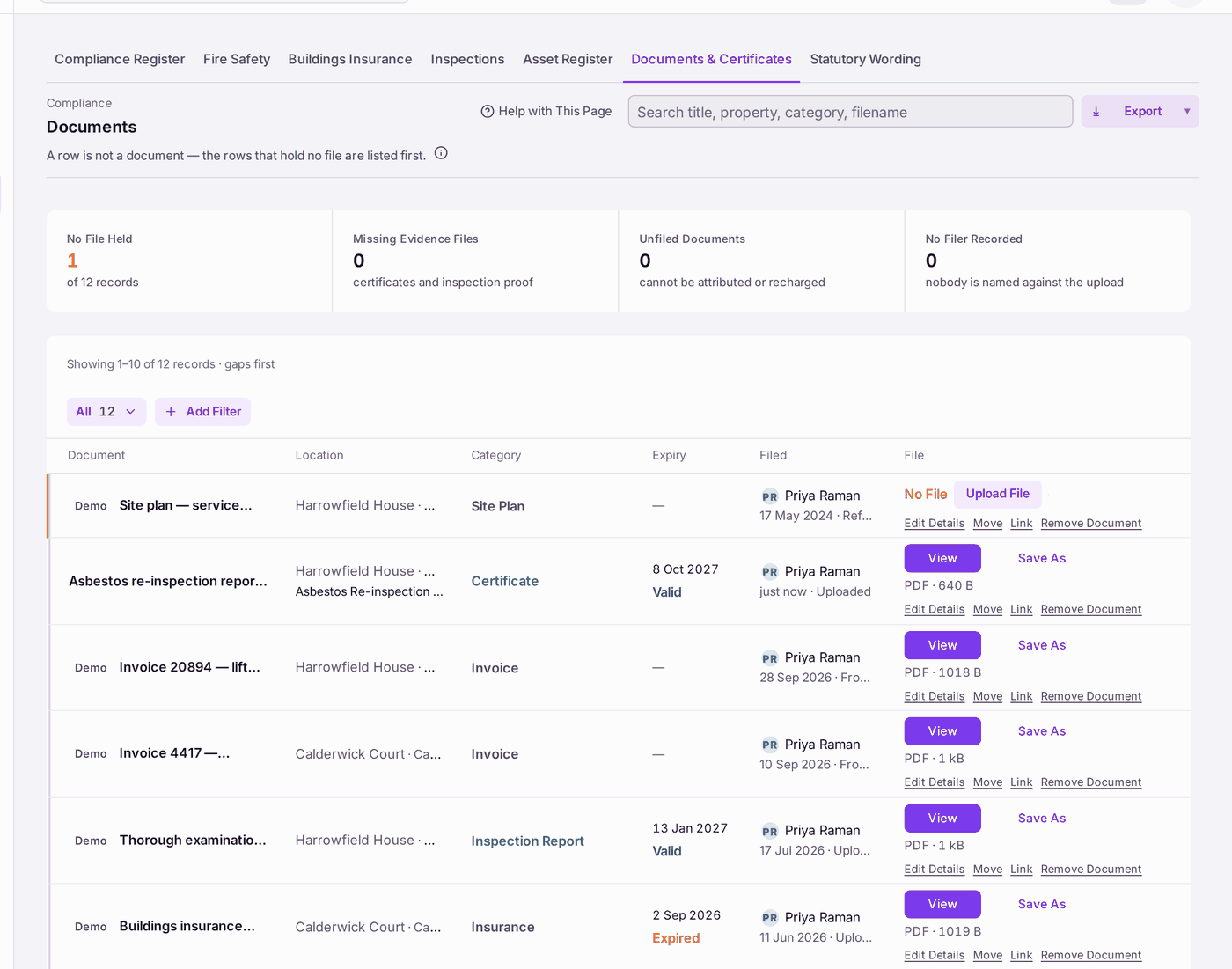
To see every property's documents together, go to Compliance → Documents & Certificates. Rows with no file are listed first, with Upload File beside them. Each row has View and Save As for its file, and Edit Details, Move (to another property), Link (to another record) and Withdraw.
You'll know it worked when: the document is on the property's Documents tab, with its category, what it is filed against and its expiry, and a certificate's duty no longer appears under Duties Without Certificates.
A document is stored once, however many records it belongs to. A certificate filed against a duty is linked to the duty's asset and to the firm on the duty as well, so it is found from the plant and from the contractor too. The document's page lists them under Also Linked To, each a link; Link to Record adds another.
If something's wrong:
- A row reads No File. It records that a document exists but nobody has filed it. Press Upload File on it. Renaming the row does not close the gap.
- A document was filed against the wrong property. Press Move. Do not cancel it.
- A document should no longer be used. Press Remove Document on its row or its page, type the reason, then press Remove Document again. It is taken off the register, not deleted: the file, its history and your reason stay, and it can be put back.
- The certificate is filed but the duty is still overdue. Filing the document does not record the date the work was done (see Recording that a check was done (filing a certificate)).
- The figures disagree. The register's Missing Evidence Files counts rows with no file; the property's Duties Without Certificates counts duties with no document filed against them. A duty recorded as done with no file counts in the second only.