


Setting up a concierge desk for a building
What you'll end up with: a concierge (the person on a building's front desk) recorded as appointed at the property for a set period, with their own sign-in to the Concierge Desk, where they record parcels and message flats. Their access ends on the day the appointment ends.
Before you start you need: the concierge on SynkroTech's person register ("Add a new concierge there first"), the property, and the dates of their appointment. To give them a sign-in, your role must allow you to grant portal access.
The Concierge Desk shows the desk the units in the building, not who lives in them. The one exception is handing a parcel over: the desk sees the names of that unit's current leaseholders and residents, to choose who collected it, and nothing else about them.
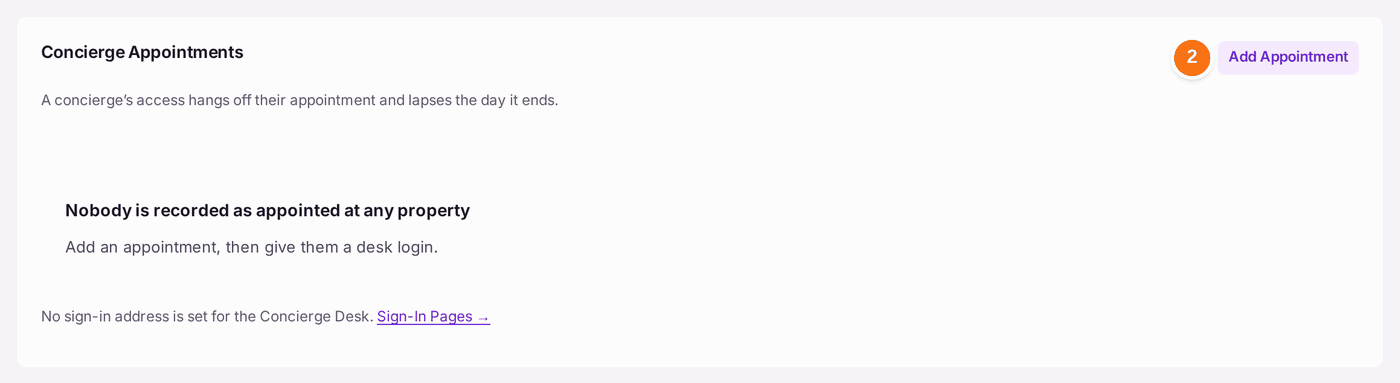
- Go to Settings, then Portals & Access, then Portal Logins, and scroll to Concierge Appointments.
- Press Add Appointment.
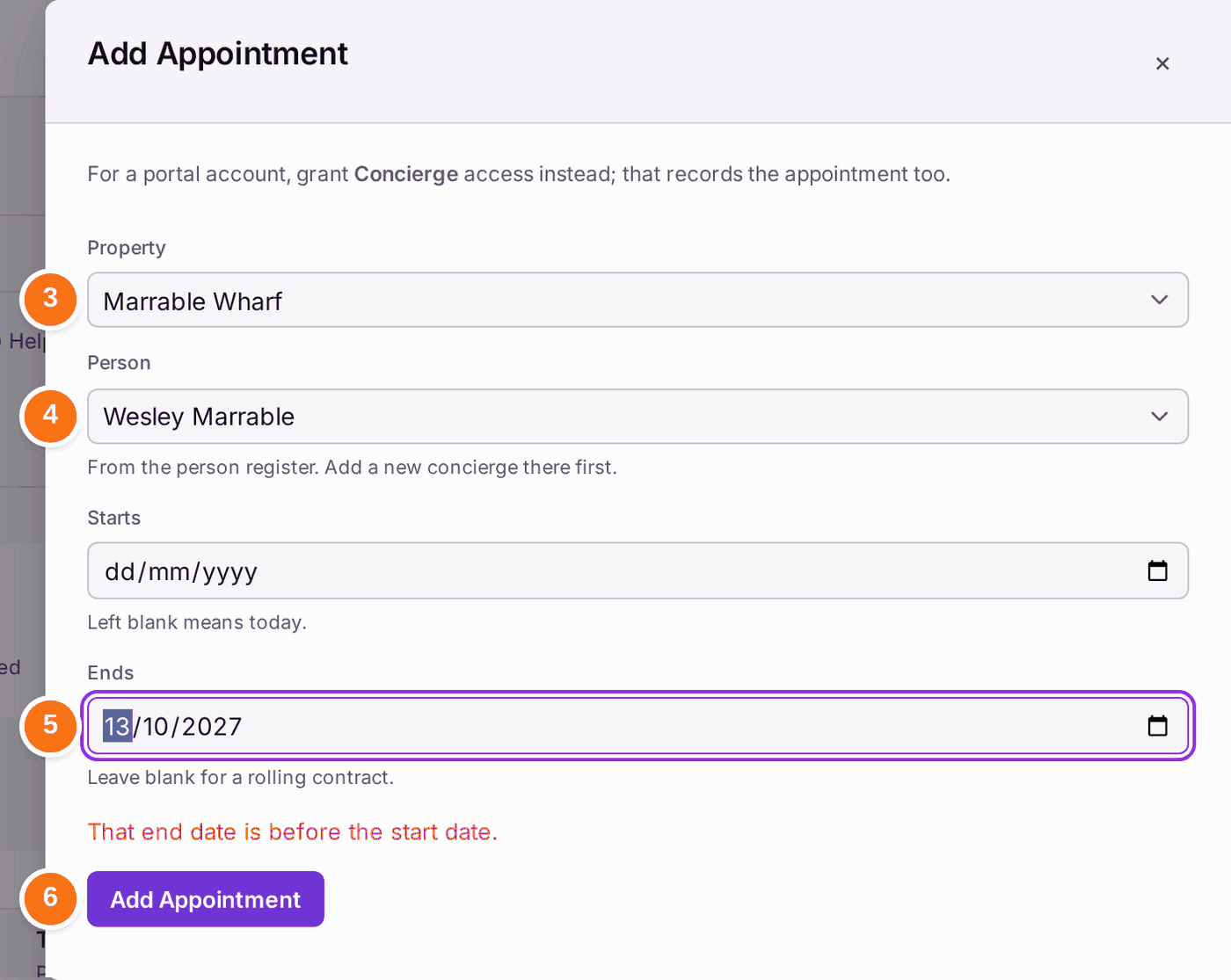
- Choose the Property.
- Choose the Person.
- Leave Starts blank if they start today, or choose the day they start. Choose Ends, or leave it blank for a rolling contract.
- Press Add Appointment. "Appointment added".
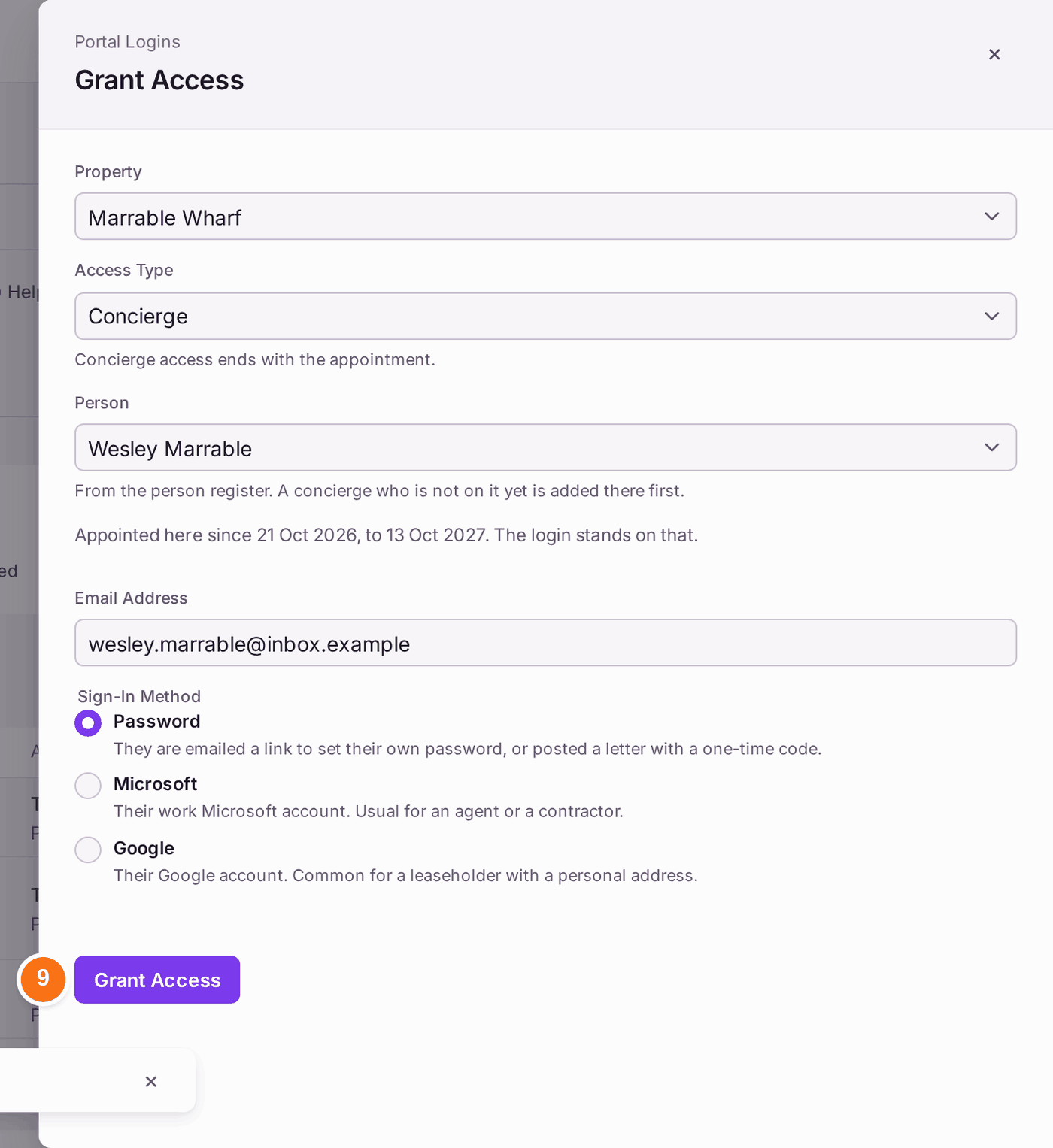
- On their row, press Create Desk Login…. Grant Access opens with the property, Concierge and the person already chosen: "Appointed here since … The login stands on that."
- Check the Email Address, and leave Sign-In Method on Password.
- Press Grant Access.
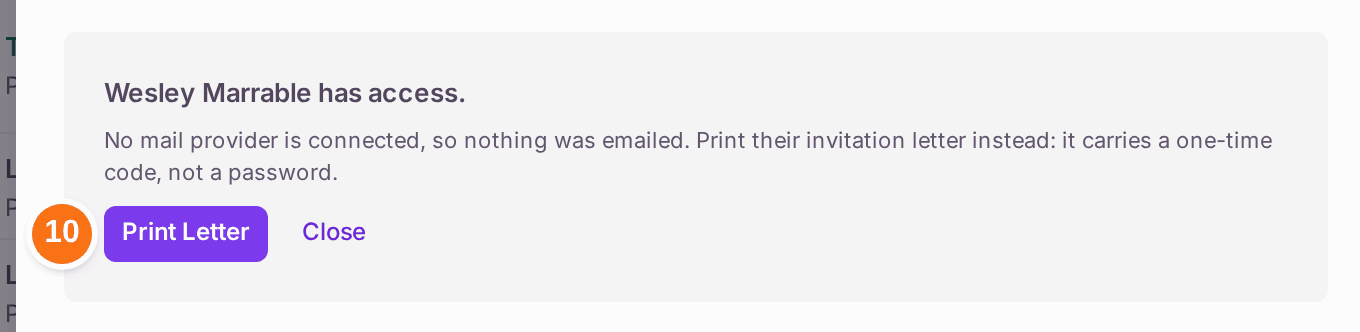
- If the panel says "No mail provider is connected, so nothing was emailed", press Print Letter and give the concierge the letter. It carries a one-time code, not a password, which they use to set their own password.
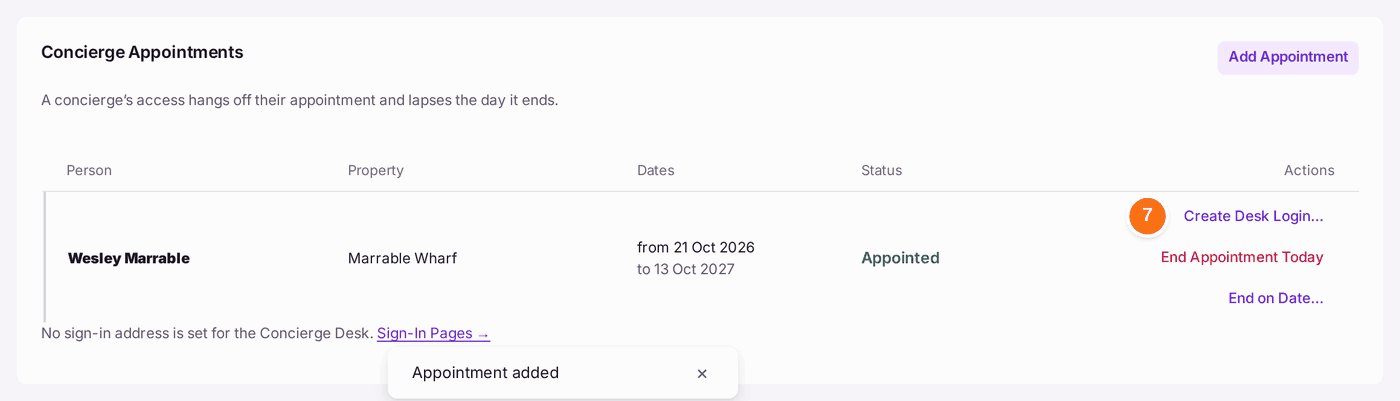
You'll know it worked when: the appointment reads Appointed, and the concierge is on Portal Logins as Active. Once they sign in, what the desk records shows on Comms → Concierge Desk: parcels signed in today, collected today, held now and held too long (over 21 days), and the desk's messages.
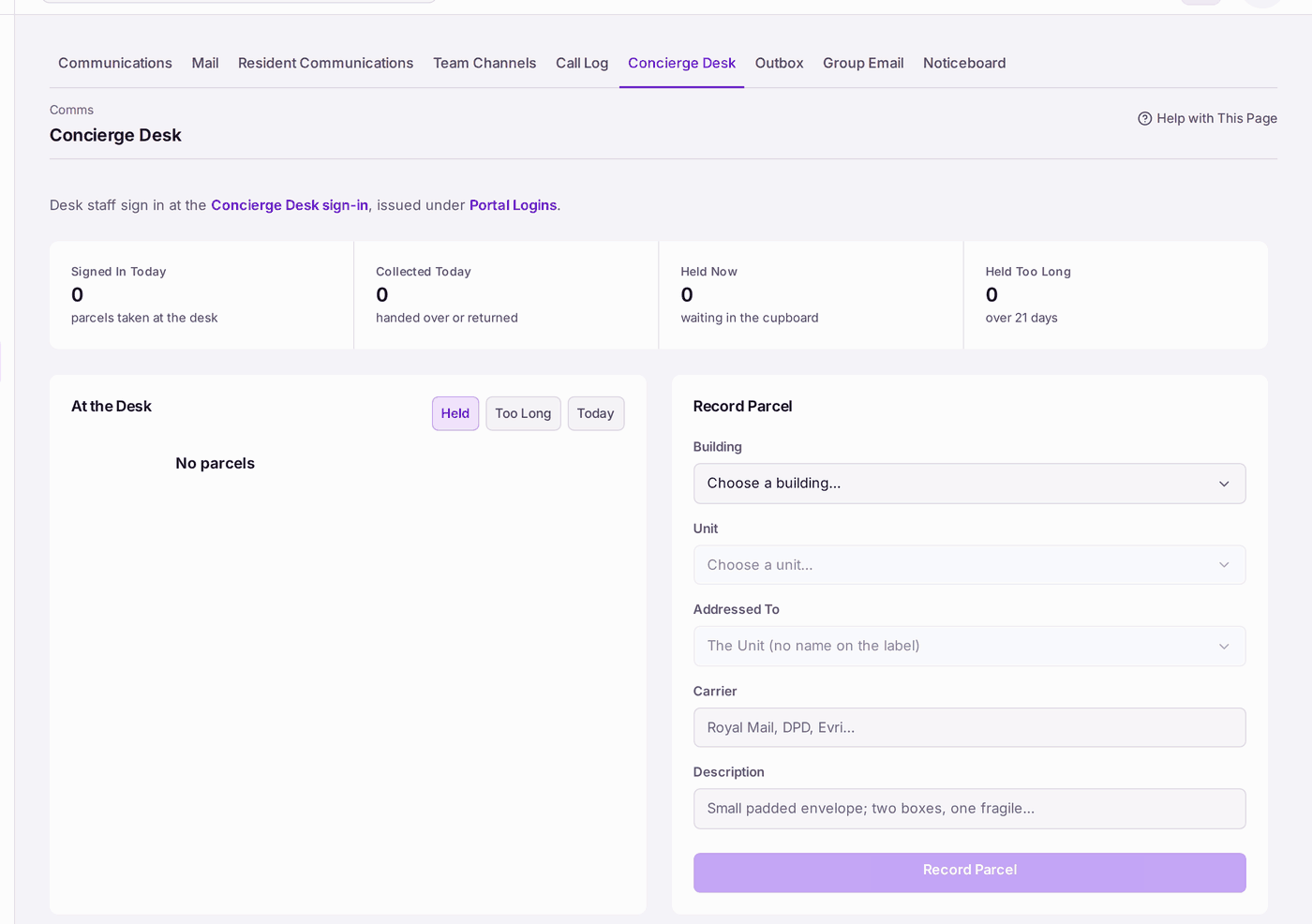
At the desk, when somebody collects a parcel (what the concierge does, signed in to the Concierge Desk):
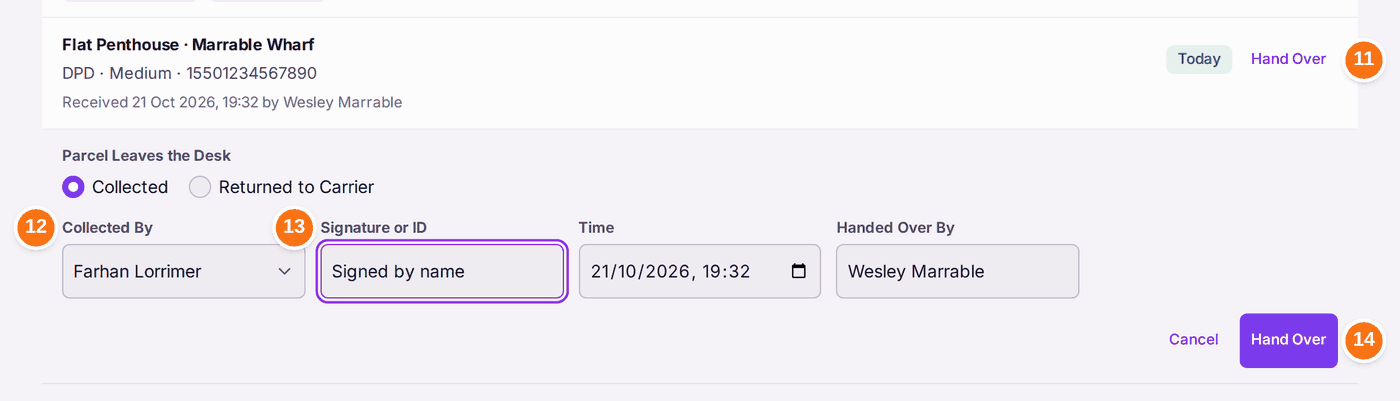
- Under Parcels, press Hand Over on the parcel's row.
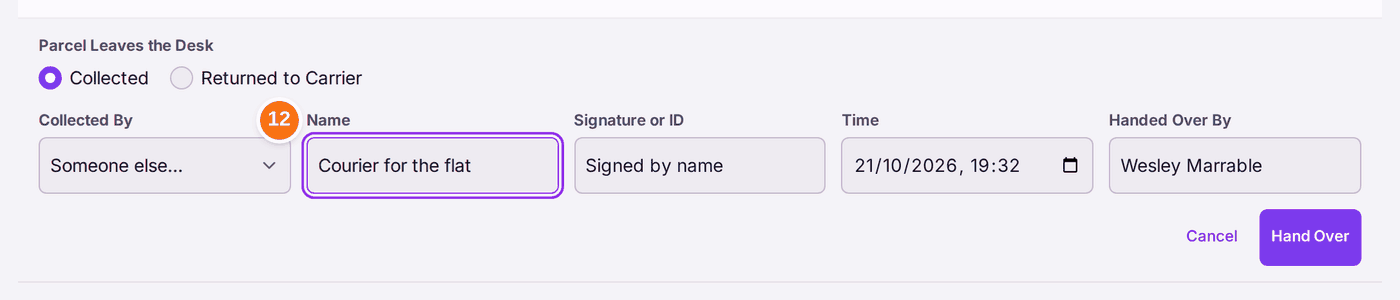
- Under Collected By, choose the person by name. Only the current leaseholders and residents of that parcel's unit are offered, by name alone. If the person is not one of them (a relative, a courier, a neighbour), choose Someone else… and type their name under Name.
- Under Signature or ID, write how they proved who they are.
- Press Hand Over. The parcel's row reads Collected, with the name.
To end an appointment, press End Appointment Today or End on Date… on its row. The desk login stops working on that day.
If something's wrong:
- Add Appointment is greyed. Pointing at it says "Property and person required". Choose both.
- "That end date is before the start date." Correct Ends.
- The concierge is not offered under Person. They are not on the person register. Add them first, then come back.
- Create Desk Login… is not on the row. The appointment has not started yet: the row reads Not Started and "no desk login can be issued yet". Come back on the start date.
- "No sign-in address is set for the Concierge Desk." The desk's address is not set yet. Sign-In Pages → beside it shows the same. SynkroTech sets it.
- "No web address is set … so an invitation letter could not say where to sign in and none was produced." SynkroTech sets that address. Ask them (see Putting the sign-in addresses and posters in front of people). The login itself was granted, and no password was changed.