


Checking your figures against the old system
What you'll end up with: each property you moved from another system marked Checked, with your name, once its units, leases, shares and money match the old system's figures.
Before you start you need: the property loaded, and from the old system (or the outgoing agent) a report per property of: units, leases, the total demanded, the total received and the total outstanding on the day you switched over.
Do this before you issue anything. A difference found now is one figure to trace. A difference found at year end has to be traced back through every entry since the switch.
- Press Settings, then Bulk Import at the top of the page.
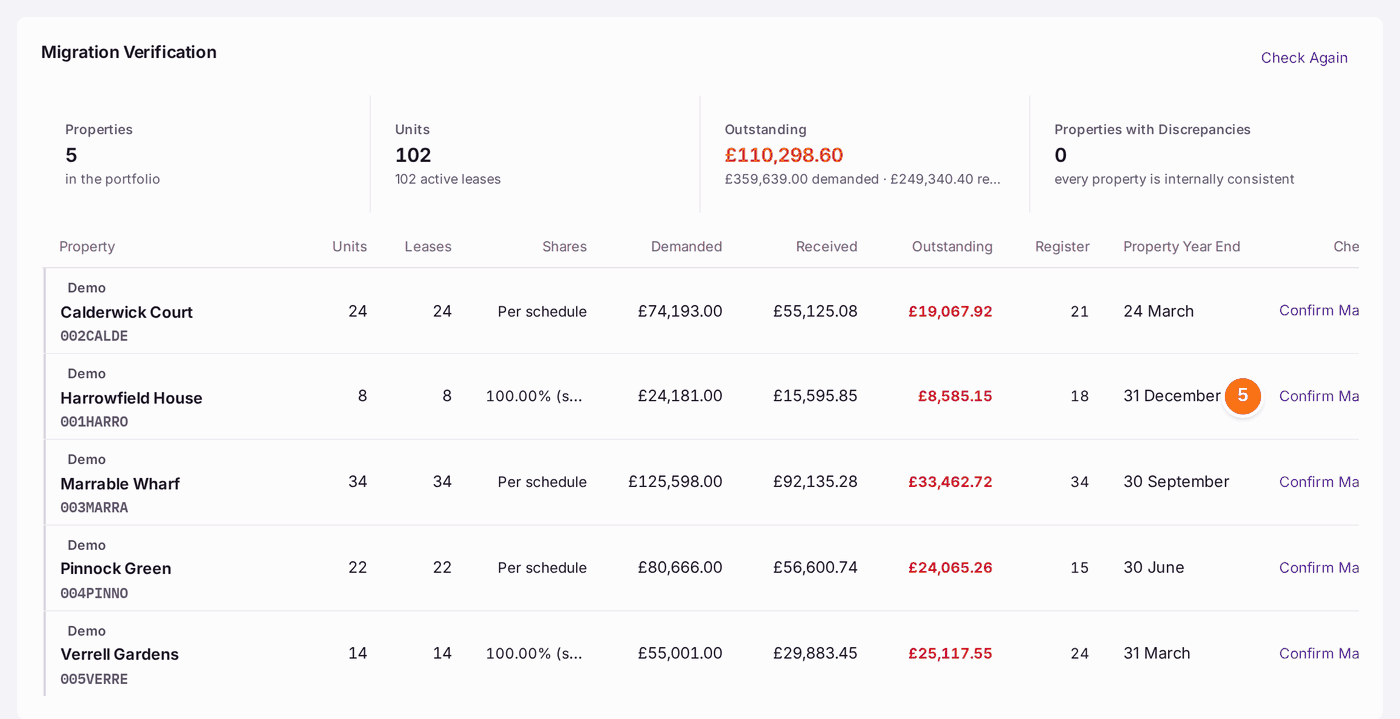
- Scroll down to Migration Verification. The top line shows the whole portfolio: properties, units and leases, and the money outstanding.
- Read Properties with Discrepancies. It should say "every property is internally consistent", meaning the units, leases and shares add up within SynkroTech itself.
- Compare one property's row with the old system's report: Units, Leases, Shares, Demanded, Received, Outstanding, Register (the number of compliance duties) and Property Year End.
- Press Confirm Match on that row once every figure agrees. It takes effect at once; there is no question first.
- Repeat steps 4 and 5 for each property.
You'll know it worked when: a message says "[property] recorded as checked." and the row's last column reads Checked. When every property is checked, the Setup Checklist shows Review Figures Against Previous System as Done.
If something's wrong:
- A figure does not match. Do not press Confirm Match. Find the difference first: Units and Leases are on the property's Units tab; Shares is the schedules on the same tab; Demanded, Received and Outstanding come from the opening balances (see Recording the outgoing agent's handover and opening position). Correct the record, press Check Again at the top of the card, then compare again.
- Properties with Discrepancies is not 0. SynkroTech found something inside its own records that does not add up, such as a unit with a share and no lease. The row says what. Fix that first.
- You pressed Confirm Match too soon. The check is filed with your name and the date. Correct the record, then tell whoever signs off the move that the property was checked before the correction.
- This property never came from another system. On the Setup Checklist, press Mark Not Applicable on Review Figures Against Previous System and give the reason.