


Setting each unit's share of the service charge (apportionment)
What you'll end up with: a schedule (a group of costs shared by the same set of units, such as Residential, Lift or Car Park) for each kind of shared cost in the property, with every unit's share entered as its lease states it, and each schedule adding up to exactly 100%.
Before you start you need: the units on the property (see Taking on a new block by hand), and each lease's percentage for each schedule it pays into.
This is the step that most often stops demands later. A demand is each leaseholder's share of a budget, so if the shares are wrong, every demand is wrong. Shares are saved only when they add up to exactly 100%, and SynkroTech will not create demands against a schedule that does not.
- Open the property, then press its Units tab.
- Press + Add Schedule.
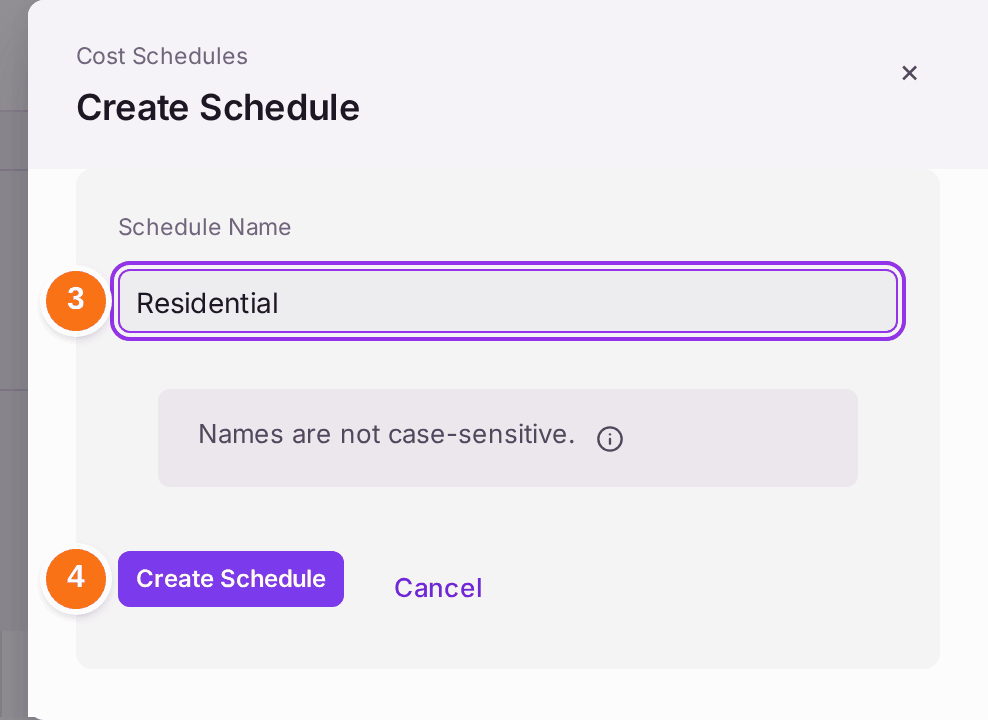
- Type the schedule's name in Schedule Name, such as Residential.
- Press Create Schedule. The schedule appears above the units, reading 0.00% and Does Not Add Up.
- Press Edit Shares on that schedule.
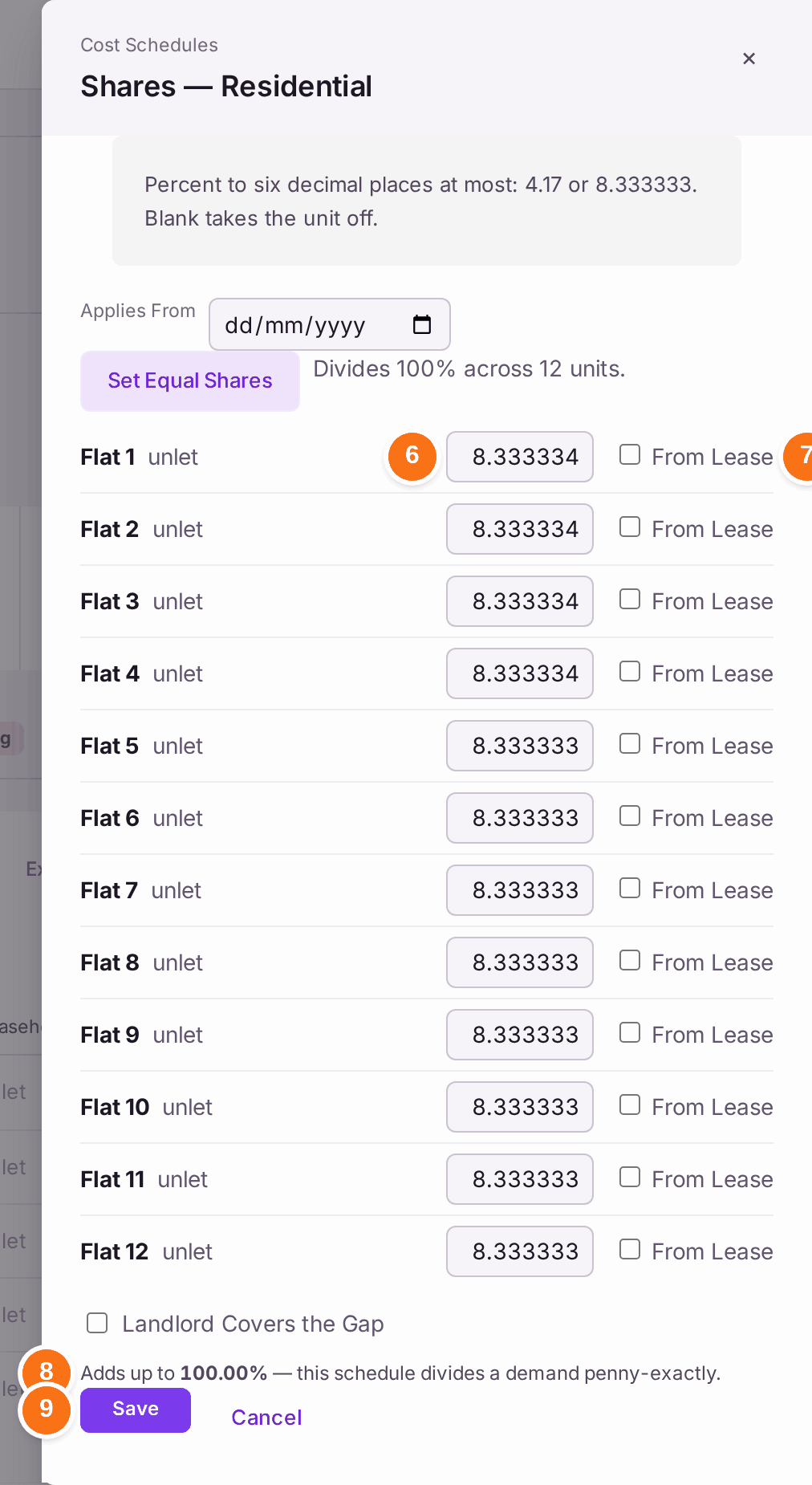
- Type each unit's percentage from its lease, as the lease writes it, to six decimal places at most (4.17, or 8.333333 for a twelfth). Leave a unit blank if it does not pay into this schedule.
- Tick From Lease beside each share you copied from a lease.
- Check the line at the bottom: it must read "Adds up to 100.00%". Save is greyed until it does.
- Press Save.
If every unit pays the same, press Set Equal Shares instead of step 6. It divides 100% across the units to the millionth of a percent, so twelve units read 8.333334% or 8.333333% and add up to exactly 100%.
Repeat steps 2 to 9 for each schedule, such as a car park that only some units share. Every schedule must add up to 100% on its own.
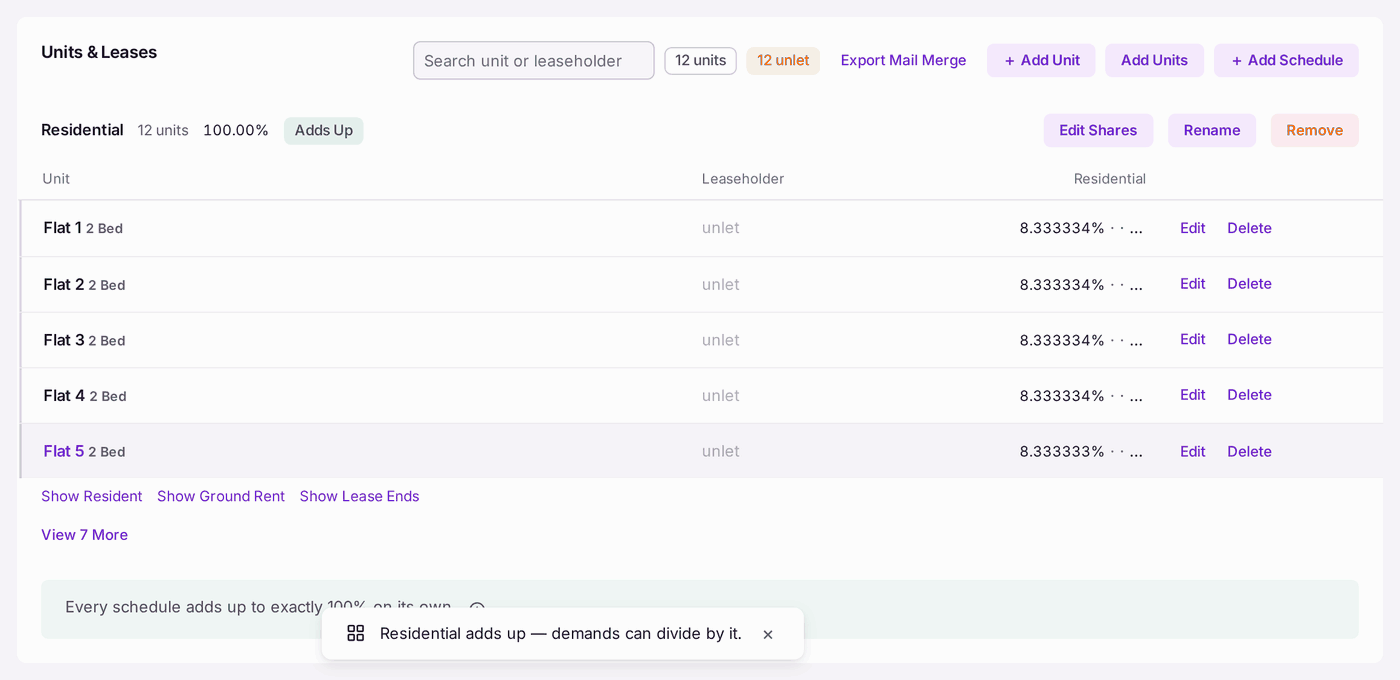
You'll know it worked when: each schedule on the Units tab reads 100.00% and Adds Up, and the line under the list says "Every schedule adds up to exactly 100% on its own." Each unit's row shows its share in each schedule, to as many decimal places as it has.
When a lease changes a share from a date
A lease variation, a flat split in two, or a new schedule changes the shares from a day. The days before it keep the shares they had, and no demand already raised changes by a penny (from 23 October 2026, D204).
- Press Edit Shares on the schedule.
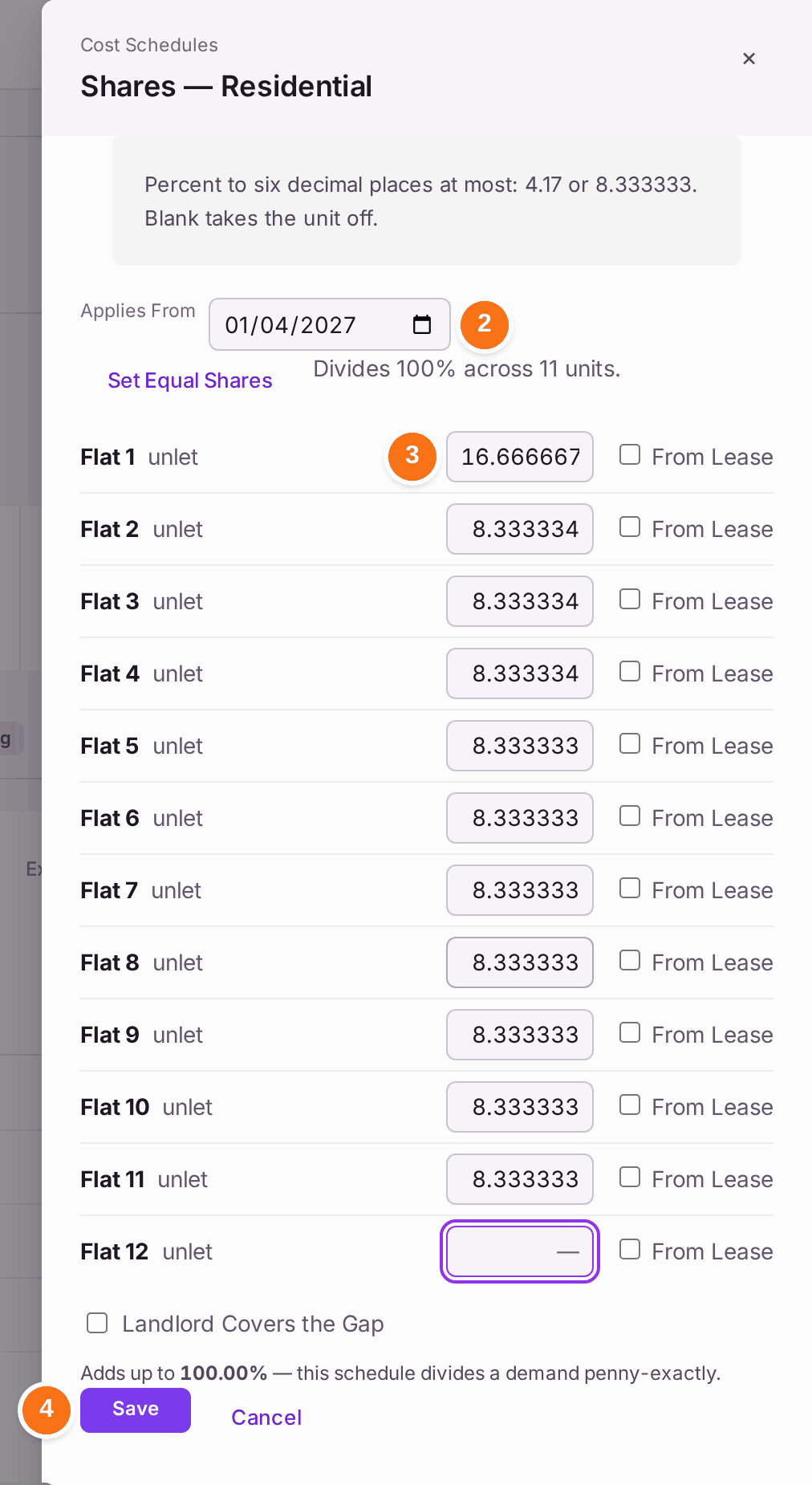
- Pick the day the new shares start in Applies From. The boxes fill with the shares in use on that day.
- Change the shares that change. They must still add up to 100% (or the schedule must have Landlord Covers the Gap ticked).
- Press Save. The schedule reads "New shares from" the day until it comes, then "Since" the day.
Which shares a figure uses:
- A year's budget, its demands and its year-end balancing use the shares in use on the first day of the service charge year. New shares from a day inside a year start with the next year's budget.
- A one-off charge (see Raising a one-off charge (an administration charge, a recharge or a shared cost)) uses the shares in use on its due date.
- The Section 20 £250 test uses the shares in use today.
Leave Applies From blank to correct a share typed wrongly: that changes the shares in use now, and nothing already raised.
If something's wrong:
Save is greyed: "These shares add up to 96.00%, 4.00% short. They must make 100%, or tick Landlord Covers the Gap." Shares that are not exactly 100% are not saved (from 20 October 2026; the handbook's rule, D166). Correct the shares from the leases. Over 100% reads "… over. They must make 100%." and never saves.
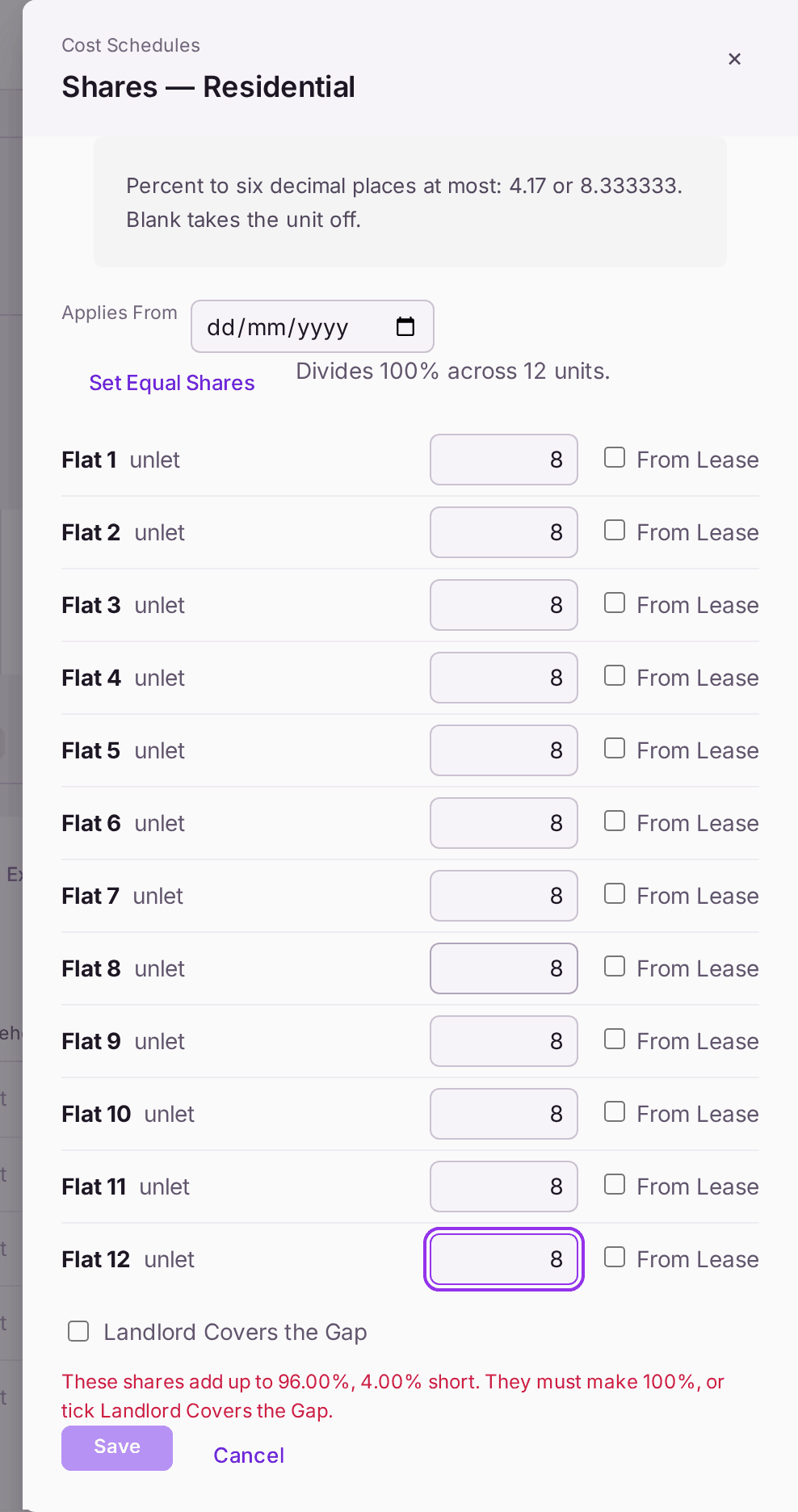
The line at the bottom gives the total so far and how far it is from 100%. The lease says the landlord pays what the flats' shares leave over. Tick Landlord Covers the Gap, then press Save: the shares are saved as they are, never stretched to 100%. The line reads "landlord covers 4.00%", and the schedule shows "Landlord covers 4.00%" beside Does Not Add Up. Who ticked it, and when, goes in the Decision Record. Demands still need 100%: SynkroTech does not yet raise a demand that leaves the landlord's share out, so none can be created against this schedule.
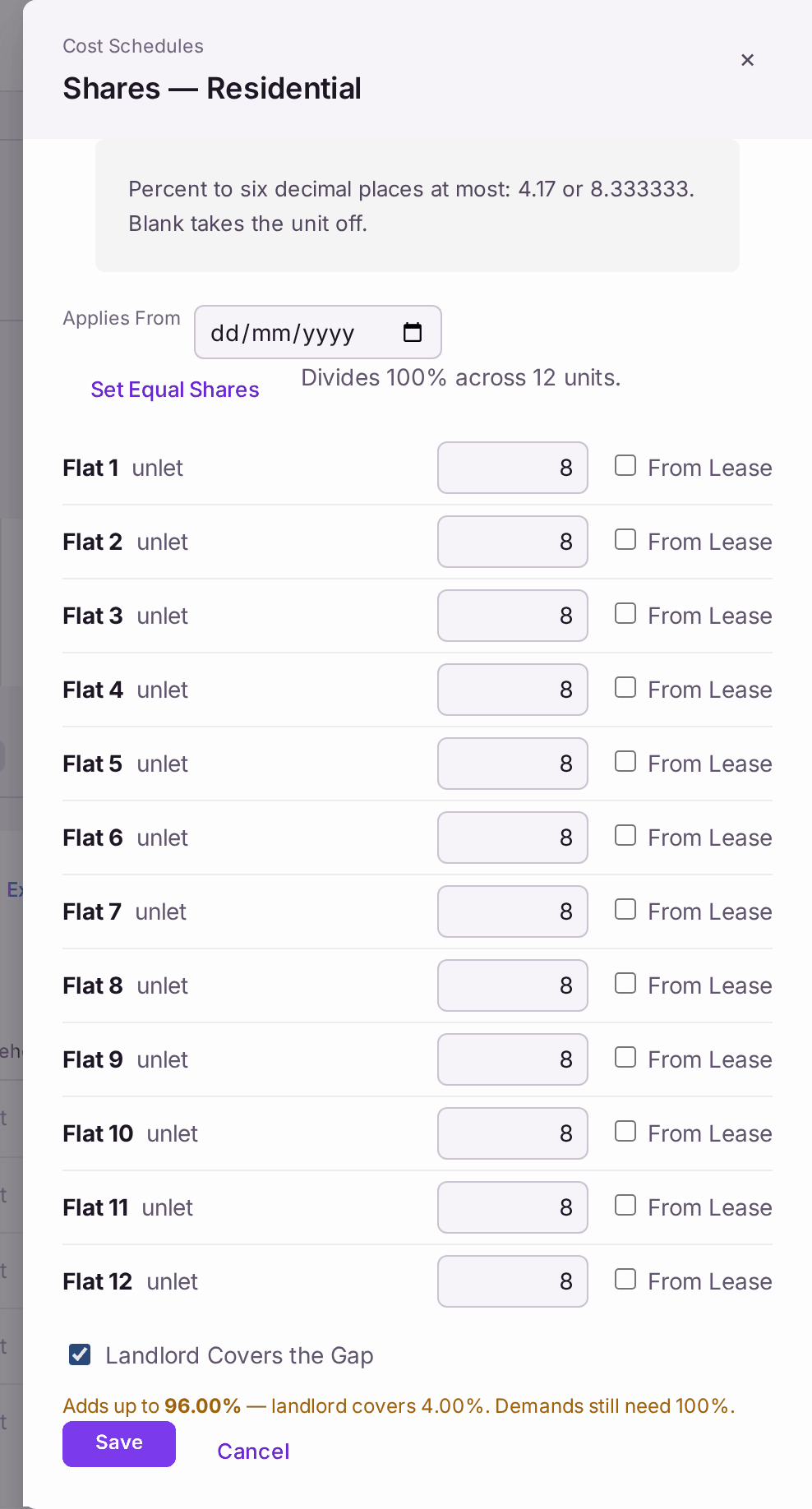
Ticked only where the lease says so. Untick it, with the shares at 100%, to take it off. - A schedule that came from an import reads Does Not Add Up. An import may leave shares short of 100%. They stay as they were imported until somebody opens Edit Shares and saves them at 100%.
- The shares add up to 99.999999% or 100.000001%. A lease written as thirds or sevenths does not divide exactly, even to six places. Agree with your client which unit carries the odd millionth (33.333334%, 33.333333%, 33.333333%), then enter it so the total is exactly 100%.
- New shares from a day that has not come were saved by mistake. Press Edit Shares, find them in the list under Applies From, and press Delete beside them. Shares whose day has come cannot be deleted, because the days since have used them: to correct them, pick the same day in Applies From and save the right shares.
- A schedule cannot be removed. A schedule a major works project is charged to cannot be removed; the refusal names the project. Move the project to another schedule first (see Running a Section 20 consultation for major works).