


Recording a supplier's bank details, and checking a change
What you'll end up with: the firm's bank details on its page, checked with the firm by a second person, so its invoices can be paid. A change of bank details is never paid to until it has been checked the same way.
Before you start you need:
- The firm on your contractor list (see Adding a contractor to your approved list).
- Its bank details, from the firm: the account name, sort code and account number, and the roll number if it banks with a building society.
- A colleague who pays suppliers, other than you, to check them. If you run the agency alone, see Setting approval limits for supplier invoices for Sole operator.
A change of bank account, asked for by letter or email, is a common way a managing agent's client money is stolen: the message looks like the firm's, and the next payment goes to someone else. So a new set of bank details is never paid to until a second person has checked it with the firm, on a number you already held before the message arrived.
- Go to Contacts → Contractors and open the firm.
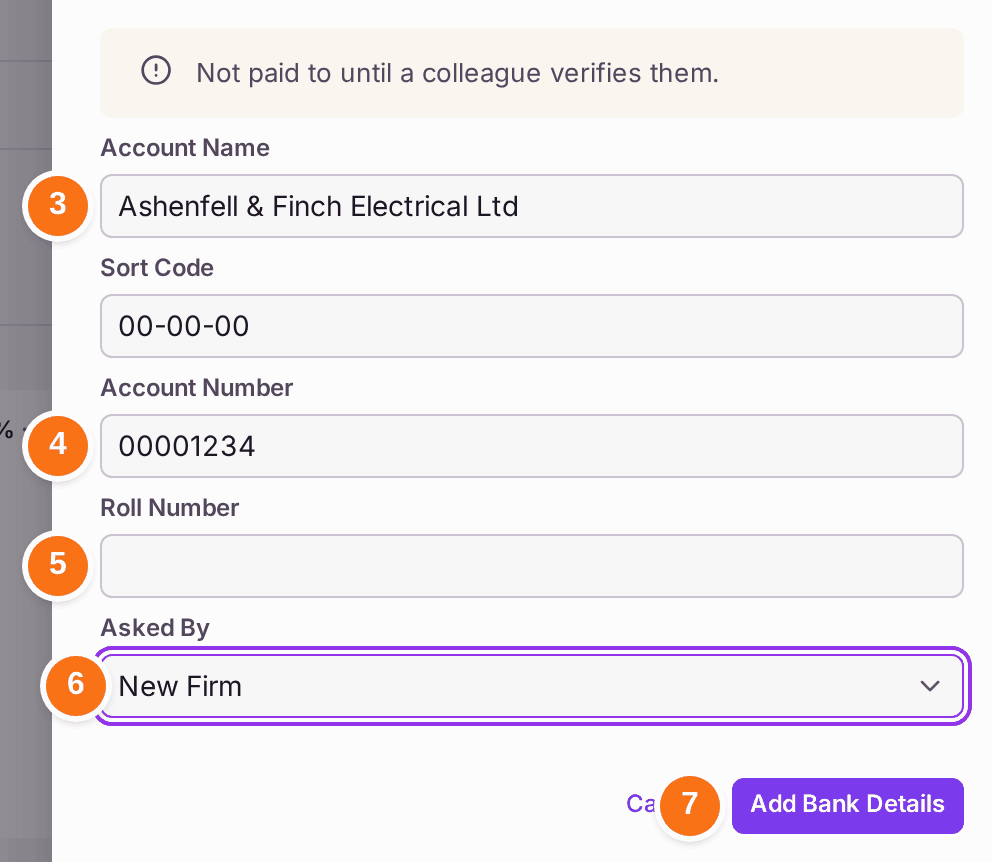
- Under Bank Details, press Add Bank Details.
- Check the Account Name (the firm's name is offered): it must be the name the bank holds.
- Type the Sort Code and the Account Number. A UK sort code is six digits and an account number eight.
- If the firm banks with a building society, type the Roll Number.
- Choose how the firm asked under Asked By: New Firm for a firm you are taking on, or Letter, Email, Phone Call or In Person for a change.
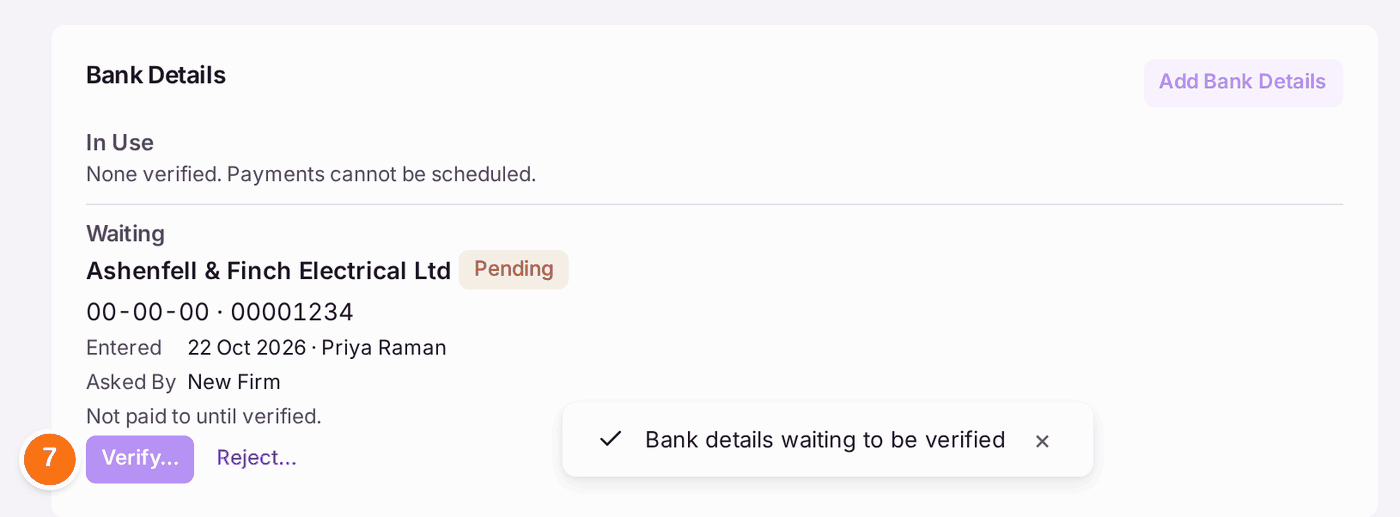
- Press Add Bank Details. The details are under Waiting, read Pending, and nothing is paid to them yet.
Checking them (a colleague who pays suppliers):
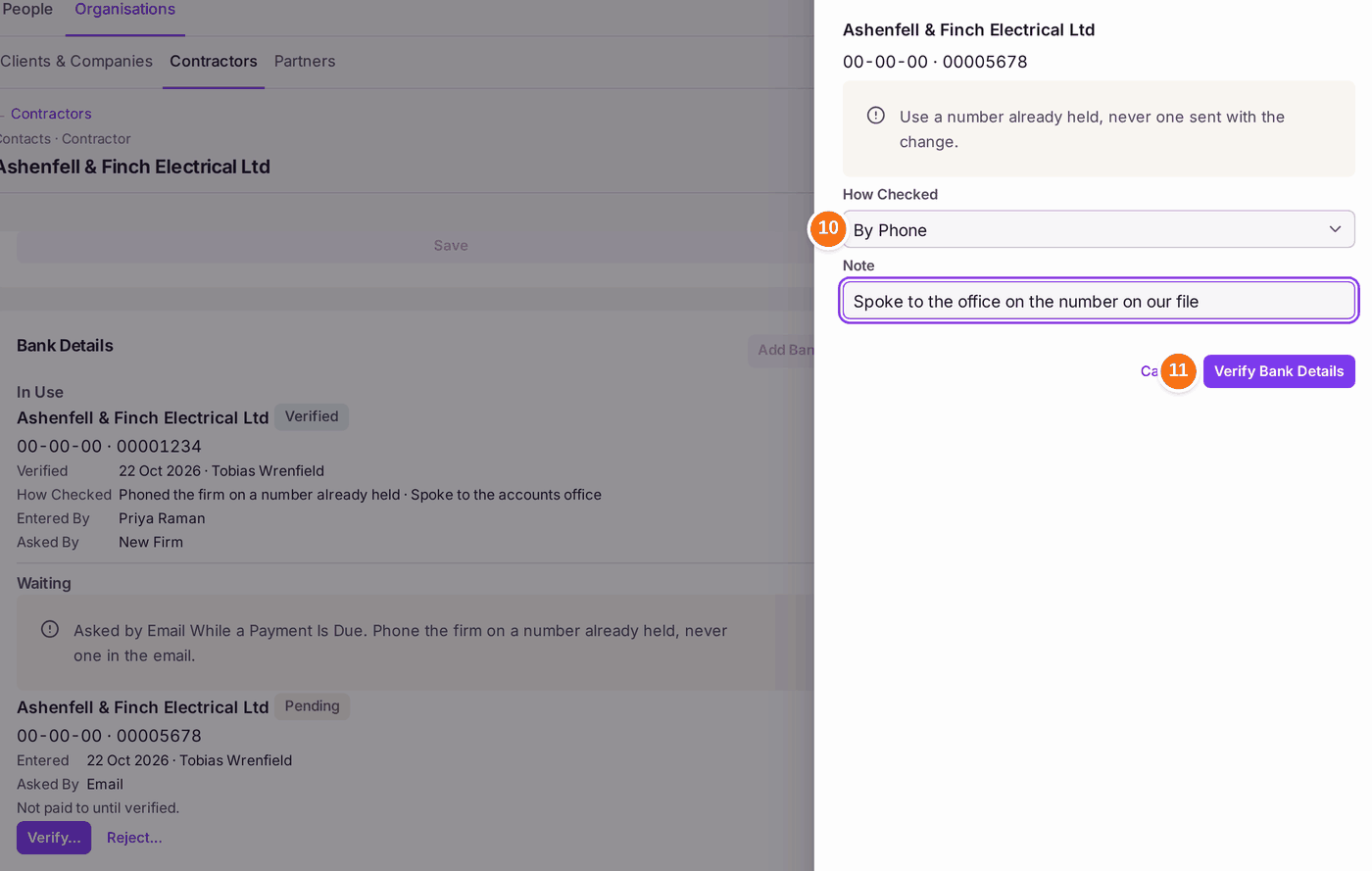
- Phone the firm on a number you already held, not one given with the change, and read the details back to them.
- Open the firm and, under Waiting, press Verify….
- Choose How Checked: By Phone, In Person, or Another Way (then say how under Note). A Note of who you spoke to helps whoever reads it later.
- Press Verify Bank Details. The details move to In Use, read Verified, with who checked them, when and how. The firm's invoices can now be paid to them.
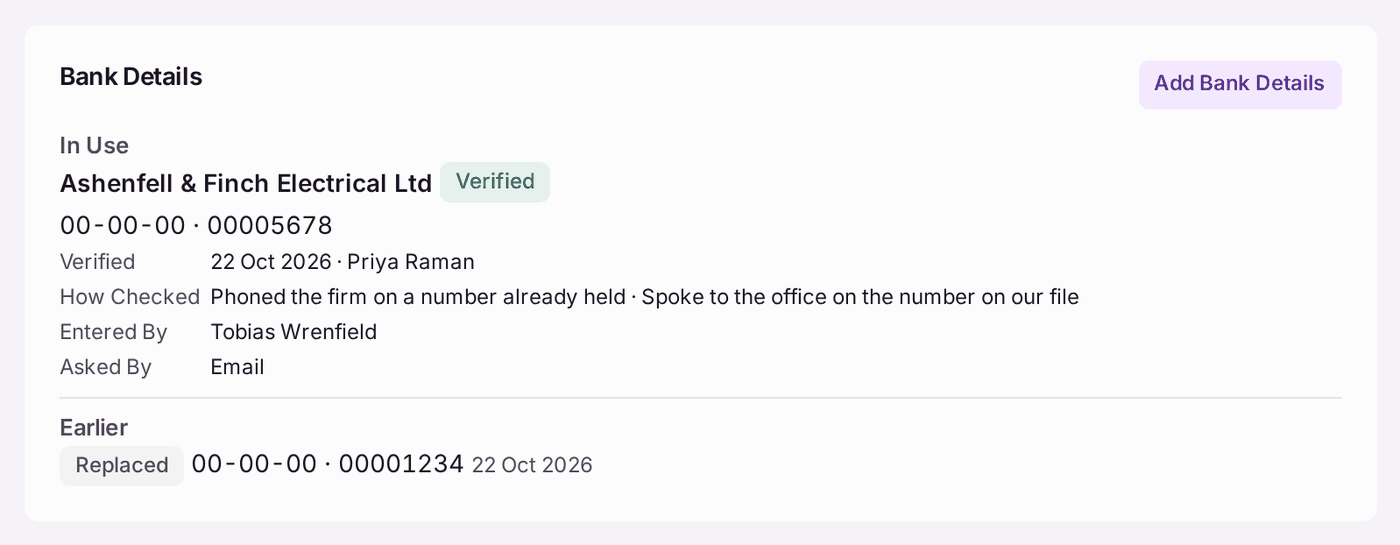
You'll know it worked when: the firm's Bank Details show In Use and Verified, and its approved invoices can be scheduled under Pay Suppliers (see Paying a supplier's invoice). Each step is on the firm's Activity and the Decision Record: Bank Details Entered, Bank Details Verified, Bank Details Rejected.
A firm that uses SynkroTech Trade can send new bank details from its own Invoices page with Send Bank Details. They arrive under Waiting, Asked By SynkroTech Trade, and are checked in the same way. Until then its payments go to the account already in use.
If something's wrong:
- The details read "••-••-00 · ••••1234". Only colleagues who pay suppliers see bank details in full. Everyone else sees the last digits.
- Verify… is greyed: "You entered these". Nobody verifies bank details they entered. A colleague who pays suppliers checks them.
- Verify… is greyed: "Permission required". Verifying is for colleagues who pay suppliers.
- "Asked by Email While a Payment Is Due." The change came by email while the firm has an invoice approved or scheduled for payment, which is how this fraud usually arrives. Phone the firm on a number you already held, never one in the email. If the firm did not ask for it, press Reject…, give the reason and press Reject Bank Details; the account in use stays in use.
- "… already has new bank details waiting to be verified." Only one change waits at a time. Verify or reject the one waiting first.
- "A UK sort code is six digits …" or "A UK account number is eight digits …". Check the figures with the firm. An account number with fewer digits is padded with 0s at the front.