Finding your way around
Every page in SynkroTech is laid out the same way. Learn it once and every screen reads the same.
The menu
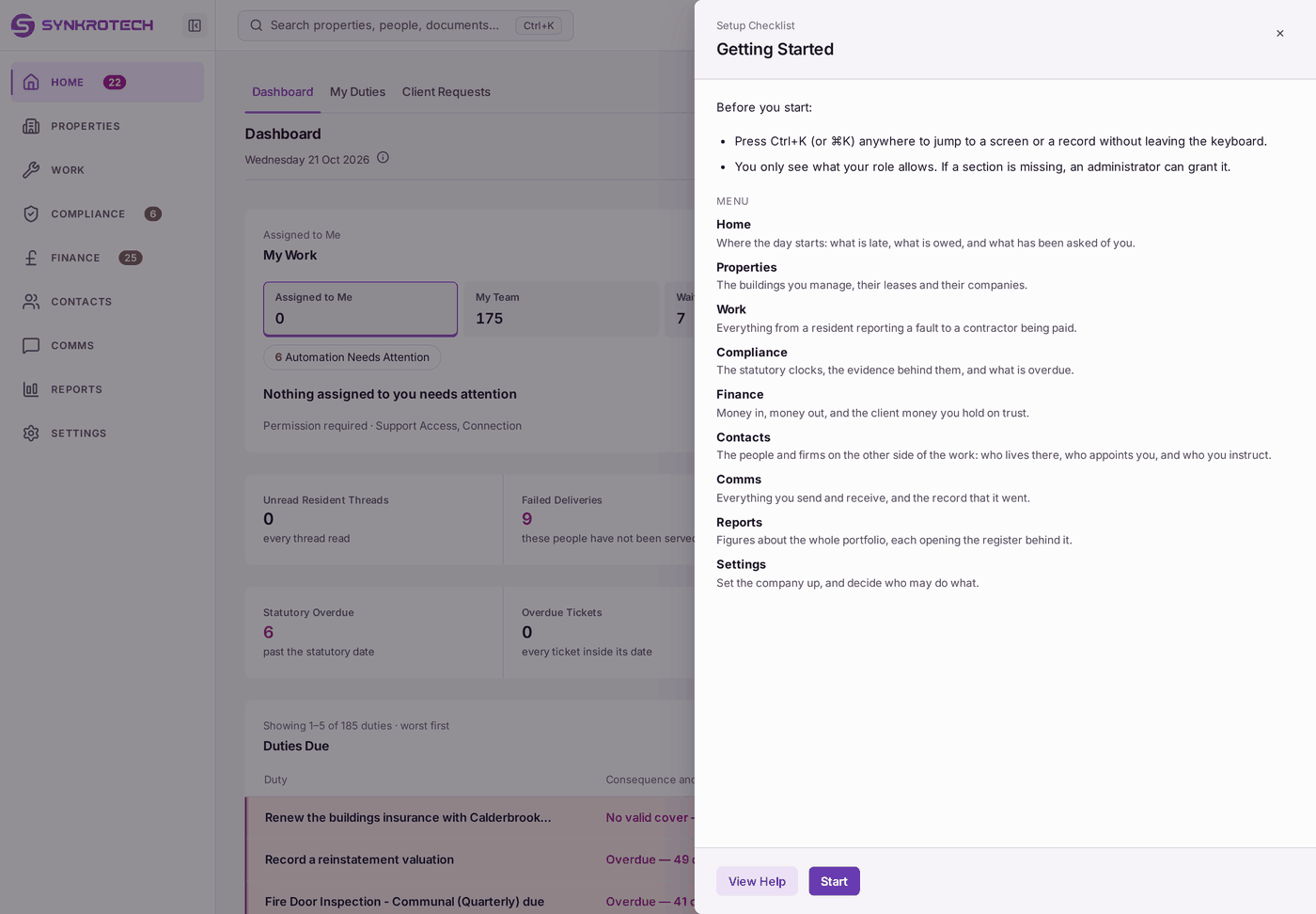
The menu down the left side has nine sections. Each opens a set of pages, shown as tabs across the top.
| Section | What is in it |
|---|---|
| Home | Where the day starts: My Work (what needs you, why, and the next step), then what is late, what is owed, and what has been asked of you. Dashboard, My Duties and Client Requests. |
| Properties | The buildings you manage, their leases (Lease Terms) and their companies (Company Secretarial). |
| Work | Tickets, Work Orders & Quotes, Access, Planned Maintenance and Major Works & s.20: everything from a resident reporting a fault to a contractor finishing the job. |
| Compliance | The Compliance Register, Fire Safety, Buildings Insurance, Inspections, the Asset Register, Documents & Certificates and Statutory Wording. |
| Finance | Demands and arrears, receipts, the bank, supplier invoices, funds, client money, budgets, the chart of accounts and the year end. |
| Contacts | The people and firms on the other side of the work: leaseholders, residents and tenants, clients and companies, contractors and partners. |
| Comms | Everything you send and receive, and the record that it went: the Outbox, mail, resident messages, team channels, the call log, the concierge desk, group email and the noticeboard. |
| Reports | Figures about the whole portfolio, each opening the register behind it. |
| Settings | Set the company up, and decide who may do what. |
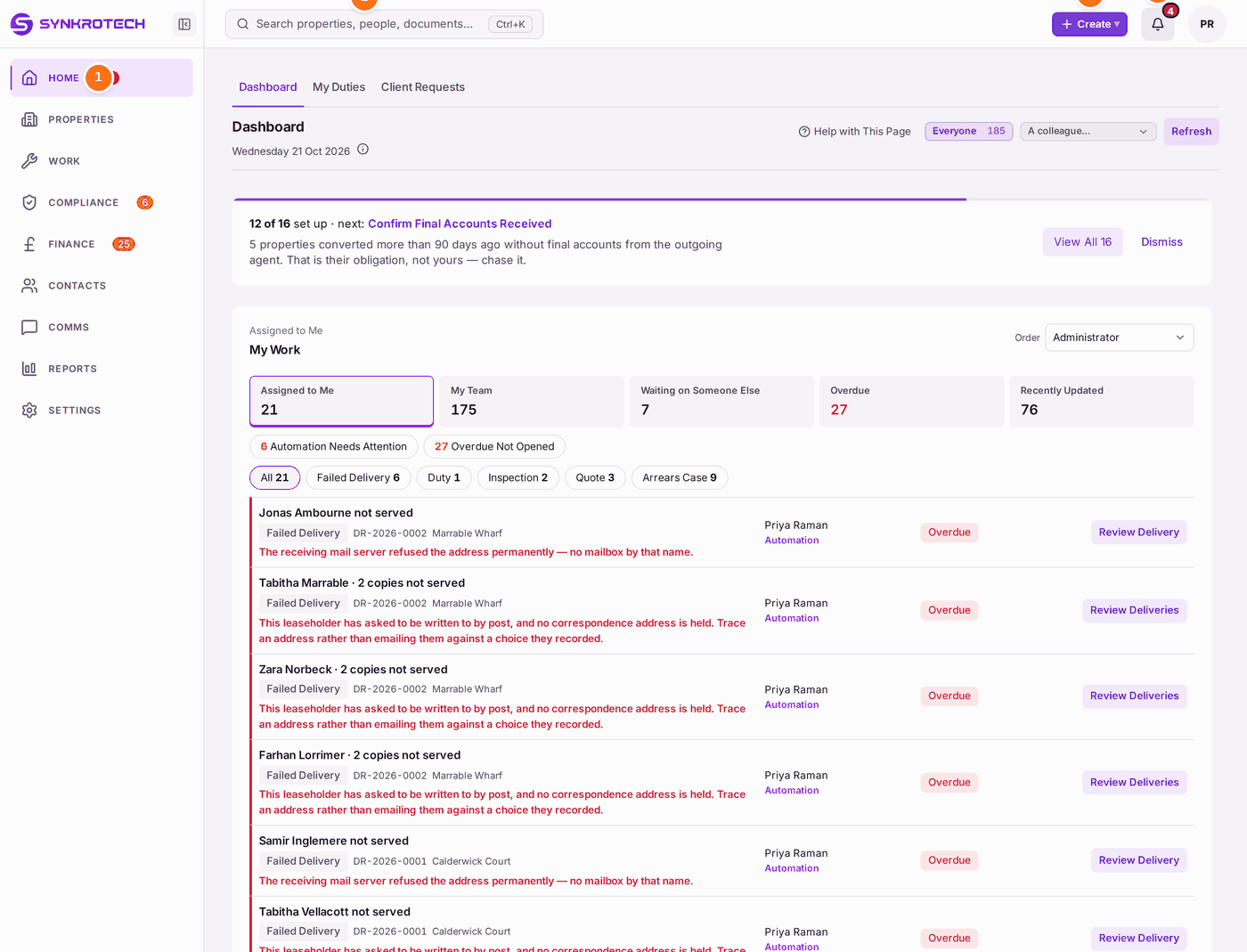
A number beside a section counts what needs you there, such as overdue duties. You only see the sections your role allows; if one is missing, an administrator can grant it.
Searching
Press Ctrl+K (on a Mac, ⌘K), or click the search box at the top, from any page. Type part of a name, an address, a flat, a ticket or demand reference, or a screen's name. Results are grouped: properties, leaseholders, residents, demands, tickets, documents and screens. Choose one to go straight to it.
Create
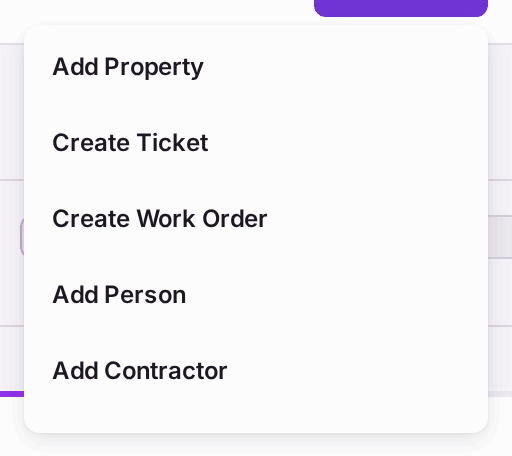
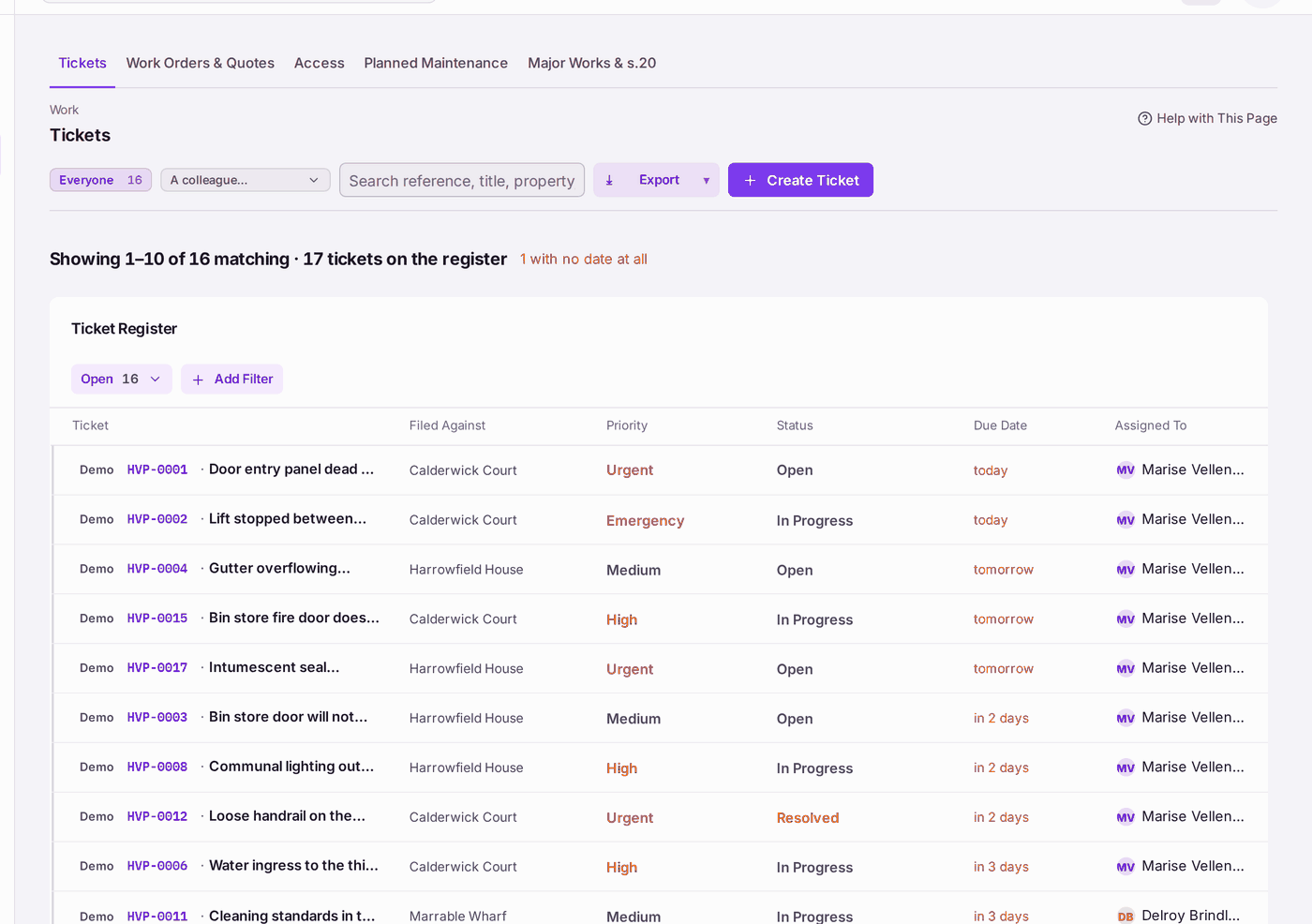
Create, at the top right, starts the common records from anywhere: a ticket, a work order, a charge and more. On a record, the menu also offers what can be made from that record, under its name: on a ticket, for example, Create Work Order "For HVP-0001".
The bell
The bell lists what is late, follow-ups owed, and problems such as failed deliveries, across the whole organisation. Mark All Read clears the bell; it does not clear the work.
Going back
At the top of every page, above its name, one line takes you back the way you came. ← Back to Leaseholders goes to the page you were on, with its search, filters and place in the list as you left them. It names the page when it can; after you reload the page it reads ← Back.
When you opened the page from a bookmark, an email or a new tab, there is no page before it, so the same line names the page above it instead: the record it belongs to, such as ← Flat 2, or the list it is on, such as ← Work Orders & Quotes. A page of the menu opened that way has no line: the menu is the way on.
A record also shows where it sits, above its name: Calderwick Court / Building A / Flat 2 / WO-2026-0003, each part a link. On a phone only the part above it shows, as ‹ Flat 2, and not at all when the line above already goes there.
In the leaseholder, resident, contractor and concierge portals, ← Back to Home (or the section you were in) takes you to the section you had open before.
Help on every page
This guide is in SynkroTech too, under Help, in the menu behind your initials at the top right: one page for each job, with its pictures. The search box is across the top, with Download PDF for the printed guide and Get Help. The guide's chapters are down the left; the bigger groups of jobs, such as Finance, open when you press them. The page you choose fills the middle, with ← Previous and Next → at its foot to read on. On a wide screen, On This Page and Related are on the right. On a phone, Show Contents opens the chapters.
Most pages have Help with This Page at the top right, beside the page's buttons. It opens the guide's page for the job done on the page you are on. When several jobs use the same page, such as a property's page, the others are under For That Page, at the top of the guide's page. A page the guide does not cover has no link.
The same pages are on SynkroTech's website, under Help Centre, for anyone to read before they sign in.
How a page is laid out
- Registers (lists) open with the figures that matter at the top, then the list, worst first. Above the list, the view button (such as Open or All) changes which records are shown, and Add Filter narrows it further. Export saves the list as a spreadsheet.
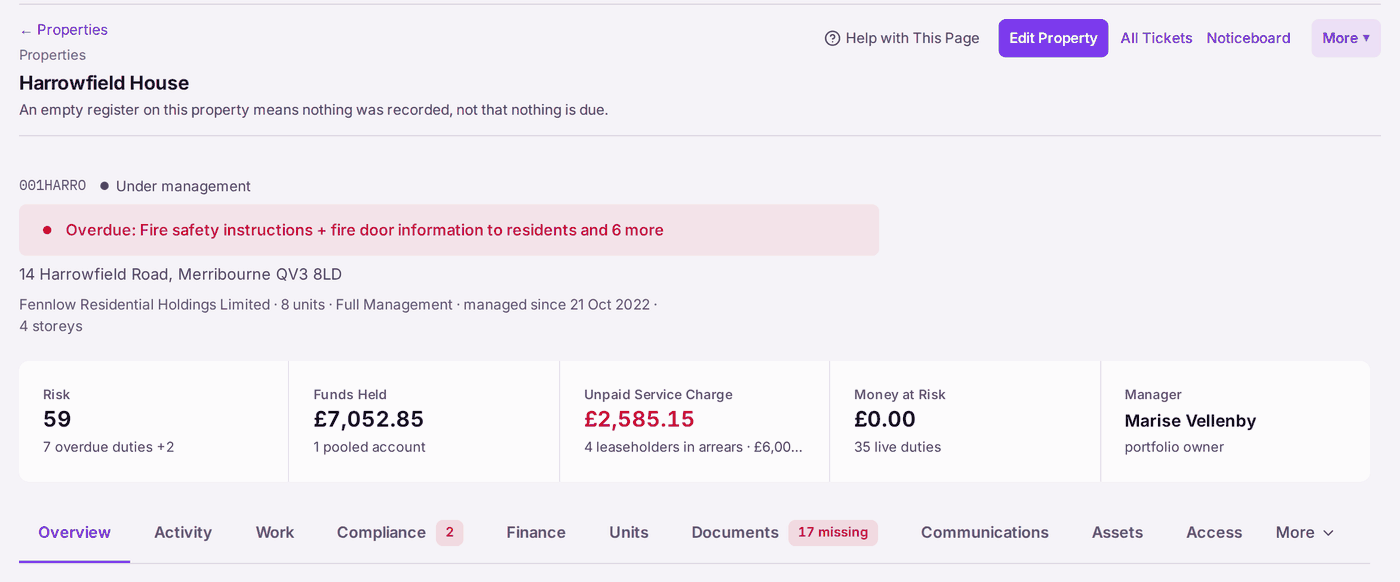
- A record (one property, one ticket, one demand) has its title and its state at the top, the decisions you can take under Decisions or as buttons at the top, its details and what it is Related To on the right, and its Activity at the foot.
- A property has tabs: Overview, Activity, Work, Compliance, Finance, Units, Documents, Communications, Assets, Access and more.
Choosing from a list
A box with a small arrow at its right end, such as Property or Fund, is a list to choose from. Press it to see the whole list, then press a choice. You can also type into the box: a few letters from anywhere in the name narrow the list to what matches, so typing calder finds Calderwick Court. Capitals and accents do not matter. Use the up and down arrow keys to move through the list and Enter to choose; Escape closes the list and keeps what was chosen before. When nothing matches, the list says so. The box only ever holds one of the list's own choices: what you type is for finding, and is cleared when you leave the box.
Buttons that are greyed
A button that cannot be used yet is greyed, and says why: next to it, under it, or when you point at it. Read the reason before you look for another way; it usually names what is missing.
When something takes a moment
When a page or a job takes more than a moment, the SynkroTech mark appears with one line under it saying what is happening: Loading… as the app opens and while a page's figures arrive, Making the PDFs… for the post, Sending… as copies go from the Outbox, Importing… for a spreadsheet. A job with a known number of steps counts them, such as Booking 3 of 12. Leave the page as it is: the mark goes as soon as the work is done, and the page under it does not move. Nothing appears for a wait shorter than a third of a second.
Questions before anything that cannot be undone
Issuing demands, approving a budget, cancelling a demand, removing a duty and closing a year all ask first, and say what will happen. Many record a reason. If you change your mind, press Cancel, or Keep when the question is itself about cancelling something.
Everything is recorded
Most changes are recorded with your name and the time, on the record's Activity and on the organisation's Decision Record. Records are rarely deleted: a demand is cancelled, a notice is cancelled, a firm is made inactive, so the history stays.
Your first sign-in
The first time you sign in, the Getting Started panel opens: the menu explained, and a reminder that Ctrl+K jumps anywhere. Press Start for the Setup Checklist, or close the panel with ×.