


Giving a leaseholder, resident or director a portal login
What you'll end up with: a person who can sign in to their own portal to see their account, report a problem and read notices, with an invitation sent by email or a letter ready to post.
Before you start you need: the person on the register against the property (see Adding a leaseholder, a joint leaseholder or a company to a unit), their email address, and the portal's web address set by SynkroTech (see Putting the sign-in addresses and posters in front of people). To give logins at all, your role must allow it; Access Managers at the foot of Portal Logins lists who can.
A portal shows the person their own flat and nothing else. A tenant sees the building, never the leaseholder's account.
- Go to Settings, then Portals & Access, then Portal Logins.
- Press Grant Access.
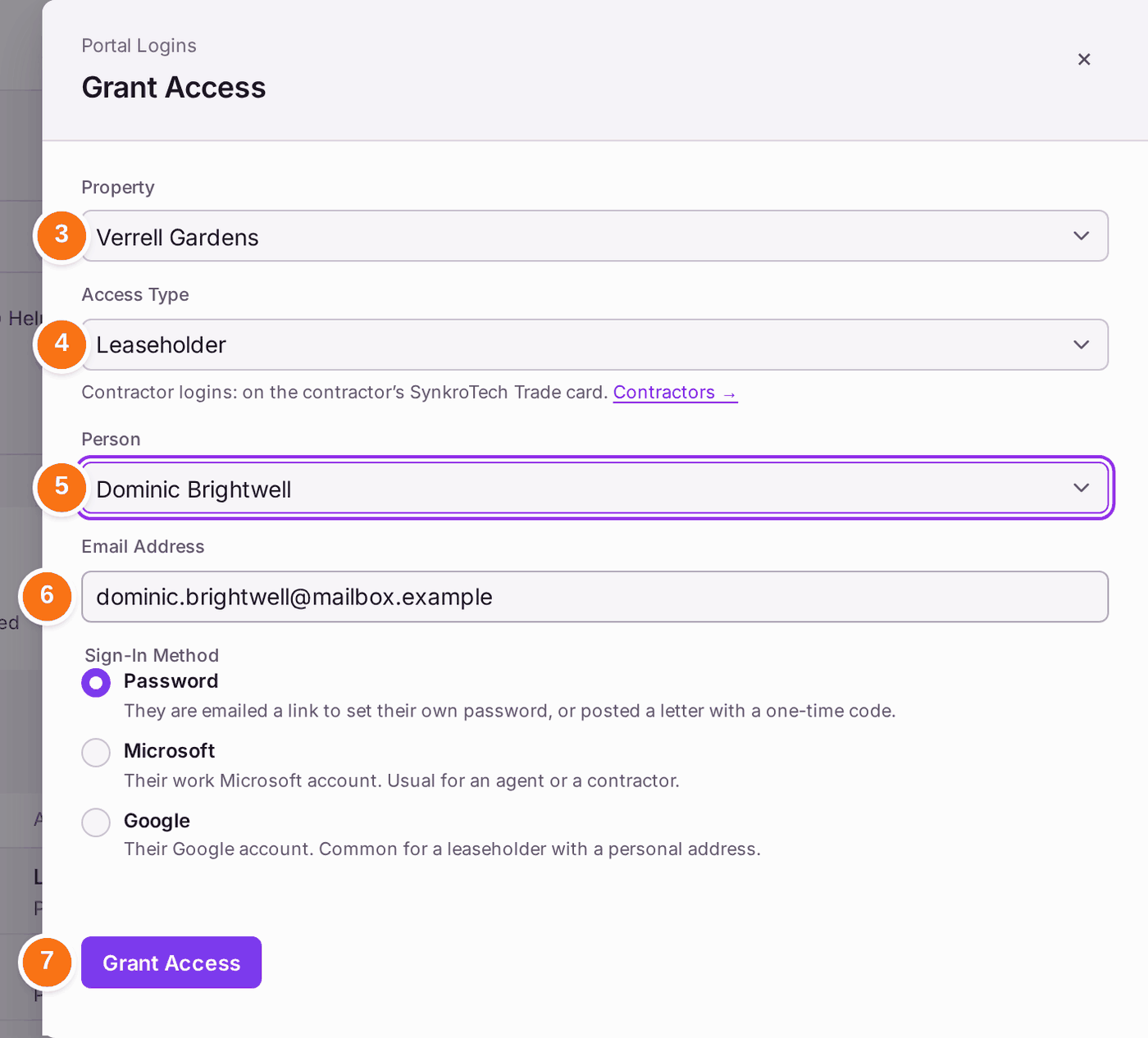
- Choose the Property.
- Choose the Access Type: Leaseholder, Director (of the residents' company), Tenant, Managing Agent or Concierge. A contractor's login is made on the contractor's own page, in its SynkroTech Trade card (see Inviting a contractor onto SynkroTech Trade).
- Choose the Person. Only people at that property who do not already have access are offered.
- Check the Email Address, which is filled in from their record, and the Sign-In Method. Password is usual: they are emailed a link to set their own password, or posted a letter with a one-time code. Choose Microsoft or Google only if they sign in with that account.
- Press Grant Access. "Dominic Brightwell has access."
- If the panel says "No mail provider is connected, so nothing was emailed", press Print Letter and post the letter. It carries a one-time code, not a password.
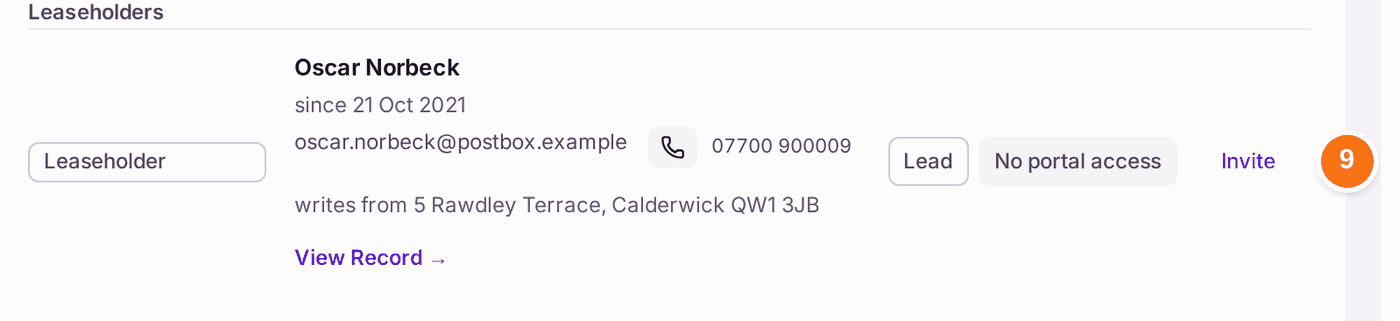
- For one person, you can do the same from their flat: on the property's Units tab, open the unit, and press Invite beside them under People.
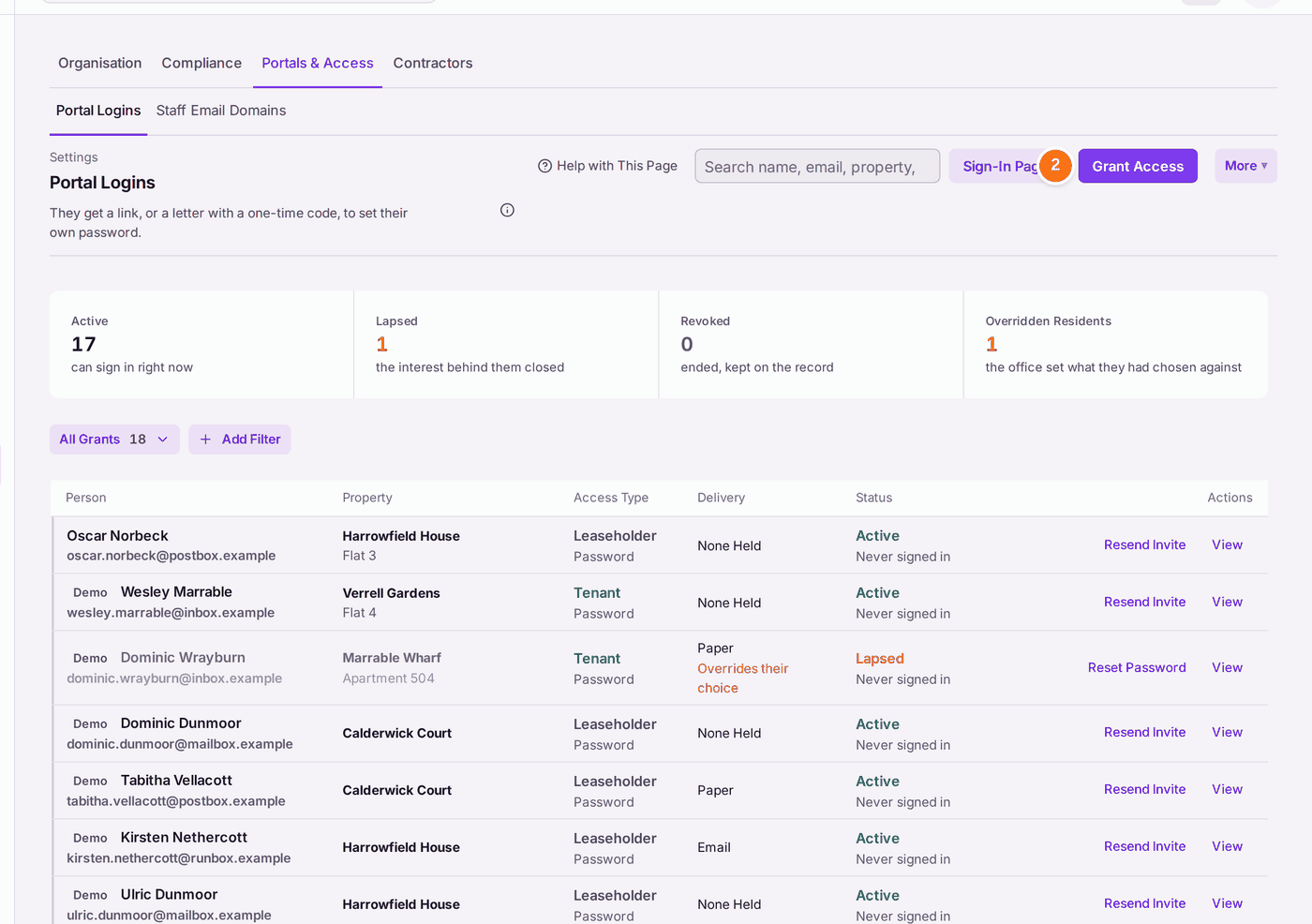
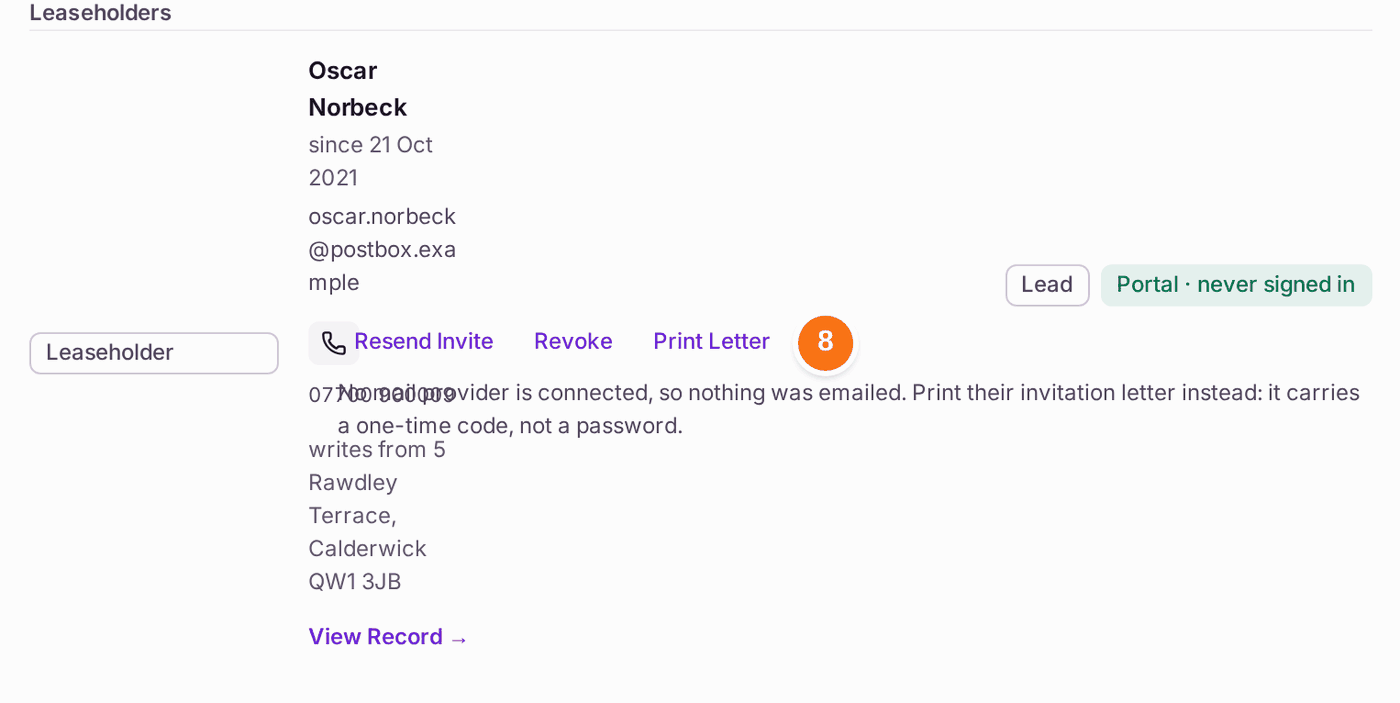
You'll know it worked when: the person is on Portal Logins as Active, "Never signed in" until they first sign in, and their row on the unit reads "Portal · never signed in".
If something's wrong:
- "The letter could not be made", or "No web address is set for the resident portal on this system". The portal's web address is not set, so a letter cannot say where to sign in. Sign-In Pages shows "No Address Set". SynkroTech sets the address; ask them (see Asking SynkroTech for help). No password has been changed.
- "No mail provider is connected, so nothing was emailed." Your organisation has no email service set up for portal invitations. Print the letter instead (step 8).
- The person is not offered. They already have access at that property (look for them on Portal Logins), or they are not on the register against it. Add them to the unit first.
- They lost the letter, or the link expired. Press Resend Invite on their row, or open them with View and press Invite by Letter. Whatever they were sent before stops working.
- Grant Access is not offered. Your role cannot issue portal logins. Ask someone listed under Access Managers.
- Contractor is not in the Access Type list. Contractors are given a login from their own page: Contacts → Contractors, open the firm, then Show Portal Login in its SynkroTech Trade card. A contractor login made here before still works, and is listed and revoked here as before.