


Connecting your mailbox
What you'll end up with: your email account connected to SynkroTech, so you can read and send email from Comms → Mail beside your records.
Before you start you need: your email address and password, and your provider's incoming (IMAP) and outgoing (SMTP) server names and ports. Your email provider's help pages list them.
The password is stored encrypted and is never shown again. The connection is always encrypted.
- Go to Comms, then Mail. Under Connect Your Mailbox, press Set Up Mailbox.
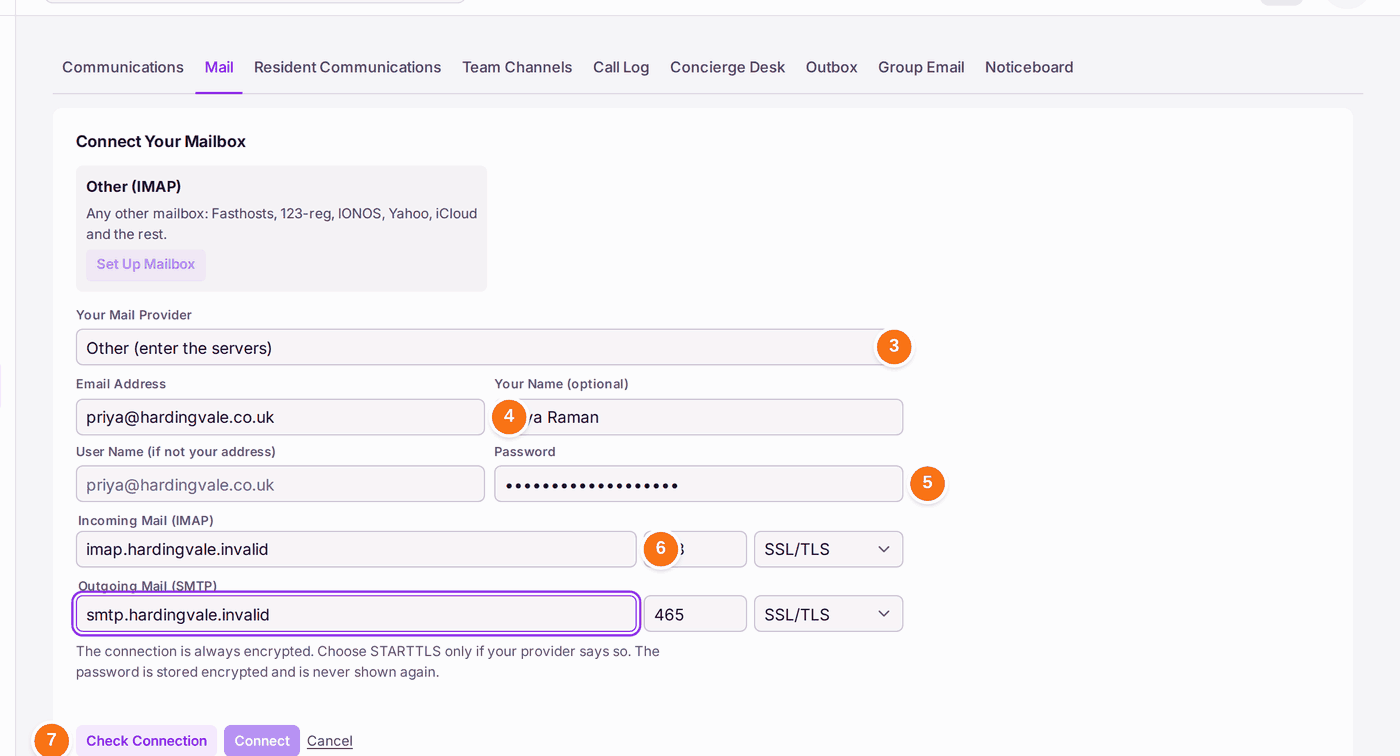
- Choose Your Mail Provider. For Yahoo Mail, iCloud Mail, Fasthosts, 123-reg or IONOS the servers are filled in; otherwise choose Other (enter the servers).
- Type your Email Address, your name if you like, and, if your provider uses one, a User Name.
- Type your Password.
- For Other, type the Incoming Mail (IMAP) and Outgoing Mail (SMTP) servers and ports. Leave SSL/TLS chosen unless your provider says STARTTLS.
- Press Check Connection. When it succeeds, press Connect.
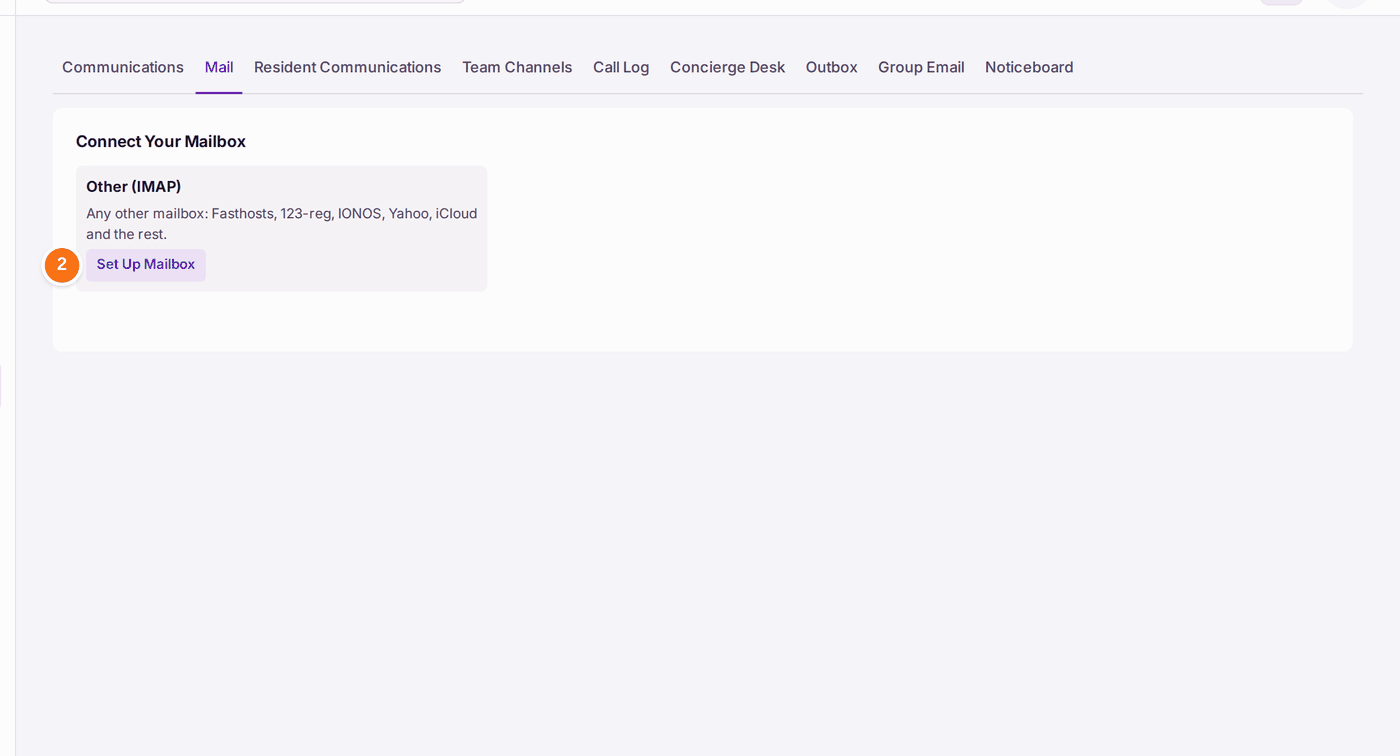
You'll know it worked when: Check Connection reports no problem, and after Connect your mail shows under Mail.
If something's wrong:
- "imap.hardingvale.invalid could not be found. Check the spelling of the incoming (IMAP) server." The server name is wrong. Copy it again from your provider's help page.
- The password is refused. Some providers need an app password for outside programs rather than your usual one. Create one in your email account's security settings.
- Only Other (IMAP) is offered. Connecting Microsoft 365 or Google mail is set up for your organisation by SynkroTech. Ask them (see Asking SynkroTech for help).