


Adding colleagues and giving them a login
What you'll end up with: a colleague on your Users list with the right role, and a one-time link they use to choose their own password and sign in.
Before you start you need:
- Their work email address, at one of your Staff Email Domains (an address ending in your own firm's domain, such as hardingvale.co.uk). The domains are listed under Staff Eligibility at the bottom of the Users page. SynkroTech refuses any other address, because a staff login on a personal address stays open after the person leaves.
- To know which Role they should have: Accountant, Administrator, Assistant or Property Manager. The role decides what they can see and change.
- A way to pass the link to them yourself, such as Teams, a text message, or in person. SynkroTech does not email it.
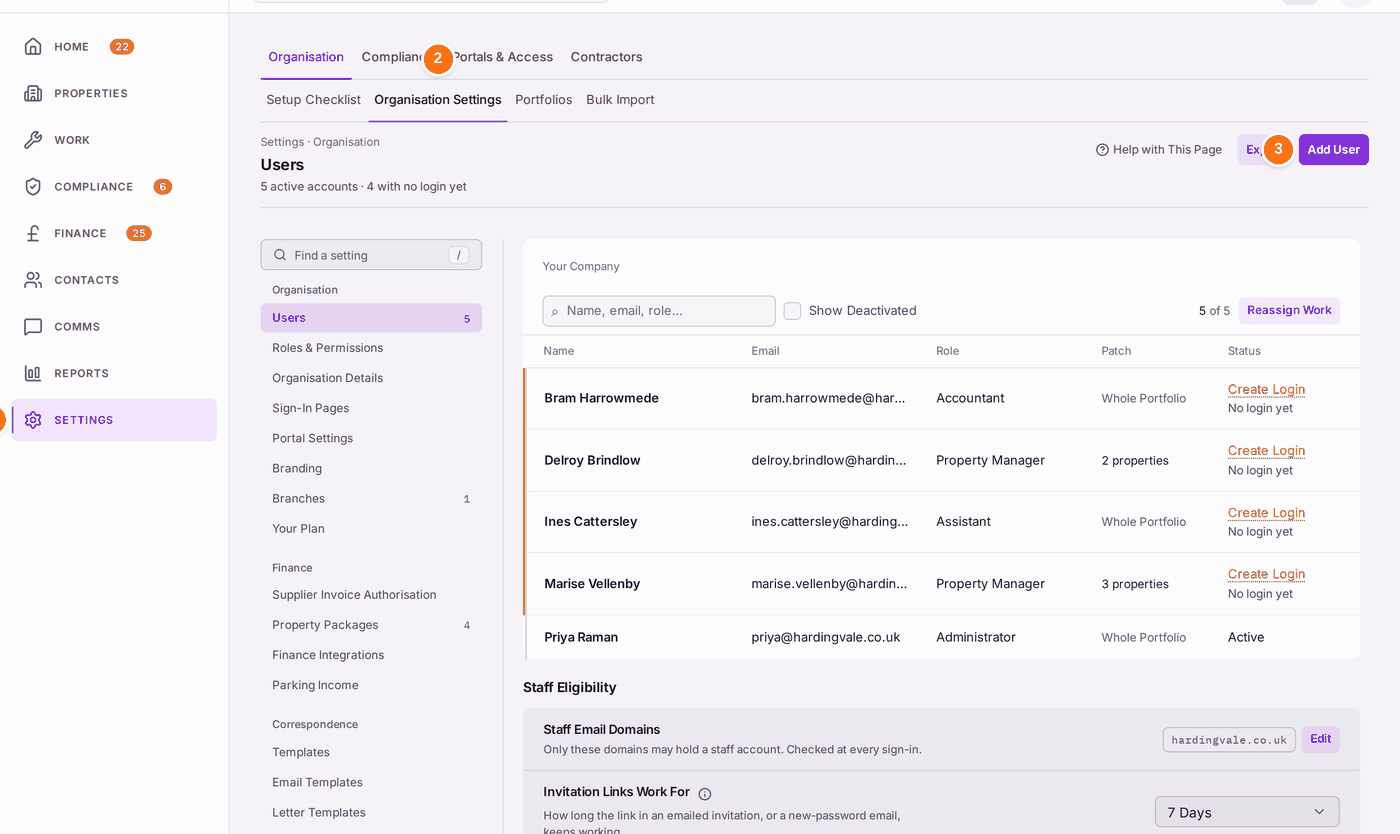
- Press Settings in the menu on the left. The Setup Checklist opens.
- Press Organisation Settings at the top of the page. It opens on Users.
- Press Add User.
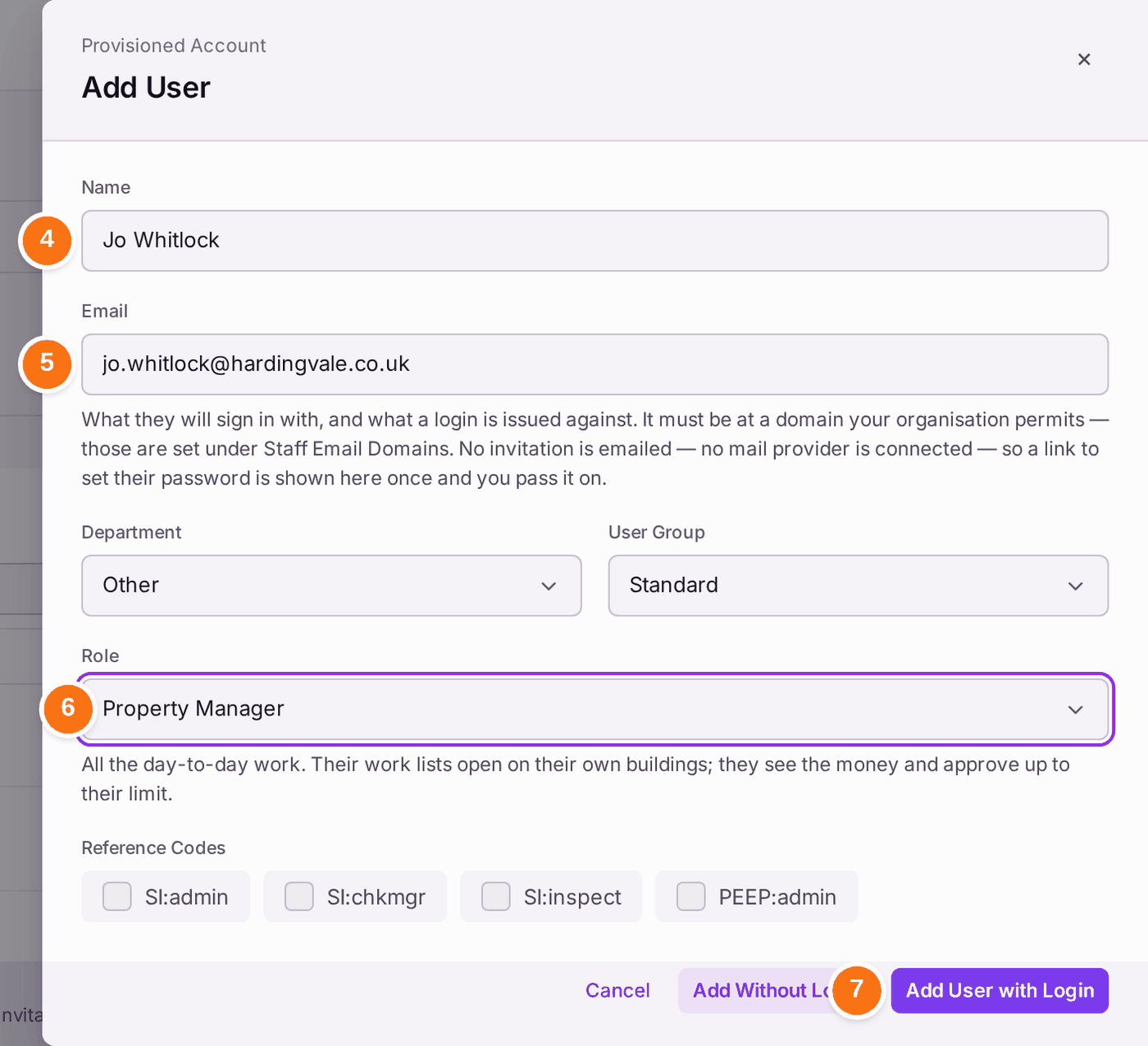
- Type their full name in Name.
- Type their work email address in Email.
- Choose their Role. The line under it says what that role can do. Leave Department, User Group and Reference Codes as they are: the role decides access.
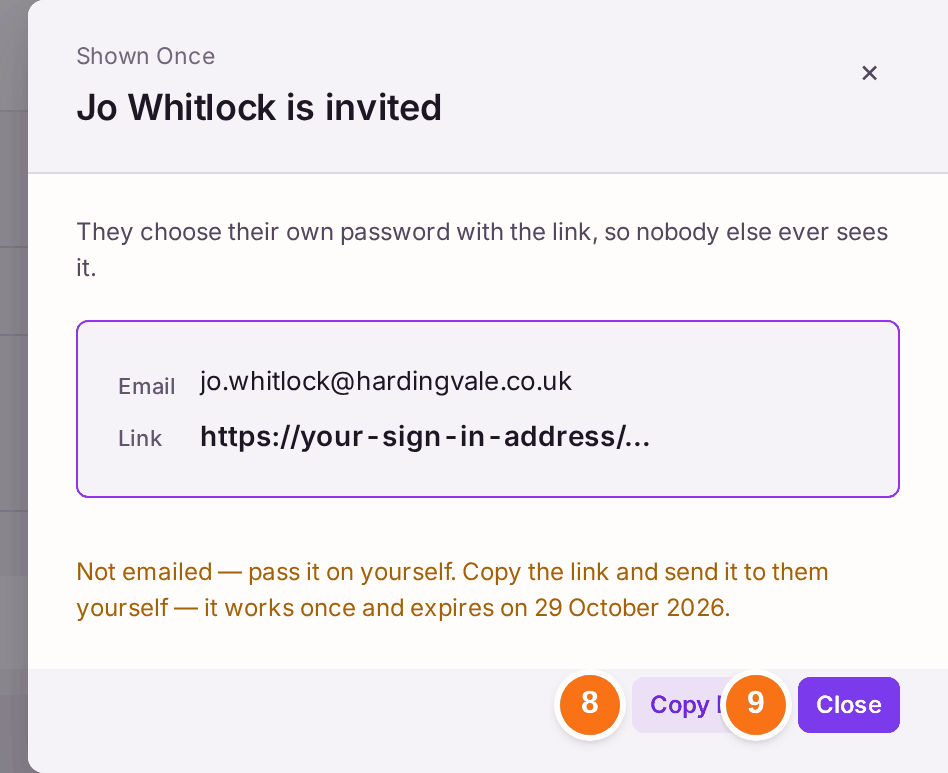
- Press Add User with Login. A panel headed "Shown Once" opens.
- Press Copy Link.
- Press Close.
- Send the link to your colleague.
The link works once, and only until the date the panel gives. Seven days is the usual setting; you can change it under Invitation Links Work For on the same page. When they open the link they choose a password of at least 12 characters, then set up two-factor authentication (a six-digit code from an app on their phone), as described in Signing in for the first time.
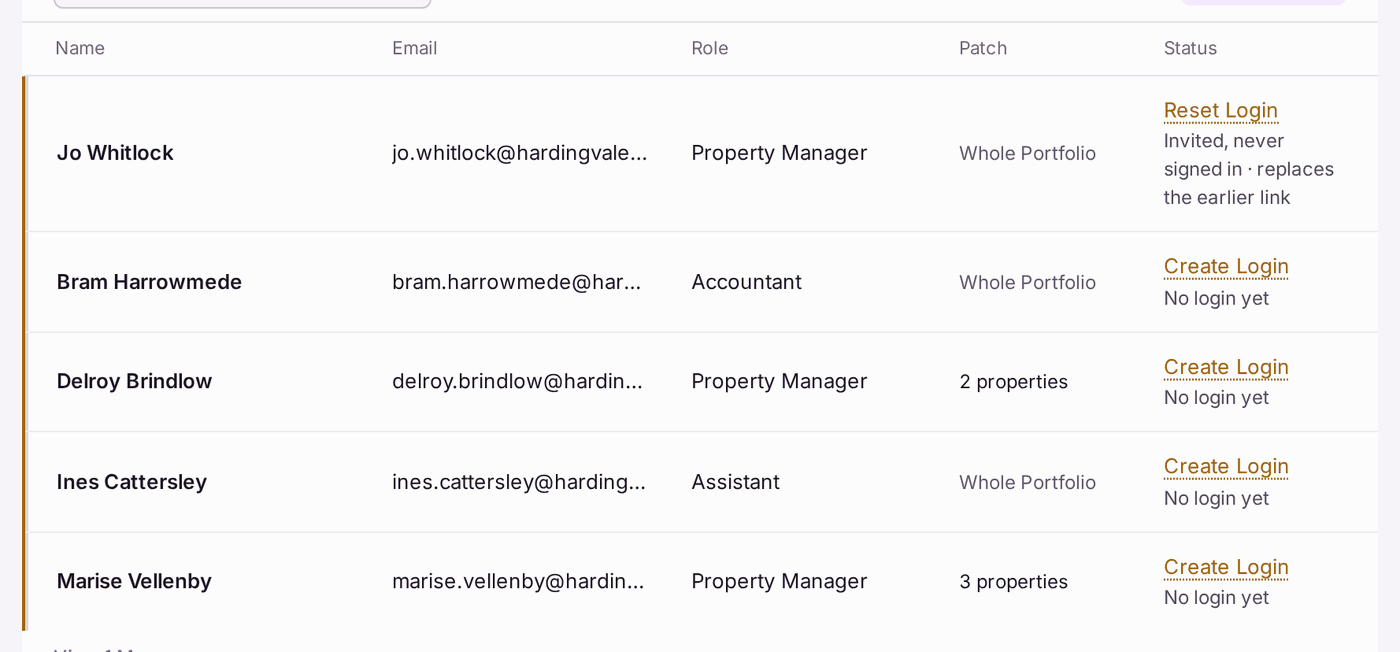
You'll know it worked when: the panel reads "[name] is invited", and their row on Users shows Reset Login with "Invited, never signed in" under it. Once they have signed in, the row reads Active. Someone you have added on this visit is at the top of the list; anyone else may be further down, behind View 1 More (or however many) at the bottom.
If something's wrong:
The address is refused. Under the buttons, in red: "[address] cannot sign in as staff. Staff accounts must use an address at hardingvale.co.uk. An administrator can add a domain, or record an explicit exception." Use their work address. If your firm really does use a second domain, an administrator adds it with Edit beside Staff Email Domains (the red words Staff Email Domains take you there), then you press Add User with Login again.
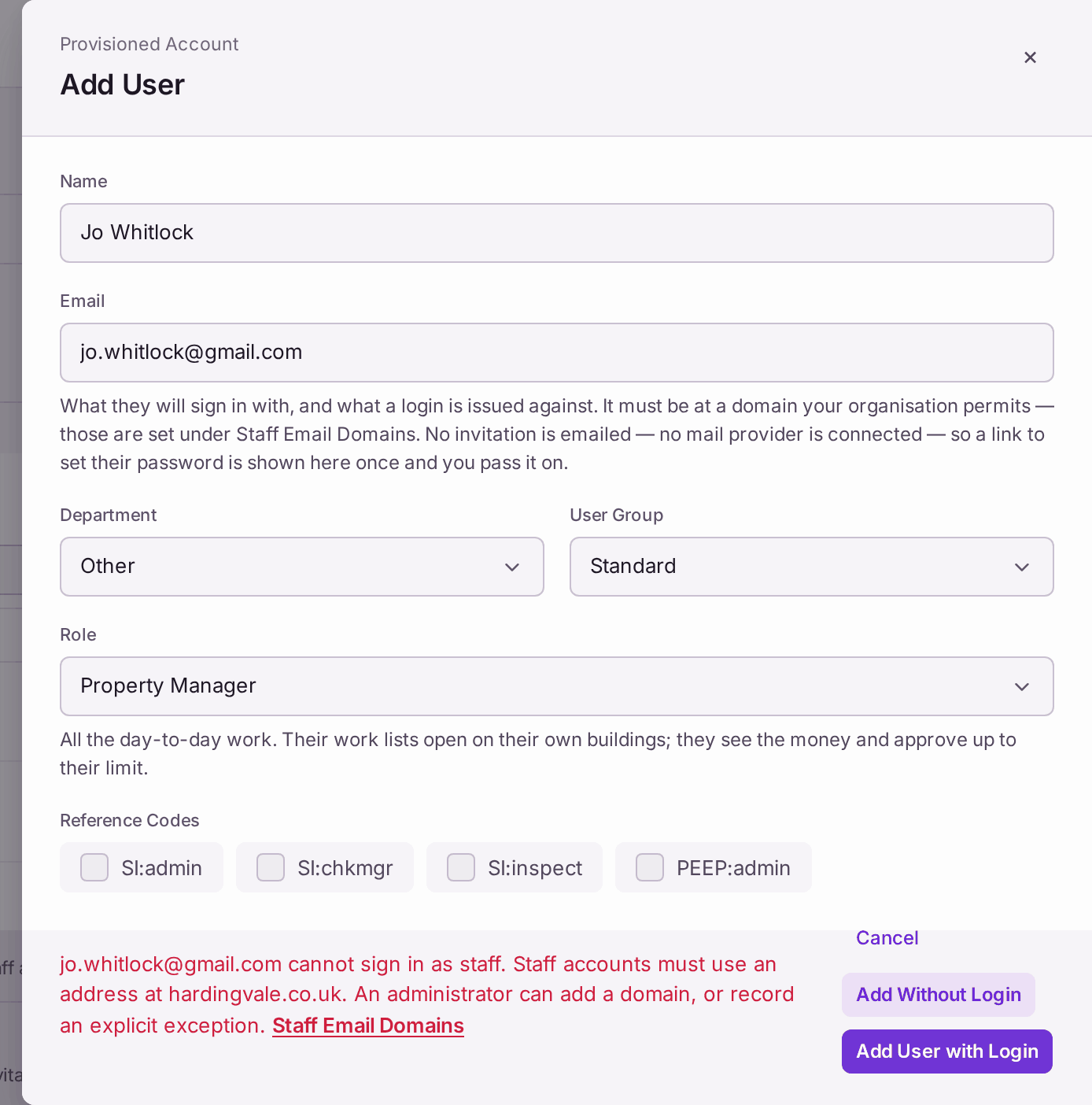
The red sentence names the only domain your firm accepts. The panel stays open, so you can correct the address and press the button again. - The address is already in use. "[address] is already a sign-in address on this platform. One address belongs to one person, so it cannot be given to a second." Each person needs their own address. A shared mailbox such as accounts@ cannot be a login.
- Add User with Login stays greyed. The panel says "Email address required for a login." Type the address. Add Without Login puts the person on the list with no way to sign in, for someone you need to name (as a line manager, say) who will not use SynkroTech. You can give them a login later with Create Login on their row.
- Someone already on the list cannot be given a login. Pressing Create Login shows the same "cannot sign in as staff" message in a box at the bottom of the screen. Open their row, change Sign-In Address to their work address, press Save Address, then press Create Login again.
- They lost the link, it ran out, or they opened it twice. The link page says "This link has already been used. If you did not set a password with it, ask for a new link below." Open their row on Users and press Reset Login at the bottom of the panel. A new link is shown once; copy it and send it again. Reset Login takes effect the moment you press it, with no question first, and stops their old password working, so use it only for someone who cannot sign in.
- Send New Login Link is refused. It says "Email cannot be sent from this system right now, so nothing was changed." Use Reset Login instead, and pass the new link on yourself.