


Following up an overdue duty that has been escalated to you
What you'll end up with: every late duty that has reached you looked at, given to someone to deal with, or waived with a reason, so nothing sits overdue with nobody owning it.
Before you start you need: escalation set up for your organisation (see Choosing what gets escalated and chased automatically).
When a duty stays overdue past the days your organisation set, the person above whoever owns it is told, in the bell and by email. If you are that person, the duty is now yours to see through: either to get it done, or to give it to someone who will.
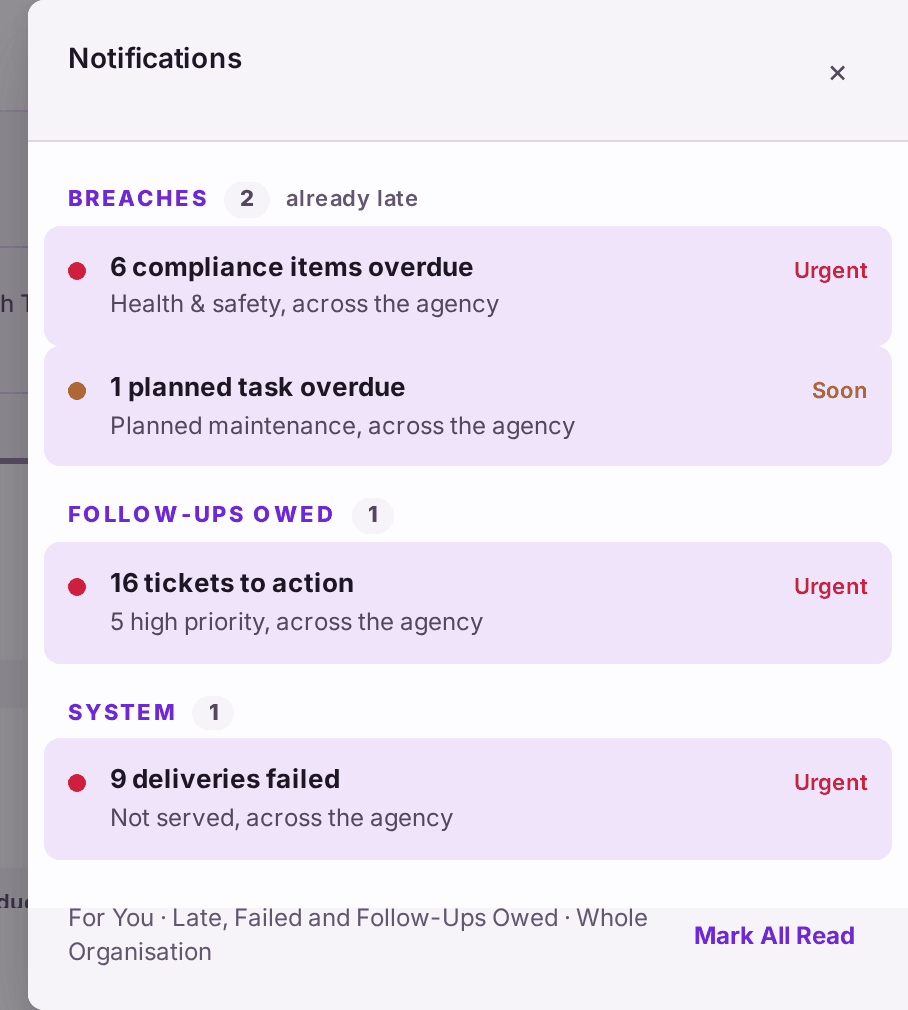
- Press the bell at the top of any page. Notifications groups what is late, what is owed and what failed, across the whole organisation.
- Go to My Duties (Home, then View All under Duties Due). Each duty shows how late it is and who it is assigned to. My Work on Home lists the same duties under Overdue, with Book Visit or the duty's next step beside each.
- For a duty with nobody on it, press Assign.
- Choose the colleague.
- Press Assign. "Reassigned to [name]."
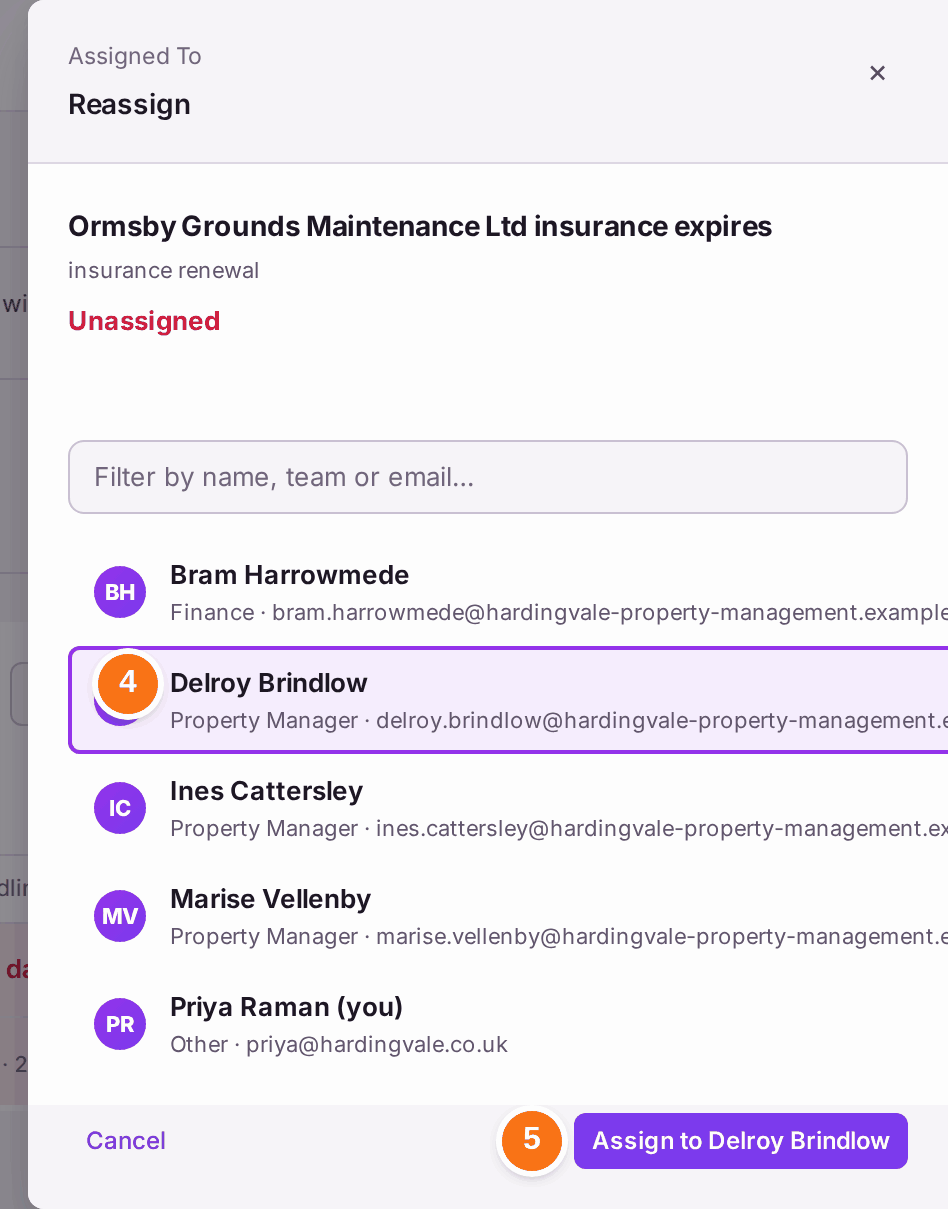
You'll know it worked when: the message names the colleague, and the duty no longer offers Assign. They see it in their own My Duties.
If something's wrong:
- The duty does not apply. Press Waive and give the reason (see Waiving a duty that does not apply).
- The duty is done but still shows. The certificate has not been recorded (see Recording that a check was done (filing a certificate)).
- You are told about too many things, or too late. Change the number of days before escalation, and who it goes to, in Settings → Chasing and Escalation.
- Mark All Read clears the bell, not the duties. They stay overdue until they are done or waived.