


Setting approval limits for supplier invoices
What you'll end up with: an approval limit for each colleague who may approve a supplier's invoice (the most they can approve on their own), and the people who receive invoices above everyone else's limit.
Before you start you need: your colleagues on the Users page, and your firm's own rules on who signs off spending, and up to what amount.
Approving a supplier invoice is what lets client money leave the account, so SynkroTech always asks for approval. Two rules are fixed: nobody approves an invoice they recorded themselves, and nobody raises their own limit.
- Press Settings, then Organisation Settings.
- Press Supplier Invoice Authorisation in the list on the left, under Finance.
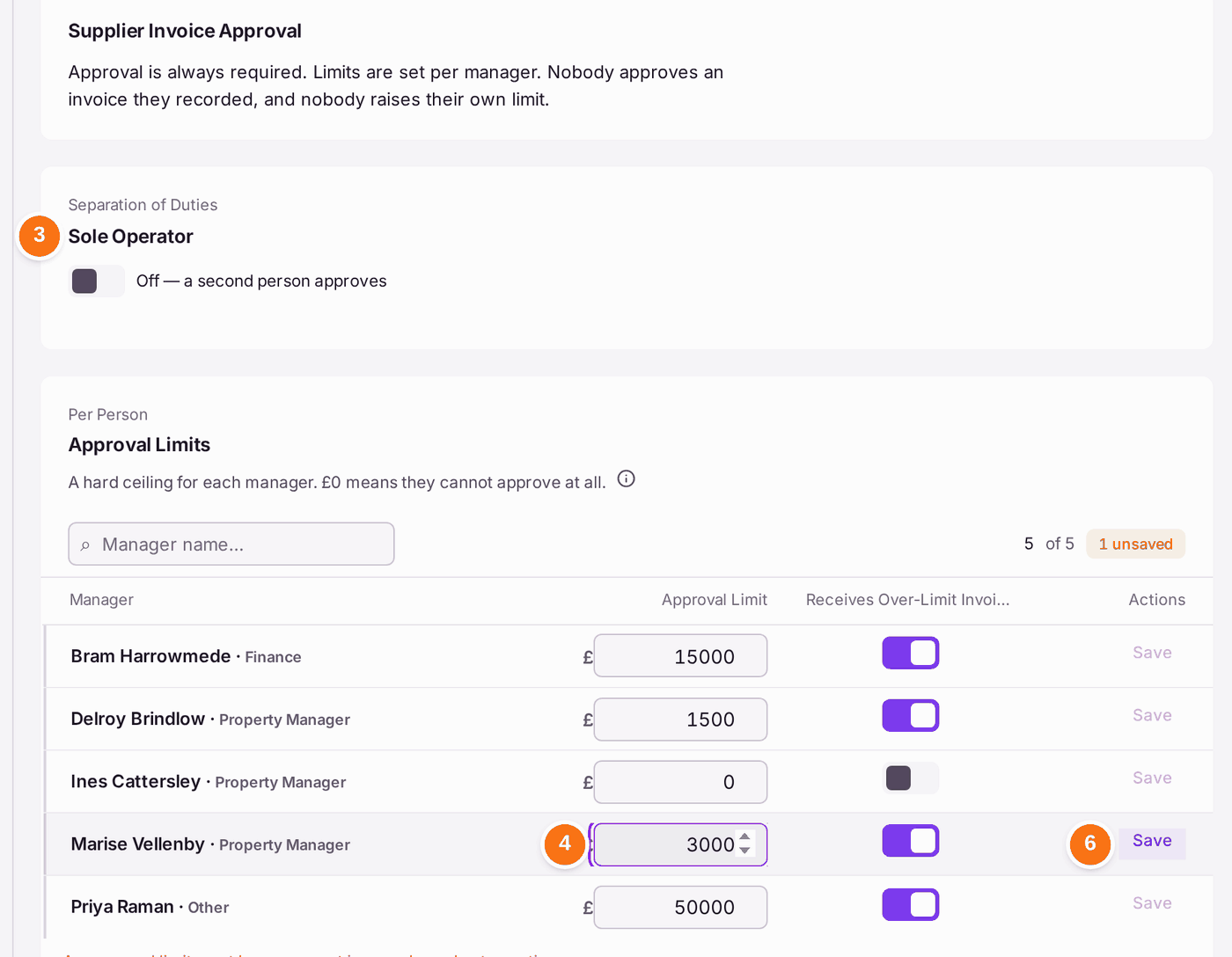
- Leave Sole Operator off unless you work alone. Off means a second person approves every invoice.
- Type a colleague's limit in pounds in the box on their row, under Approval Limit. £0 means they cannot approve at all.
- Turn on Receives Over-Limit Invoices for the people an invoice goes to when it is above the limit of whoever would normally approve it.
- Press Save on that row.
- Repeat steps 4 to 6 for each colleague. Press View 1 More (or however many) to see the rest of the list.
You'll know it worked when: the row says "Saved", and the Setup Checklist shows Add Approval Limits as Done, with how many people can authorise spend. An invoice above someone's limit is passed to the smallest limit that covers it.
If something's wrong:
- The limit is refused. "An approval limit must be an amount in pounds, and not negative." Type a whole amount such as 2500, without the £ sign.
- Save stays greyed. Nothing on that row has changed since it was last saved.
- You cannot change your own limit. That is the rule: nobody raises their own limit. Ask another administrator.
- A colleague still cannot approve. They also need the permission "Approve supplier invoices and repayments, up to their own approval limit" in their role (see Deciding what each colleague can do).