


Raising a one-off charge (an administration charge, a recharge or a shared cost)
What you'll end up with: a charge outside the year's budget (for example a cost to share across the building, a recharge of a cost one flat caused, or an administration charge) raised as demands, one for each flat that pays, issued with the right summary of rights and waiting in the Outbox to be sent.
Before you start you need:
- The property's client appointed with a registered address, and its schedules adding up to 100%, as for any demand (see Issuing your service charge demands).
- Your main branch's Correspondence Address, under Settings → Branches. It is printed on every demand as the address for service of notices.
- What the charge is for, the total, the date it is due, and for a service charge the date the cost was incurred. Section 20B (the 18-month rule) runs from that date.
- For a charge to one flat, the lease clause that allows it.
A charge shared across the building is a service charge: it carries the service charge summary of rights. A one-flat Administration Charge carries the administration charges summary of rights instead. Works that would cost any flat more than £250 need a Section 20 consultation first, so they are refused here. Once the project's consultation is complete, its contributions are raised from the project with Raise Contributions, which opens this page with the project filled in (see Running a Section 20 consultation for major works).
- Go to Finance → Demands & Arrears.
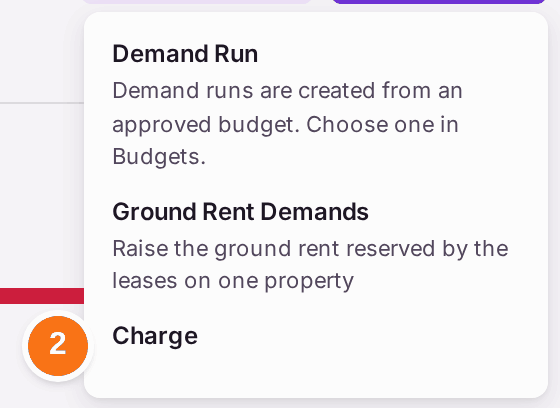
- Press Create at the top of the page, then Charge. Raise a Charge opens.
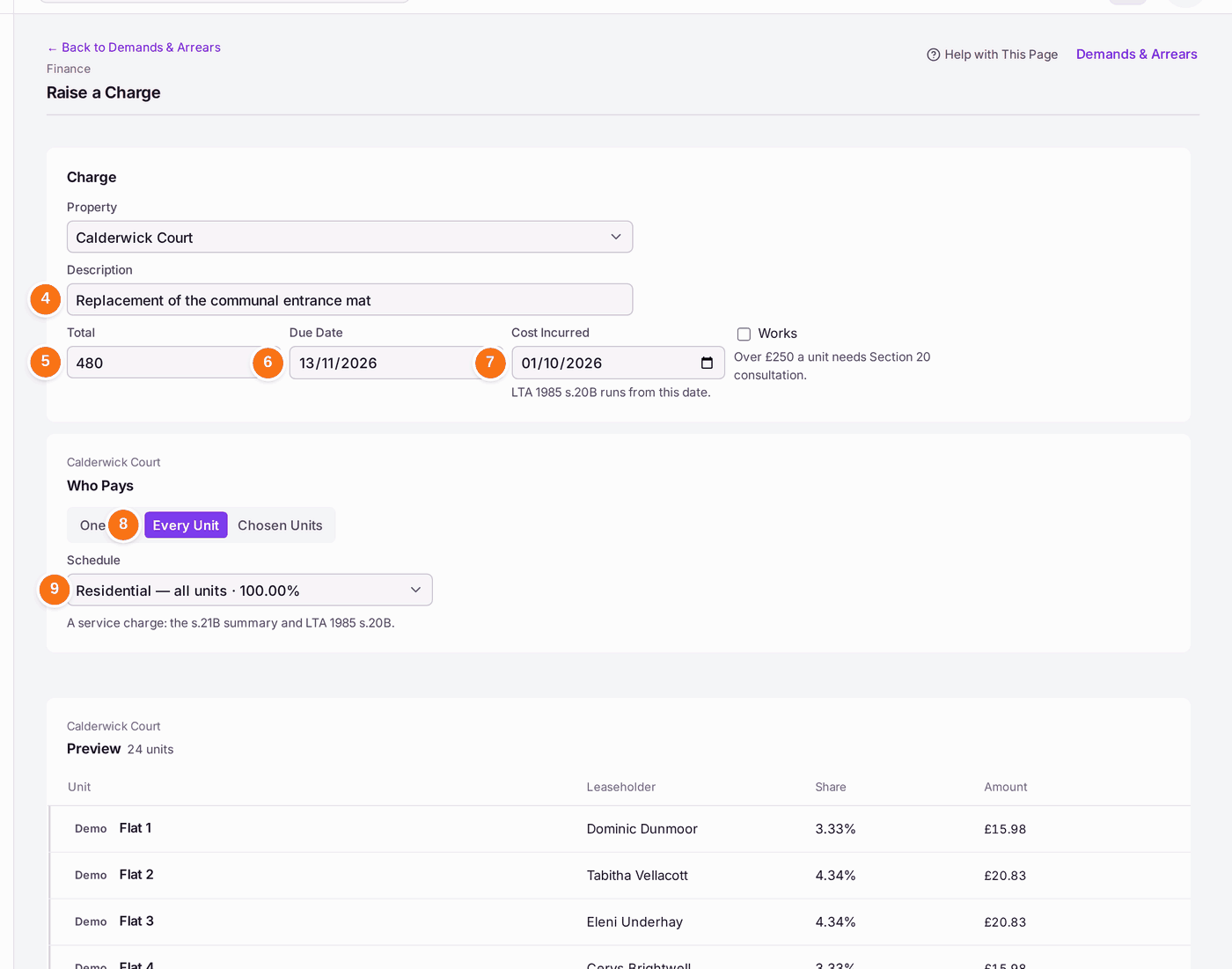
- Choose the Property. With Demands & Arrears filtered to one property, it is already chosen.
- Type what the charge is for in Description. Leaseholders read this on their demand.
- Type the Total in pounds.
- Choose the Due Date.
- Check Cost Incurred: the day the cost arose.
- Under Who Pays, choose Every Unit, Chosen Units or One Unit.
- For Every Unit, choose the Schedule whose shares divide the charge. For One Unit, choose the Unit and the Kind: Administration Charge, Recharge of a Cost or Other.
- Press Preview. Each flat's figure is listed, adding up to the total exactly.
- Check the figures. Press Edit to change anything.
- Press Issue 24 Demands (the number is how many flats pay). The demands are issued at once; there is no question first.
You'll know it worked when: the page shows the charge's reference (such as CH-0001), Issued, how many demands were issued, how many are to email and to post, Not Sent, and how many are unreachable. "Waiting in draft mailing DR-… None is served until it is released, then sent or posted." Nothing is printed or emailed yet: press Send · DR-…, which opens the run, and release it as for any demand (steps 11 to 18 of Issuing your service charge demands). The demands sit on each leaseholder's balance, statement and portal, and are chased like any other arrear.
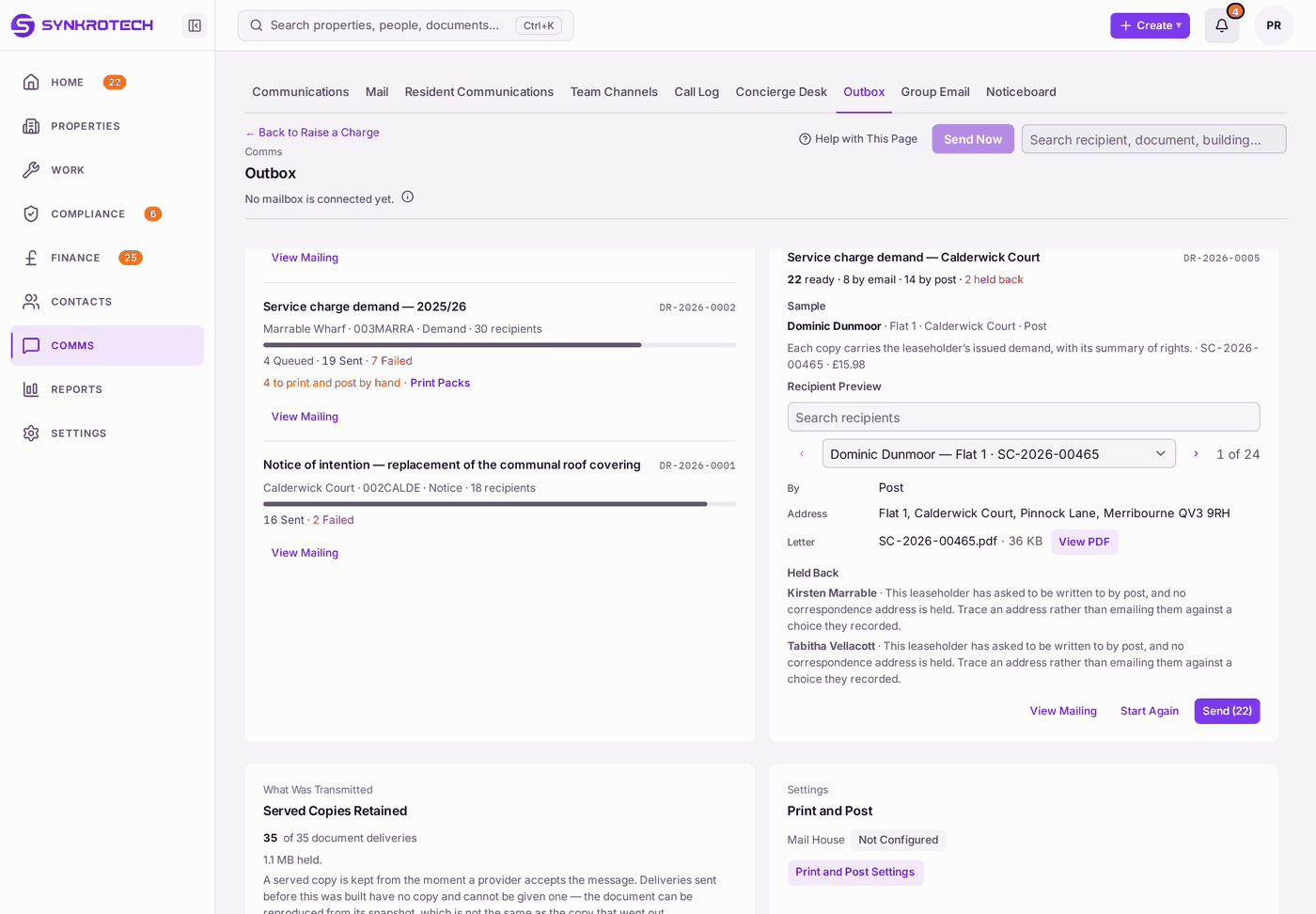
After Issue, the Outbox opens at the mailing's Check and Send step: the counts, one copy as it will read, and anyone held back. Send there sends them (see Issuing your service charge demands). A charge raised by mistake and not yet issued is deleted from any of its demands with Delete Draft (see Correcting or cancelling a wrong demand).
If something's wrong:
"Works costing a unit more than £250 need a Section 20 consultation". The line names the flat and its figure, for example "(Flat 6: £5,026.01)". Nothing is raised. When the total is a works project's contract sum, the link is Raise Contributions: it opens this page again with that project filled in, and the contributions can be issued once its consultation is complete. Otherwise the link is Works Projects, the property's projects: raise the contributions from the project, or create one, which runs the consultation (see Running a Section 20 consultation for major works).
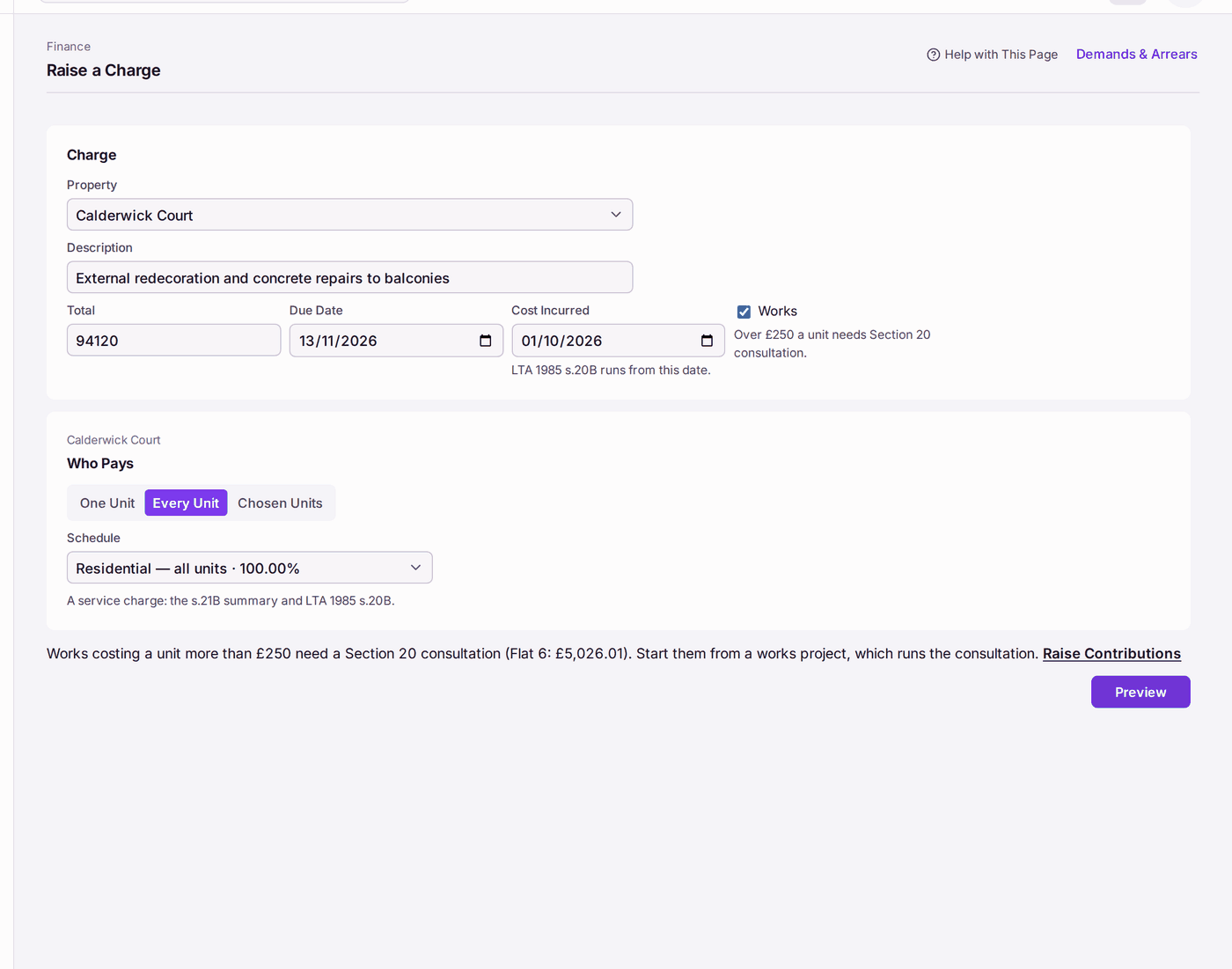
The line under Who Pays names the flat that would pay most. This total is the decorations project's contract sum, so the link is Raise Contributions. A charge to one flat asks for a Kind. Choose Administration Charge for a fee the lease allows you to charge one leaseholder (it carries the administration charges summary of rights), or Recharge of a Cost for a cost one flat caused.
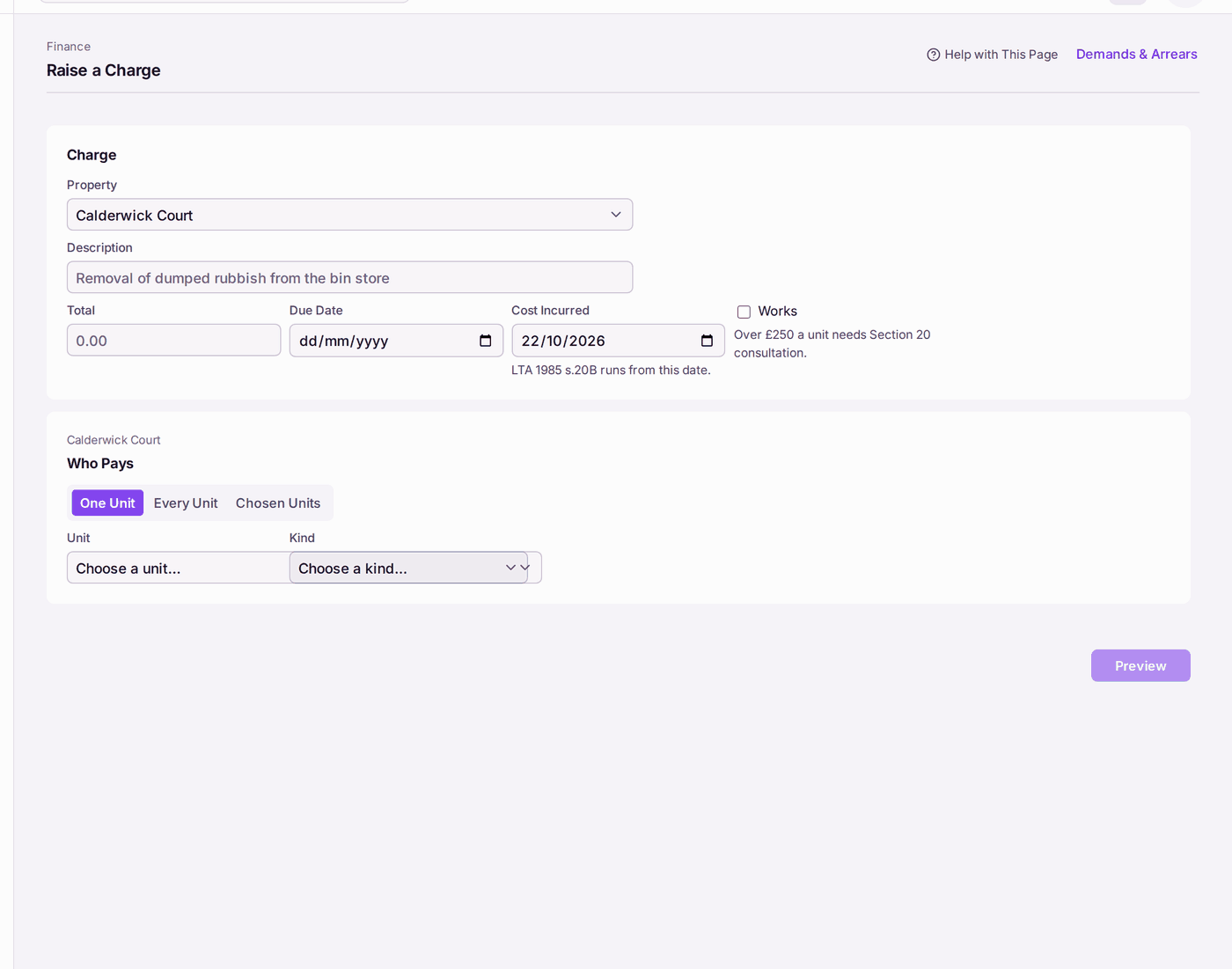
With One Unit, the schedule gives way to Unit and Kind. - "No address for service of notices is configured." The red line under the charge goes on: "LTA 1987 s.48 requires one in England or Wales. Set the main branch's Correspondence Address under Settings → Branches." The charge is raised and its demands wait as drafts on Demands & Arrears; none is issued. Press Branches after the sentence, choose the branch marked main under Branch, fill in Correspondence Address, press Save Branch, then issue the drafts from Demands & Arrears (see Issuing your service charge demands). You need to be an administrator to open Settings; otherwise ask one.
- "No registered address is held for [client]." The landlord's own address is missing, and the law does not accept your office's address instead. The sentence ends "Add the Registered Address on the client's record." Press the client's name after it, press Edit Client, fill in Registered Address, press Save Changes, then issue the drafts from Demands & Arrears.
- "No single client is appointed to [property] today." A charge takes its landlord from the client appointed to the building. Press Clients & Companies after the sentence, open the client and press Add Appointment for this property, then issue the drafts from Demands & Arrears.
- An administration charge is refused on a Welsh building. The Welsh summary of rights for administration charges is not held, so SynkroTech will not raise one.
- The schedule is refused. A schedule whose shares do not add up to 100% cannot divide a charge. Correct the shares first (see Setting each unit's share of the service charge (apportionment)).
- A flat has no lease. A unit with no leaseholder cannot be charged. Add the leaseholder first.
- You issued it by mistake. Each demand is cancelled, not edited (see Correcting or cancelling a wrong demand). The demands are not sent until the Outbox mailing is sent, so cancel them before you send it.