


Keeping on top of open tickets and their due dates
What you'll end up with: a register that shows what is due and what is late, tickets whose status says where each one stands, and a reason recorded every time a date moves.
Before you start you need: tickets on the register (see Logging a repair someone has reported (raising a ticket)).
Each ticket has a next action date. When it passes, the ticket is overdue and counts against your office on the directors' reports. Moving a date is allowed, but only with a reason, so the record shows why the work slipped.
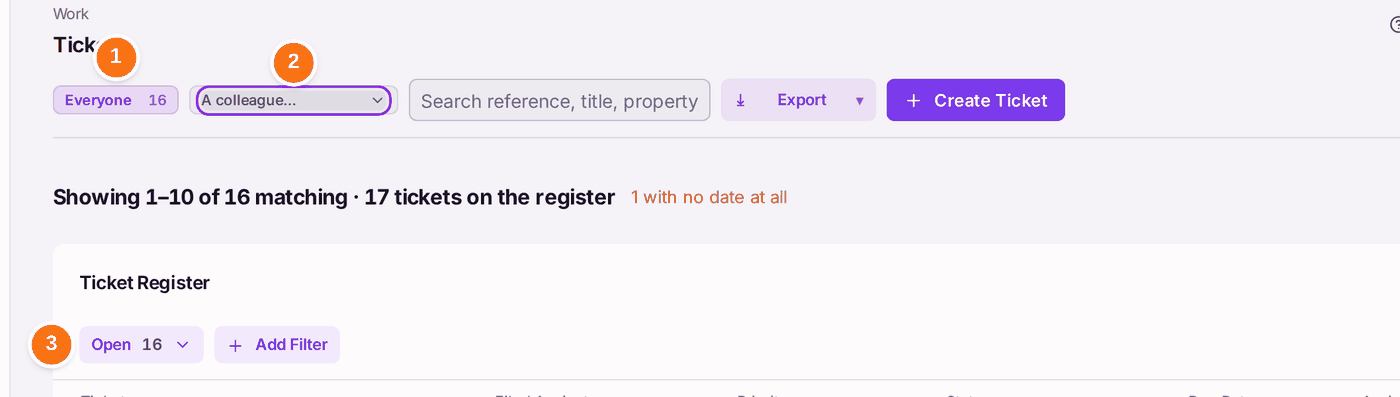
- Go to Work → Tickets. Everyone shows the whole office's tickets.
- To see one colleague's tickets, choose them in A colleague….
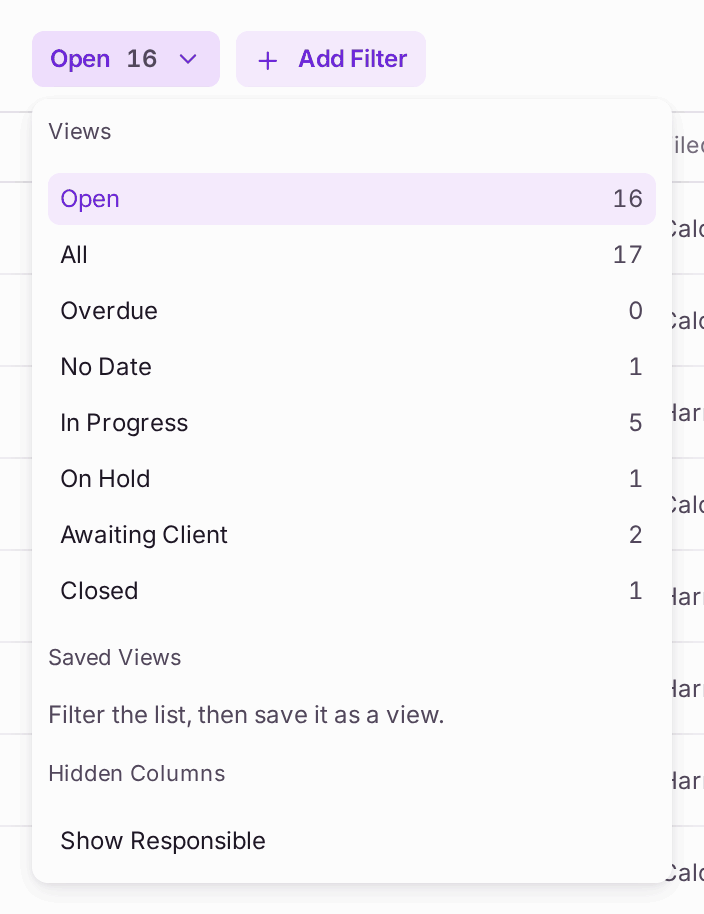
- Press the view (it starts as Open) to choose another: All, Overdue, No Date, In Progress, On Hold, Awaiting Client or Closed. Add Filter narrows it further, and a filtered list can be saved as a view.
- Open a ticket from the list.
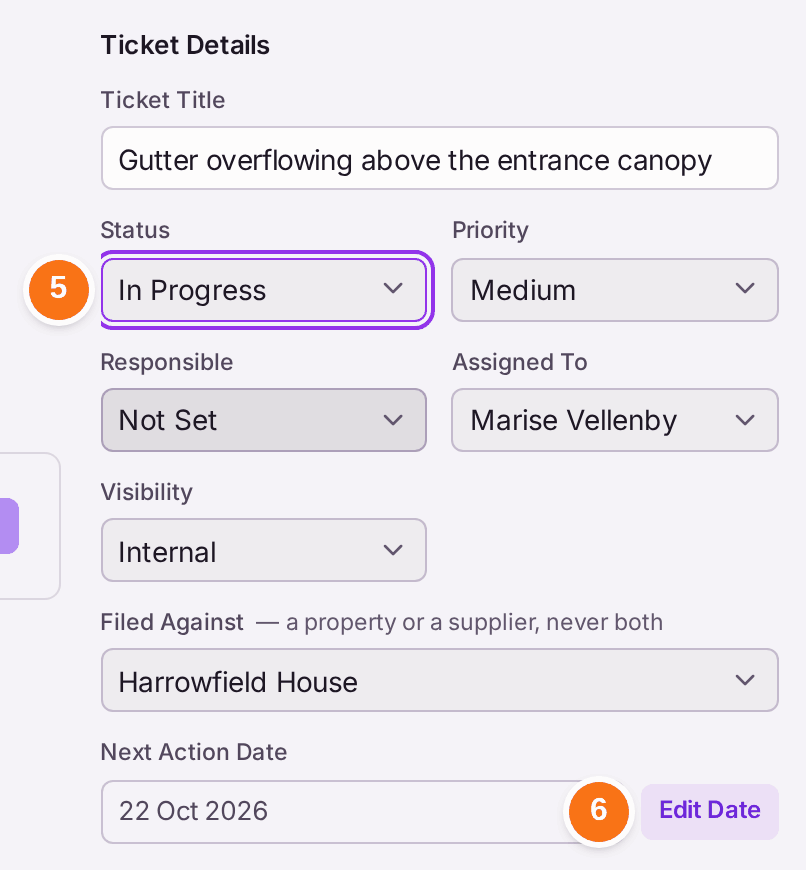
- Change its Status under Ticket Details as the work moves: Open, In Progress, Awaiting Client, On Hold, Resolved or Closed. The change is saved at once, with Undo in the message. When you first look at a repair, choose who it falls to under Responsible: Landlord, Leaseholder, Tenant or Insurer. The register shows it in its Responsible column.
- To move the date, press Edit Date beside Next Action Date.
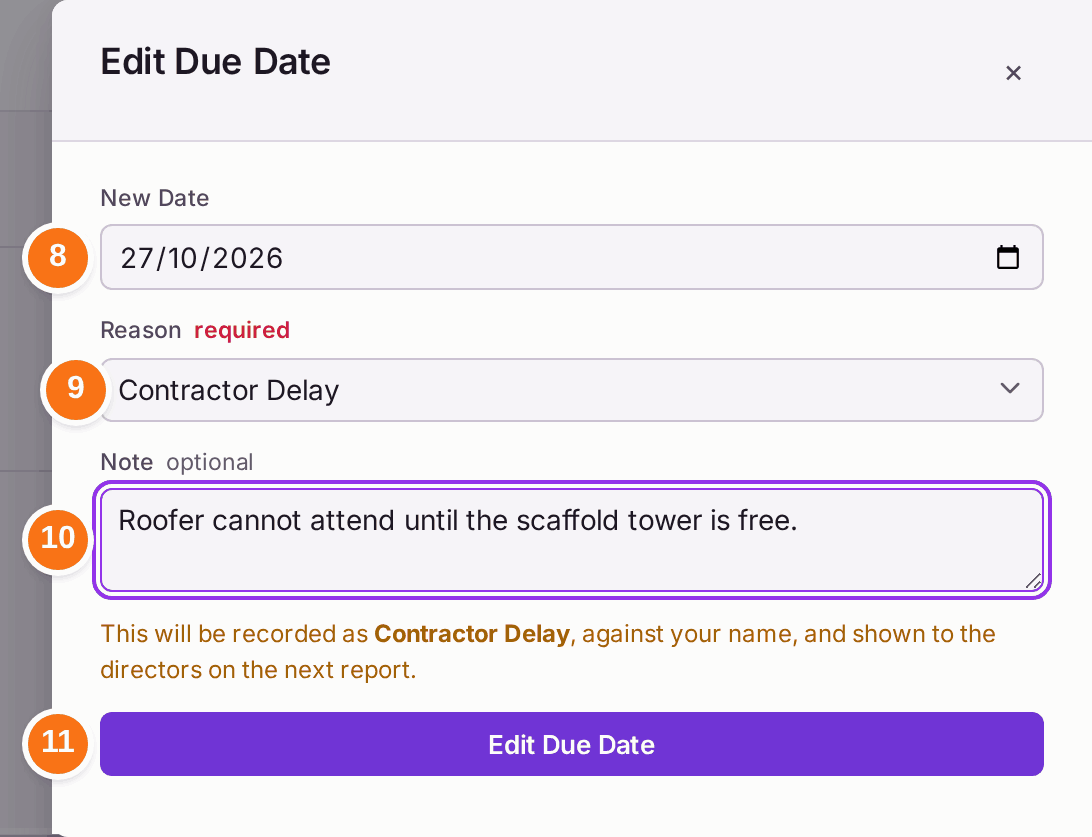
- Edit Due Date opens.
- Choose the New Date.
- Choose the Reason: for example Awaiting Quote, Contractor Delay or Access Refused.
- Add a Note if it helps.
- Press Edit Due Date.
You'll know it worked when: the ticket's Next Action shows the new date, Date Changes counts one more, and the activity reads, for example, "HVP-0004 date moved to 27 October 2026 · Reason: Contractor Delay".
A ticket whose work orders are all done and that is still open says so at the top: Work Completed · Ticket Still Open, with Resolve Ticket. Back to Tickets from a ticket keeps your place: the search, the view, the page and how far down you had scrolled.

A ticket not needed, or raised in error (typed twice, or against the wrong flat): press Cancel Ticket at the top of the ticket, beside Close Ticket. Type why, and press Cancel Ticket. The ticket reads Cancelled, leaves the open work, and is kept: Cancelled in Tickets by Status lists it. Your reason is kept as an internal note. Nobody is told: no message is written and no email goes. If a resident can see the ticket, the question says so and offers Tell Them: tick it and write what they read, and they are emailed as on a close. Choosing another status reopens a cancelled ticket.
If something's wrong:
Edit Due Date is greyed, with "Pick a reason before the date can move." Choose a Reason.

The reason is shown to the directors. - The repair is the leaseholder's own, not the building's. Choose Leaseholder under Responsible, then press Tell the Leaseholder and Close. The panel names the flat's leaseholder and offers the words, which you can change; the ticket closes with them as its last message, and the leaseholder is put on the ticket so they read it. If replies are already written on the ticket, the panel says the leaseholder will see them: press Confirm and Close to go ahead. "No flat on this ticket." means the ticket names no flat: choose the flat first.
- A colleague's name in the list reads "no patch". They have no properties of their own, so they have no tickets to show.
- A ticket shown as Resolved is still in the Open view. The Open view counts every ticket that is not closed. Close the ticket when the work is finished and the person who reported it has been told.
- The register says "1 with no date at all". A ticket has no next action date. Choose the No Date view and give it one.