


Setting how colleagues sign in, and how long a session lasts
What you'll end up with: colleagues signed out after a set time away from the keyboard, invitation links that stop working after a set time, and a way to sign anyone out at once.
Before you start you need: your organisation's rule for shared or unattended machines.
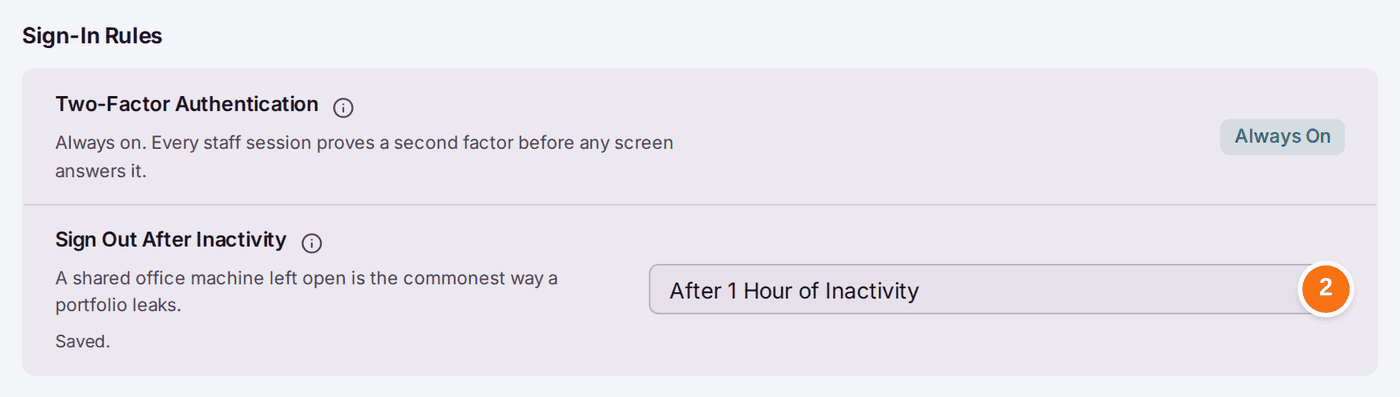
Two-factor authentication (a code from an app on the phone as well as the password) is always on for staff and cannot be turned off.
- Go to Settings, then Security and Sign-In, under Access.
- Under Sign-In Rules, choose Sign Out After Inactivity: from 15 minutes to 8 hours, or Never — Sessions Last 12 Hours from Sign-In. It saves as soon as you choose ("Saved.").
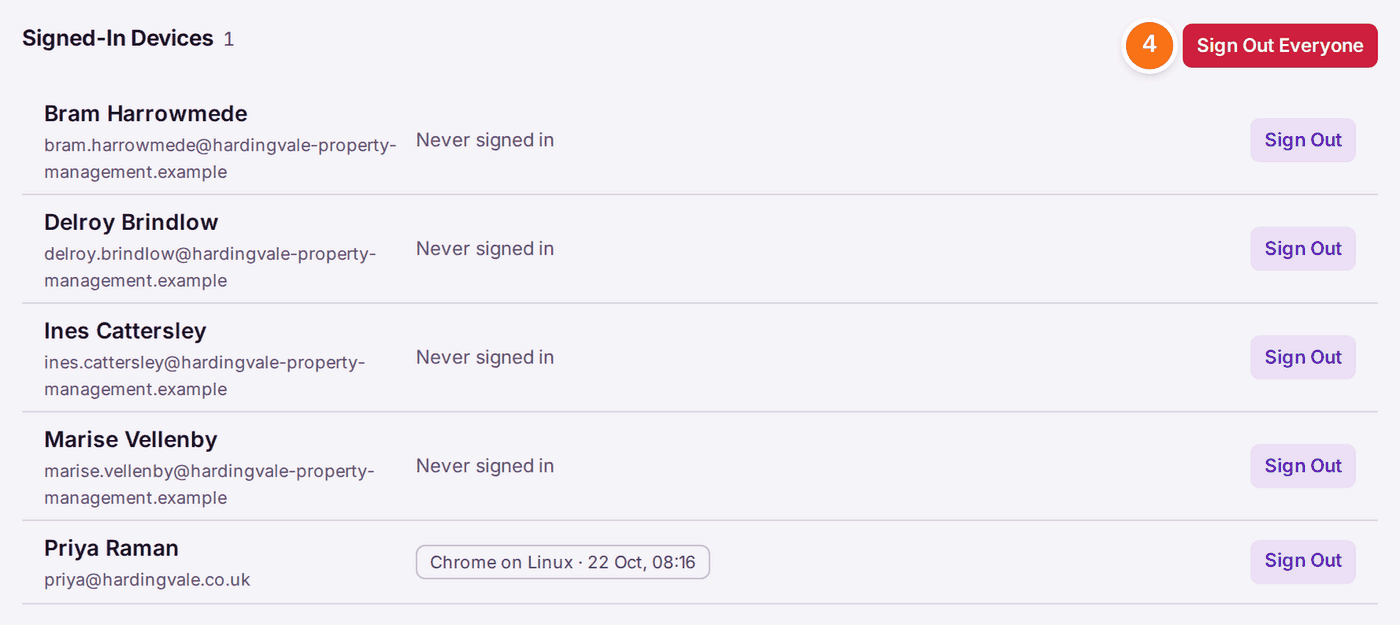
- Under Signed-In Devices, read who is signed in, on what, and when they last were.
- To end someone's sessions, press Sign Out beside them, or Sign Out Everyone, then Sign Out on the question. "Every session they hold ends at its next request. They can sign in again at once."
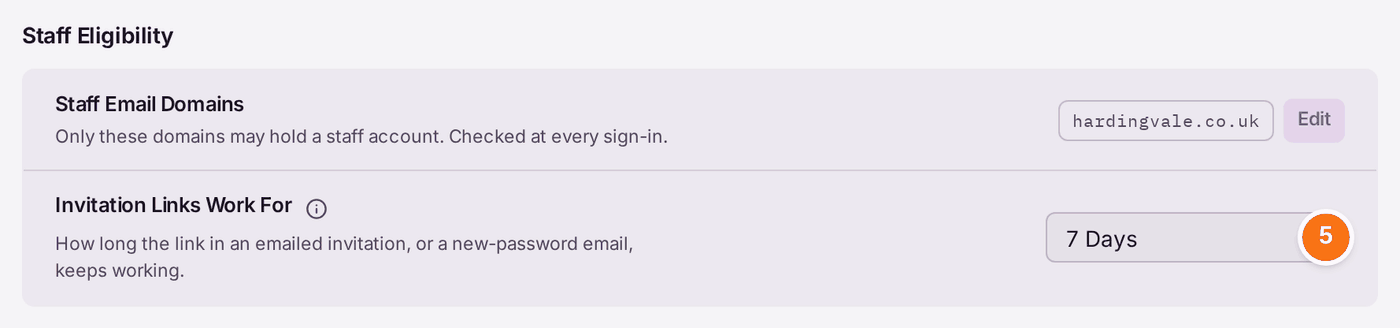
- To set how long an emailed invitation or new-password link keeps working, go to Users and choose under Invitation Links Work For: 1, 3, 7, 14 or 30 days.
You'll know it worked when: the setting reads "Saved." and the change is on the Decision Record, for example "Idle Sign Out, off → 2h" (see Finding out who did what (the Decision Record)).
If something's wrong:
- A colleague's laptop or phone is lost. Sign them out at once (step 4), then reset their login from Users (see Removing a colleague's access or moving their work to someone else).
- Recent Sign-In Activity shows failed sign-ins or a new device you do not recognise. Sign that colleague out and ask them to change their password.
- An invitation link has expired. Send a new one from the colleague's record on Users with Send New Login Link.