


Answering a message from a resident or leaseholder
What you'll end up with: the conversation with a resident or leaseholder in one place, with your reply in their portal, and any phone call or letter about the same matter recorded alongside.
Before you start you need: nothing for a call or a letter you are recording. For a portal message, the person needs a portal login (see Giving a leaseholder, resident or director a portal login).
Messages about a repair stay on the ticket (see Replying to a resident about their ticket, or adding an internal note). Everything else is here.
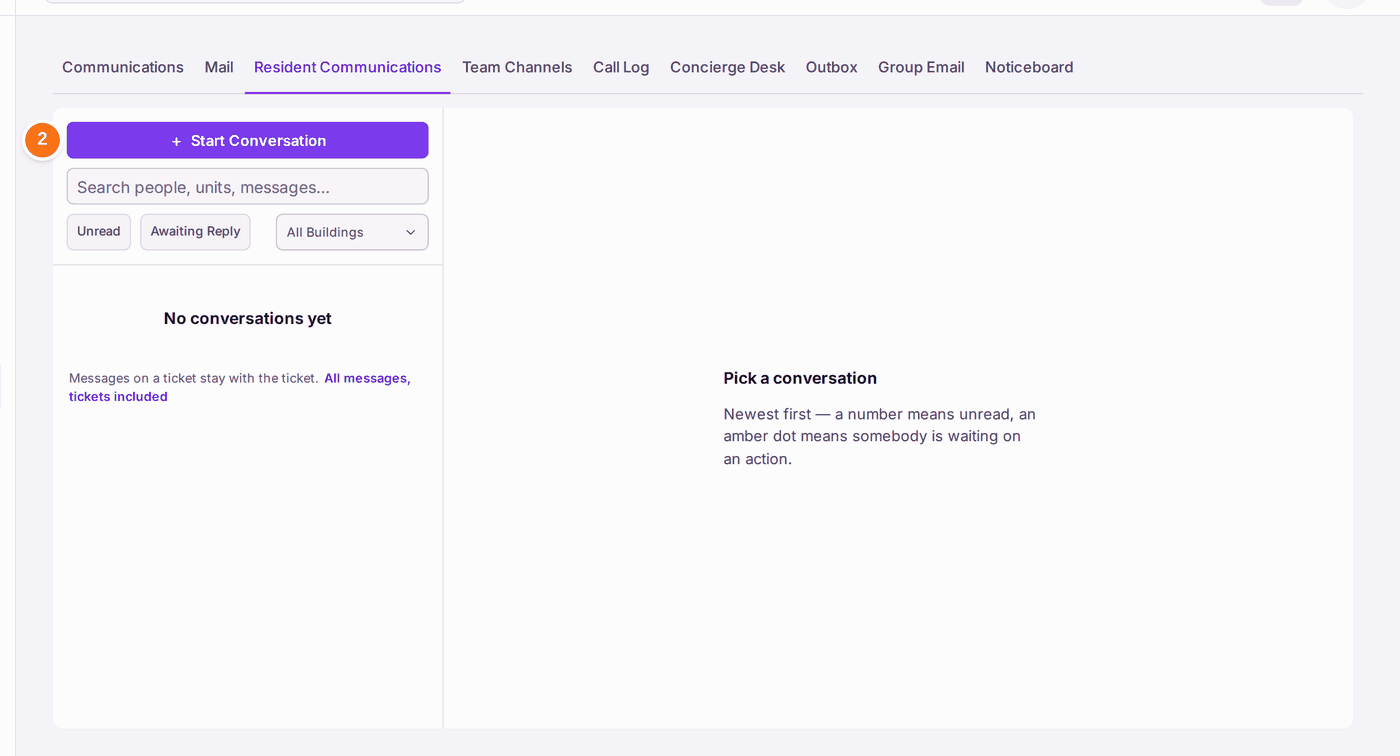
- Go to Comms, then Resident Communications. Unread and Awaiting Reply show what needs you; choose a building to narrow the list.
- To answer, open the conversation. To record something new, press Start Conversation.
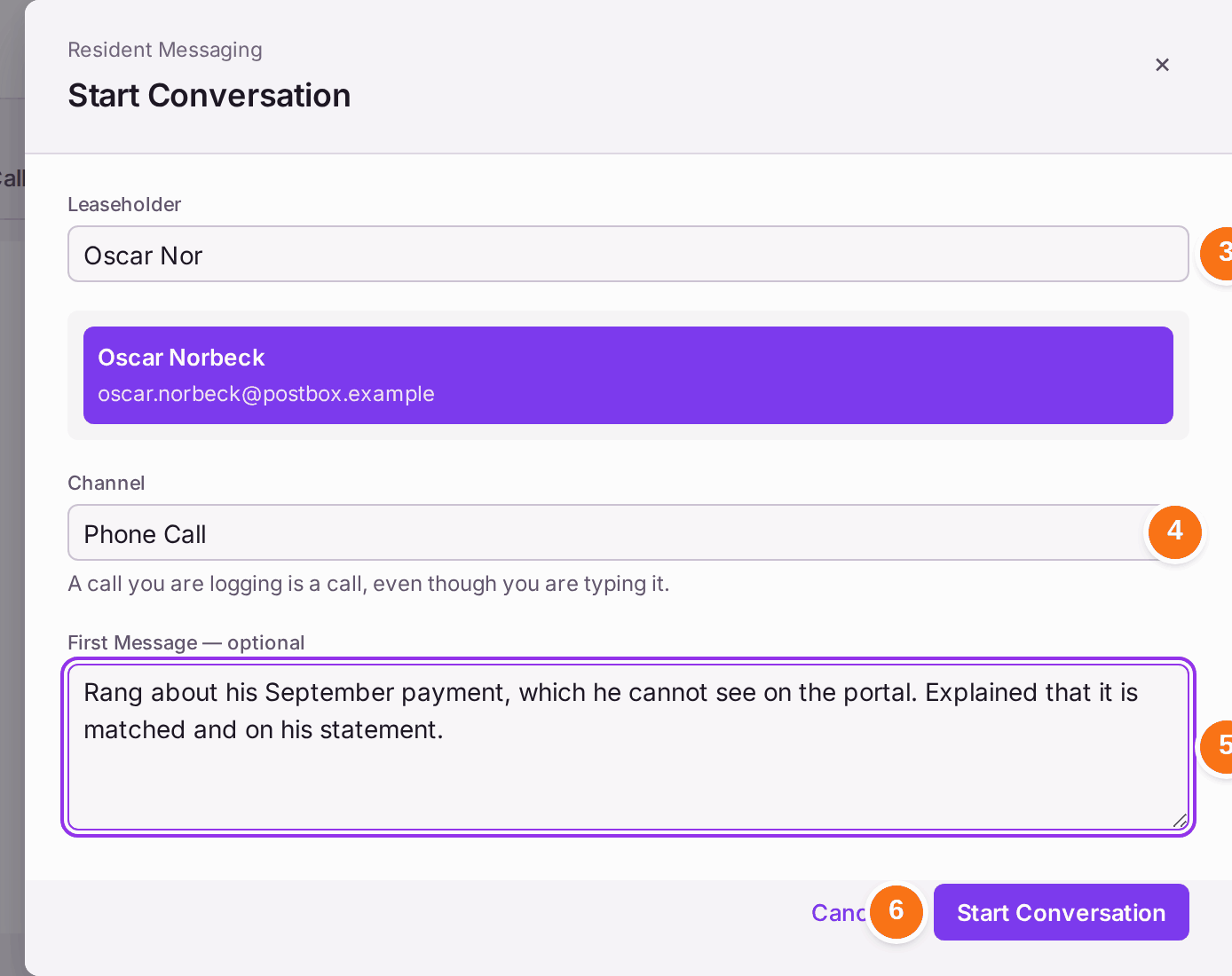
- Type part of the person's name, then choose them from the list.
- Choose the Channel: Portal Message, Phone Call or Letter. "A call you are logging is a call, even though you are typing it."
- Type the First Message, if there is one.
- Press Start Conversation.
- In the conversation, choose Reply (it goes to their portal) or Internal Note (only your colleagues see it). The quick replies, such as Looking into It, fill the box for you to finish.
- Press Send, or press Enter. Shift and Enter starts a new line.
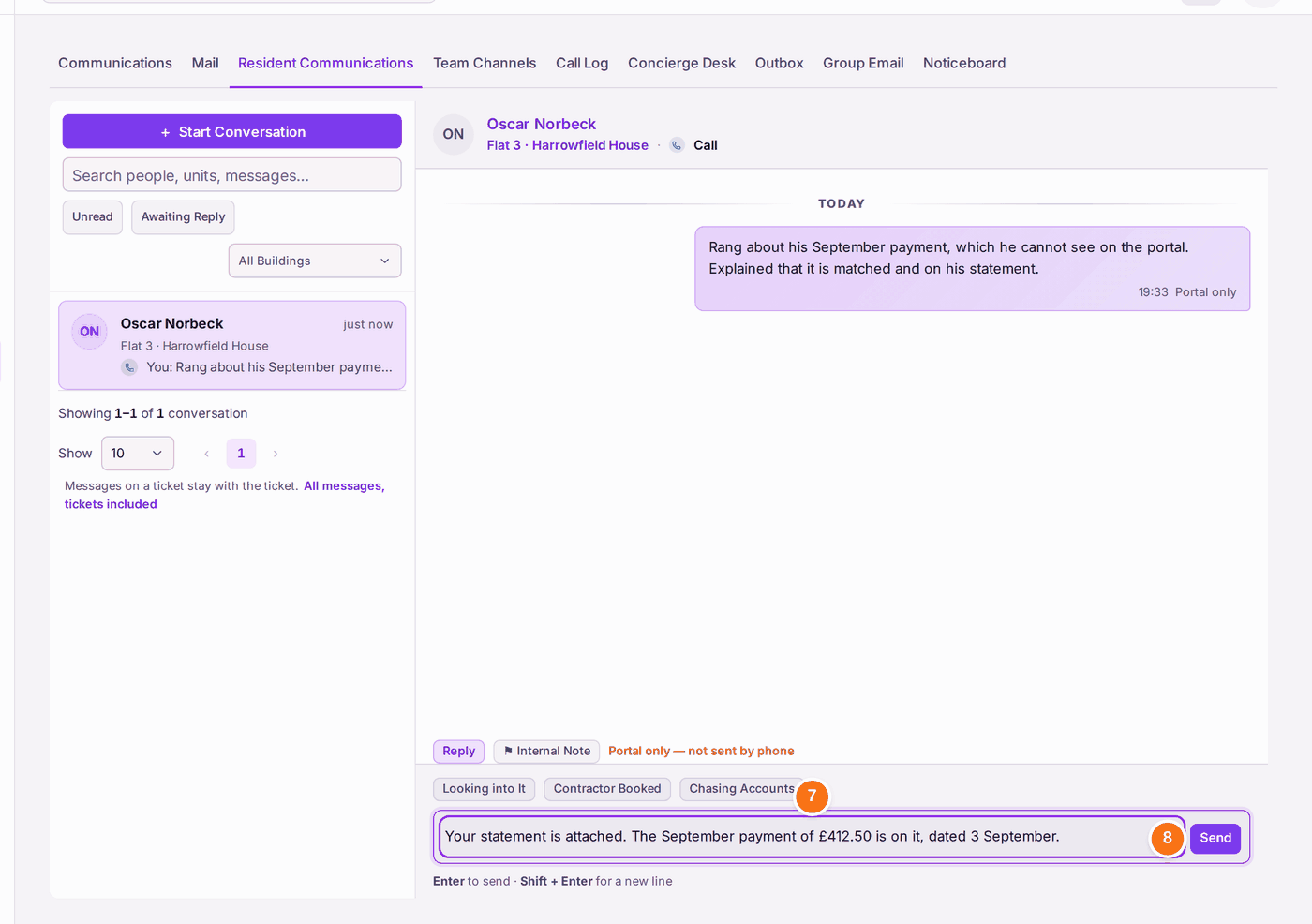
You'll know it worked when: the conversation is at the top of the list with your message and the time, and it leaves Awaiting Reply.
If something's wrong:
- The person is not found. Only leaseholders and residents on the register are offered; keep typing to narrow the list. Add them first if they are missing (see Adding a leaseholder, a joint leaseholder or a company to a unit).
- They say they did not see your reply. Replies go to their portal. If they have no portal login, give them one, or write to them by email or letter.
- You wrote a note in the reply box by mistake. Replies cannot be taken back. Send a short correction.