


Choosing what gets escalated and chased automatically
What you'll end up with: rules that tell the right person, in the bell and by email, when a compliance duty runs overdue, when a contractor is late with a job, or when an emergency is reported, and the due dates new work orders get from their priority.
Before you start you need: your colleagues on SynkroTech with their roles (see Adding colleagues and giving them a login), and who in your office should hear about what.
Without these rules, an overdue duty sits with its owner and nobody above them hears of it, and a contractor who never books a visit is not noticed until a resident complains.
- Press Settings, then Organisation Settings.
- Press Chasing and Escalation in the list on the left, under Operations.
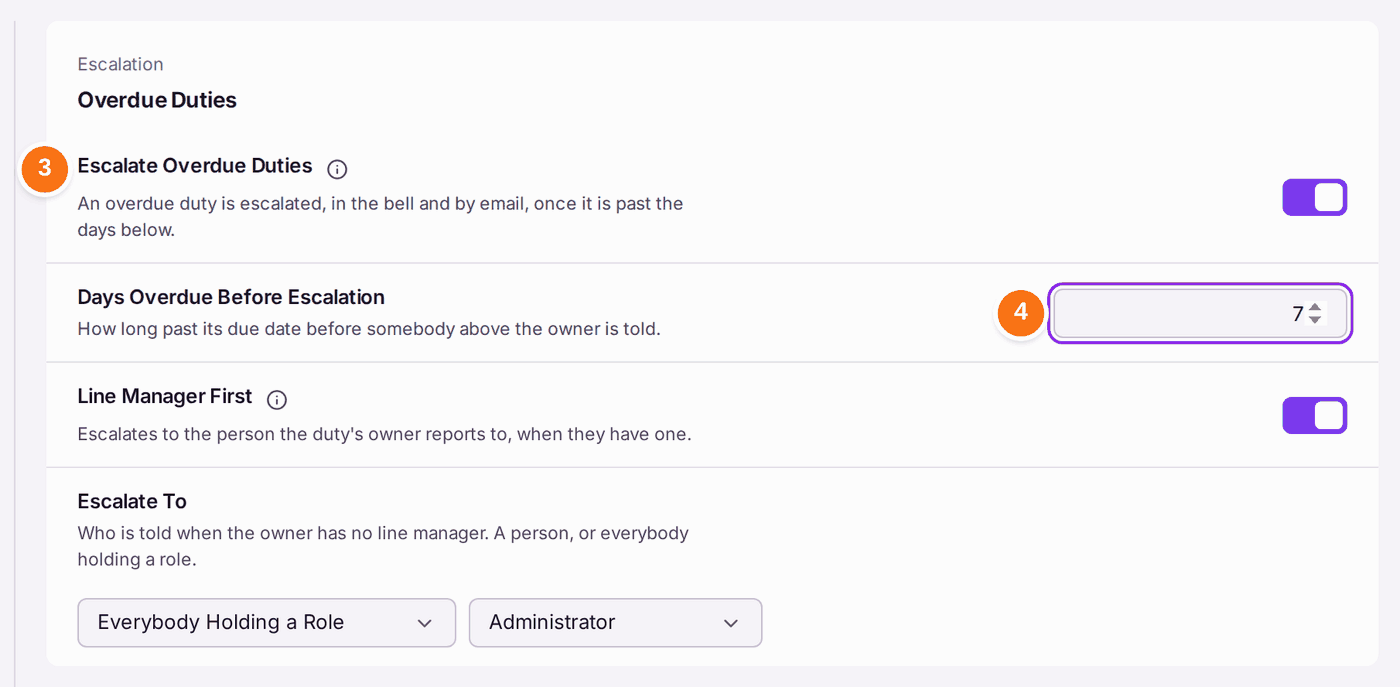
- Under Escalation, turn on Escalate Overdue Duties.
- Set Days Overdue Before Escalation: how long past its due date before somebody above the owner is told.
- Turn on Line Manager First if the duty's owner's own manager should hear first. Then choose who is told when the owner has no line manager, in Escalate To: Everybody Holding a Role, or A Named Person.
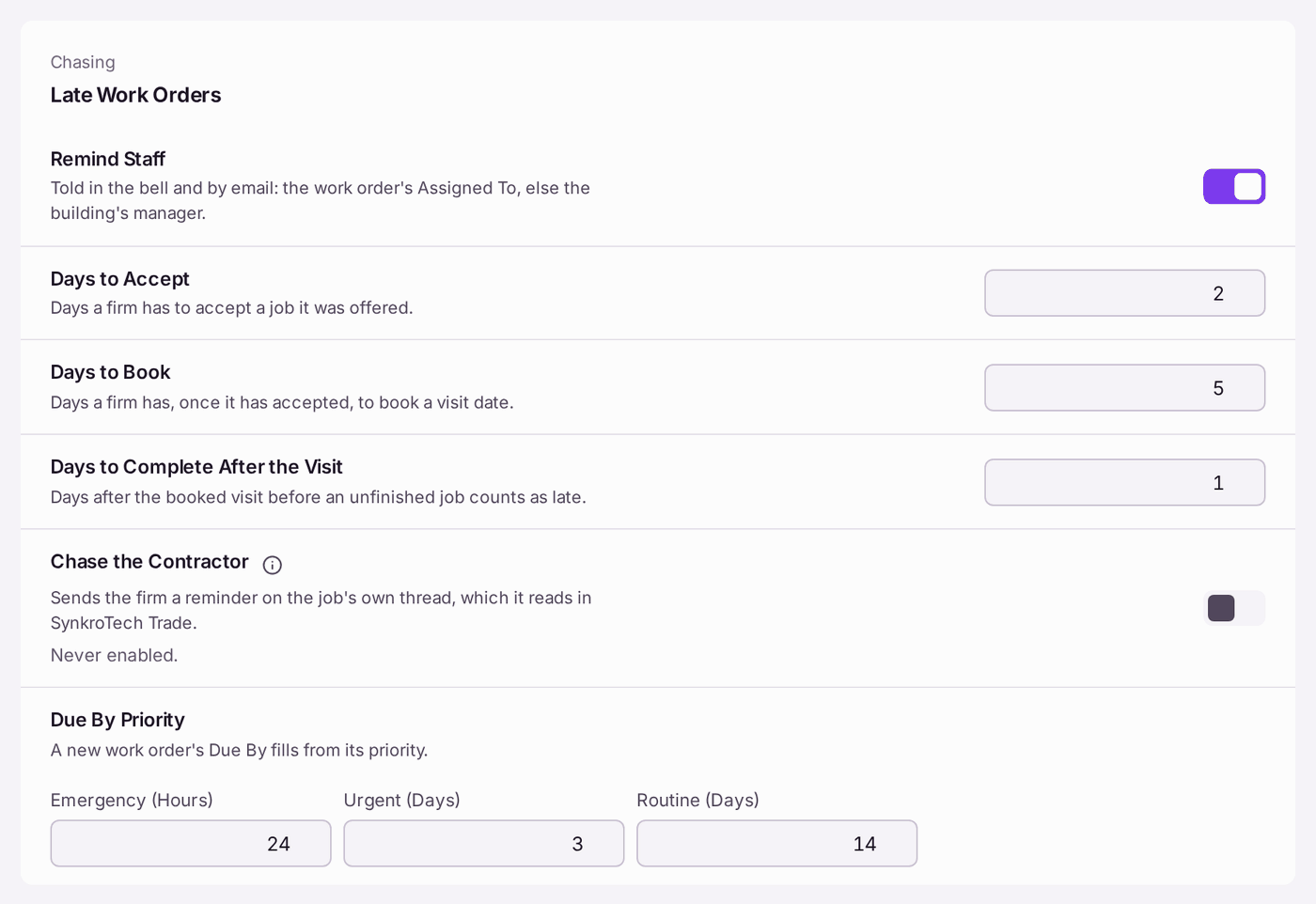
- Under Chasing, set Late Work Orders: Days to Accept, Days to Book and Days to Complete After the Visit. Remind Staff tells the work order's Assigned To (or the building's manager) when a firm is late.
- Turn on Chase the Contractor if the firm should get a reminder on the job in SynkroTech Trade.
- Check Due By Priority: how long a new work order has, by priority (Emergency in hours, Urgent and Routine in days).
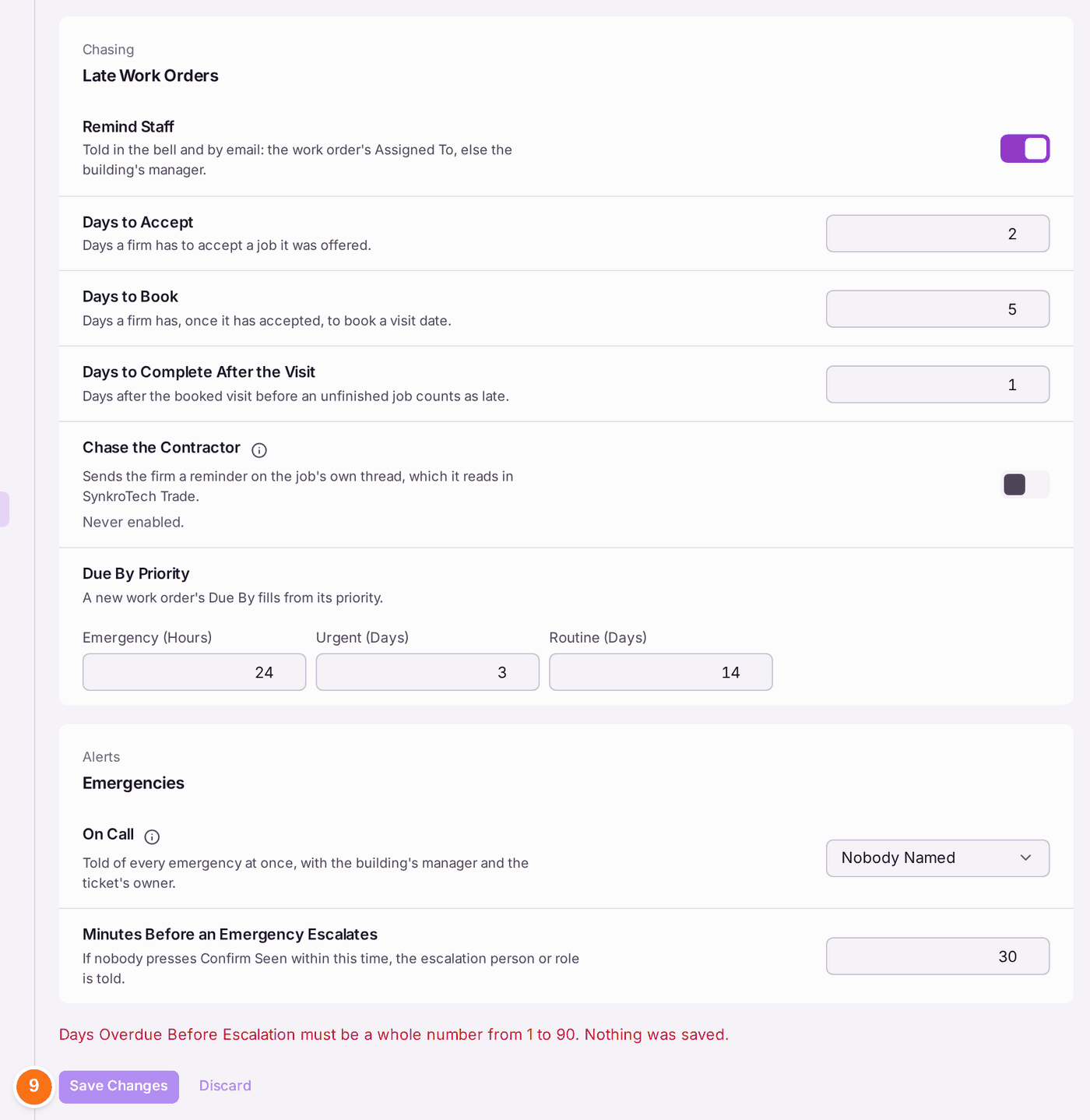
- Under Alerts, name the On Call person, who is told of every emergency at once, and the Minutes Before an Emergency Escalates if nobody presses Confirm Seen.
- Press Save Changes.
You'll know it worked when: the changes are saved, and from the next day an overdue duty past your limit shows in the bell of whoever you chose, with a note on the duty of who was told and when ("Escalated to Marise Vellenby, 3 Oct"). Every change to these settings is filed on the Decision Record.
If something's wrong:
- "Days Overdue Before Escalation must be a whole number from 1 to 90. Nothing was saved." Type a whole number of days in that range. The other boxes have their own ranges and say so the same way.
- Nobody is told of an escalation. Check Escalate To: if it names a role, someone must hold that role; if it names a person, they must still be active.
- Save Changes stays greyed. Nothing has changed since the last save. Discard puts back what was saved.