


Changing a letter or email template
What you'll end up with: the wording of a letter or an email changed once, so every letter or email of that kind uses it from then on, on your letterhead.
Before you start you need: the new wording, approved by whoever approves your letters.
You can change the covering letters and the emails. You cannot change wording the law prescribes, such as the summary of tenants' rights that goes with a demand: SynkroTech adds it as it stands.
Your list starts with starter templates, written for a UK managing agent and yours to change: a letter to a new leaseholder, a building update, an AGM notice, fire safety, access to a flat, planned works and works completed, insurance renewal, the budget and year-end accounts letters, the statement covering letter, three arrears emails, and the demand and Section 20 covering letters. Each greets by title, "Dear Ms Okafor", and signs off with your organisation's sign-off. None states an amount, a date or a contractor of its own: add those before you send. The AGM Notice states the meeting's date, time, place and agenda, from the meeting you choose when you send it, and, for a meeting ticked Company Meeting, each member's right to appoint a proxy ([Proxy Statement]; nothing for any other meeting).
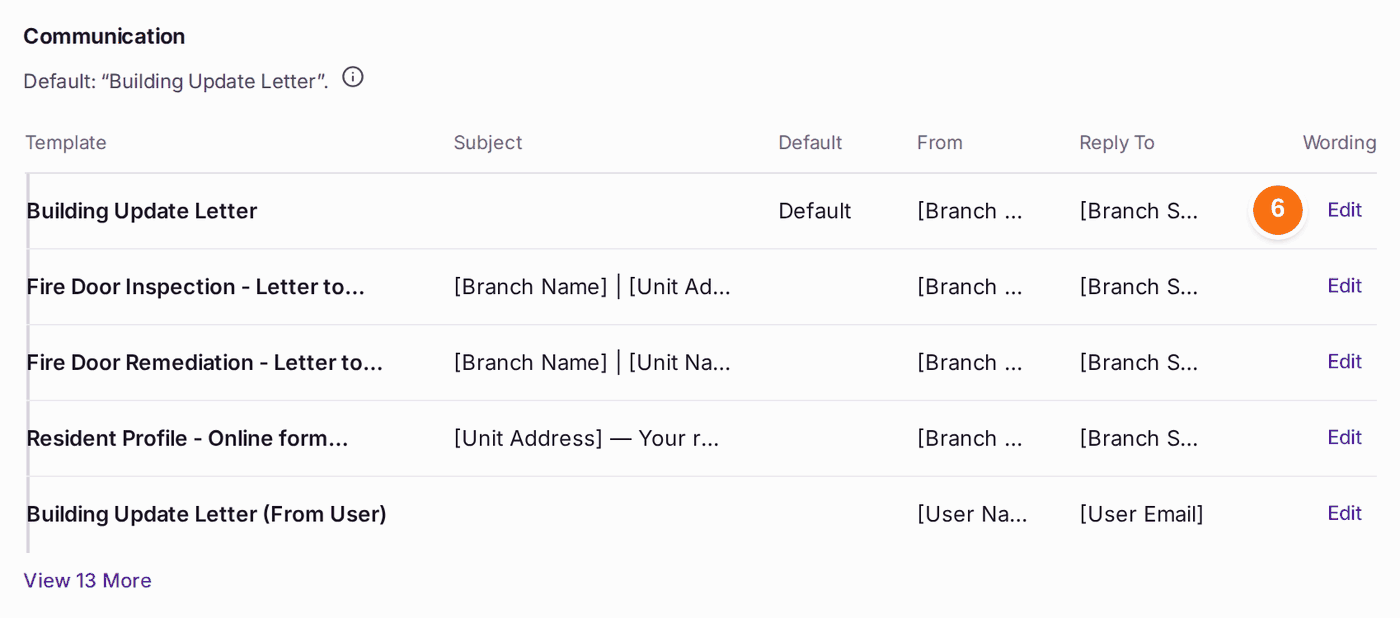
- Go to Settings, then Templates, under Correspondence. Every email and letter template is on one list, with what it is Used For (such as Arrears, Notices to Residents or Demand Covering Letter) and its Kind (Email, Letter or Both). Choose Used For and Kind at the top to narrow the list.
- To offer a template in other places, change its Used For or its Kind on its row. Used For decides which screens offer it: a Notices to Residents template in Group Email and in an Outbox letter or notice; an Arrears letter in Chase Letters; a Section 20 Covering Letter when a notice is served. Both offers an email to a letter run, and a letter to Group Email.
- Press Edit on the template. A letter opens in Letter Templates, an email in Email Templates.
- Change the wording in the box. For a letter, the line under the title says how much may be changed, such as "Fully editable: a polite first chaser, no statutory content."
- To put in a detail that changes with each letter or email, click it in the list of merge fields under the box, such as [Name incl Salutation] (title and surname, "Mr Dunmoor", or the full name when no title is held) or [Outstanding Amount]. Every template screen shows the same list. A field written the older way, such as [Leaseholder Name], still works.
- Press Save. For a letter, On Your Letterhead shows it as it will print.
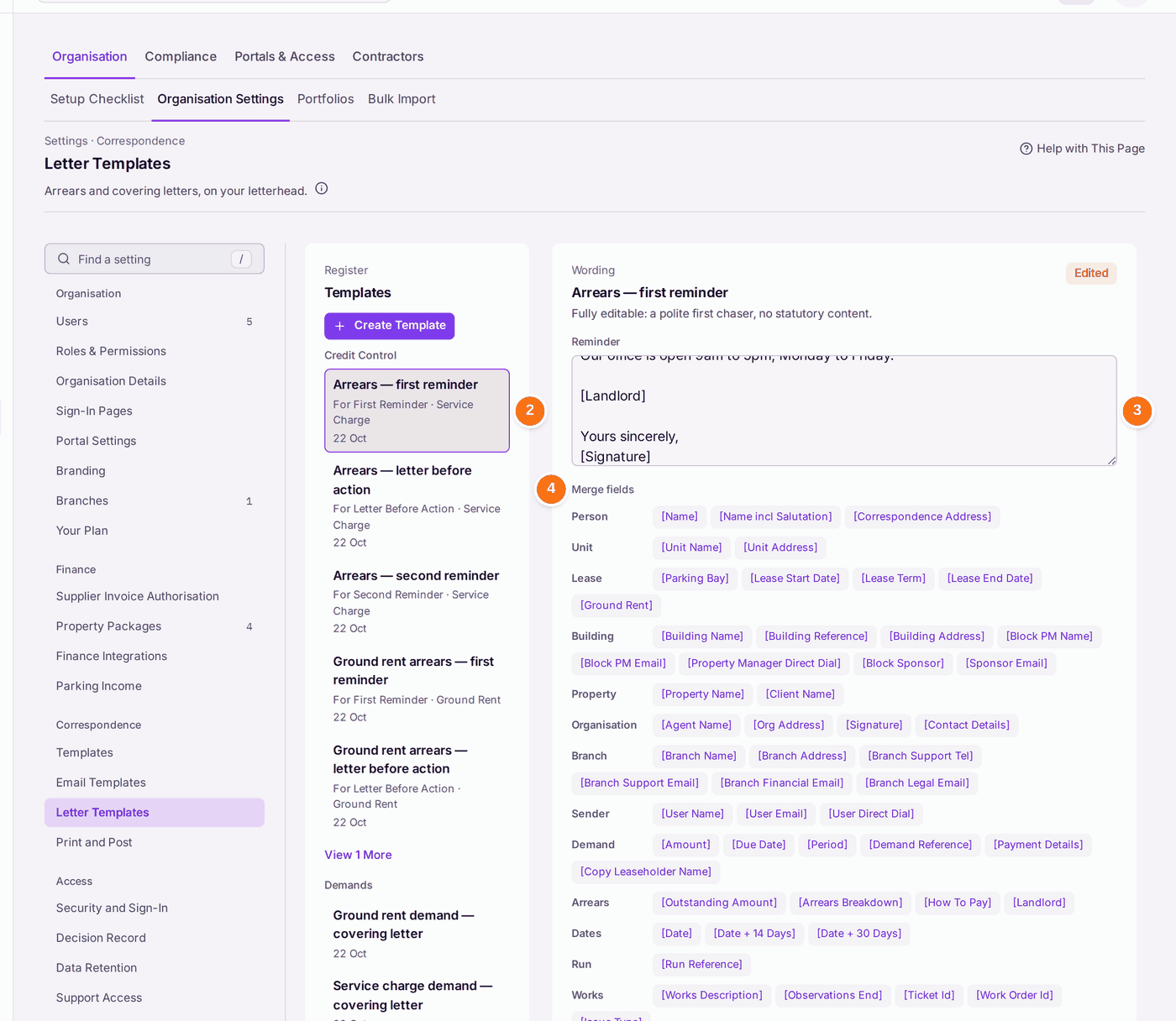
You'll know it worked when: "Saved "Arrears — first reminder"." The preview under On Your Letterhead shows your new wording, with today's date.
If something's wrong:
- A letter is held back. The record behind it has nothing to fill it, for example no correspondence address. The Outbox lists the held-back letters with the reason (see Checking what letters and emails went out, and to whom).
- You changed the wrong letter. Press Discard before saving. After saving, change the wording back by hand.
- You need a letter that is not listed. Press Create Template in Letter Templates, or Add in Email Templates, then set its Used For on Templates.
- A screen does not offer your template. Its Used For or Kind does not fit that screen. Change them on Templates.
- A picker says "Not filled here". The template uses a field that screen cannot fill, such as an amount owed in a notice. Choose another template, or take the field out.