


Writing to everyone in a building (group email)
What you'll end up with: one email sent to every leaseholder you choose in one or more buildings, each with their own name and flat filled in, and a record of who it went to.
Before you start you need: what you want to say. Leaseholders who asked to be written to by post, and anyone with no email address, are left out of email; write to them by post from the Outbox.
A campaign is private to you until you queue it. Once queued, it is on the record, the whole office can read it, and its recipient list cannot be changed.
- Go to Comms, then Group Email.
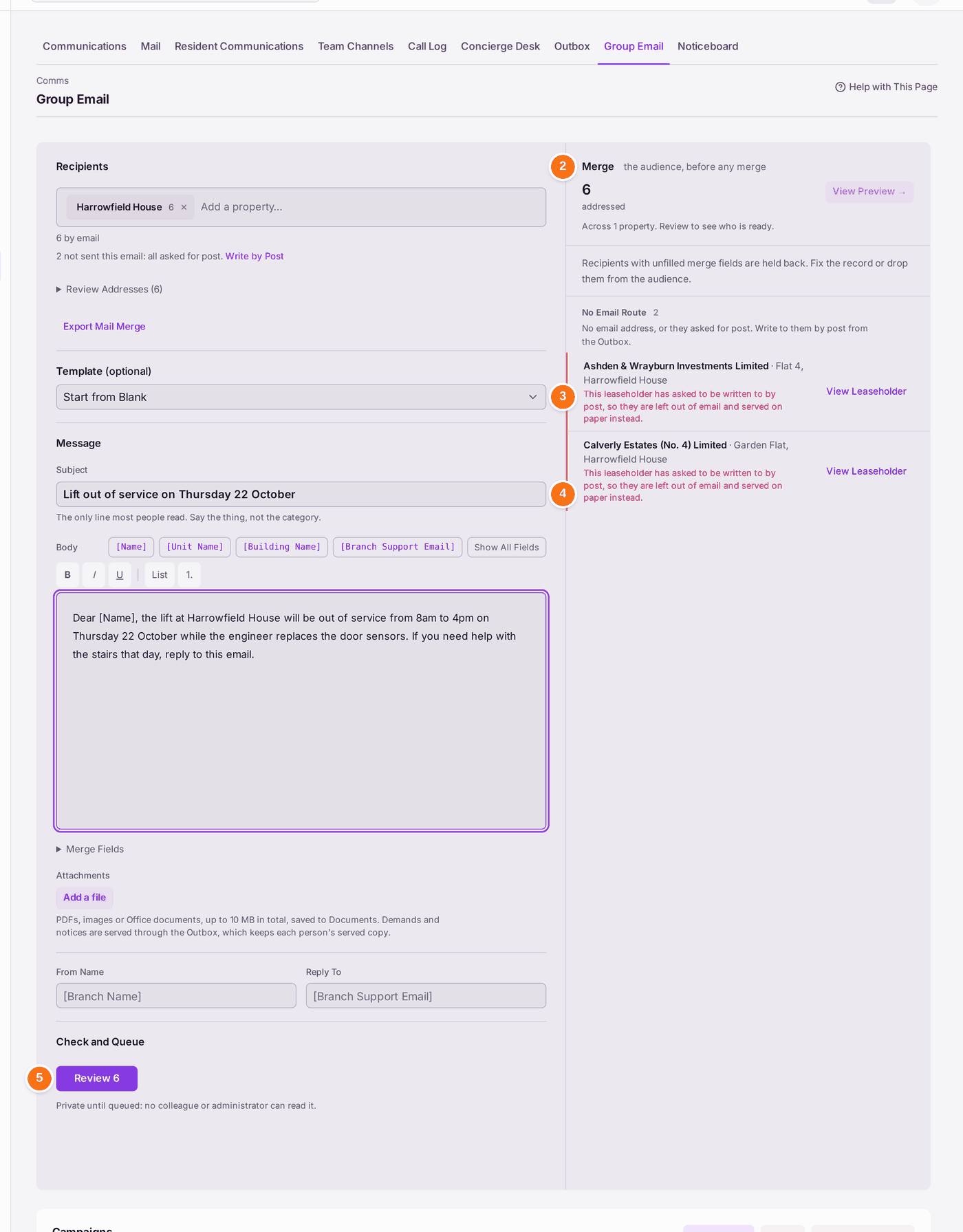
- Under Recipients, tick each building. The count shows how many get the email, such as "17 by email". If some cannot be emailed, the line under it says how many and why, such as "7 not sent this email: 5 asked for post, 2 have no email address." Write by Post opens the Outbox to write to them.
- To start from a letter you already use, choose a Template. The list holds the templates Settings → Templates files as General, Notices to Residents, Works, Insurance or Budgets, grouped that way. It fills the subject and the message. If you have already typed something, it asks first: Replace Draft or Cancel.
Under Message, type the Subject: "the only line most people read. Say the thing, not the category." Then type the message, which starts empty. To put in each person's own details, click a merge field such as [Name], [Unit Name] or [Building Name] where it should go (Show All Fields lists the rest). To send a file with it, such as an agenda or a photograph of the works, press Add a file: a PDF, an image or a Word, Excel or PowerPoint file, up to 10 MB in total. Every person gets the same files. Check From Name and Reply To below it.
If the message names a meeting, as the AGM Notice does with [Meeting Date], [Meeting Time], [Meeting Place] and [Meeting Agenda], a Meeting box appears under the message, with the next meeting at the ticked buildings already chosen. Its date, time, place and agenda fill those fields for each leaseholder at that meeting's building. Meetings are booked on the building's Overview, under Meetings (see Running the residents' company: filings, AGMs, directors and members).
- Under Check and Queue, press Review. It shows the number of recipients, such as Review 6.
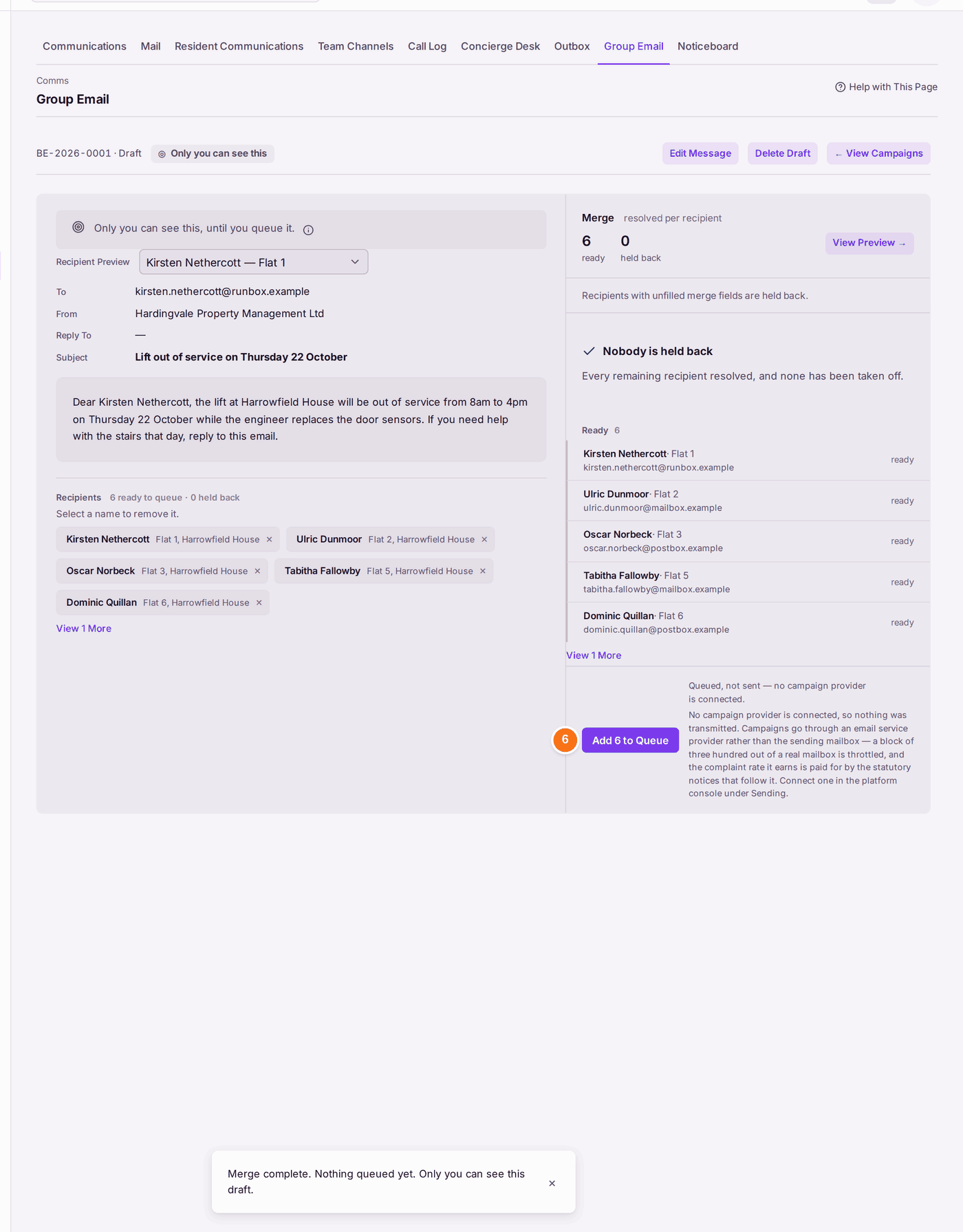
- Read the preview for each recipient. Check held back is 0.
- Remove anyone who should not have it, with the × beside their name.
- Press Add 6 to Queue (with your number).
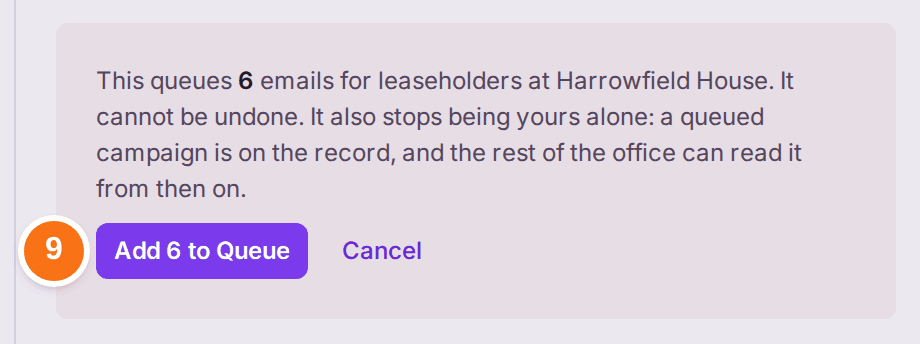
- Read the question, then press Add 6 to Queue in it.
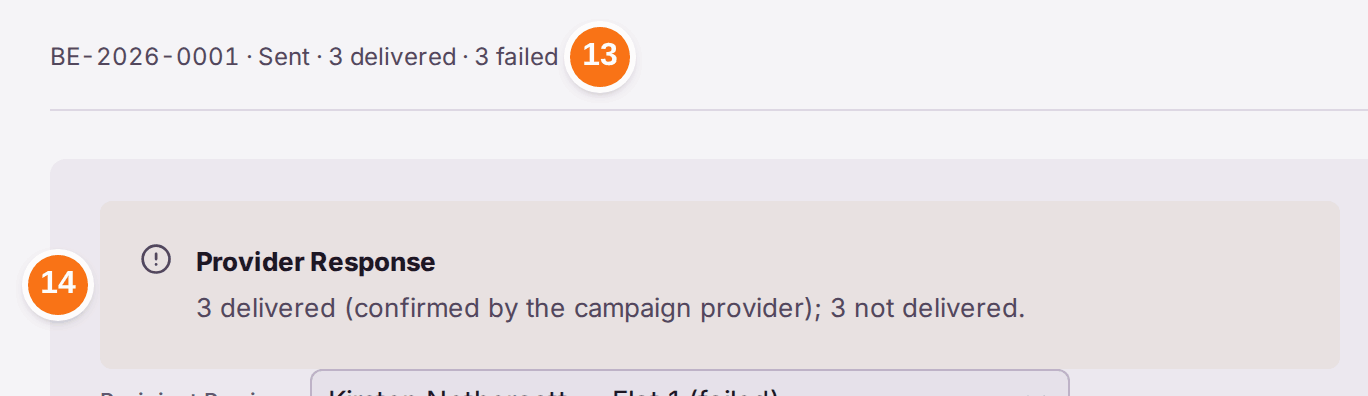
You'll know it worked when: the campaign reads Queued, with each recipient marked "queued", and the time it was queued. Once it is sent and the service reports back, it reads Sent with the number delivered (steps 13 and 14).
Sending it, and what comes back. Where SynkroTech has connected the email service, the queued campaign offers Send 6 by email (with your number). Press it: each recipient then reads Sent, which means the service accepted the email. A little later the service reports what happened to each one. Hover over a name to read it: "Delivered" with the day and time, or the reason it did not arrive, and "Sent with …" naming any files that went with it.
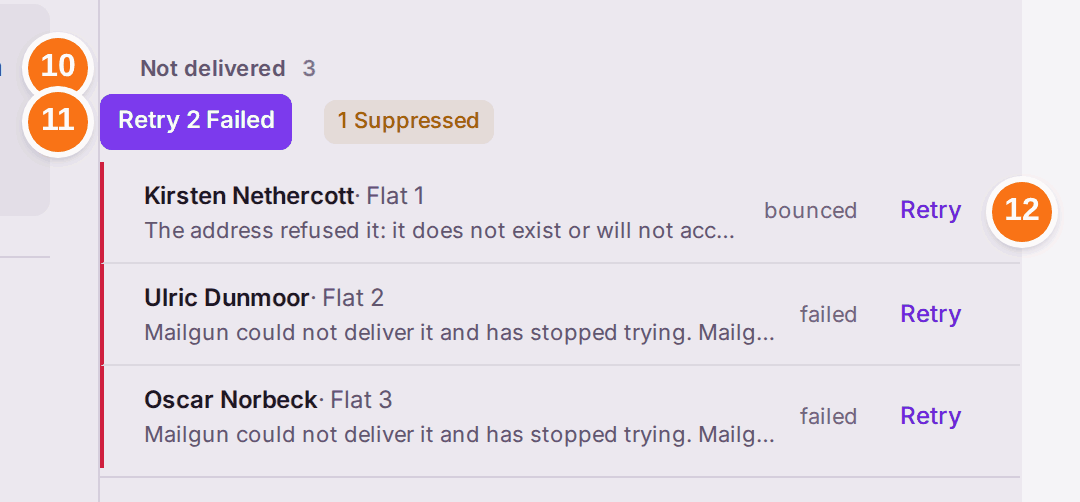
- Open the campaign. Any email that did not arrive is listed under Not delivered, with the reason, such as "The address refused it: it does not exist or will not accept mail."
- To send them again, press Retry 3 Failed (with your number). They go again straight away. Retry one person with Retry on their row.
- Some failures are left out of Retry 3 Failed: an address that bounced, a person who unsubscribed, and a person who marked an earlier email as spam. Their Retry asks first. Press Retry Anyway only if you know the address is right and they want to hear from you.
The same failures are listed on My Work, under Automation Needs Attention, as one line per campaign: "BE-… · 3 emails not delivered".
- The campaign's own line, at the top, says where it has got to from what came back: Queued before anything is sent, Sending while some are still waiting, then Sent with the numbers, such as "Sent · 3 delivered · 3 failed".
- Provider Response says the same in a sentence: "3 delivered (confirmed by the campaign provider); 3 not delivered." An email the service has accepted but not yet confirmed reads "accepted", which is not yet proof anybody received it.
To stop a campaign that is queued but not yet sent: open it and press Cancel Queued at the top, with the number still waiting. Type why, and press Cancel Queued. Every recipient not yet sent is cancelled, with your reason; those already sent stay sent. The campaign stays on the register as the record of what was handed over.
If something's wrong:
- Review is greyed. No building is ticked under Recipients, or the subject or the message is empty.
- Someone is "held back". A merge field could not be filled from their record. Correct their record, or remove them from the campaign.
- "Fewer than 14 clear days: members of a company must have 14 clear days' notice of a general meeting, unless they agree to short notice. Send anyway?" The meeting is ticked Company Meeting, and a notice sent today is treated as received 48 hours later, weekends and bank holidays not counted, which leaves fewer than 14 whole days before the meeting. Press Send Anyway only if the members have agreed to short notice; who sent it is kept in the building's Decision Record. Otherwise press Cancel and move the meeting.
- Held back on [Meeting Date]: "No meeting is chosen for this email. Choose it under Meeting." Choose the meeting, then Review again. "The meeting chosen is at …, not at this leaseholder's property" means they live in another building: send each building's meeting in its own email. "The meeting has no agenda written" means the meeting has no agenda yet: add it under Meetings on the building's Overview.
- "Queued, not sent — no campaign provider is connected." Bulk email goes through an email service your organisation has set up with SynkroTech, not through your own mailbox. Until one is connected, nothing is delivered, and the campaign must not be treated as sent. Ask SynkroTech (see Asking SynkroTech for help).
- Some leaseholders are "not sent this email". They have no email address, or they asked for post; they are also listed under "No Email Route". Write to them by post from the Outbox (Write by Post), or use Export Mail Merge for a letter.
- You queued it by mistake. A queued campaign cannot be cancelled. Send a short correction.
- "… cannot go in a group email … Demands and notices are served through the Outbox, which keeps each person's served copy." A demand, a notice (such as a Section 20 notice or a Section 166 notice), a summary of rights, a letter before action or anything with prescribed wording cannot be attached to a group email. Remove it and serve it from the Outbox, which records each person's copy. The check reads the file's name, title and category, so an ordinary file whose name says "notice" is refused too: rename it, or choose another category in Documents.
- "… is not a file a group email can carry." Only PDFs, images (PNG, JPEG, GIF or WebP) and Word, Excel or PowerPoint files can be attached. The check reads the file itself, not its name.
- "The attachments come to … at most 10 MB in total." Remove a file, or attach a smaller copy.
- Everyone stays at Sent and nothing reads Delivered. The email service's delivery reports are not reaching SynkroTech. Ask SynkroTech (see Asking SynkroTech for help).
- Retry Anyway still fails. The email service keeps its own list of addresses it will not send to. SynkroTech has to take the address off that list first. Ask SynkroTech.