


Exporting a register to a spreadsheet
What you'll end up with: a register (tickets, demands, duties, properties and the rest) saved as a spreadsheet, a PDF on your letterhead, or a Word document, showing what you see on screen.
Before you start you need: nothing. Narrow the register first with its view and Add Filter, because the export follows what is shown.
- Open the register, such as Work → Tickets.
- Set the view and the filters you want. The export holds what the list shows.
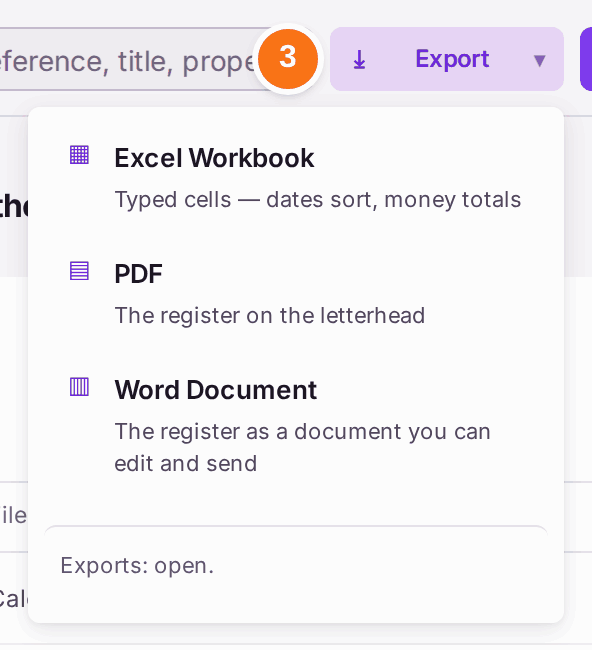
- Press Export, above the list.
- Choose Excel Workbook (dates sort and money totals), PDF (the register on your letterhead) or Word Document (to edit and send).
- Open the file from your browser's downloads.
You'll know it worked when: the file is in your downloads and its rows match the list on screen.
If something's wrong:
- The export has fewer rows than you expected. A filter or the view was narrowing the list. Clear it and export again.
- There is no Export on a page. That page is a record, not a register. Go to the register it belongs to.