


Setting up planned maintenance (servicing schedules)
What you'll end up with: each regular service, such as a boiler or a lift, on a programme with how often it is done, when it is next due and who does it. Each visit is booked as a work order, and once it is done the next one is dated for you.
Before you start you need:
- The property, and the firm that services the plant on your contractor list.
- How often the service is due, and when the next one is.
- If the service is for one piece of plant, the plant on the property's asset register (see Recording an asset (plant) and its servicing).
A schedule is the arrangement, not the visit. It keeps the next date in front of you so a service is booked before it is due, not after a breakdown. Without a firm appointed, the schedule slips.
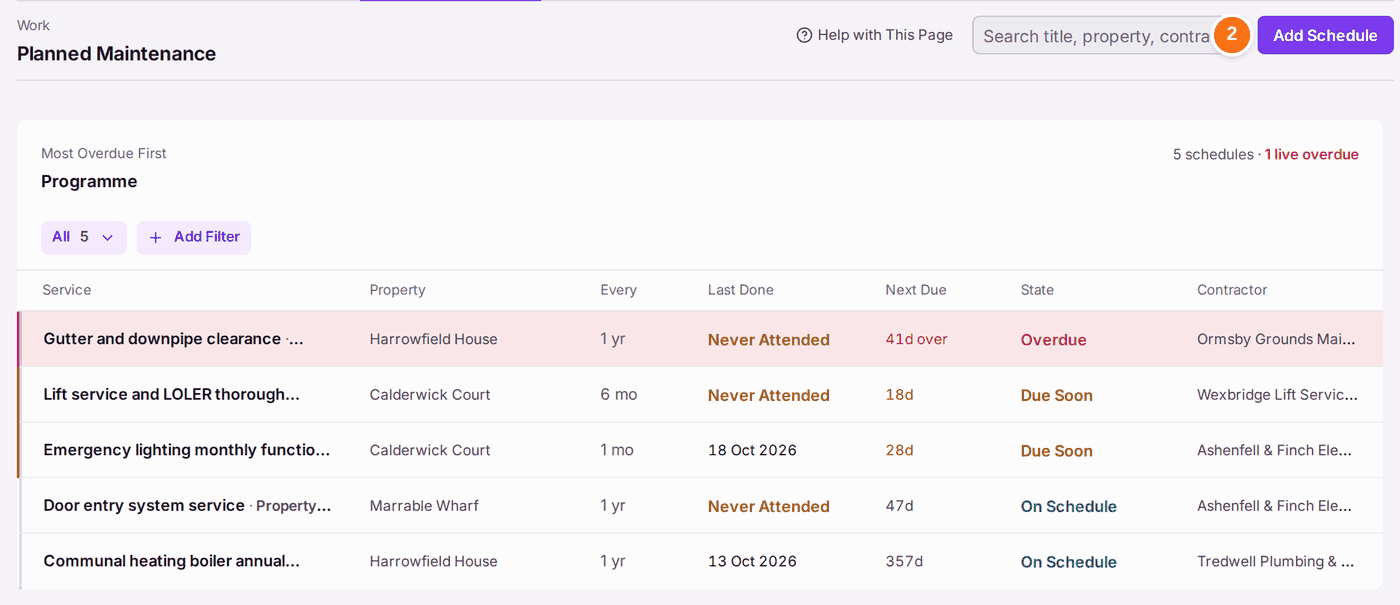
- Go to Work → Planned Maintenance. The Maintenance Programme lists every schedule, most overdue first.
- Press Add Schedule.
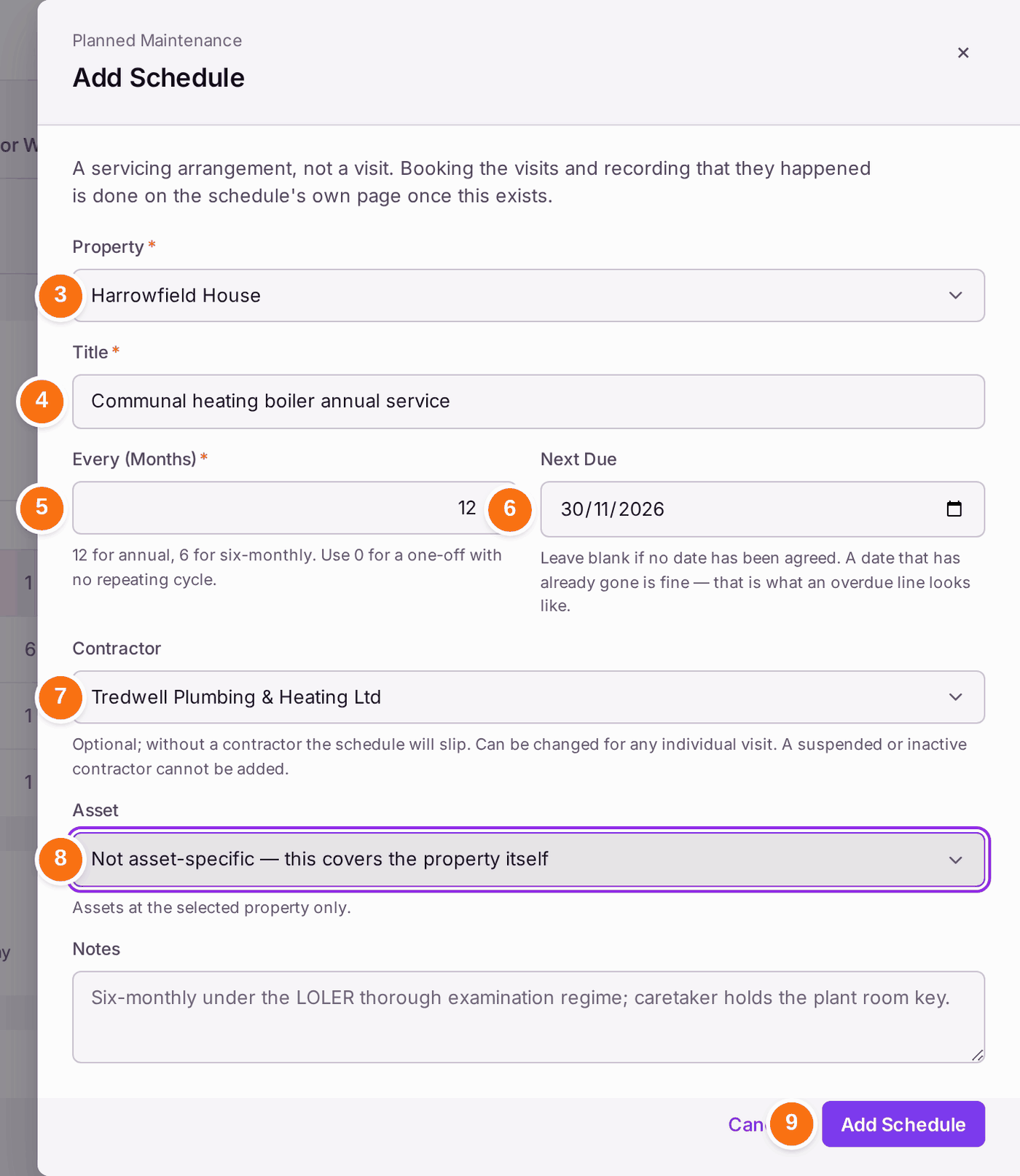
- Choose the Property.
- Type the Title, such as "Communal heating boiler annual service".
- Type Every (Months): 12 for once a year, 6 for twice a year, 0 for a one-off.
- Choose Next Due. A date already past is allowed; the schedule shows as overdue.
- Choose the Contractor who does it.
- Choose the Asset if the service is for one piece of plant, or leave it as the property itself.
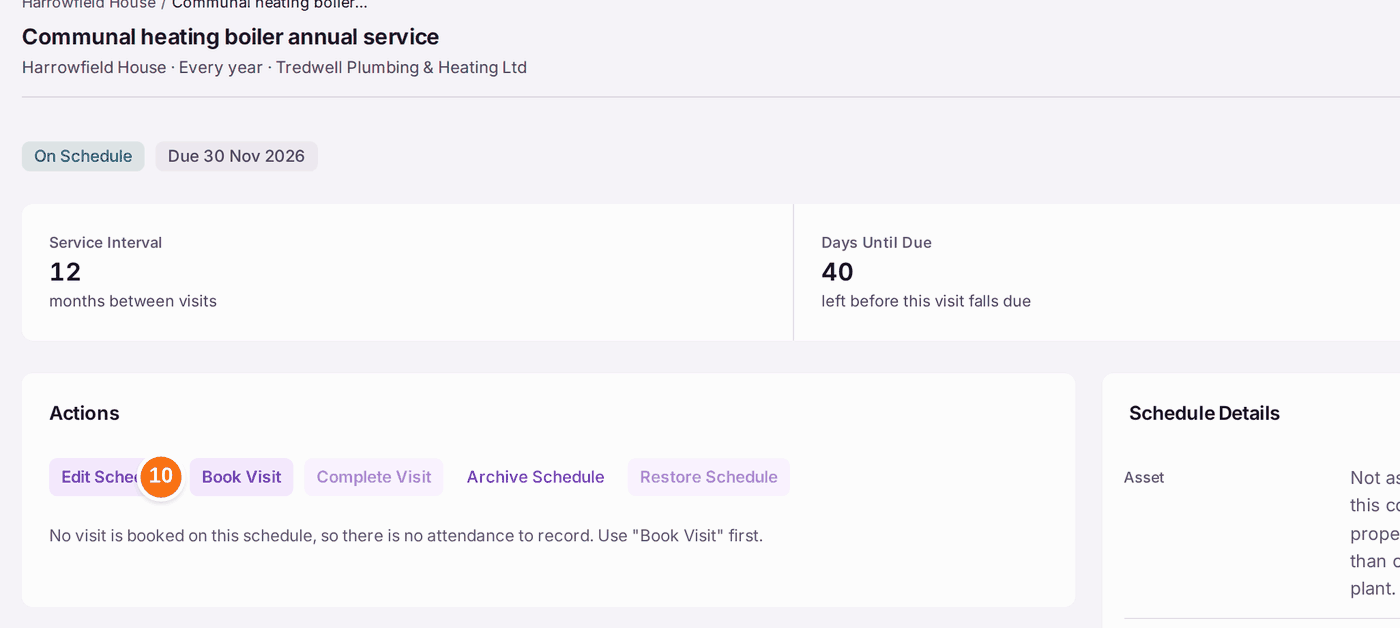
- Press Add Schedule. "[title] is on the programme." The schedule's page opens.
- When the firm gives you a day, press Book Visit under Actions.
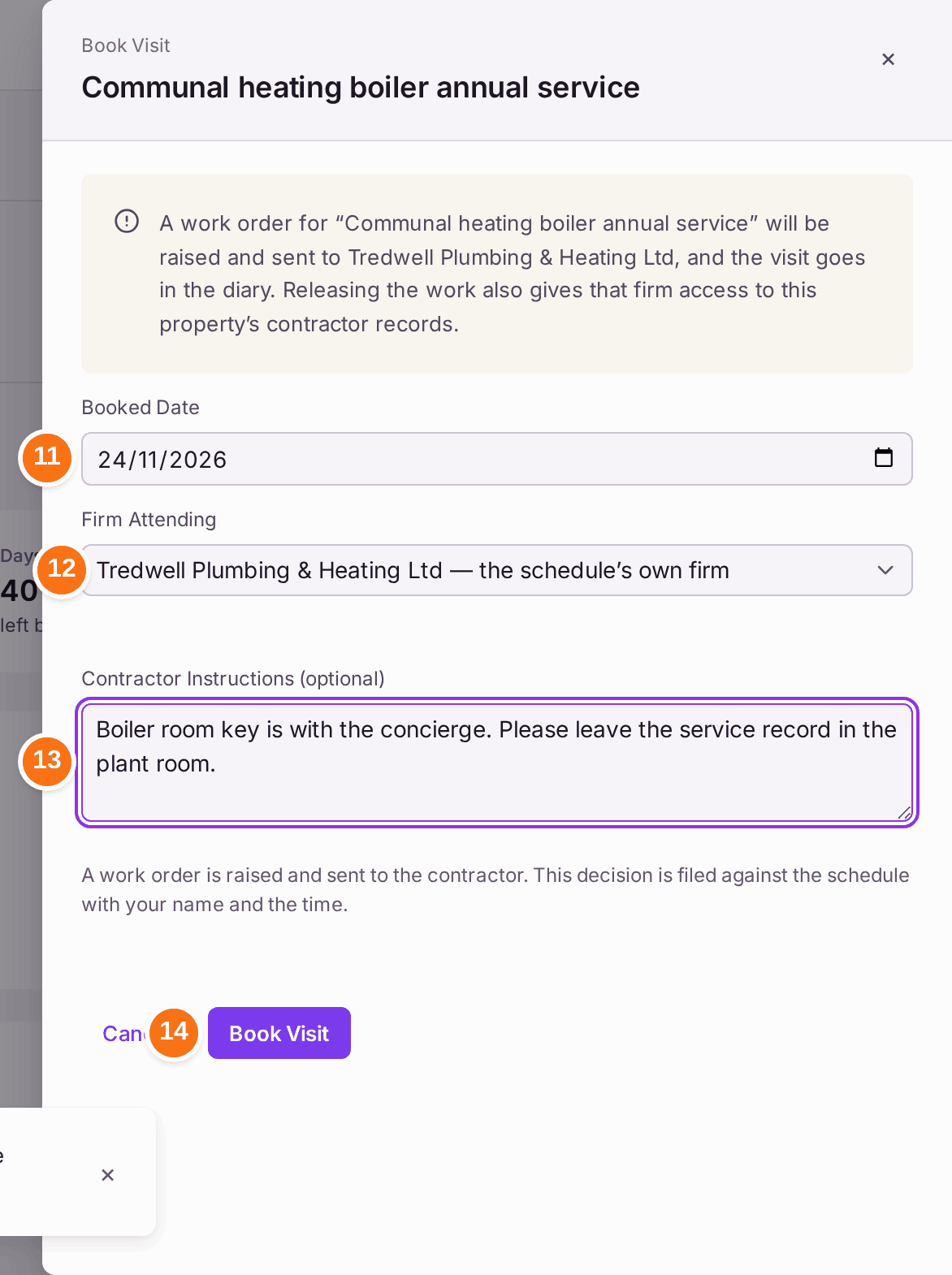
- Choose the Booked Date.
- Check the Firm Attending.
- Type any Contractor Instructions, such as where the key is.
- Press Book Visit. A work order is raised for the visit.
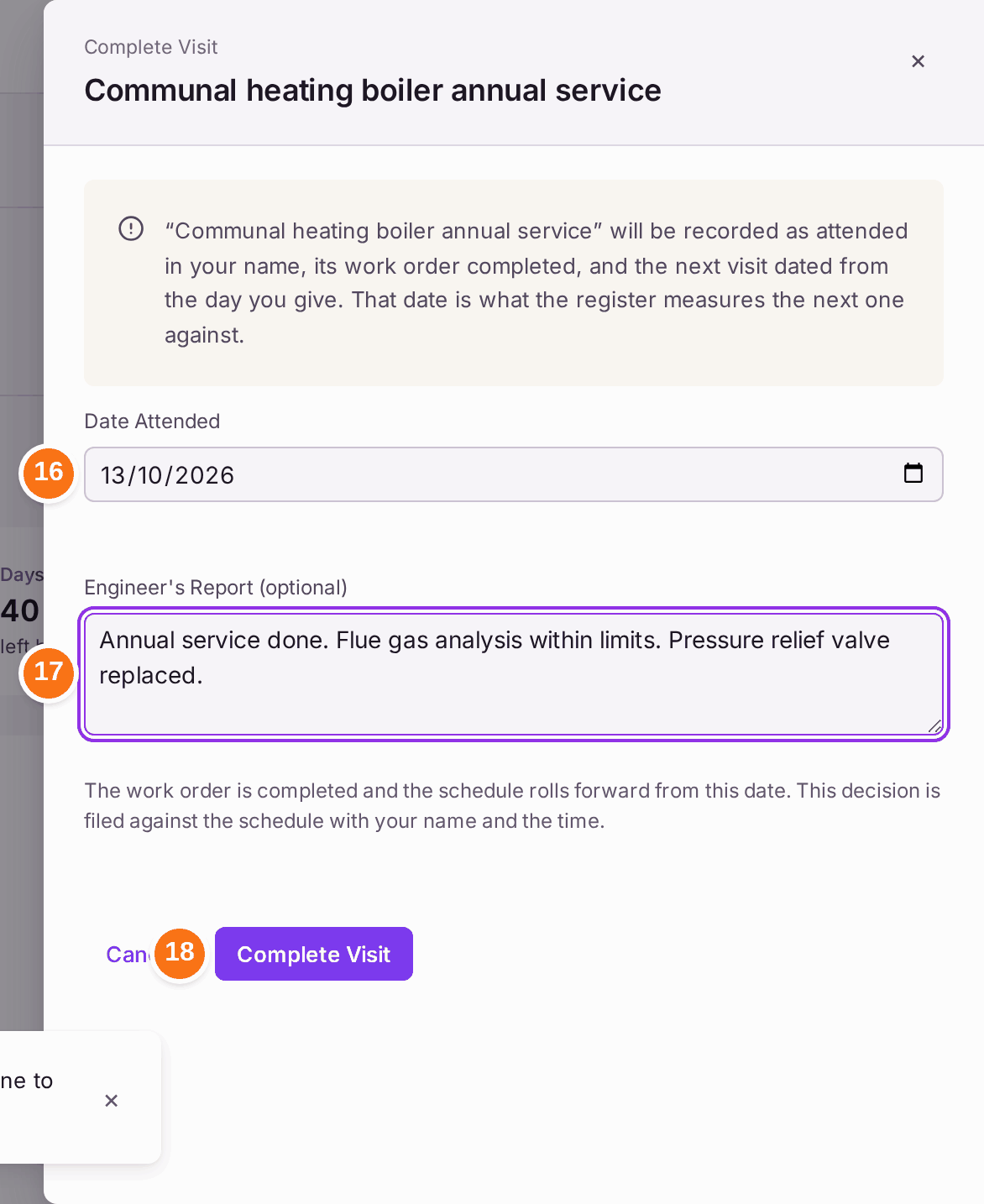
- After the visit, press Complete Visit.
- Choose the Date Attended: the day the engineer came.
- Paste or summarise the Engineer's Report if you have it.
- Press Complete Visit. "Visit recorded. The next one is due …"
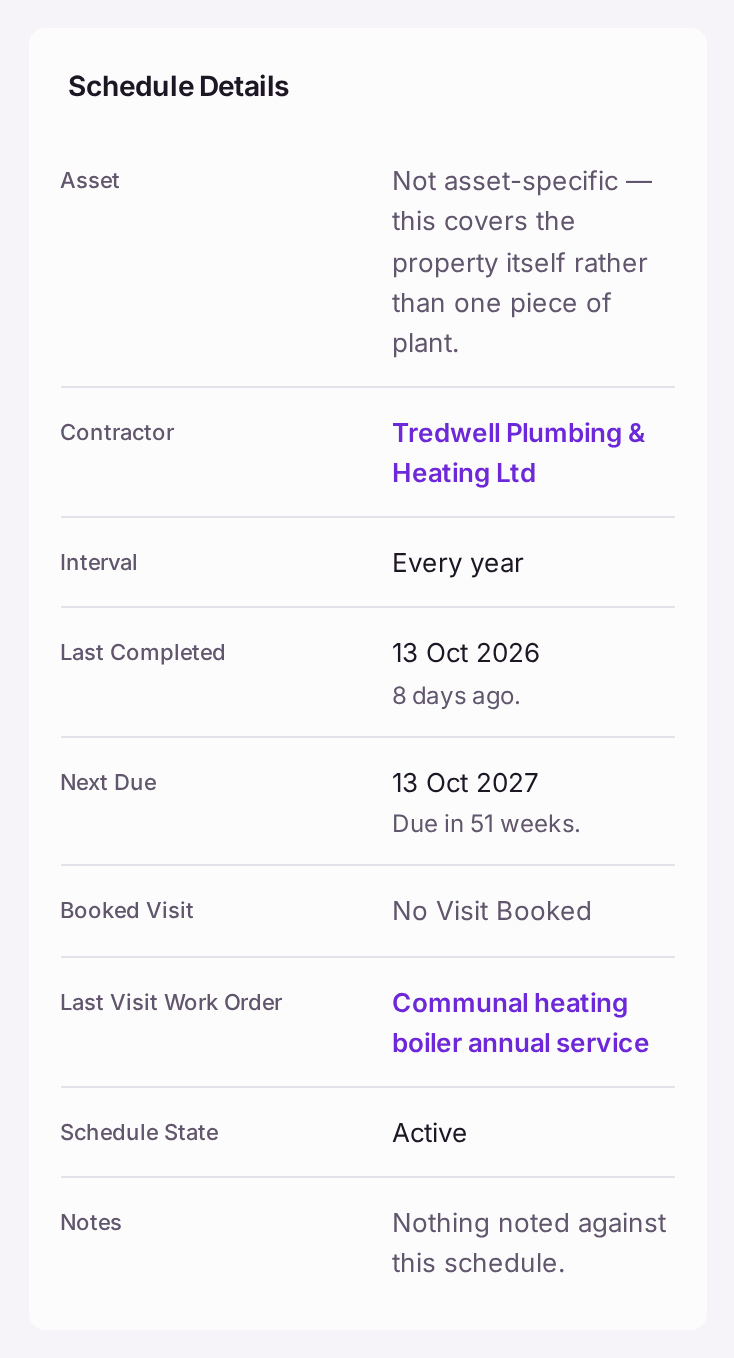
You'll know it worked when: Last Completed shows the day attended, Next Due has moved on by the interval, Booked Visit reads No Visit Booked, and Last Visit Work Order names the completed work order.
If something's wrong:
- "No visit is booked on this schedule, so there is no attendance to record." Press Book Visit first, even if the firm has already been.
- Complete Visit stays grey. The Date Attended is in the future, or empty. Choose the day the engineer actually came.
- The firm you want is not offered. A suspended firm, or one whose insurance has lapsed, "cannot be given work". Renew their cover on their page in the contractor register, or choose another firm.
- The firm is not on SynkroTech Trade. The message says the work order "has gone to the contractor", but a firm without a Trade login receives nothing from SynkroTech. Phone or email them the booking.
- The service is no longer needed. Press Archive Schedule. Restore Schedule brings it back.