


Seeing this year's inspection visits and what is due
What you'll end up with: for every property, this year's planned inspection visits, the one it is on now, and whether it was done, is booked, is due soon or is overdue.
Before you start you need: your inspection schedule set (see Setting up the inspection schedule and checklists). Without it, every property reads "Not scheduled".
The schedule turns "inspect each building four times a year" into dates. This page shows where each building stands against them, so a missed visit is seen the week it is missed, not at the end of the year.
- Go to Compliance → Inspections, then Visits This Year. The heading gives the schedule year and how many properties are scheduled.
- Read This Period for each property: Completed, In Progress, Booked, Overdue, Due Soon, Planned or Not Counted.
- Press a state at the top to list only those properties, such as Overdue.
- Press Show Next Visit, Show Last Visit or Show Visits to add those columns. Show Visits lists every planned date in the year.
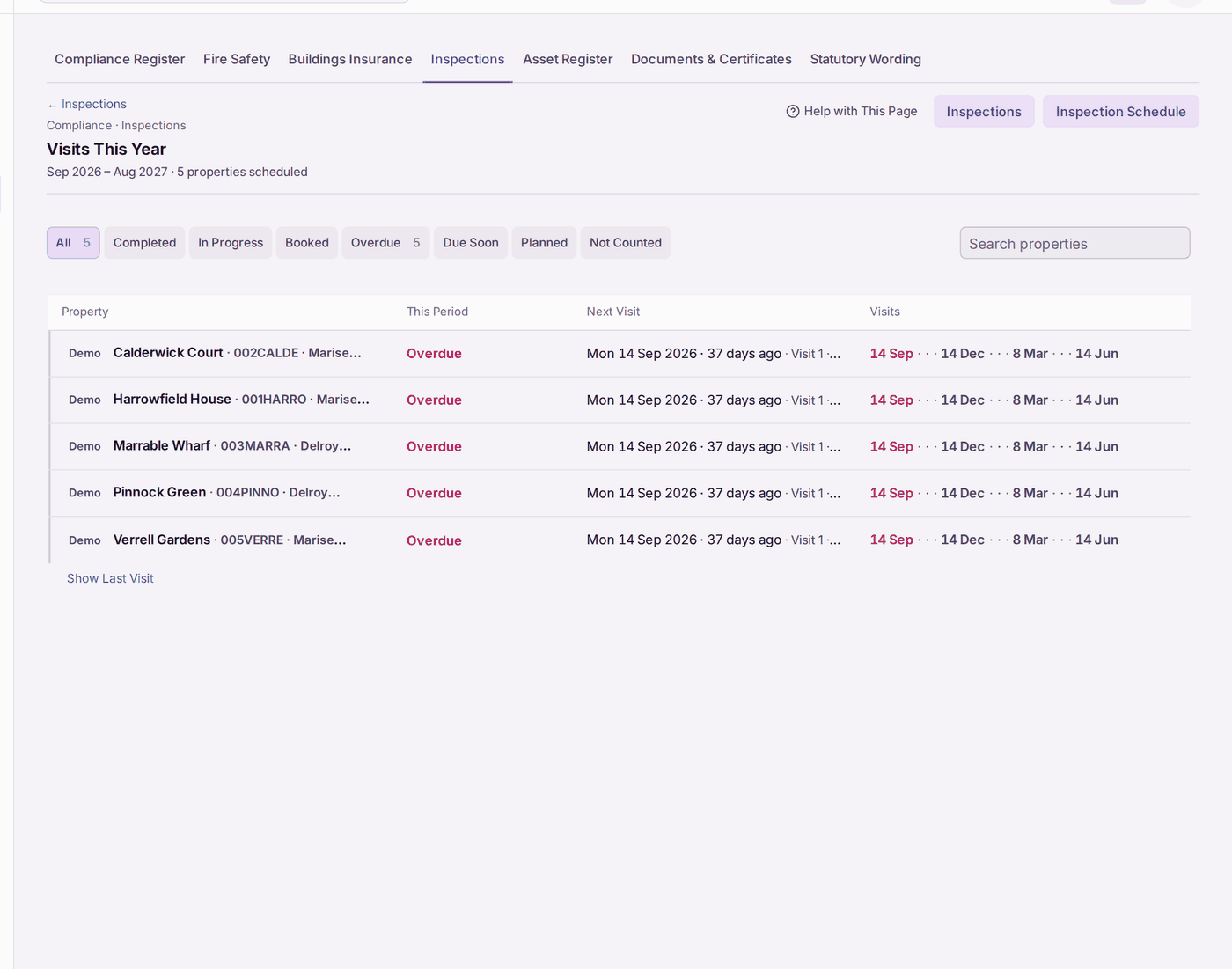
You'll know it worked when: you can see which properties need a visit booked now.
If something's wrong:
- Every property reads "Not scheduled". No schedule is set. Set the visits a year and the visit day in Settings → Inspection Schedule.
- A visit was done but still reads Overdue. The inspection has not been signed off, or it was done with the old field app. Sign it off (see Signing off an inspection).