


Correcting or cancelling a wrong demand
What you'll end up with: a wrong demand cancelled with your reason on the record, so nothing is owed on it and it no longer counts as arrears; a served demand cancelled by a credit note, with a replacement demand for the right amount; a draft that was never issued deleted, with who and why kept on the Decision Record; or, when the year's budget missed a cost, a correction added to the year and billed as extra demands for the difference.
Before you start you need:
- The demand, or the issued budget year, that is wrong.
- The reason, in a sentence you would be happy to read out at a tribunal. It is kept on the record.
- For a demand that has been paid, the money moved off it first (see Recording money that has come in (matching receipts)).
A demand is never edited. A tribunal, an auditor or a buyer's solicitor needs to see what the leaseholder was sent. What you can do depends on how far it has got:
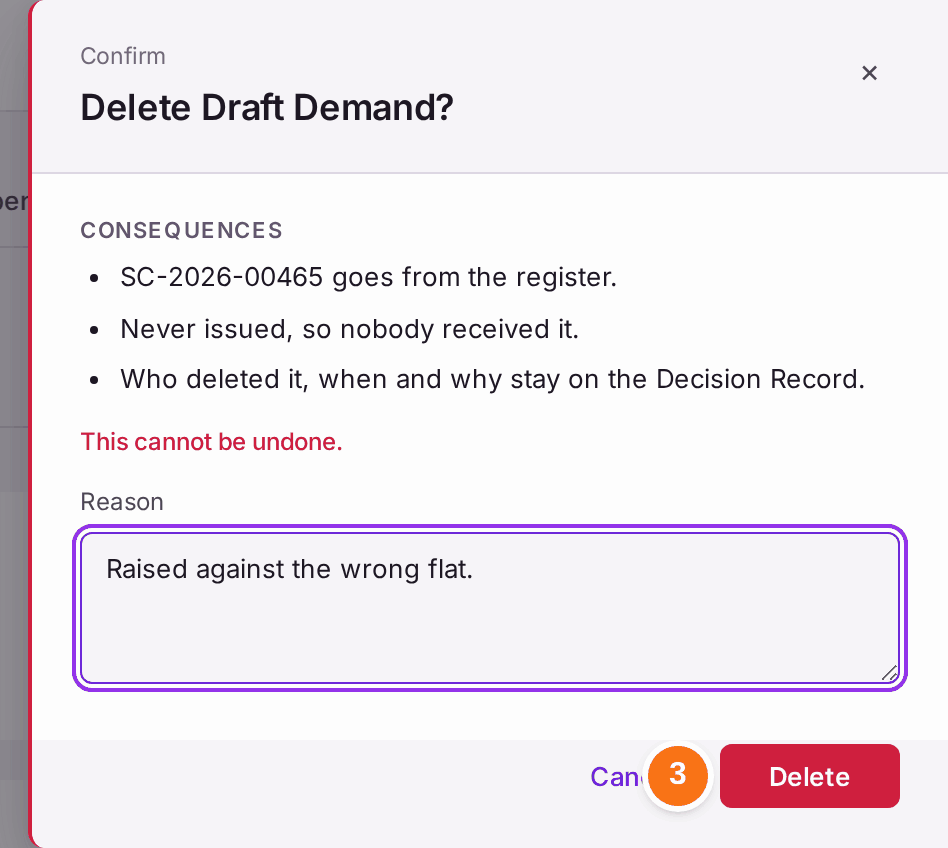
- Draft (never issued): Delete Draft. Nobody received it, so it goes. Who deleted it, when and why stay on the Decision Record.
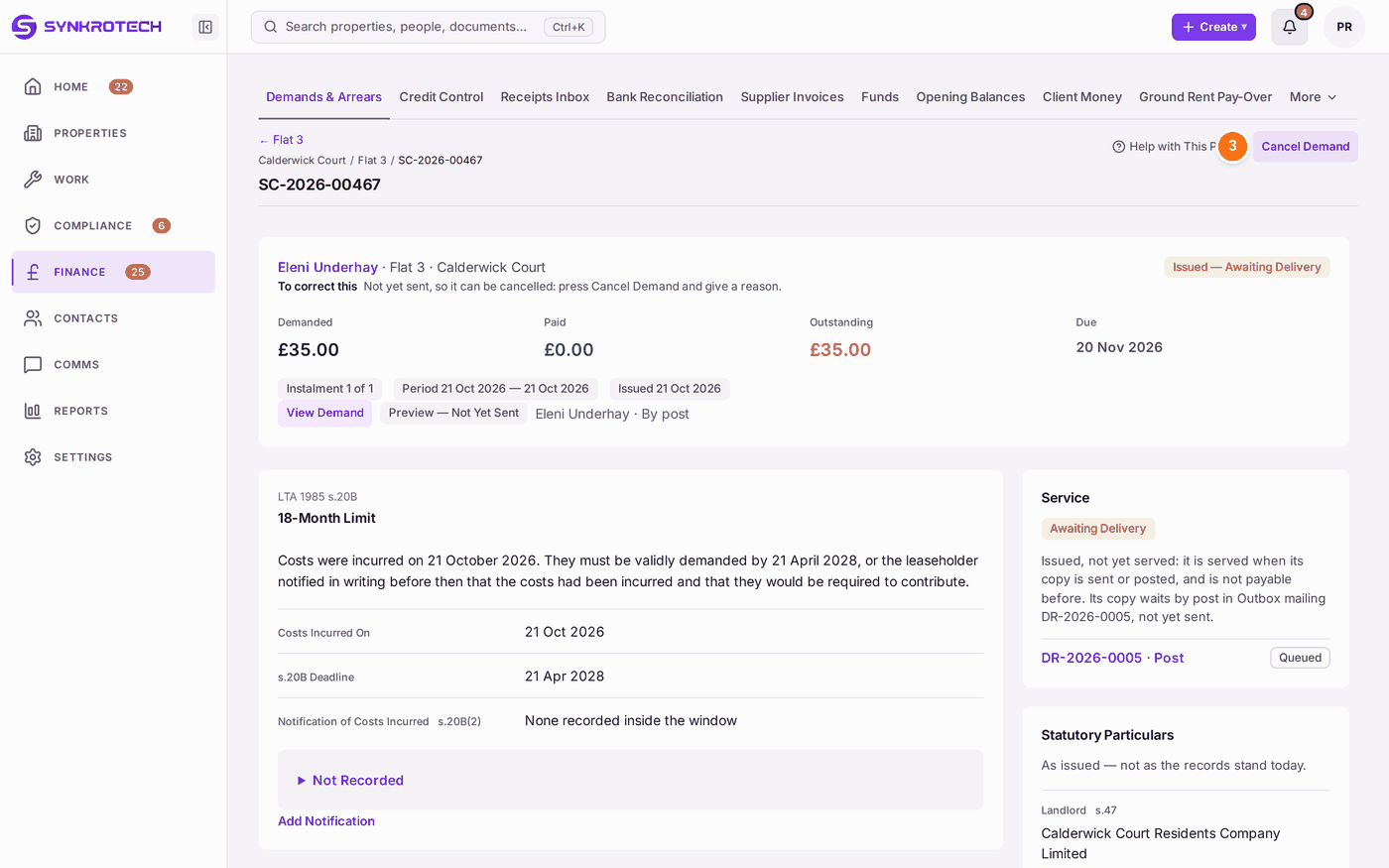
- Issued — Awaiting Delivery (issued, not yet sent or posted): Cancel Demand. It stays on the record, marked Cancelled, with your reason, and its copy waiting in the Outbox is cancelled.
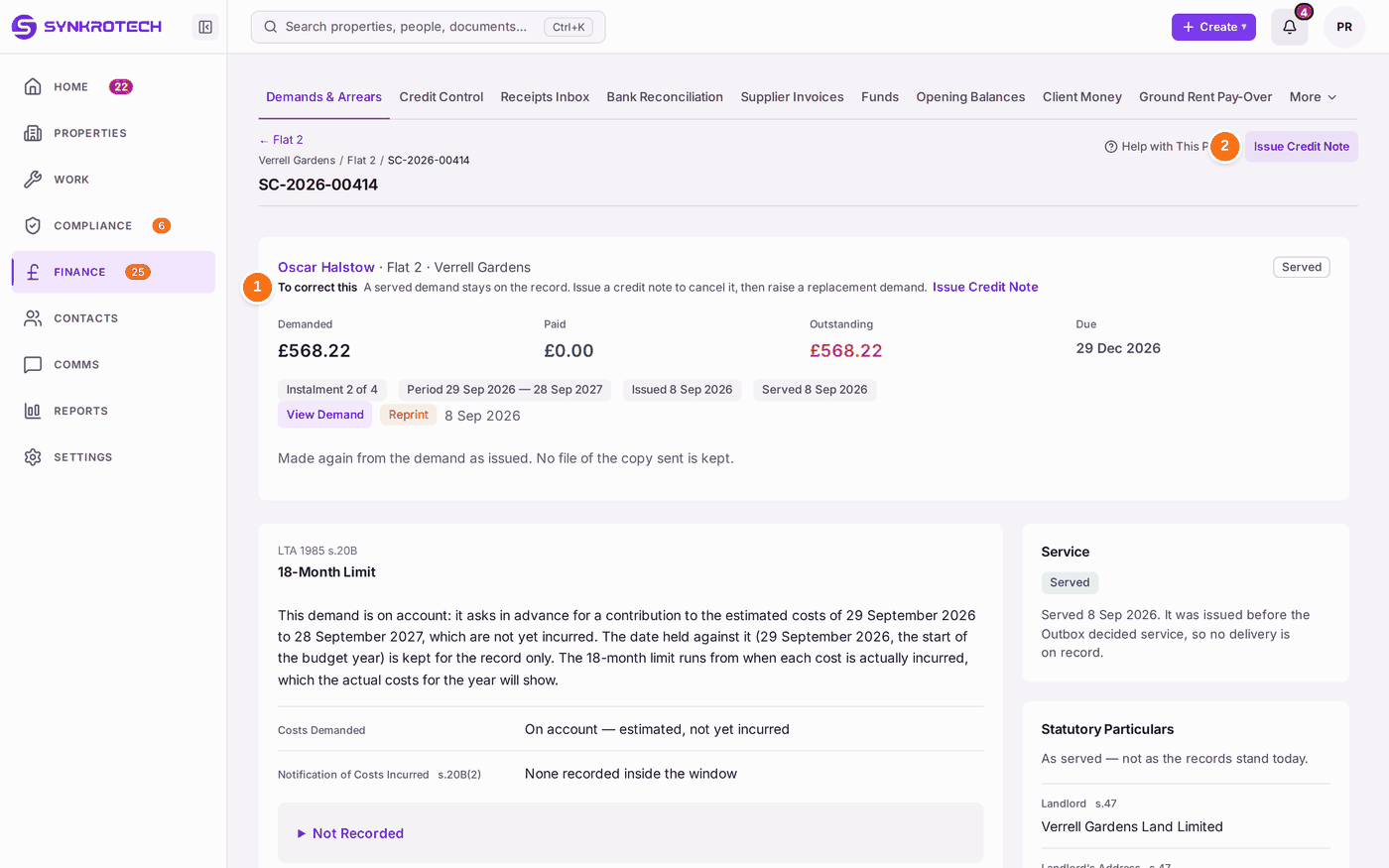
- Served (a copy was sent or posted): Issue Credit Note. The demand stays on the record exactly as it was served, marked Credited, and a credit note cancels it in full. Then Raise Replacement for the right amount, and issue it like any demand.
A budget year that has been issued is never rewritten either. A correction only adds to it, and the original demands are untouched.
To cancel a wrong demand
- Go to Finance → Demands & Arrears and find the demand.
- Open it. The page shows what was demanded, paid and outstanding, how it was served, and the legal particulars.
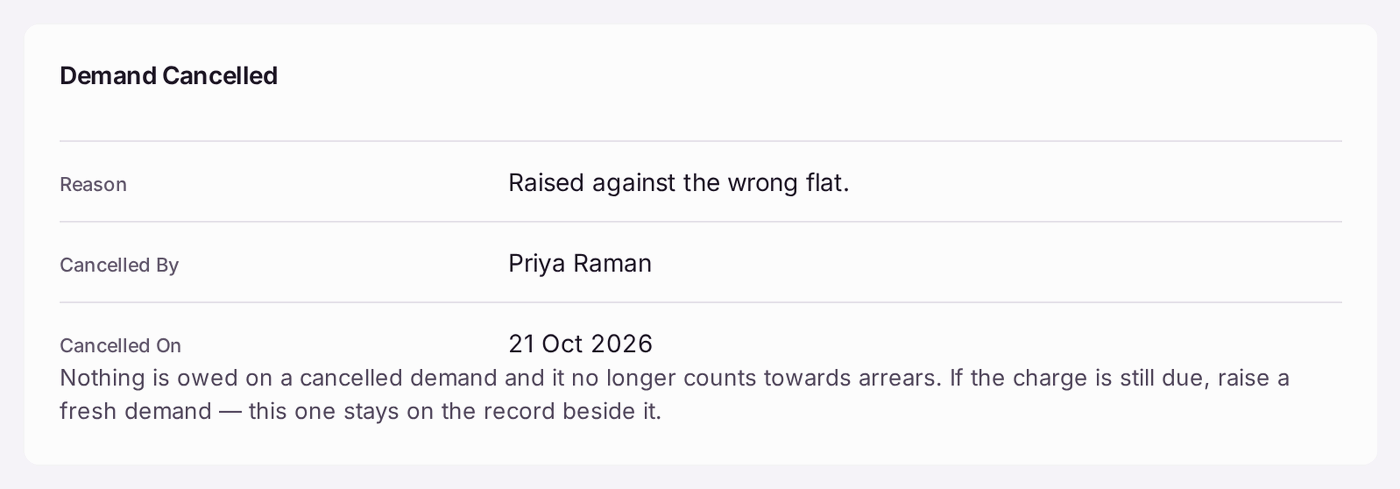
- Press Cancel Demand, at the top of the page.
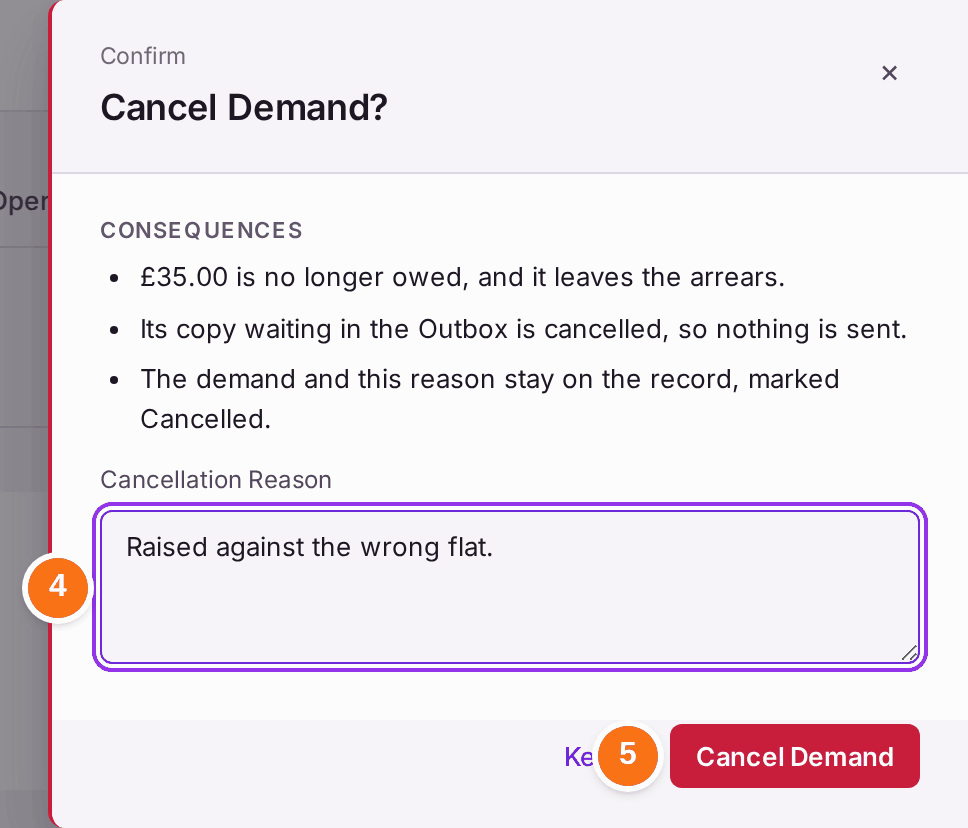
- Type the Cancellation Reason. The red Cancel Demand button stays grey until there is a reason of a few words.
- Press Cancel Demand. Keep leaves the demand as it was.
If the charge is still due, raise a fresh demand for the right amount and the right flat (see Raising a one-off charge (an administration charge, a recharge or a shared cost)).
To put right a demand that was served: a credit note and a replacement
- Open the demand on Demands & Arrears. A served demand says Served at the top, and its To correct this line says to issue a credit note.
- Press Issue Credit Note, at the top of the page or beside that line.
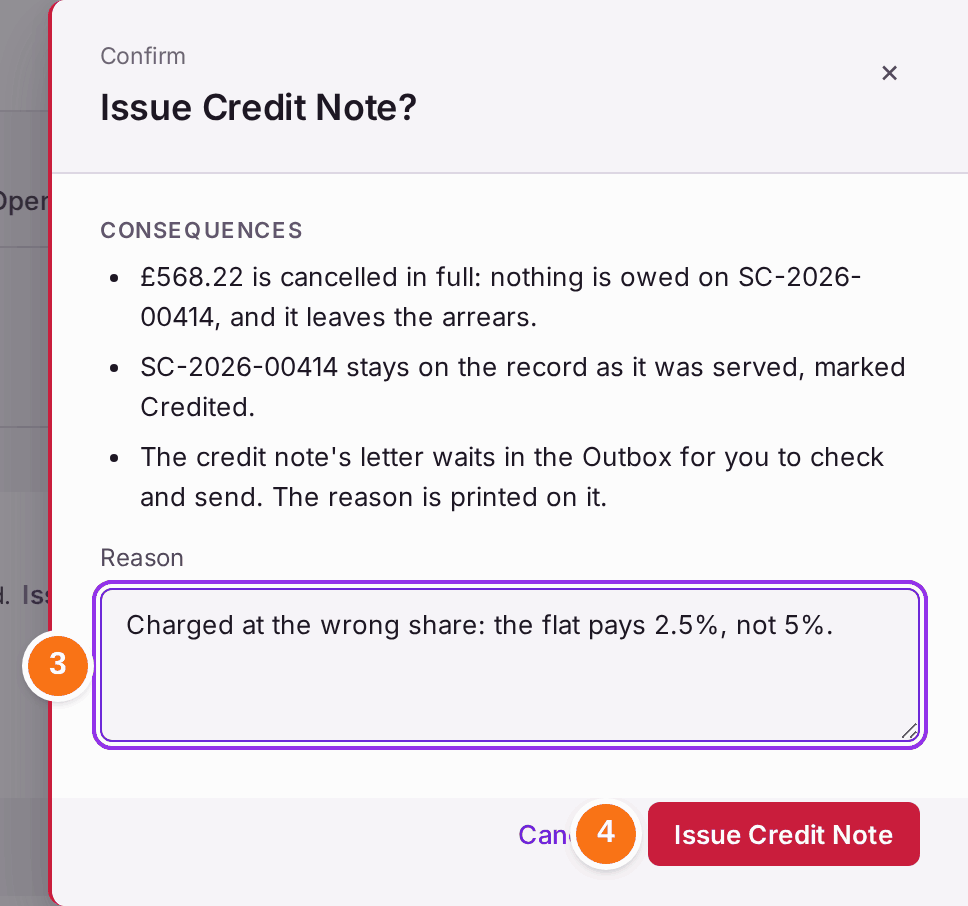
- Type the Reason. It is printed on the credit note the leaseholder receives, so write it for them.
- Press Issue Credit Note. Cancel leaves the demand as it was.
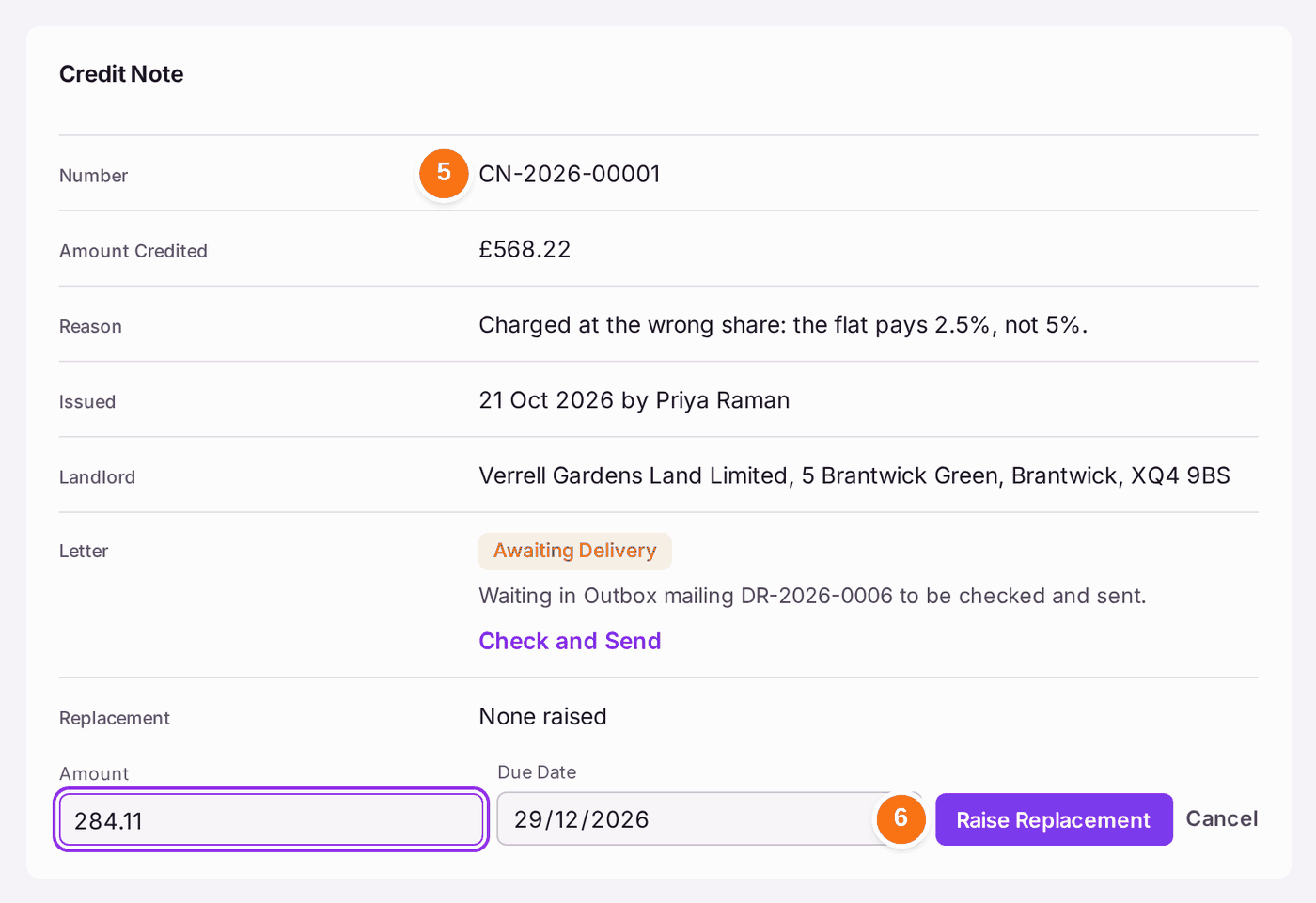
- The page now has a Credit Note card: its number (CN-2026-00001 and so on), the amount, the reason, who issued it and when, and its letter. The demand reads Credited: nothing is owed on it and it leaves the arrears.
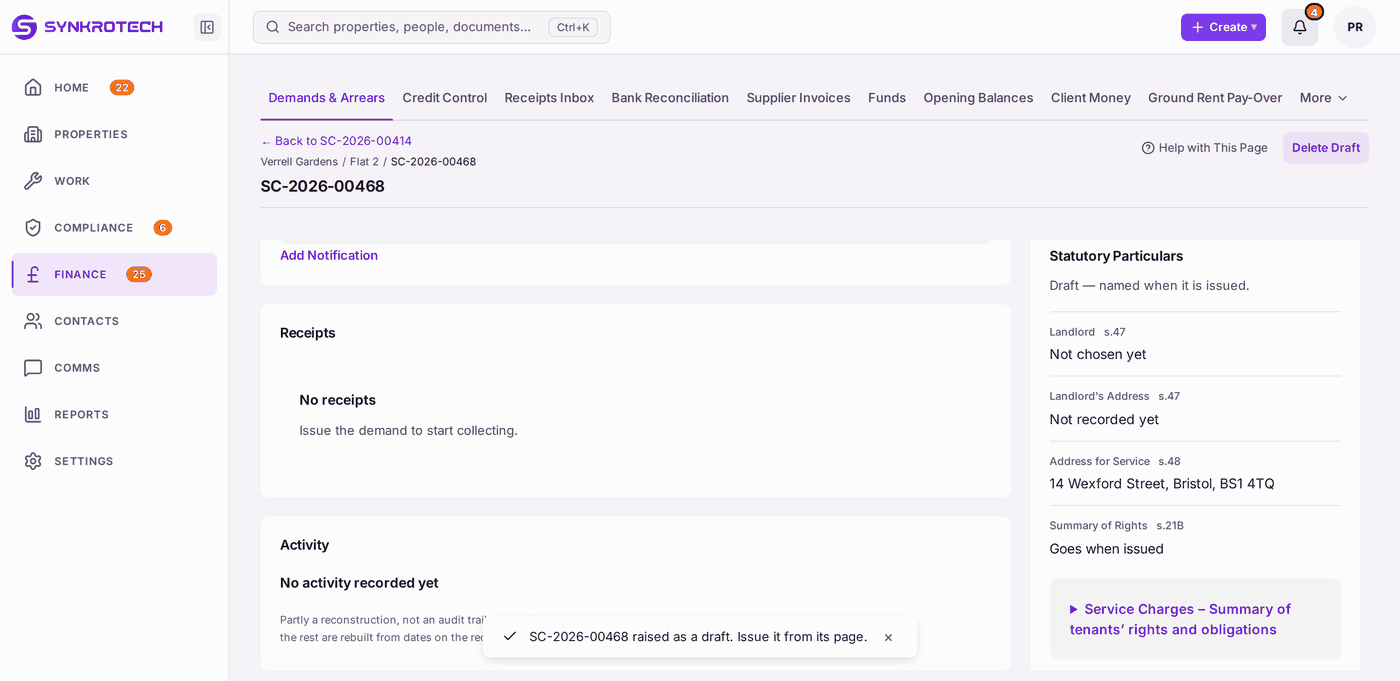
- Raise Replacement opens straight away, with the old amount and due date filled in. Change the Amount (and the Due Date if you need to) and press Raise Replacement. A draft demand is made for the same flat, period and costs, and its page opens.
- Press Issue Demand on the replacement and send it from the Outbox, as you issue any demand (see Issuing your service charge demands).
- Send the credit note's letter: on the Credit Note card, Check and Send opens its mailing in the Outbox. Check the copy and press Send.
The credit note is not a demand, so it carries no summary of tenants' rights. It names the demand it cancels and the landlord's name and address as the demand gave them. For the 18-month limit (s.20B), the replacement keeps the day the original was served, when the original was served with the summary of rights; its 18-Month Limit card says so.
To cancel or delete several at once
- On Demands & Arrears, tick the demands. A line above them says how many are selected.
- Press Cancel Selected for the ones issued and not yet sent, or Delete Selected for drafts. Each button counts the ticked demands it can act on; the others are left as they are.
- Type the reason, once. It is kept on each demand.
- Press Cancel Demands (or Delete). If any one of them cannot be cancelled, nothing is: the question names the demand and why.

All on Demands & Arrears leaves cancelled demands out. Press Cancelled to see them.
To delete a draft that was never issued
- Open the draft on Demands & Arrears.
- Press Delete Draft, at the top of the page.
- Type why, and press Delete. For a one-off charge raised across several flats, its drafts go together: the question lists them.
To add a cost the year's budget missed
- Open the year's budget: Finance → Budgets & Apportionment, then the property's issued year. Under Budget Lines, below the total, is a line for corrections.
- Type what the correction is for, for example "Roof works underestimate".
- Choose the nominal (the heading the cost belongs to, for example 2010 · Repairs & maintenance).
- Choose who pays, from the property's schedules.
- Type the amount in pounds.
- Type why. On an issued year this is required, because a correction is the figure most likely to be challenged.
- Press Add Correction Line. A line appears: Not Yet Demanded — the difference each unit will be billed, with the amount.
- Press Create Correction Demands. One draft demand is made for each flat that pays, for its share of the difference.
- Issue the drafts as you issue any demand (see Issuing your service charge demands).



You'll know it worked when: a cancelled demand reads Cancelled and shows a Demand Cancelled card with your reason, your name and the date, and it no longer appears in arrears. A credited demand reads Credited, with its Credit Note card; the leaseholder's statement shows the demand and, beside it, the credit note as a minus, and the replacement once it is sent. A deleted draft is gone from Demands & Arrears, and the Decision Record has a line saying who deleted it and why. For a correction, the budget says how many draft correction demands were made and their total, and they wait on Demands & Arrears to be issued.
If something's wrong:
Issue Credit Note (or Cancel Demand) is greyed, and pointing at it says the money must be moved first. Money has been matched to the demand. Move the payment to the right demand, or refund it, in Finance → Receipts Inbox. Then come back and issue the credit note (or, for a demand not yet sent, withdraw it).
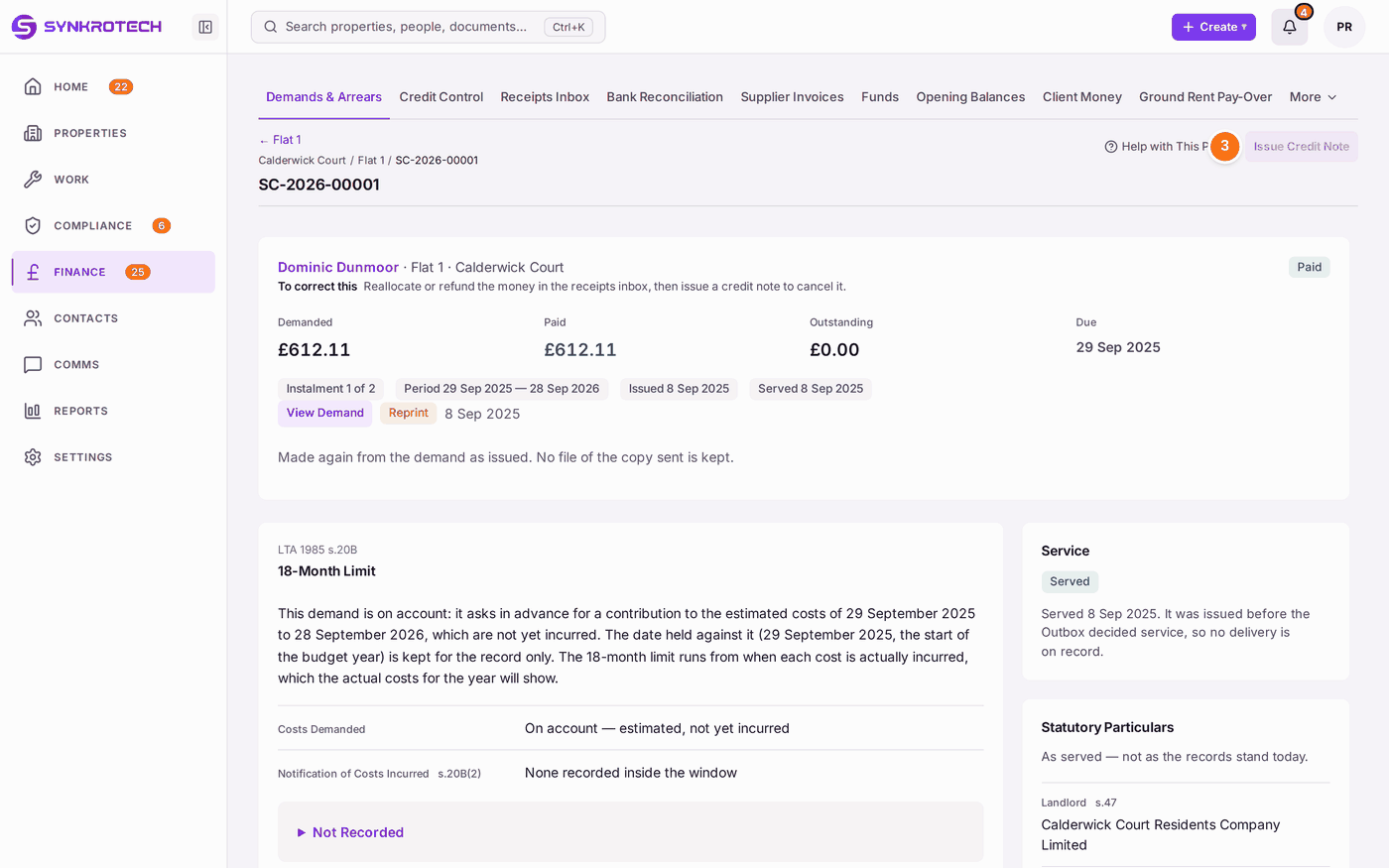
The receipt is listed on the page; Issue Credit Note at the top is greyed. - The red Cancel Demand button stays grey. Type a reason of at least a few words.
- Cancel Demand is refused: "This demand was emailed on … so the leaseholder has it and it has been served. A served demand stays on the record and cannot be cancelled. To correct it, issue a credit note on its page." A copy went. Issue a credit note instead.
- There is no Raise Replacement. One already stands: open it from the Credit Note card. Once it is cancelled or deleted, Raise Replacement comes back. A ground rent demand cannot be replaced here yet.
- The credit note's letter is not in the Outbox. Its draft mailing was deleted there. Press Create Letter on the Credit Note card; the words are the ones fixed when it was issued.
- Cancel Demand is refused because its letter is printed in a pack. "Return that pack to the print queue in the Outbox, then cancel the demand." Under Today's Post, return the pack, then cancel.
- Delete Selected is not offered. Only drafts are deleted. A demand that was issued is cancelled instead.
- Delete is refused: "… is one of 3 demands raised by charge CH-0004, which go together." Delete them all at once, from any one of them (Delete Draft), or tick all of them.
- There is no correction line on the budget. The line appears on an issued year, for someone whose role can change finance records. On a draft year, change the lines directly (see Setting next year's budget).
- Add Correction Line does nothing. Each of the heading, who pays, the amount and the reason must be filled in on an issued year.
- You need to reduce a year, not add to it. A correction only adds. For a single wrong demand, cancel it and raise the right one. For a year that is wrong throughout, the accounts at year end settle the difference (see Closing the year and sending it to the accountants (year end)).