


Issuing your service charge demands
What you'll end up with: a service charge demand (the bill for each leaseholder's share of the year's budget, one for each instalment) issued to every leaseholder in the property, with the statutory summary of rights (the leaflet the law says must go with every demand) enclosed, and each one sent by email or posted, with the date it was served on record. <!-- /piece -->
A demand is not served until it has been sent or posted. Until it is served, the leaseholder does not have to pay it. That is why this job has three parts: create the demands, issue them, then send and post them from the Outbox.
Before you start you need:
- The budget approved. SynkroTech will not approve a budget until the property has a service charge year end and the budget names its landlord. See Getting a budget approved.
- Every budget line on a schedule (a group of costs shared by the same units, such as Residential or Car Park), and every schedule adding up to exactly 100% on the property's Units tab. Otherwise some of the cost is billed to nobody.
- A leaseholder on every unit that has a share.
- The client's registered address, on the client's page under Contacts → Clients & Companies. It is printed on every demand as the landlord's address. The law does not accept your office's address instead, and without it the charge is not due.
- Your main branch's Correspondence Address, under Settings → Branches. It is printed on every demand as the address for service of notices (the law requires one in England or Wales).
- A correspondence address for every leaseholder (where their post goes: The Unit or Another Address). A leaseholder without one is issued a demand that cannot be sent, so it is not served.
- A connected mailbox (Comms → Mail), if any leaseholder has asked for email. Without one, emails wait in the Outbox and are not sent.
- Go to Finance → Budgets & Apportionment.
- Open the approved budget for the year you are demanding.
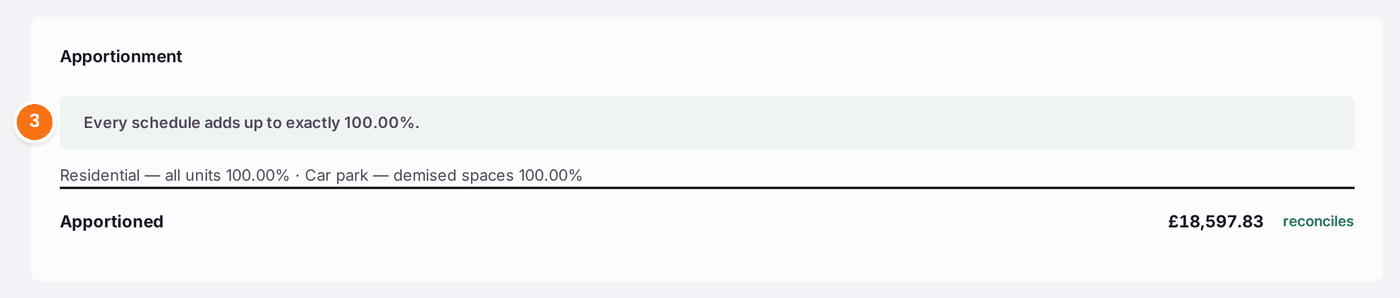
- Scroll down to Apportionment. It should say "Every schedule adds up to exactly 100.00%", with the Apportioned total reading "reconciles".
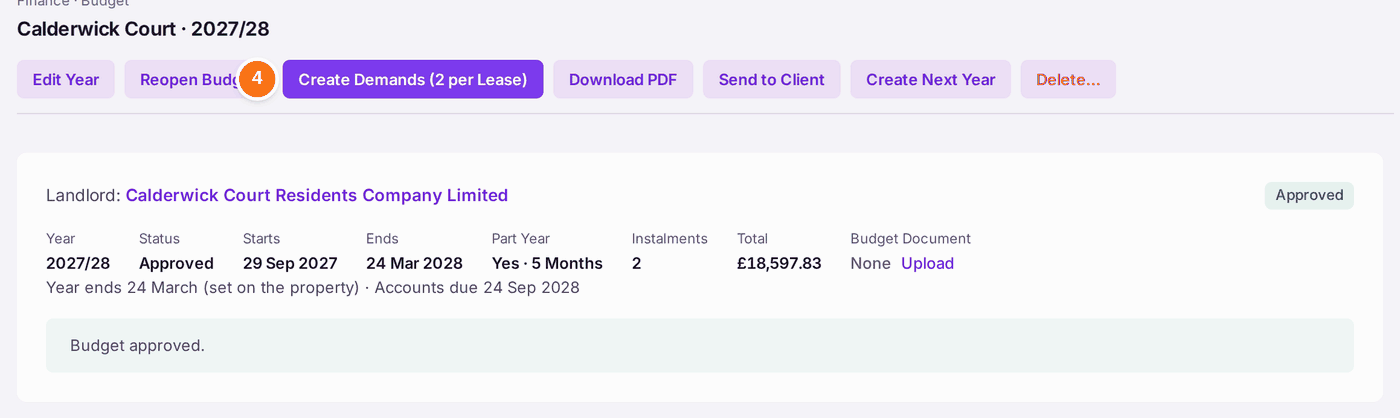
- Press Create Demands (2 per Lease) at the top. The number is the budget's instalments a year.
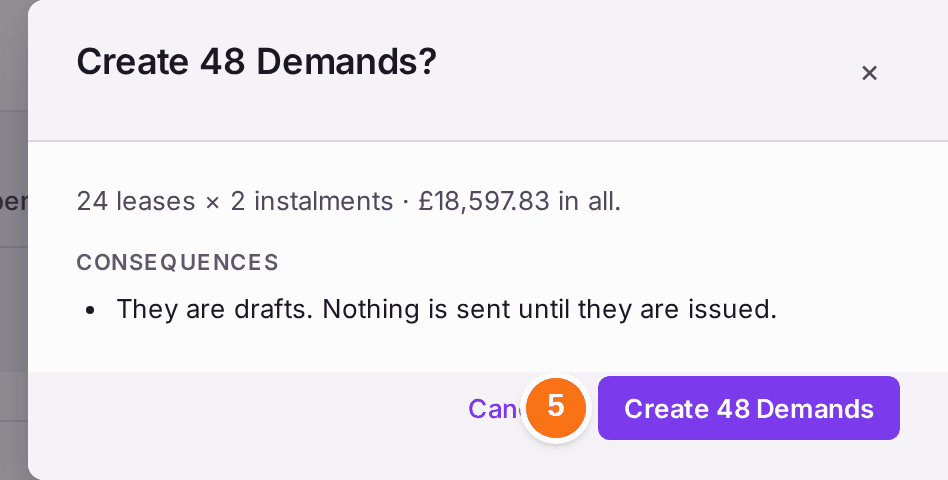
- Press Create 48 Demands in the question that opens. SynkroTech works out each leaseholder's share, making the demands as drafts. The number is your leases times your instalments. The budget reads Demands Drafted until they are issued.
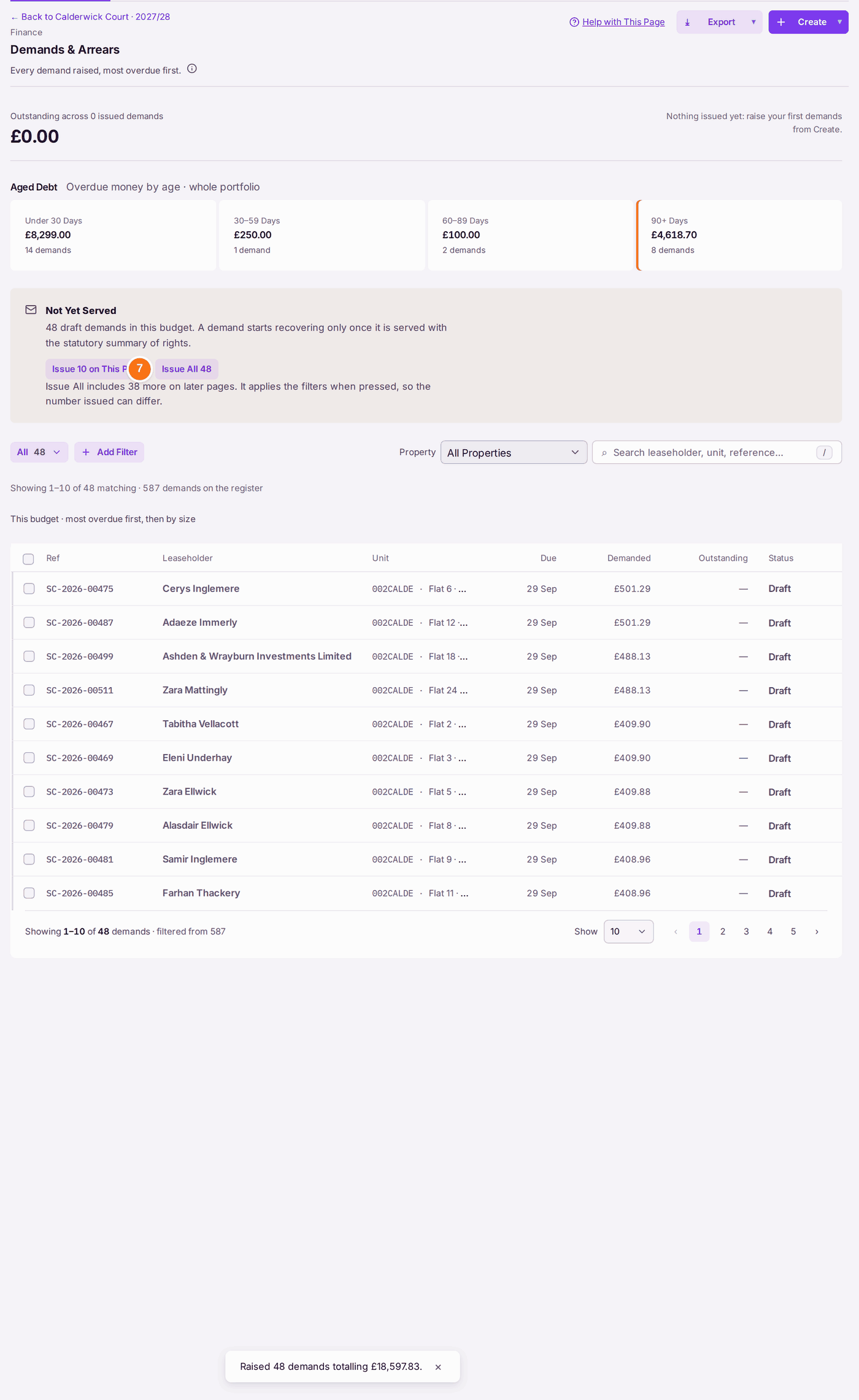
- Press View 48 Demands. Demands & Arrears opens, showing only this budget's demands.
- Under Not Yet Served, press Issue All 48.
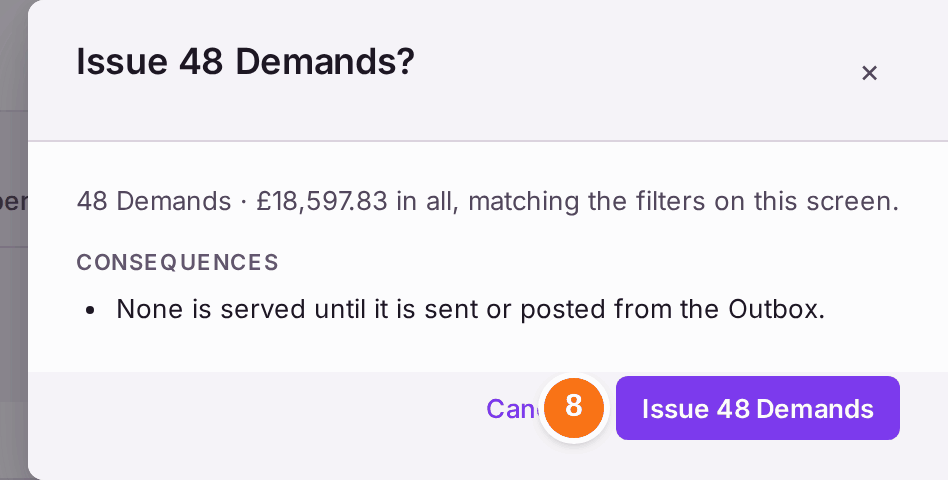
- Press Issue 48 Demands in the question that opens.
- The Outbox opens at the mailing's Check and Send step, straight away. Each issue makes one mailing for the property.
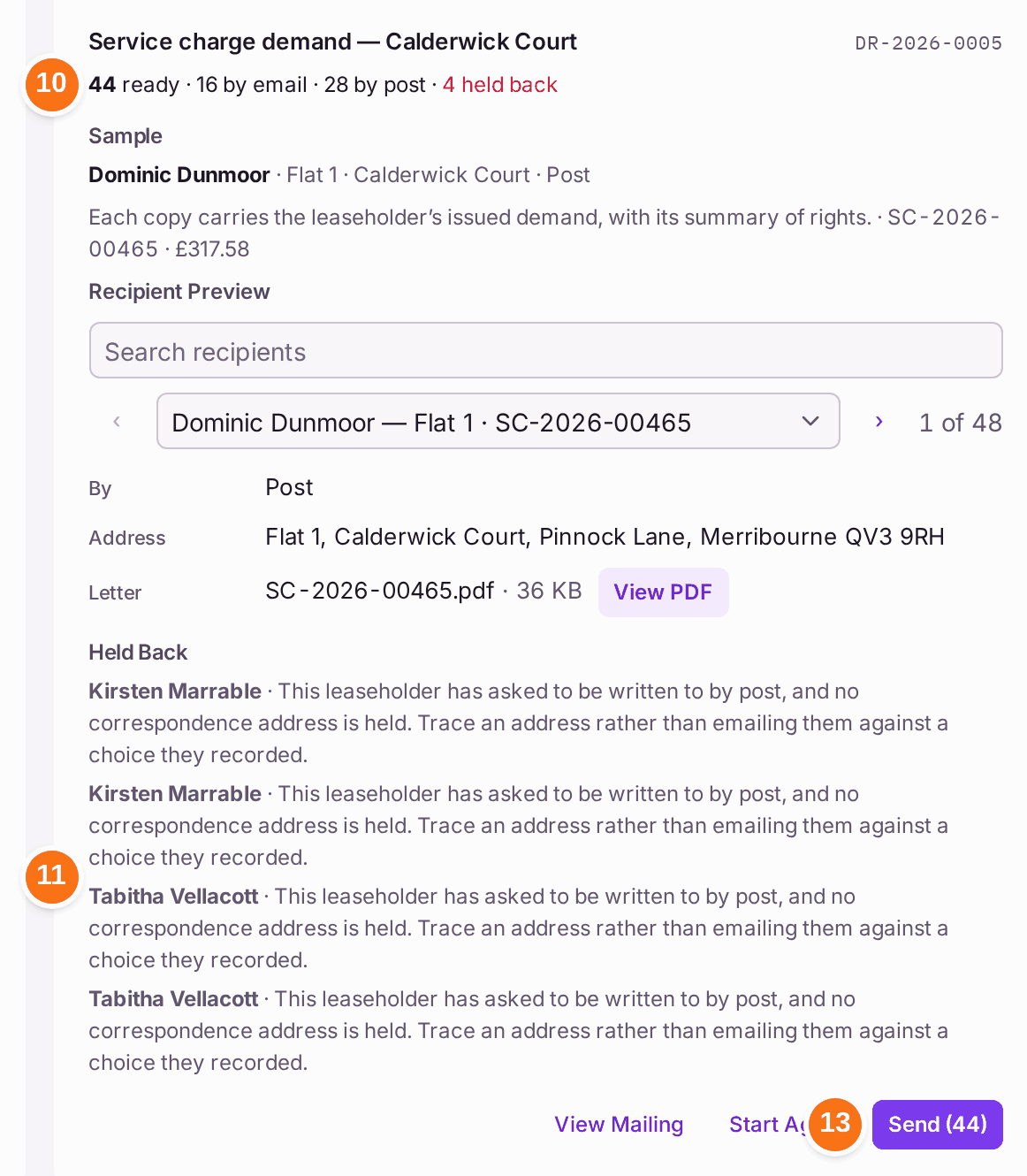
- Read the counts and the Sample: how many are ready, how many go by email and by post, and one copy as it will read.
- Read Held Back, if it is there. Everyone named there will not be served until you fix their address (see below).
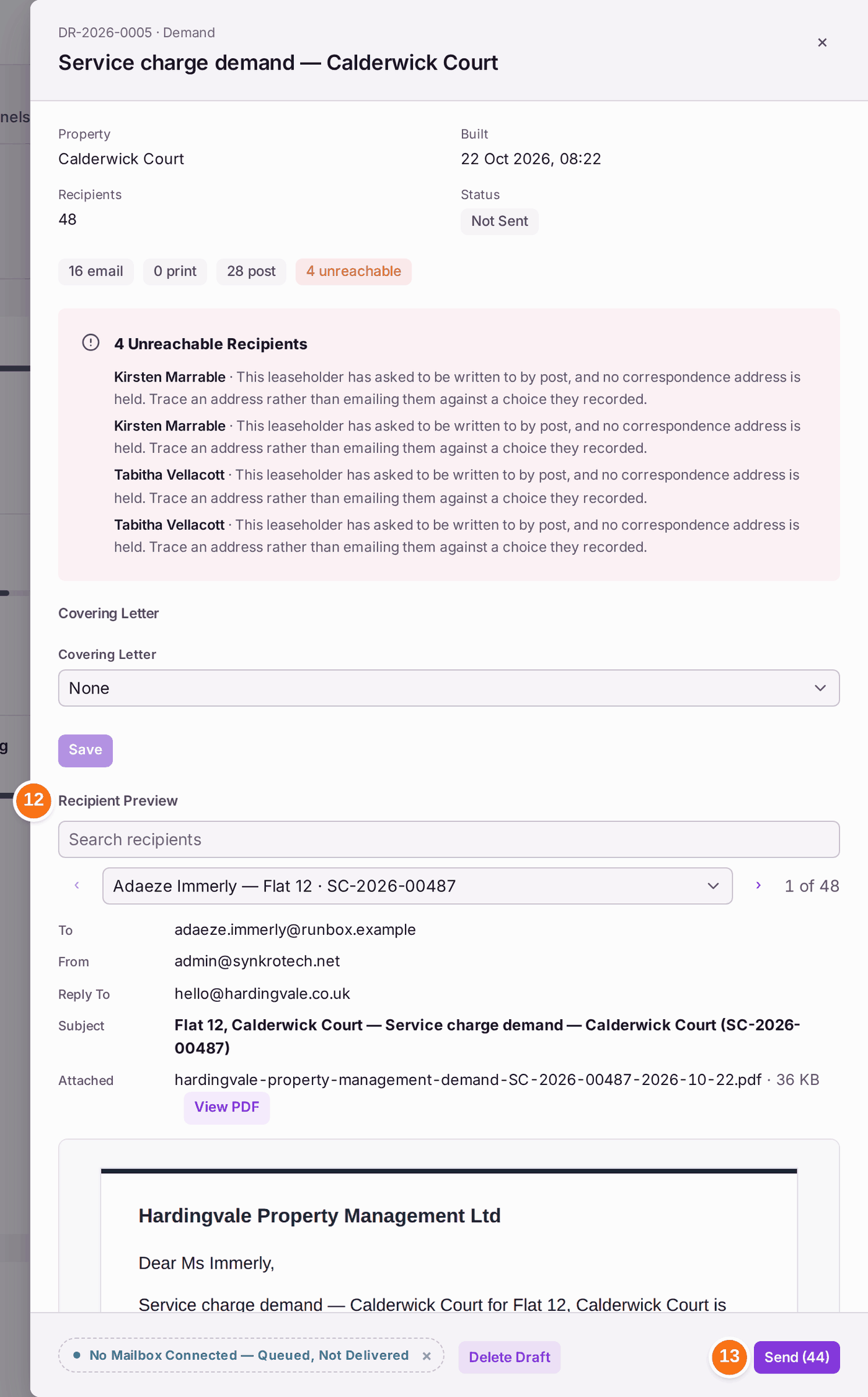
- To read the demands themselves before anything goes, press View Mailing. Under Recipient Preview, choose anyone (or press Preview on their row) to see the email they will get, and press View PDF to read their demand, with its landlord, address for service and summary of rights. Each demand's own page has View Demand too: Preview — Not Yet Sent until it goes, then Served Copy.
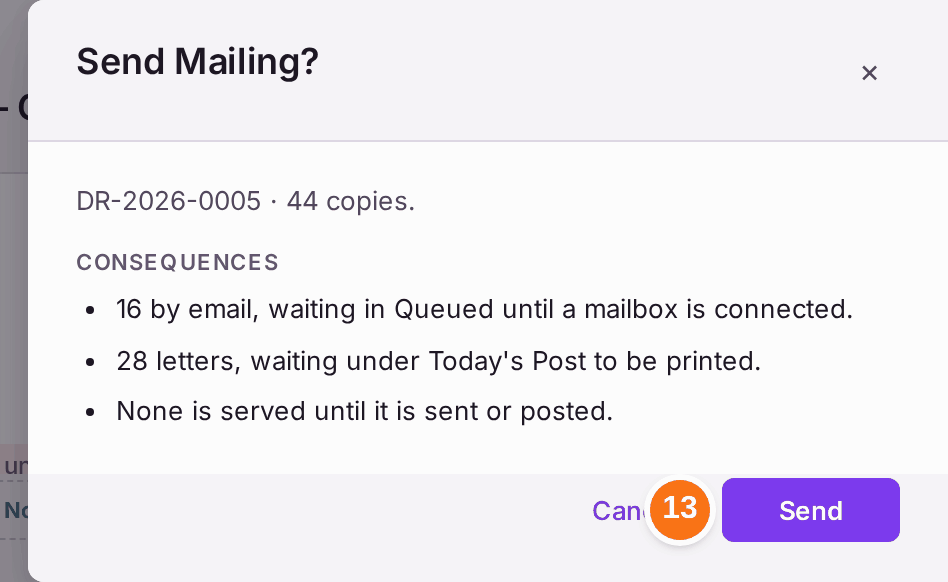
- Press Send (on Check and Send, or at the foot of the mailing), then Send in the question that opens. The button shows how many copies it will send, and the question says how many go by email and how many by post, and where each waits. On a run released before, the counts are for the copies being released now, not the whole run. (The same Send is on the run's card under Mailings to Send, if you come back to it later.)
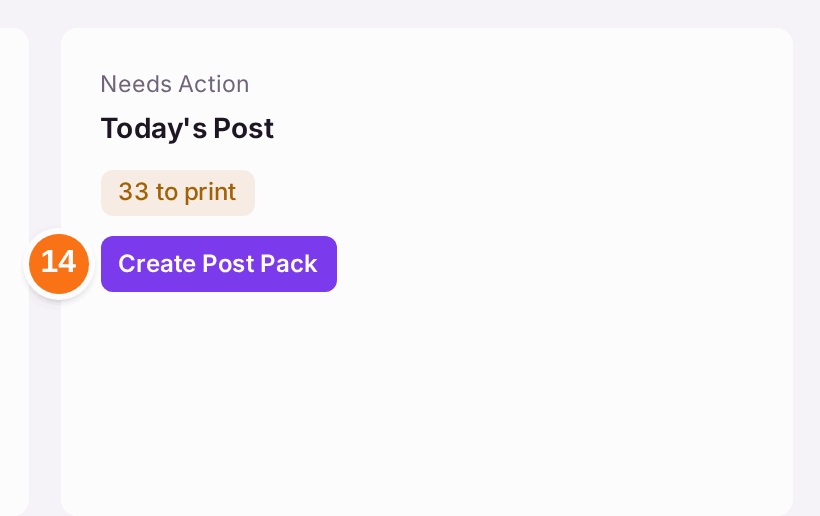
- Under Today's Post, press Create Post Pack. The letters download as one PDF, with the summary of rights in each.
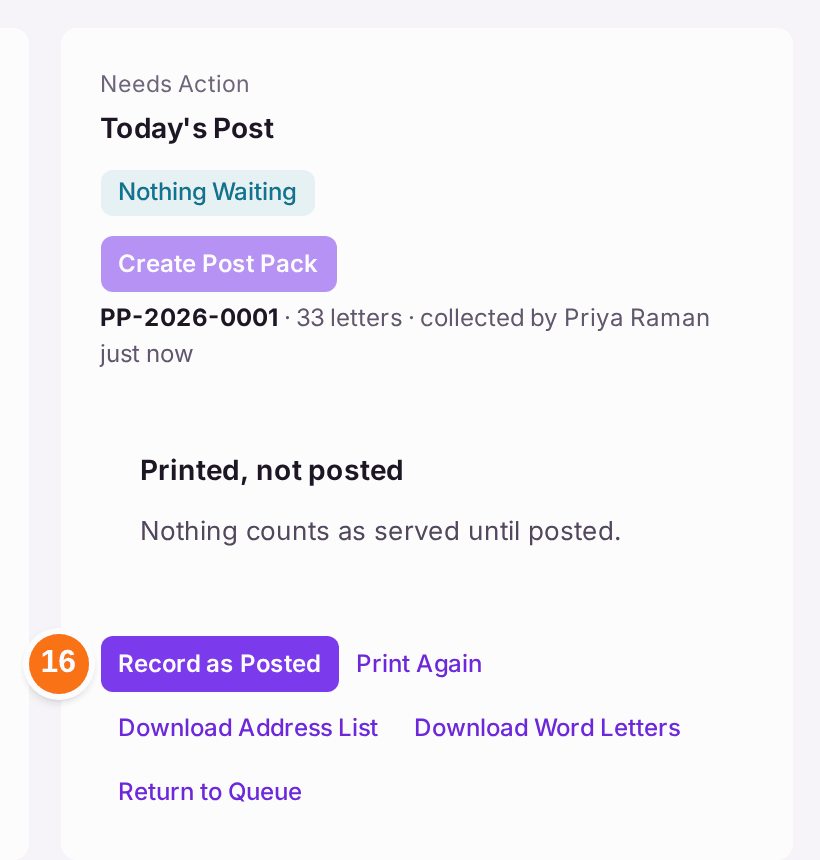
- Print the pack, then post the letters.
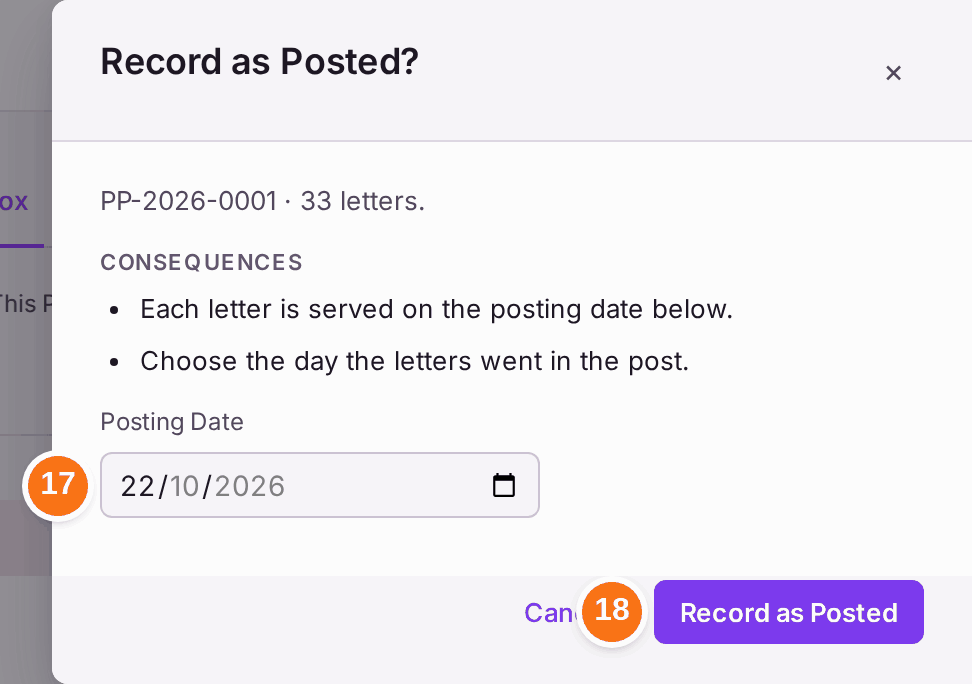
- Press Record as Posted.
- Choose the day the letters went in the post in Posting Date. That day is the date of service.
- Press Record as Posted in the question.
Use Issue All, not Issue 10 on This Page. The second issues only the ten demands on the page you are looking at.

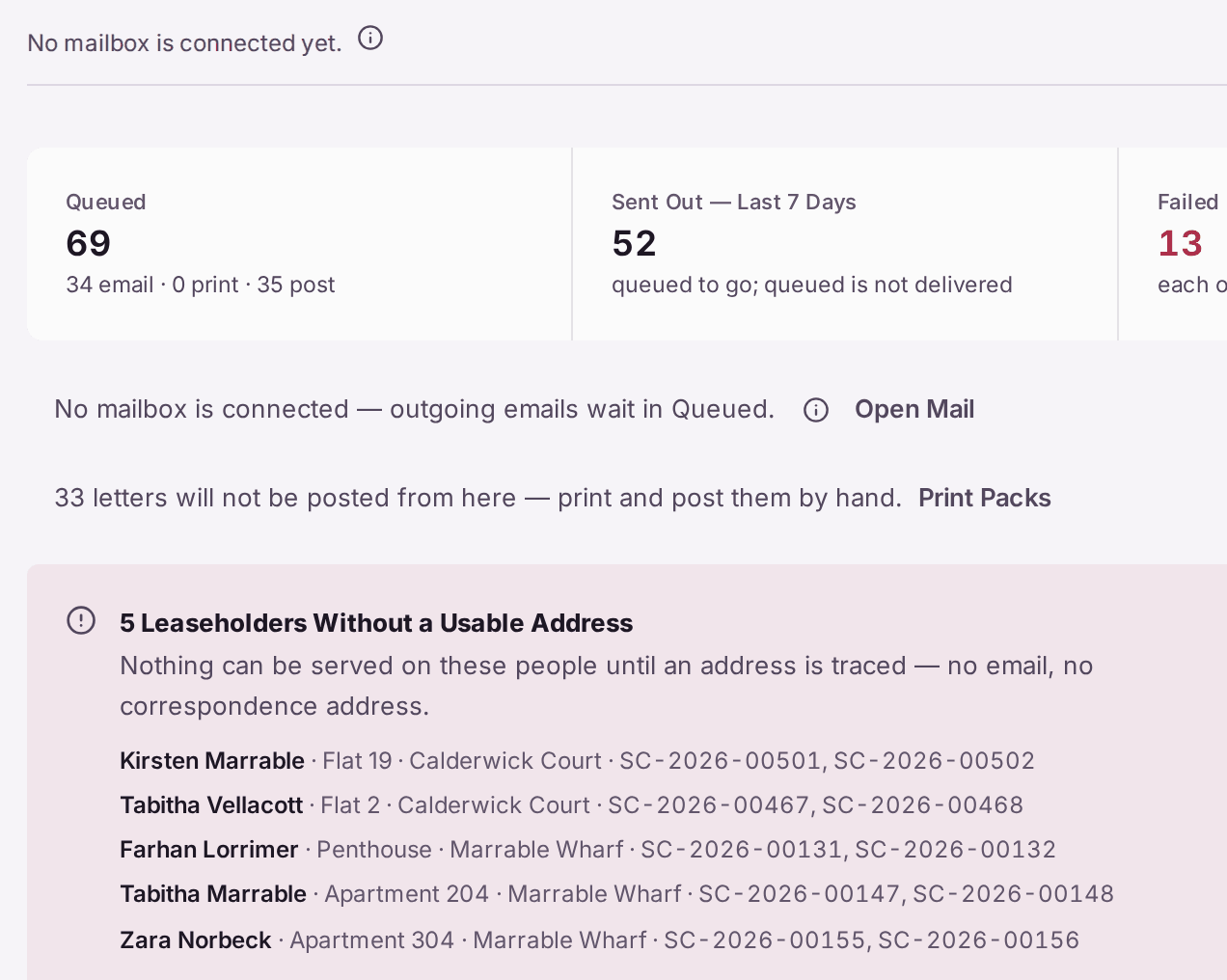
You'll know it worked when: the message after step 18 reads "[number] letters are recorded as served today." (or on the date you chose). On Demands & Arrears, a posted demand reads Issued, and one still waiting to go reads Issued — Awaiting Delivery. On the Outbox the run reads Released. Emails show Queued until they are sent: if the Outbox says "No mailbox is connected — released emails wait in Queued.", connect your mailbox in Comms → Mail and they go out.
If something's wrong:
Approve Budget is greyed, with "Set the property's year end before approving this budget." The budget also says No Year End. Press Set Year End on the budget, or View Property, then Set Service Charge Year End under Financial Year, and enter the day and month exactly as the lease states. Every budget year and accounts date counts from it. Then come back and approve.
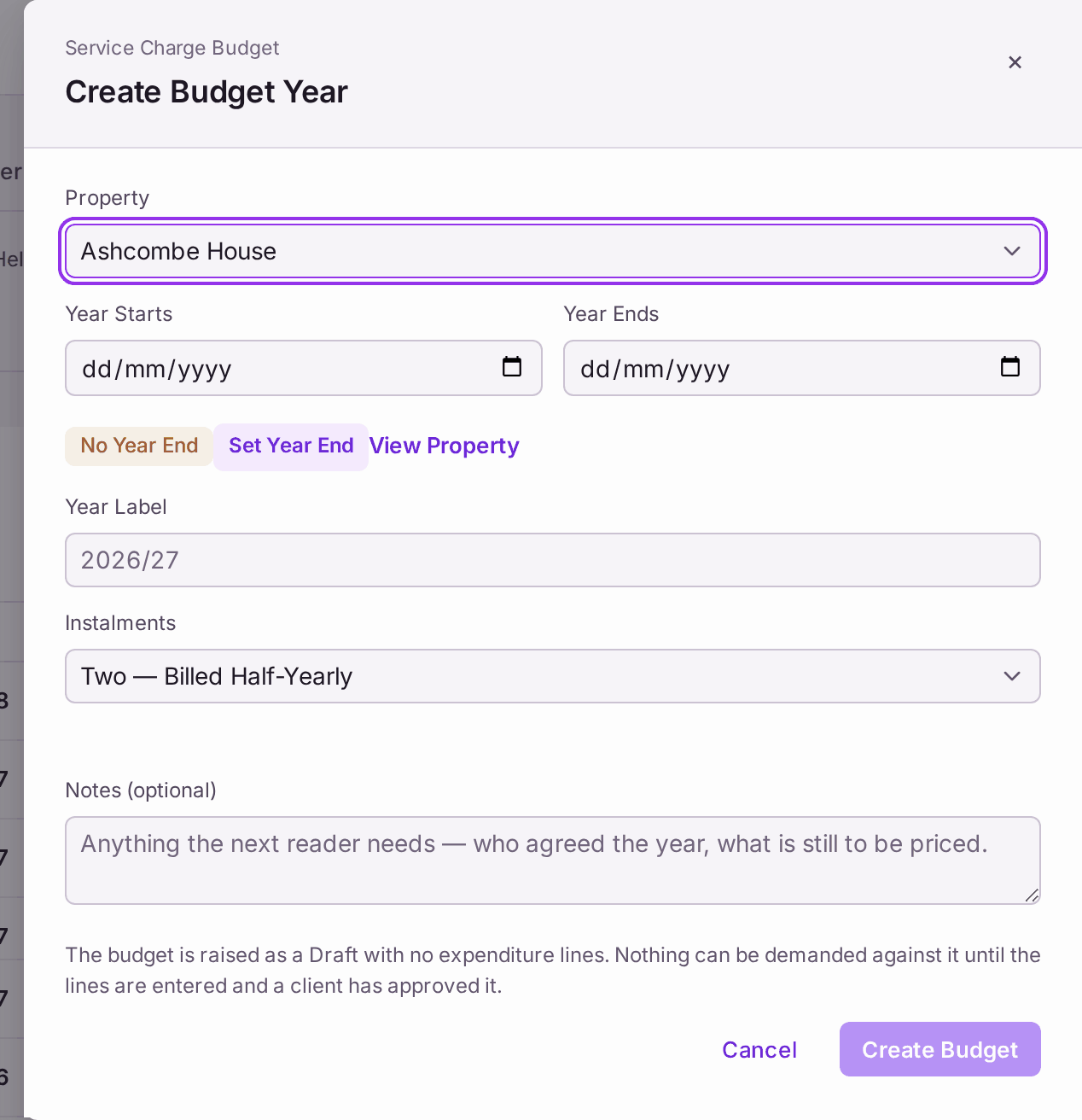
On Create Budget Year, No Year End with Set Year End and View Property beside it. Set it before you go on. - No Client Appointed on the budget. "No client is appointed to [property] for this period, so its demands cannot name a landlord." Press View Clients, open the client (or Add Client), and press Add Appointment for this property. When the property has exactly one current appointment, the budget fills in the landlord for you.
Create Demands is not offered, with "Apportionment incomplete". The budget names what is wrong, for example "£2,165.26 of this budget is not assigned to any schedule, so there is nobody to bill it to." or "Schedule "Car park — demised spaces" accounts for 92.00% of its units, not 100%." For a line with no schedule, press Reopen Budget, press Edit on Budget Lines, change that line's schedule from — No Schedule — to the schedule that pays for it, press Close, then approve again. For a schedule short of 100%, go to the property's Units tab, press Edit Shares on the schedule marked Does Not Add Up, and correct the shares from the leases.
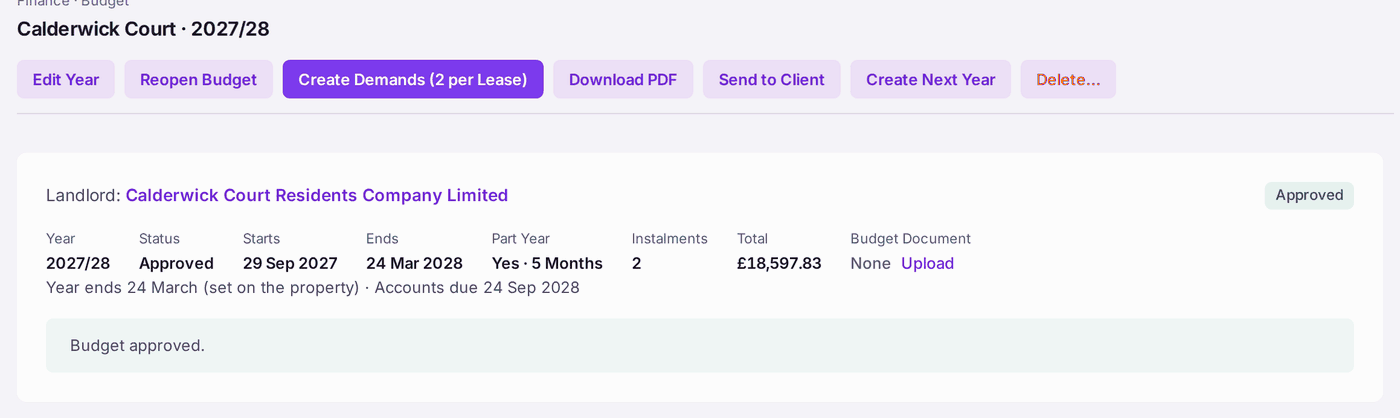
The red line under the dates names the money that no schedule pays for. 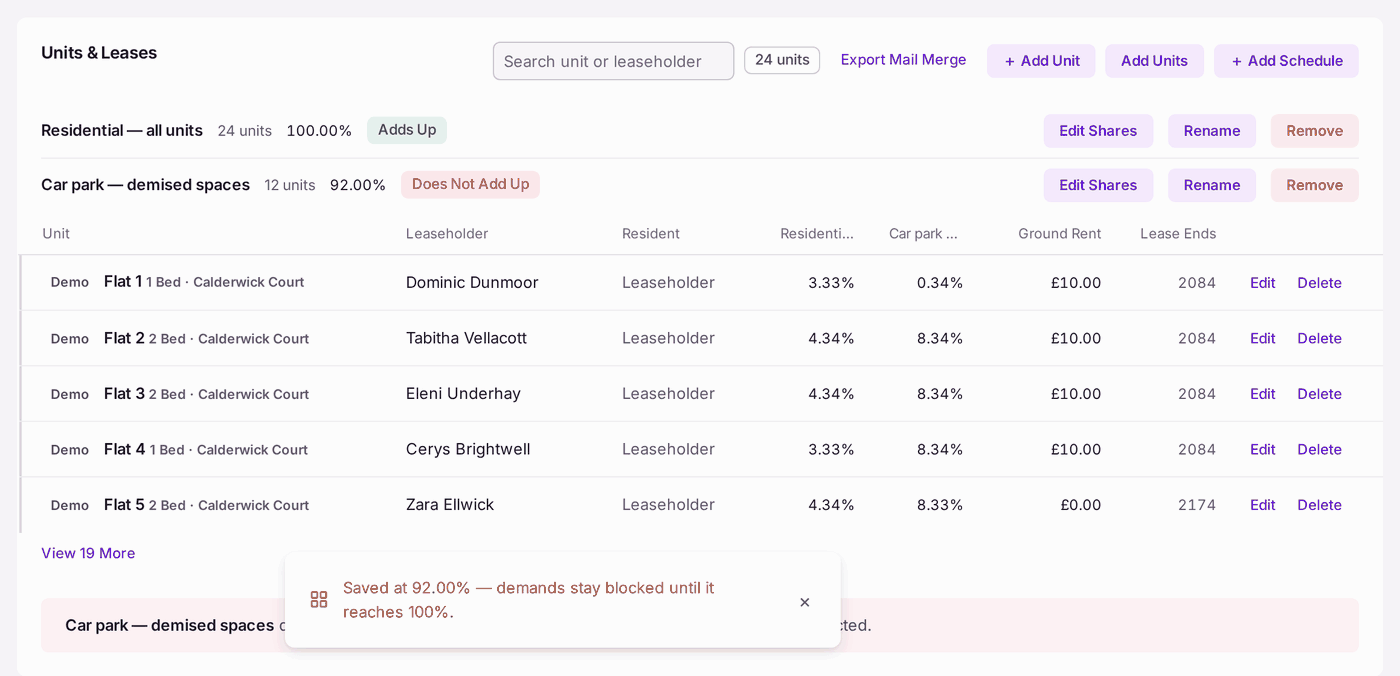
Each schedule shows its total and Adds Up or Does Not Add Up. Use Edit Shares on the row marked in red. Issue is refused because the landlord has no registered address. The question stays open with, in red: "No registered address is held for [client]. LTA 1987 s.47 requires the landlord's own address — the managing agent's address will not do (Beitov Properties Ltd v Martin). Until it is given, the charge is treated as not due. Add the Registered Address on the client's record." Nothing has been issued. Press the client's name after the sentence (or open the client under Contacts → Clients & Companies), press Edit Client, fill in Registered Address, press Save Changes, and issue again.
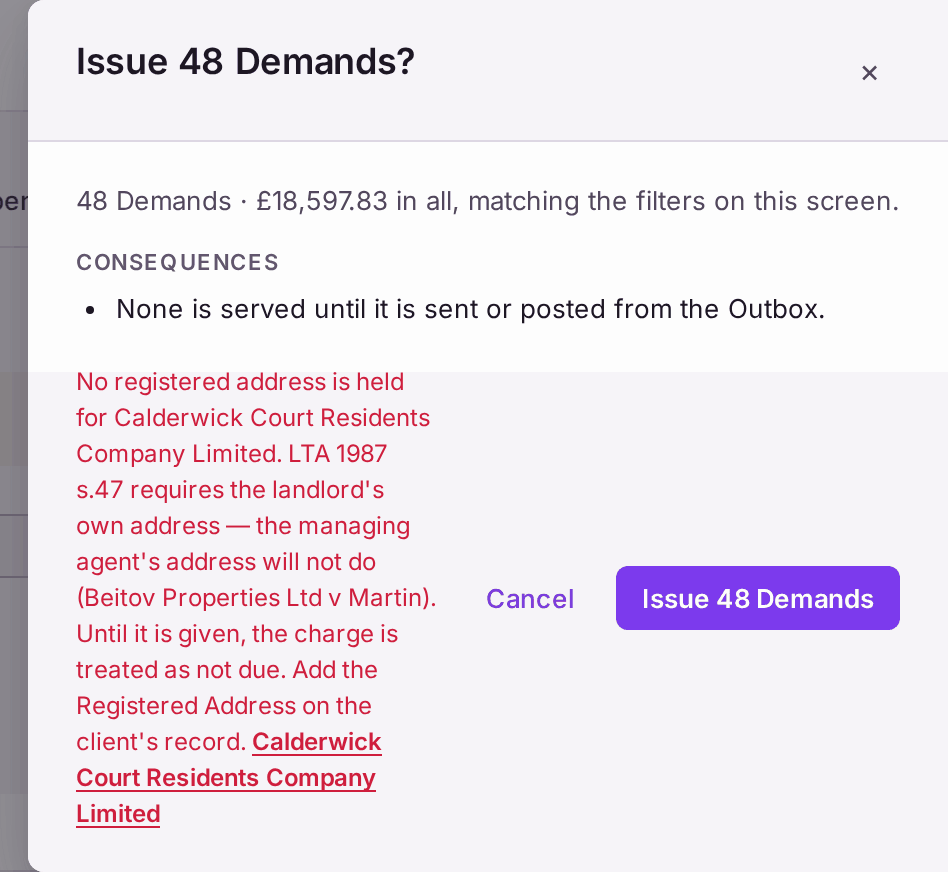
The red sentence at the bottom of the question. It stays there until you close the question, so you can read it in full. - Issue is refused because no address for service is set. The question stays open with, in red: "No address for service of notices is configured. LTA 1987 s.48 requires one in England or Wales. Set the main branch's Correspondence Address under Settings → Branches." Nothing has been issued. Press Branches after the sentence, choose the branch marked main under Branch, fill in Correspondence Address, press Save Branch, and issue again. You need to be an administrator to open Settings; otherwise ask one.
A leaseholder is listed under Held Back. "This leaseholder has asked to be written to by post, and no correspondence address is held." Their demand is issued but not served. They are also listed under No Correspondence Address on Demands & Arrears until the address is set. Open their record (Edit Leaseholder on the Outbox row takes you there). Under Correspondence Address, which reads Not Chosen, press Edit, choose The Unit or Another Address, then Save. Then, on the Outbox, open each of their failed rows (one for each instalment) and press Retry on Post. The row goes back to Queued with their address, and a message says where it goes ("Requeued for post to …", with the address). On a run already released, the letter is released again on the same press and waits under Today's Post for the next post pack. With several rows to redo, the Address Set box at the top of the Outbox lists everyone whose address is now set: press Retry All there instead.
If you may not change a leaseholder's record (an accountant who issued the demands, for example), the record offers no Edit. It says "Permission required. The property team makes changes here." and names the colleagues who can, each a link that starts an email to them about this leaseholder.
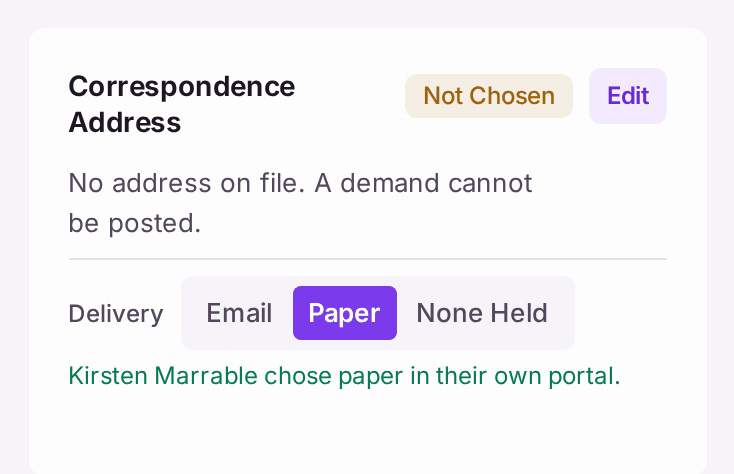
On the leaseholder's record: Not Chosen, and "No address on file. A demand cannot be posted." 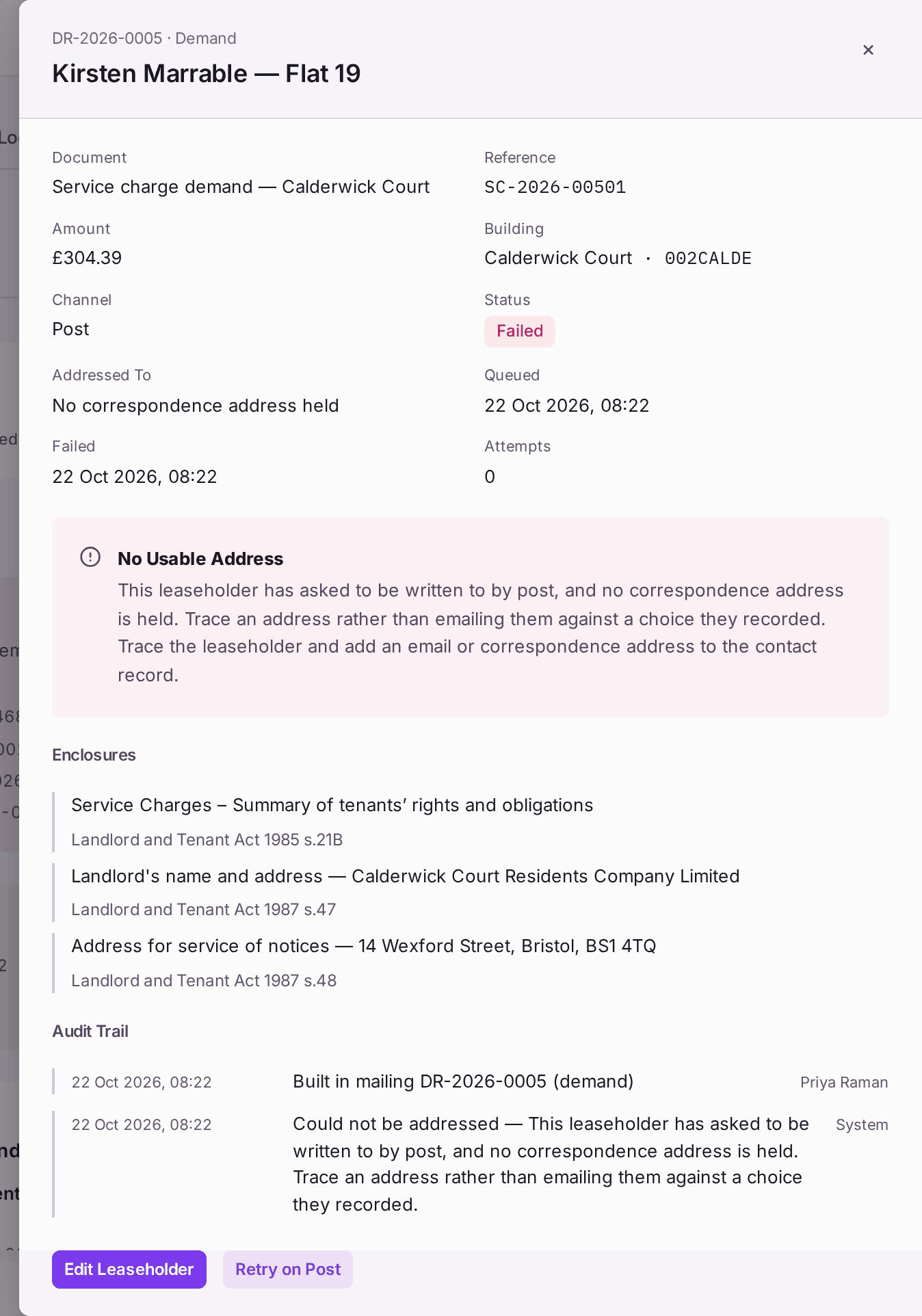
The delivery says why it failed and lists what was enclosed. Once the address is set, Retry on Post at the bottom sends it to the address now on record. - Issue 10 on This Page issued fewer than you expected. It only issues the demands shown on the page, after asking you first. Press Issue All to issue the rest.