


Setting where a leaseholder's post goes
What you'll end up with: every leaseholder with a correspondence address chosen: their flat, or another address they gave you, so demands and notices can be posted and count as served. And, where they have said, whether they want email or paper.
Before you start you need: for a leaseholder who lives elsewhere, the address they want post sent to, in writing.
A demand that cannot be delivered is not served, and an unserved demand cannot be enforced. Most leaseholders who let their flat want post sent elsewhere; posting to the flat reaches the tenant instead.
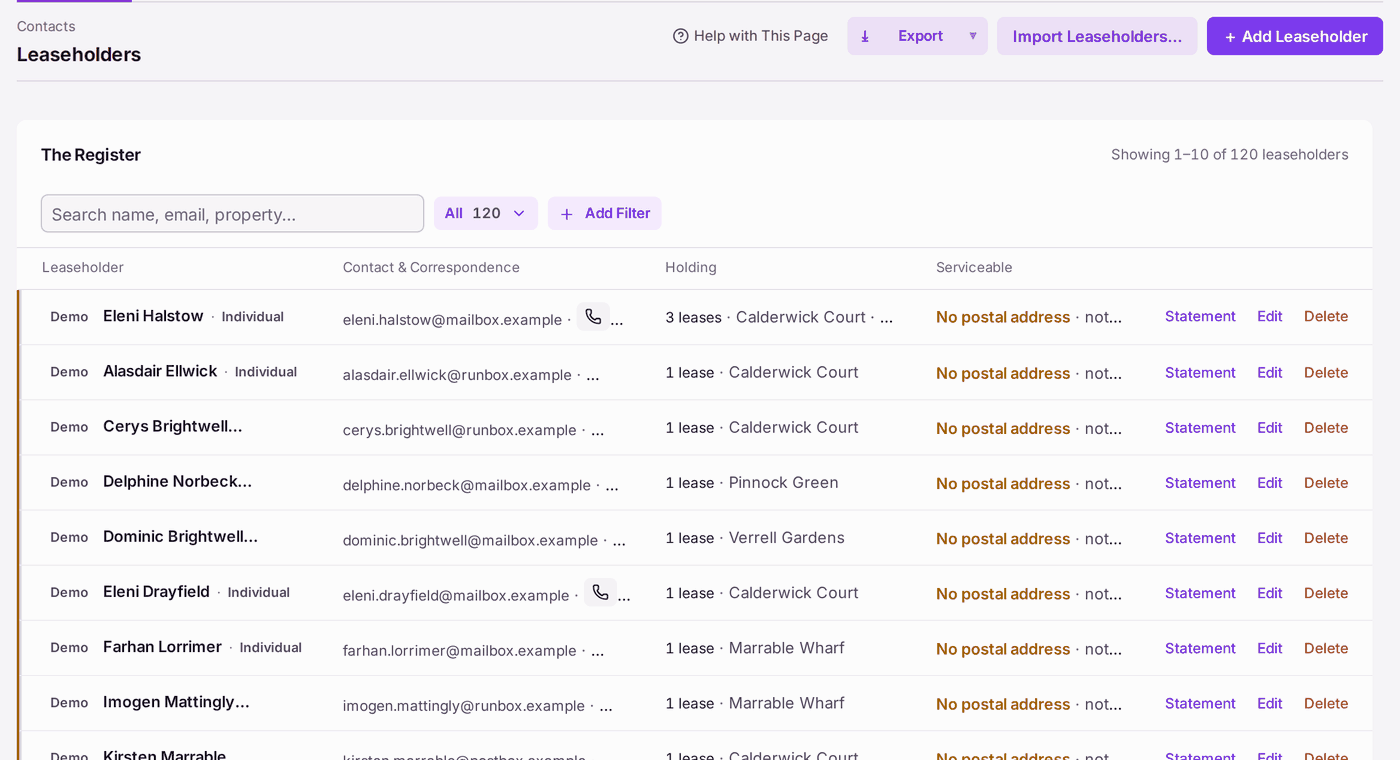
- Go to Contacts → Leaseholders. No Correspondence Address lists everyone with no address chosen, with their flat, and marks those Not Living There.
- Open the leaseholder.
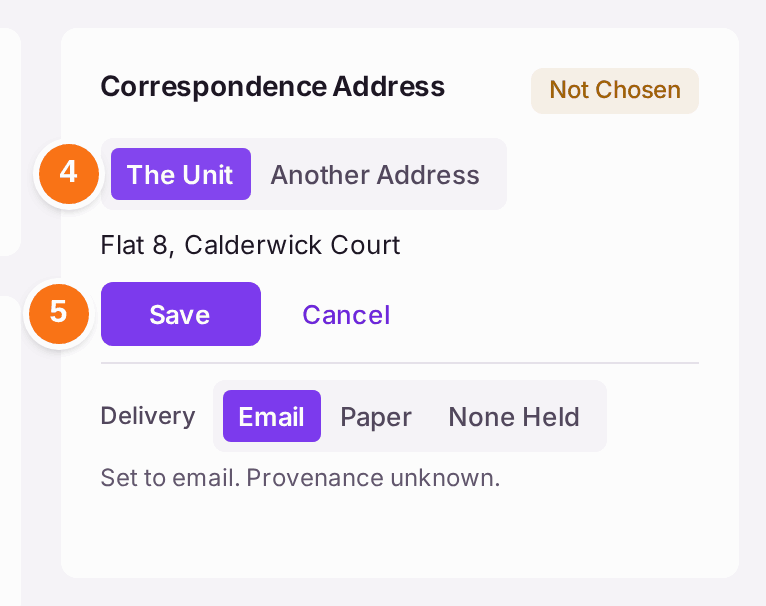
- Under Correspondence Address, press Edit.
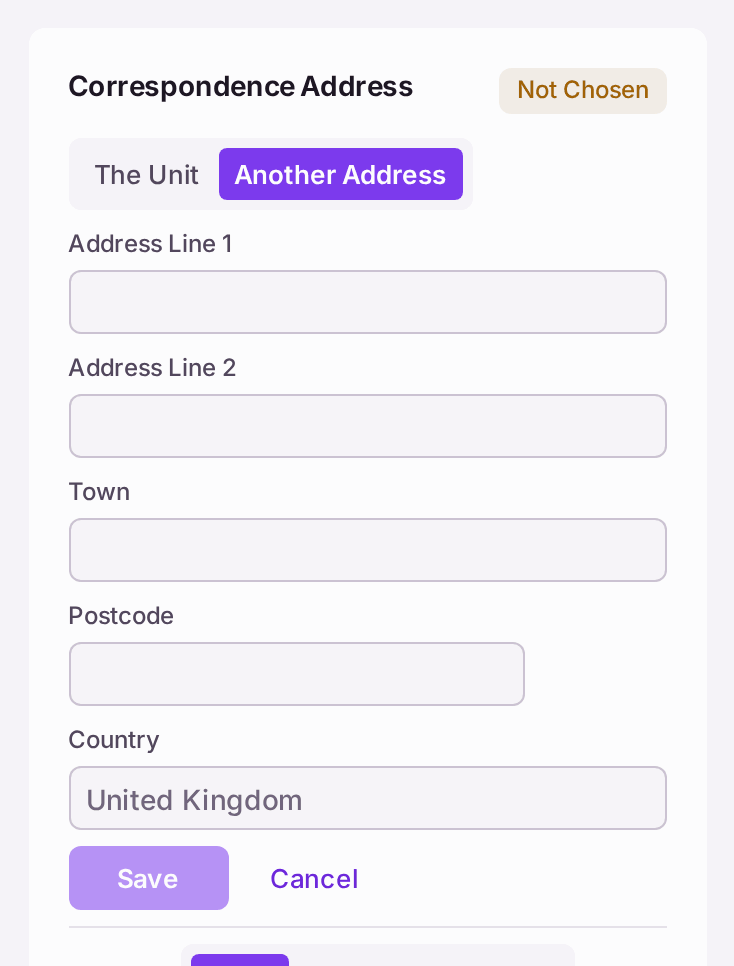
- Choose The Unit to post to their flat, or Another Address and type it (Address Line 1, Address Line 2, Town, Postcode, Country).
- Press Save. "Correspondence address saved".
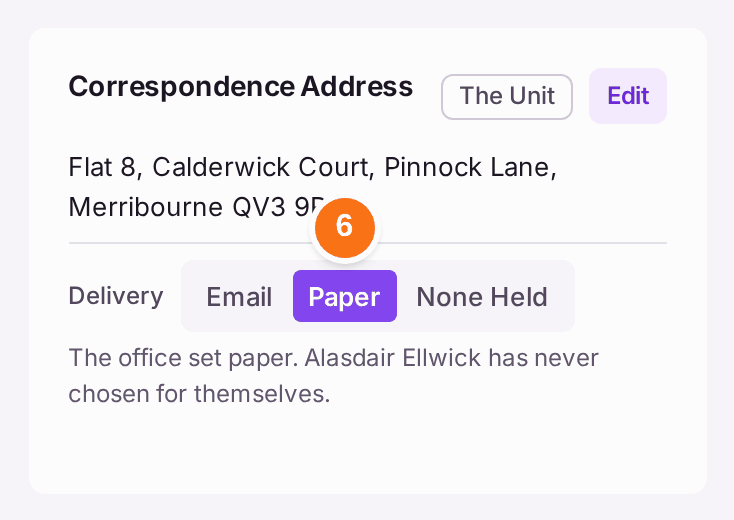
- Under Delivery, at the foot of the same card, press Email or Paper if the leaseholder has told you how they want to be written to. It is saved at once, and the line under it says who chose it ("The office set paper. … has never chosen for themselves."). None Held means nobody has asked them: demands and notices then go by post, and an email is used only where they have agreed to it. This is the same setting as the Delivery column on Comms → Portal Logins; change it in either place.
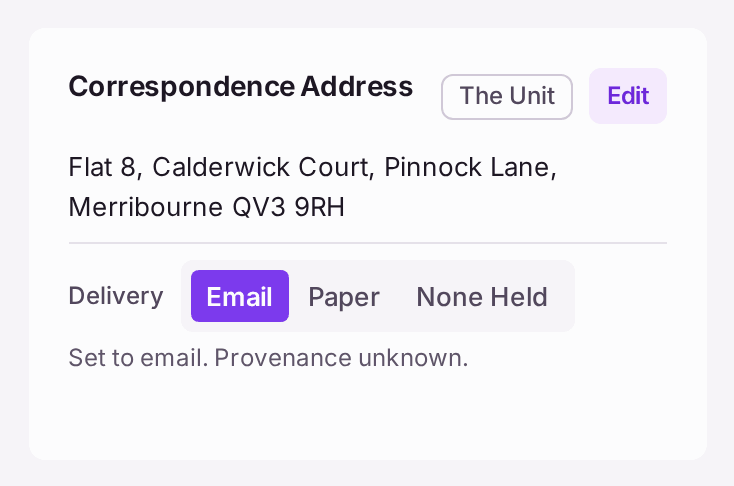
You'll know it worked when: the record's Correspondence Address reads The Unit or Another Address, with the address in full.
If something's wrong:
- The record says "No address on file. A demand cannot be posted." No address is chosen. Do steps 3 to 5.
- The leaseholder is marked Not Living There. Do not choose The Unit without checking: post would go to whoever lives in the flat. Ask the leaseholder for their address.
- A demand failed with "Trace an address rather than emailing them against a choice they recorded". The leaseholder asked for post and no address is held. Press Edit Leaseholder on the failed row in the Outbox and set it, then issue the demand to them again.
- The Outbox lists them under "Leaseholders Without a Usable Address". Nothing can be served on them until an address is traced. Set the address, and their row leaves the list for Address Set · … to Retry; press Retry All there to send their letters again (see Checking what letters and emails went out, and to whom).
- The Outbox says "No delivery preference recorded". Nobody has recorded email or paper for that leaseholder, so a demand went by post. Press Set Delivery beside the sentence: their record opens at Delivery. Do step 6 if they have agreed to email.
- There is no Delivery on the card. Delivery is set by whoever manages portal logins. Ask an administrator.
- Delivery says "this is overriding them". The leaseholder chose the other way in their own portal and the office changed it. Press Restore Their Choice to put theirs back.
- There is no Edit under Correspondence Address. You may not change leaseholders' records. The card says "Permission required. The property team makes changes here." and, after Ask, names the colleagues who can. Press a name: the request goes to that colleague's notifications inside SynkroTech, linked to this leaseholder's record opened for editing, and the card then says "Asked … · 14 Oct 2026". The same Ask is on the Outbox's failed rows and on Demands & Arrears, where one press asks about every leaseholder listed. When the address is set, the request is answered and leaves their notifications.
- You were asked to set an address. The request is in your notifications (the bell), as "Correspondence address · [leaseholder]". Press it: the record opens with the address ready to set. Save it, and the request is answered.
- After Save, the top of the record still says there is no address. It no longer should: the record and Last Contact are read again on Save. Last Contact counts only letters and emails that went: not ones that failed, and not ones still waiting to be sent or posted.