


Deciding what each colleague can do
What you'll end up with: each colleague holding a role that lets them do their own work and nothing riskier, with any one-off difference recorded as an exception against their name.
Before you start you need: your colleagues on the Users page (see Adding colleagues and giving them a login), and a view of who should approve spending, see health information or change the organisation's settings.
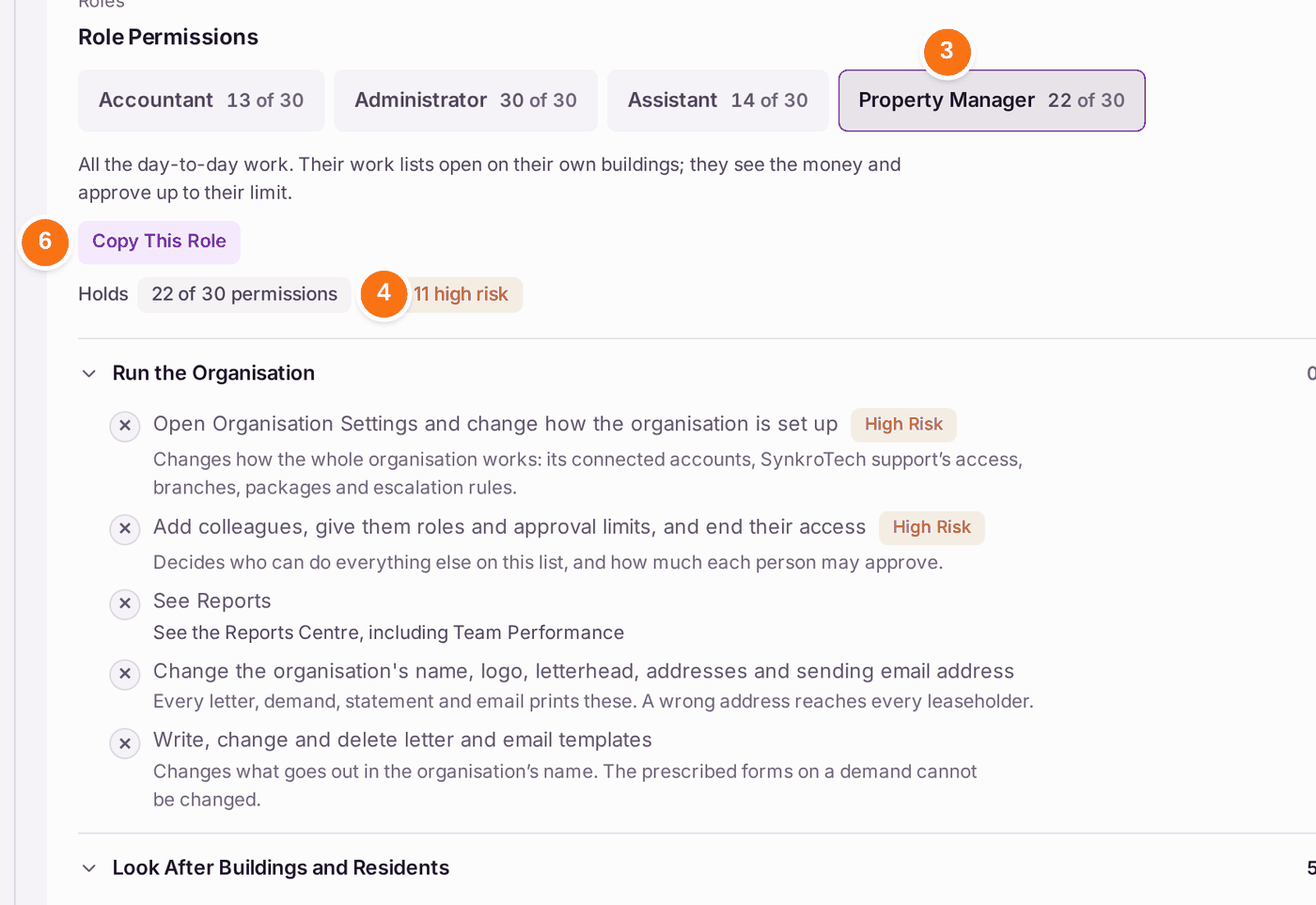
SynkroTech has four roles: Accountant, Administrator, Assistant and Property Manager. Each holds a set of 30 permissions, grouped as Run the Organisation, Look After Buildings and Residents, Handle Day-to-Day Work, Keep Buildings Safe and Compliant and Handle Money. Eleven are marked High Risk, because they move client money, let people outside the office see records, or take a duty off the compliance register.
- Press Settings, then Organisation Settings.
- Press Roles & Permissions in the list on the left.
- Press a role under Role Permissions, for example Property Manager. The line under it says what the role is for.
- Read Holds: how many permissions the role has, and how many of them are high risk.
- Read down the groups. A tick means the role is allowed; a cross means it is not. The grey line under each permission says what it lets someone do.
To give one colleague more, or less, than their role:
- Under Exceptions, press Add Exception.
- Choose the colleague in Colleague. The panel says which role they start from.
- Press the cross or tick beside a permission to change it for this colleague only.
- Press Save.
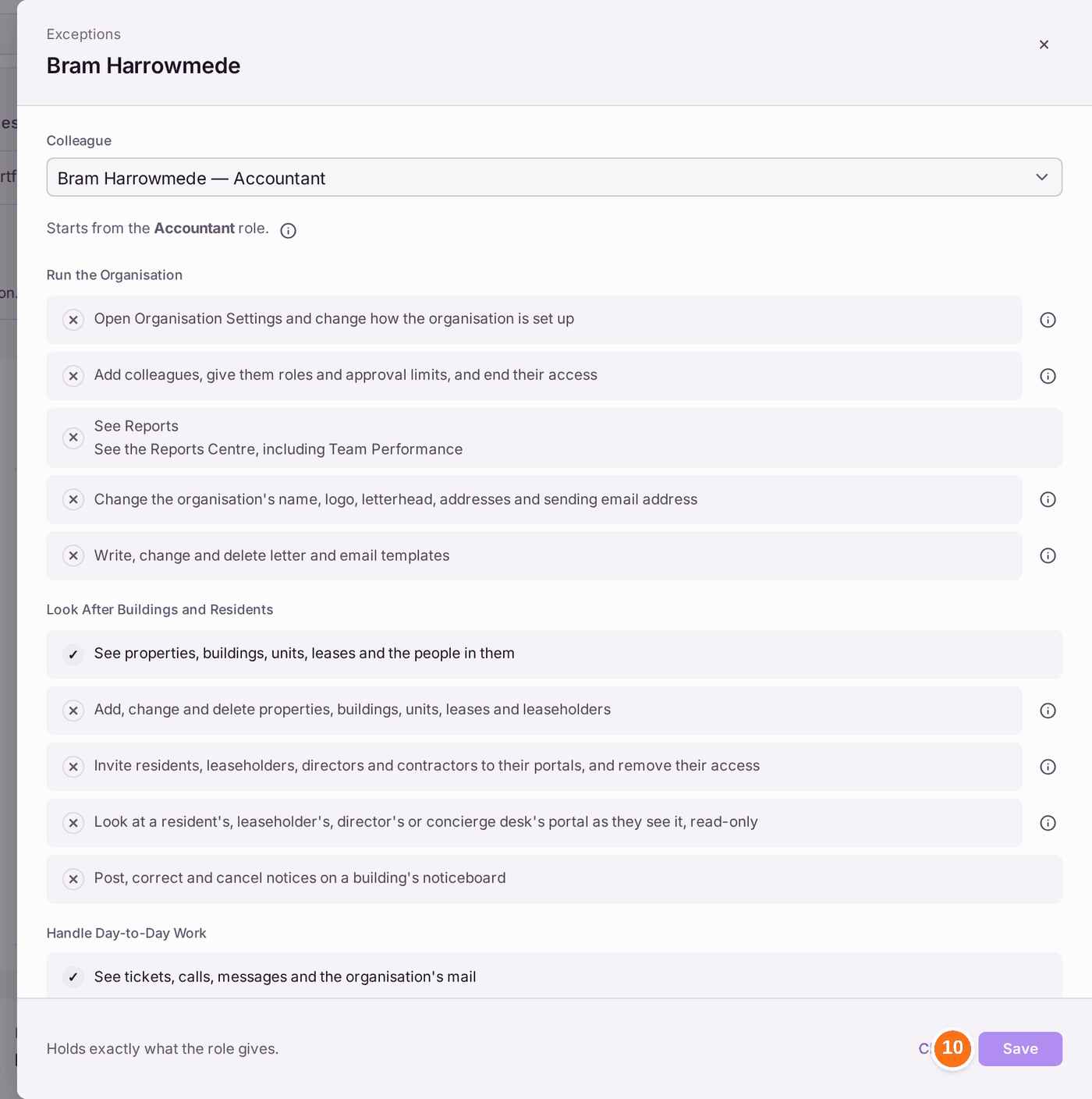
To let a senior colleague see the Reports Centre: only administrators have See Reports. Add an exception for the colleague and tick See Reports, under Run the Organisation.
To make a new role, press Copy This Role on the role closest to what you want, type a Name, change the permissions, then press Create Role. A role can only hold permissions you hold yourself.
You'll know it worked when: the colleague is listed under Exceptions with what differs, or your new role appears beside the others. Every change is filed on the Decision Record with your name.
If something's wrong:
- A colleague cannot see a section. The menu shows only what their role allows, so a missing section is a missing permission. Find the permission in their role, then add an exception or change their role on the Users page.
- A colleague cannot see Reports. They need See Reports. Give it with an exception.
- A colleague can see too much. The two permissions most often given by mistake are "See evacuation plans for residents who need help (health information)", which is special category health data, and "Look at a resident's, leaseholder's, director's or concierge desk's portal as they see it, read-only". Give these to named people only, with an exception.
- Someone needs to approve invoices. Approving needs the permission and an approval limit. The limit is set separately: see Setting approval limits for supplier invoices.
- A permission cannot be ticked in a new role. You can only give what you hold yourself. Ask an administrator who holds it to make the role.