


Checking what letters and emails went out, and to whom
What you'll end up with: a clear view of every demand, notice and letter SynkroTech has produced: what has gone, what is waiting, what failed and why, and proof of what each person was sent.
Before you start you need: something issued or sent, such as a mailing of demands (see Issuing your service charge demands) or a group email.
A demand or notice is not served until it has been sent or posted. "Sent out is not delivered": sending a mailing hands its copies to the Outbox, which sends emails through your mailbox and lists letters for your office to print and post. This page is where you see which of them reached that point.
- Go to Comms, then Outbox.
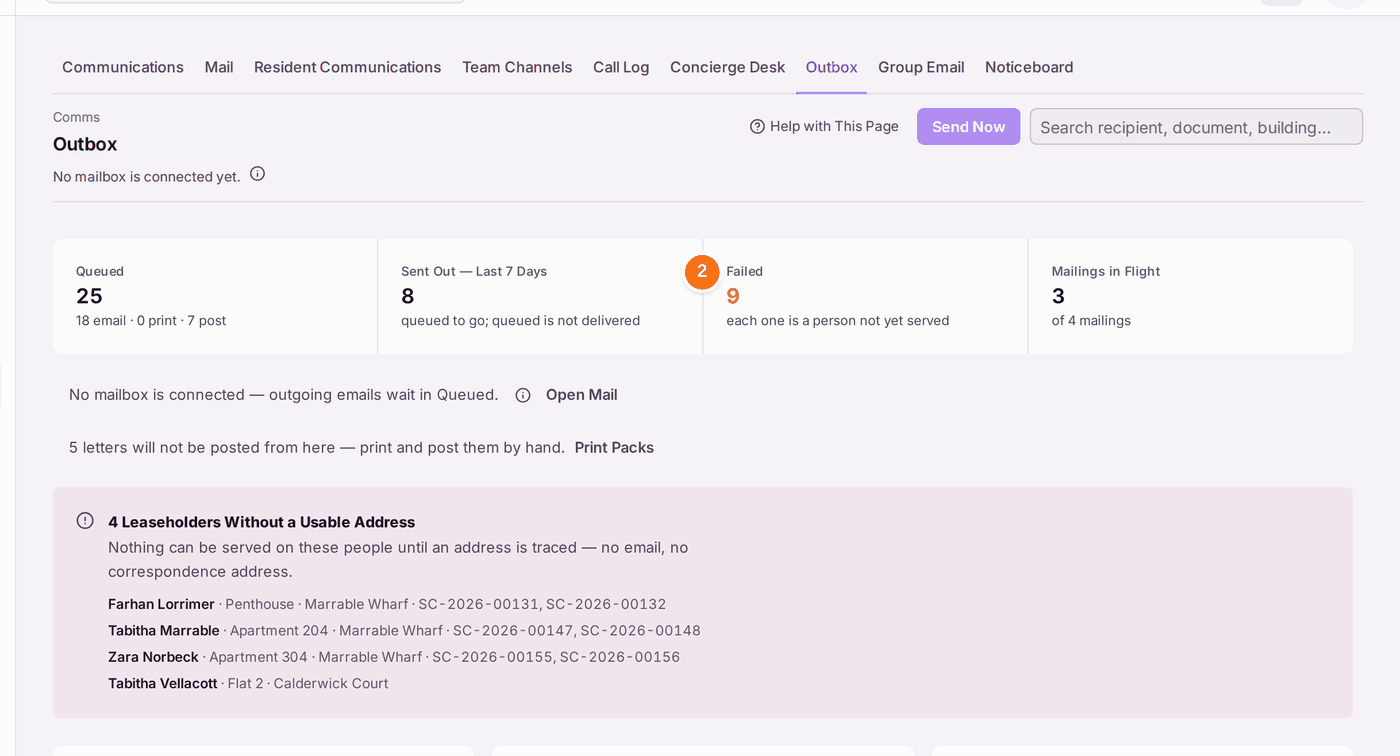
- Read the four figures at the top: Queued (waiting), Sent Out — Last 7 Days, Failed ("each one is a person not yet served") and Mailings in Flight.
- Read the lines beneath them. "No mailbox is connected — emails from a sent mailing wait in Queued" means nothing goes by email until a mailbox is connected (Open Mail). "Letters will not be posted from here" means your office prints and posts them (Print Packs).
- Read the red box, if there is one: Leaseholders Without a Usable Address. Nothing can be served on the people it names until an address is traced.
- Under Deliveries, failures are listed first, each with the reason. For an email the receiving mail server refused for good, press Retry by Post. It is posted to the correspondence address on the leaseholder's record now, and the message says where ("Requeued for post to Apartment 401, Marrable Wharf, …"). On a sent mailing the letter is queued again on the same press, so it waits under Today's Post for the next post pack; nothing needs sending twice.
- For a letter with no address to go to, press Edit Leaseholder, then set their correspondence address (see Setting where a leaseholder's post goes). If your role may not change leaseholders' records, the row offers Ask instead: it opens the delivery, and each colleague named there is a press that asks them, inside SynkroTech, to set the address. Once it is set, the leaseholder leaves the red box and is listed under Address Set · … to Retry, with every copy Retry All will send: each reference, and a notice with none by its title. Press Retry All there: each of their letters is requeued to the address now on the record.
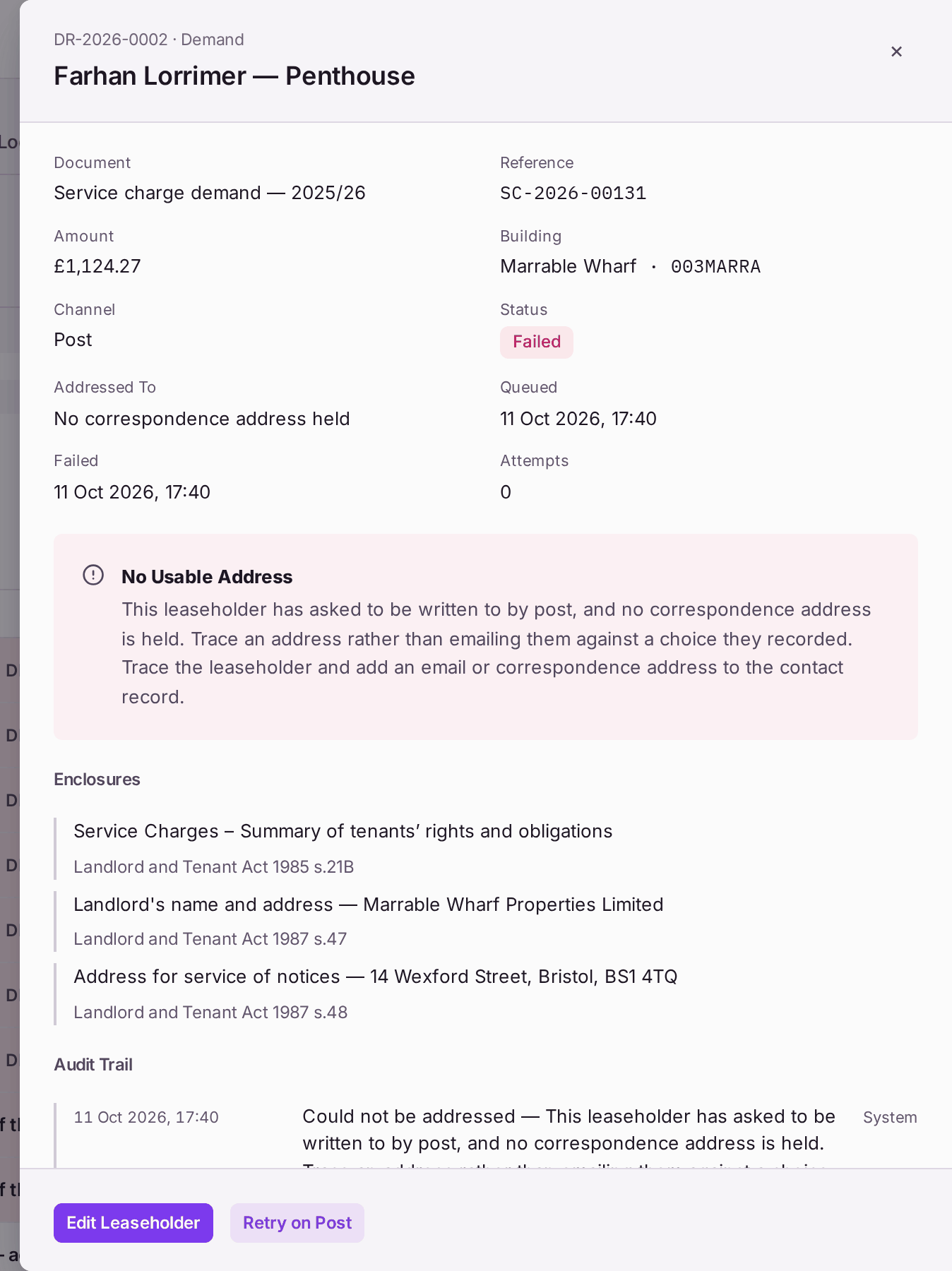
- To see exactly what one person was sent, press their row. The panel shows the document, the channel, the address it went to, the statutory enclosures (such as the summary of rights) and an audit trail of every step.
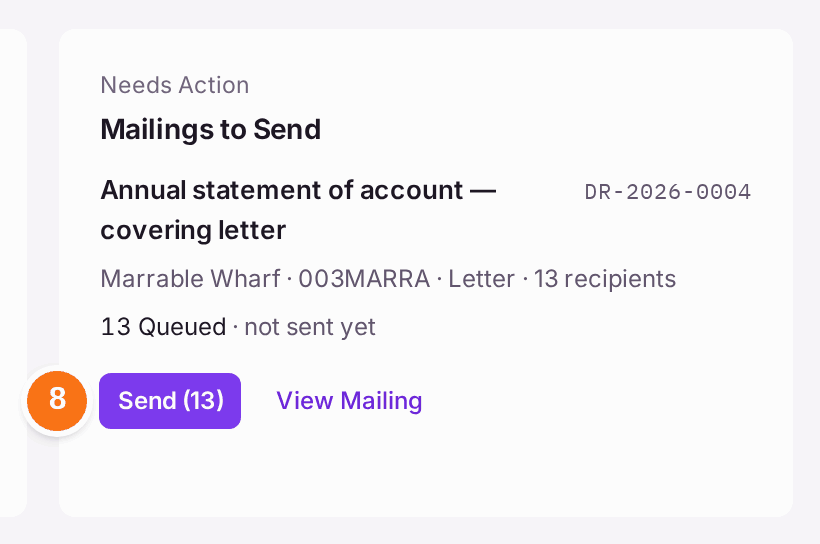
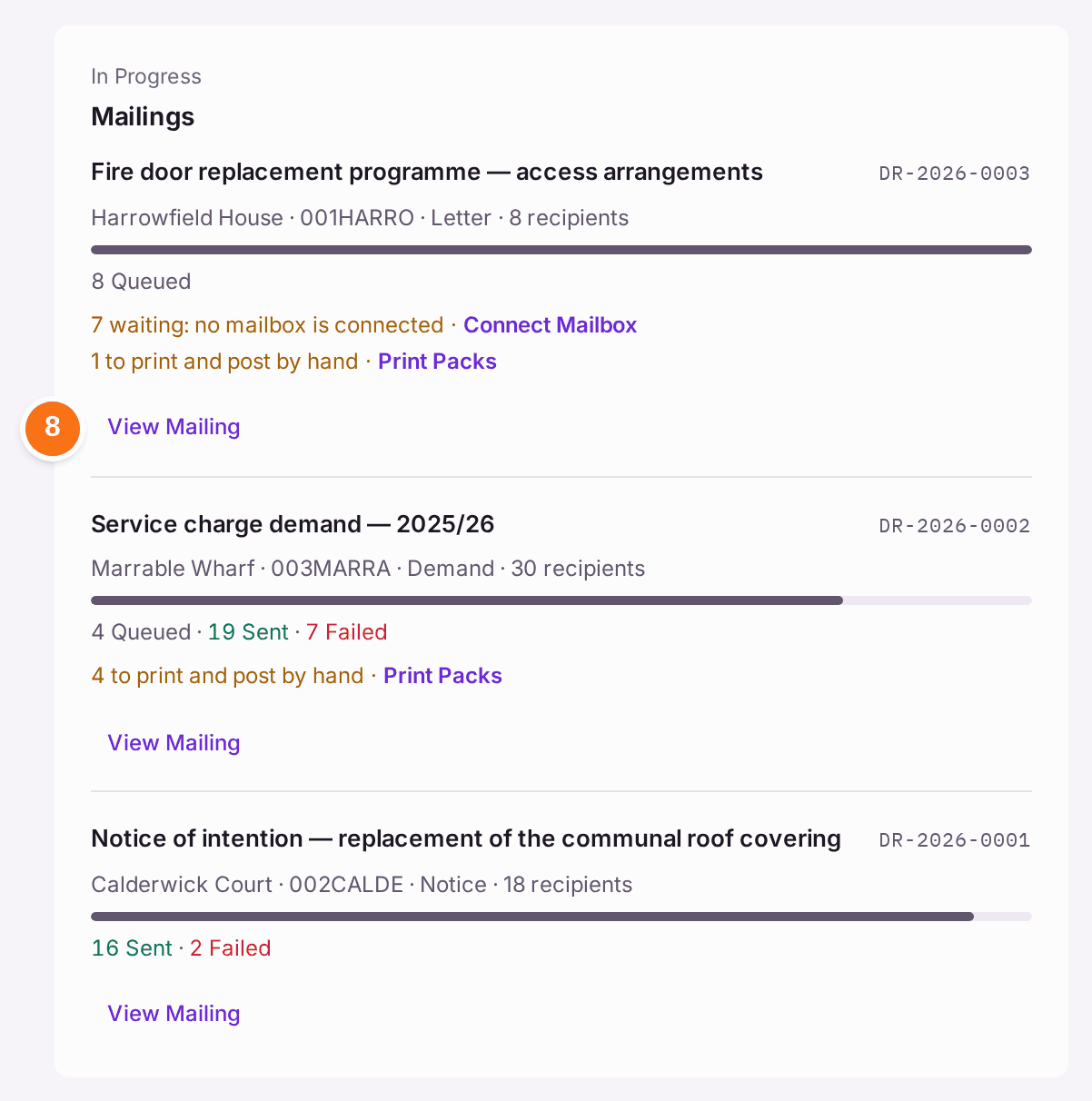
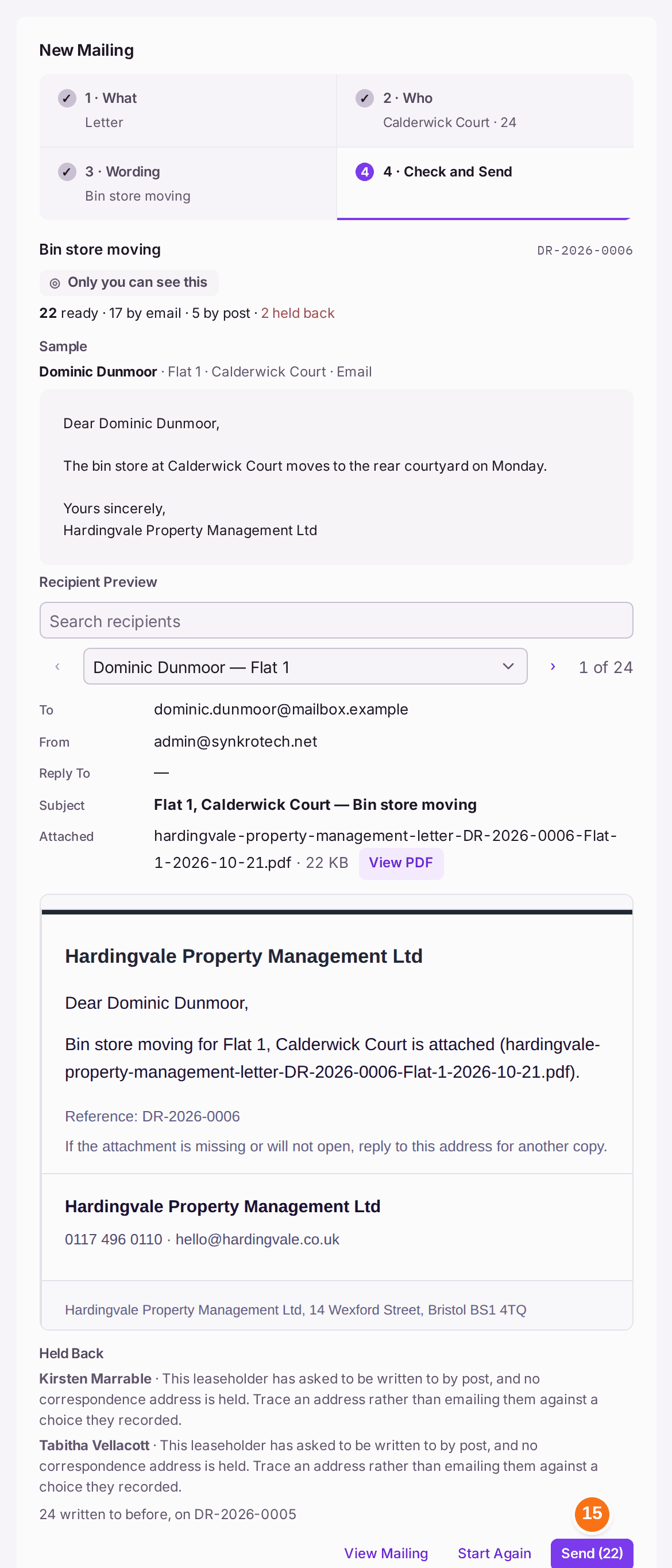
- Mailings not yet sent are listed at the top, under Mailings to Send, each with Send and the number of copies it sends. It asks first, and the question counts only those copies, by email and by post. Sent mailings are under Mailings, below the deliveries. Each says how many copies are Queued, Sent, Failed or Cancelled, and what the queued ones are waiting for: "8 waiting: no mailbox is connected" with Connect Mailbox, or "5 waiting under Today's Post to be printed" with Print Packs. To see one mailing as a whole, press View Mailing. The panel says what the mailing holds: a mailing of credit control letters says so, and a budget or an accountant's pack sent from the app is a Filed Document. Under Recipient Preview it shows any one person's copy exactly as it will go: To, From, Reply To, Subject, what is Attached, and the email itself. Search by name, flat or reference, step with ‹ and ›, or press Preview on a row under Recipients. View PDF opens the document that goes with it in a new tab. A copy the send would hold says why, under Held Back. Nothing is sent or saved by looking.
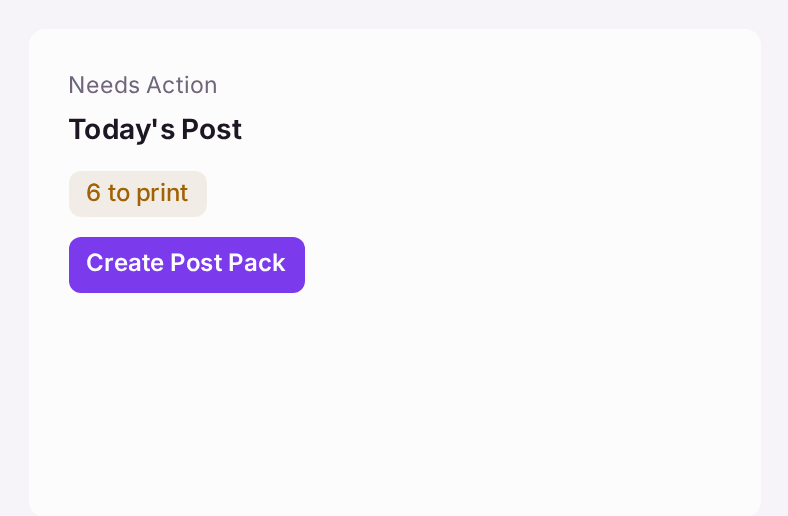
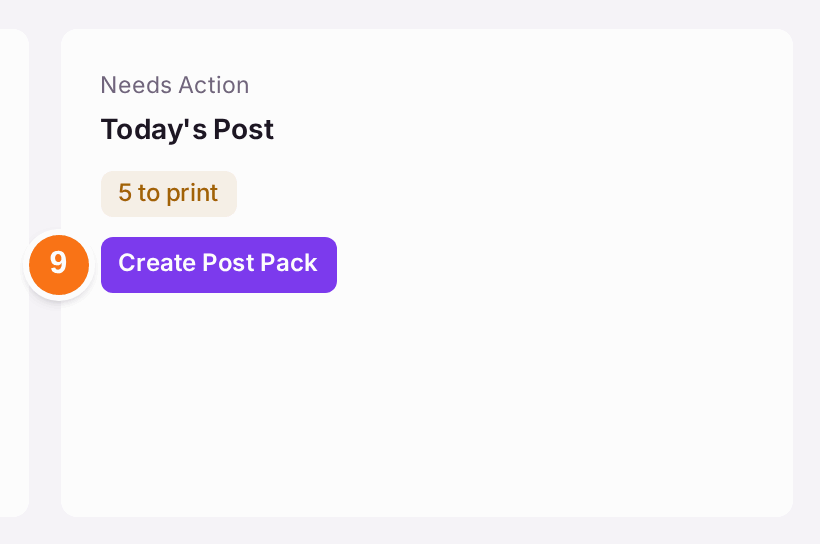
- To print today's letters, press Create Post Pack under Today's Post. Post them, then record the posting date (see Issuing your service charge demands, steps 14 to 18).
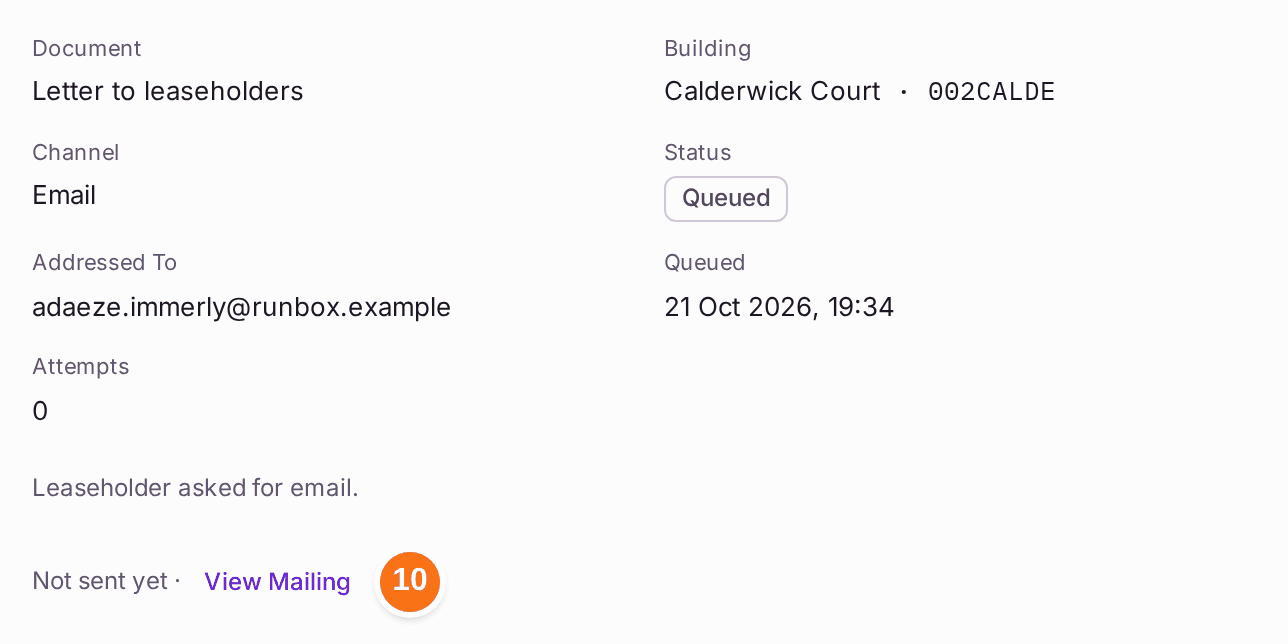
- A copy in a mailing nobody has sent yet reads "Not sent yet" beside Queued. Nothing in that mailing is sent or posted until it is sent. Press Send on it under Mailings to Send (step 8). Or press the row: its panel says "Not sent yet · View Mailing". Press View Mailing: the mailing opens, and its Send asks first.
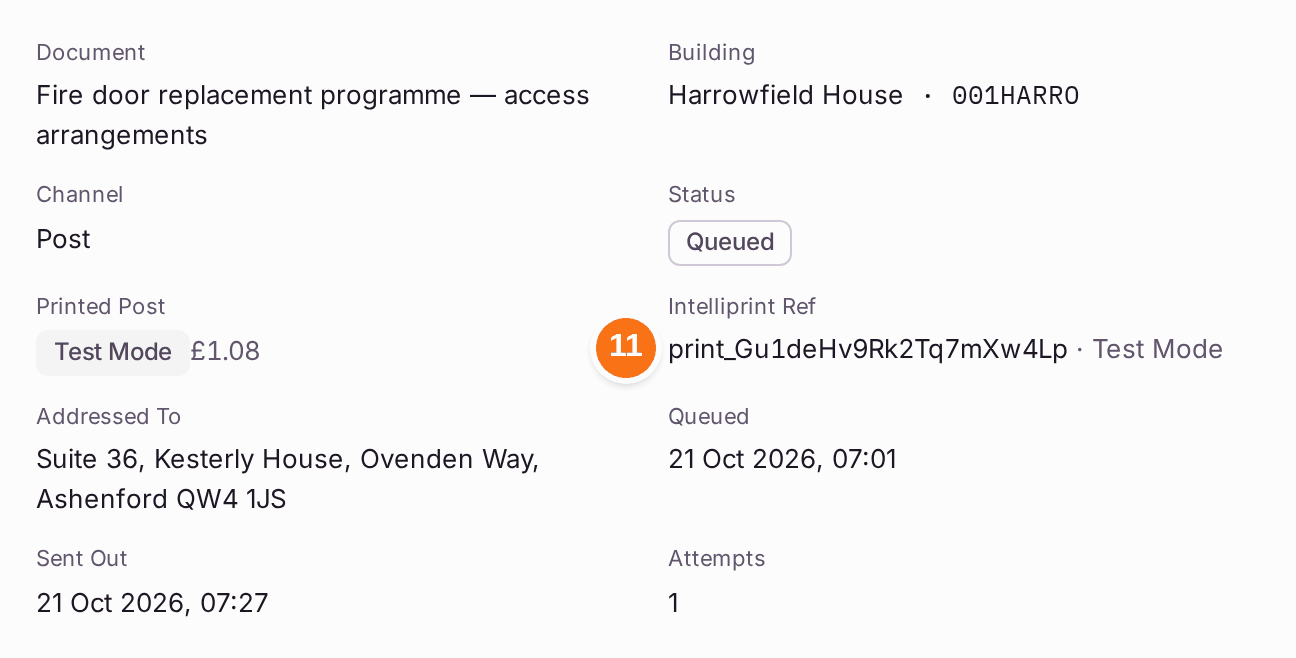
- If your organisation's letters are posted by Intelliprint, each letter Intelliprint has taken reads "Accepted by Intelliprint · ref print_…" under its status, in its panel (Intelliprint Ref) and in its mailing's Recipients. The ref is Intelliprint's own number for the letter: quote it to Intelliprint, or search for it on Intelliprint's dashboard. While SynkroTech is testing the connection, the line reads "Accepted by Intelliprint (Test Mode)". Nothing is printed or posted, and the letter stays Queued · Test Mode.
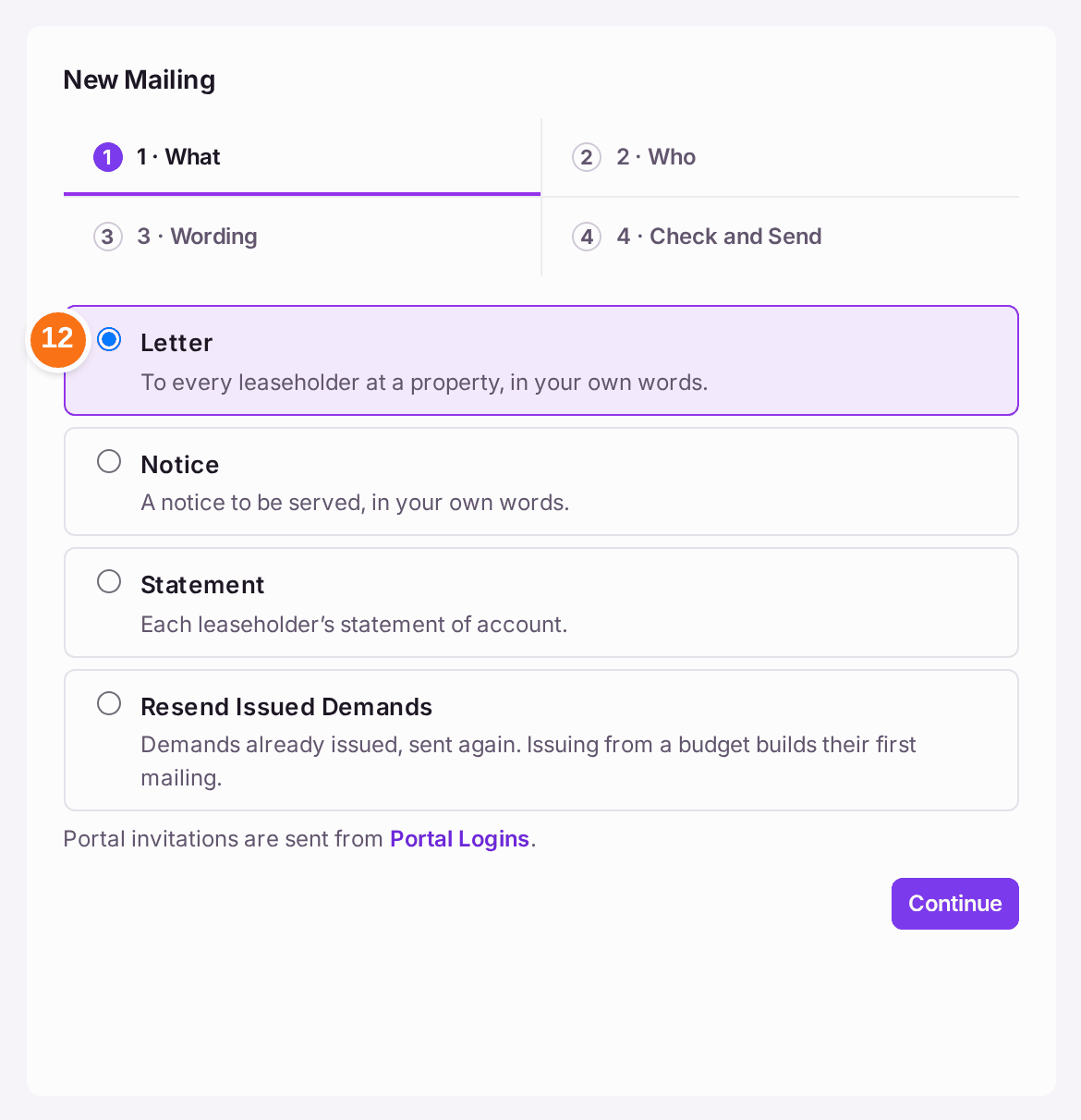
- To write to every leaseholder at a property, use New Mailing, under the deliveries. It is four steps. What: choose Letter, Notice or Statement, then press Continue. (Resend Issued Demands sends demands already issued again: issuing demands from a budget builds their mailing for you.)
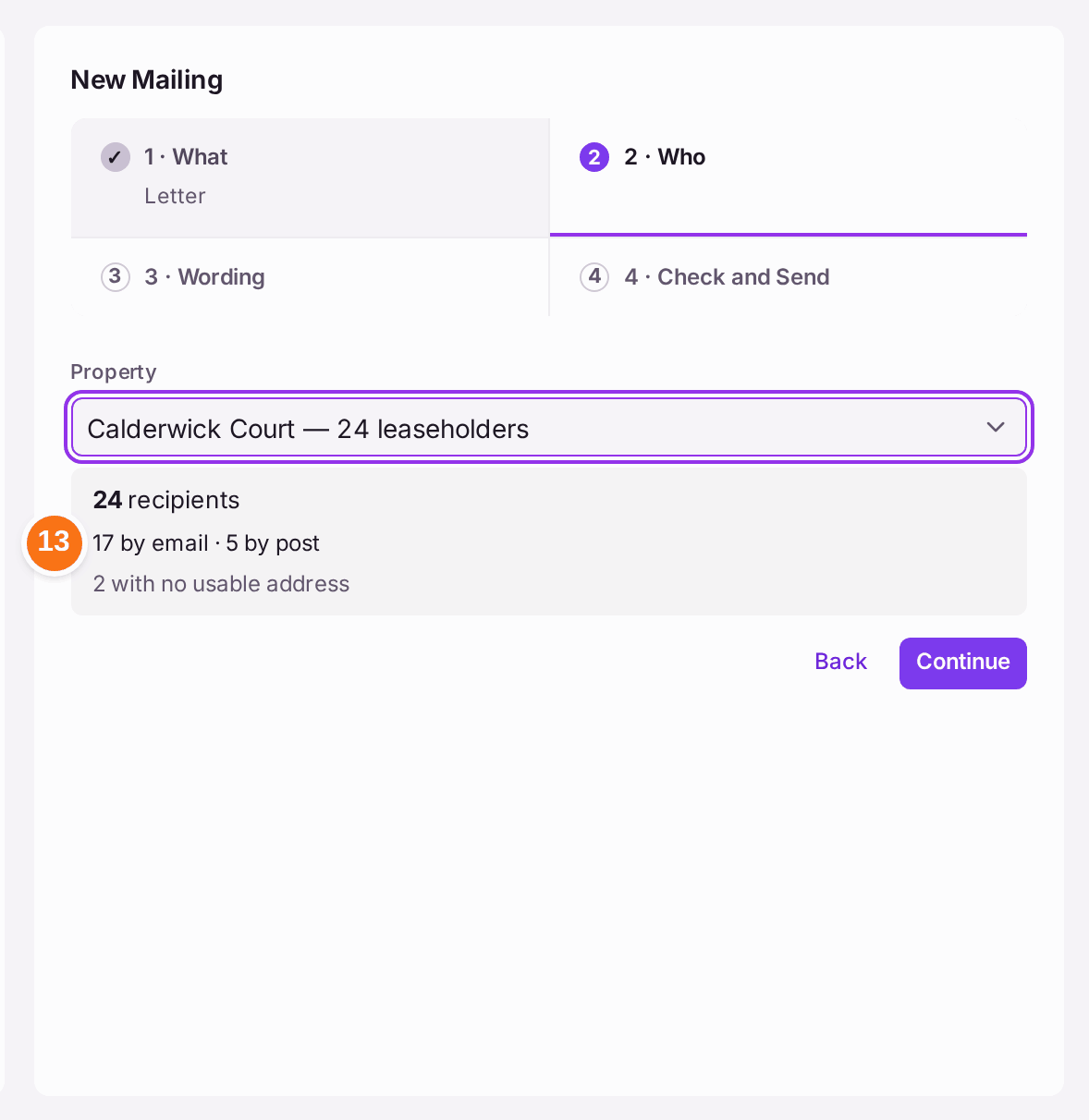
- Who: choose the property. The step counts who it reaches before anything is built: "24 recipients", "17 by email · 7 by post", and anyone held back, such as "1 with no usable address". Press Continue.
- Wording: to start from the library, choose a Template (a letter or notice) or a Covering Letter (a statement, or issued demands sent again: its own page before the document in each posted copy). Give it a Title (what the recipient sees it called), and write the letter or notice. Merge fields such as [Name incl Salutation] ("Dear Mr Dunmoor") and [Unit Name] are filled for each person; click one in the list under the box to put it in. If the words name a meeting, as the AGM Notice does, choose it under Meeting: the property's next meeting is chosen already, and its date, time, place and agenda are written into the words when the draft is made. Press Create Draft. The draft is yours alone until it is sent.
- Check and Send: read the counts, the Sample (one person's copy as it will read), Recipient Preview (anyone's exact email and PDF, as in step 8), anyone Held Back, with the reason, and how many were written to before by an earlier mailing. Press Send: it asks first, naming how many copies go by email and by post. Nothing is sent until you confirm. If the words give notice of a meeting ticked Company Meeting with fewer than 14 clear days left, it asks Short Notice? as well: Send Anyway sends it, and who did is kept in the building's Decision Record. Start Again leaves the draft under Mailings to Send.


To put a mistake right before it goes
- One person on a draft mailing who should not be on it: press View Mailing, then Remove beside their name. Type why, and press Remove. On a mailing of demands, Cancel Their Demand is ticked: untick it to keep the demand issued and send it another time. Who took them off and why go in the Decision Record.
- One copy of a sent mailing that should not go (a wrong address found after it was sent): press the row, then Cancel Delivery in its panel. Type why, and press Cancel Delivery. The rest of the mailing still goes; a copy already sent stays sent. (Cancel Queued on a run stops every copy still waiting.)
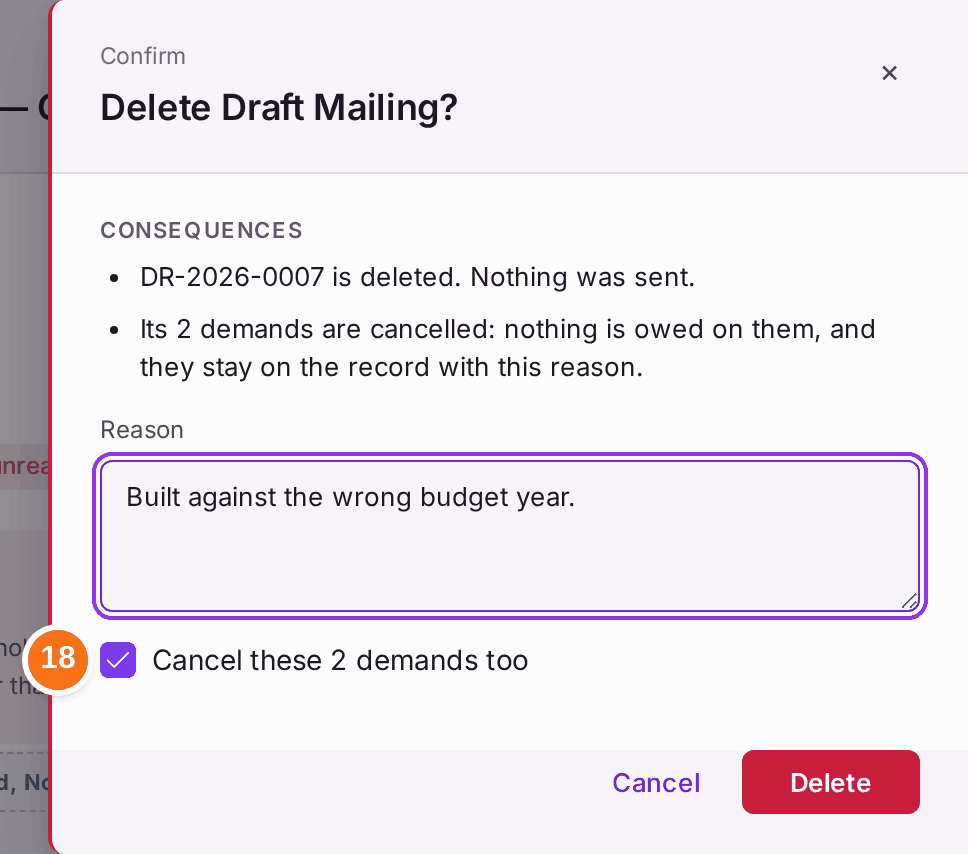
- A draft mailing built by mistake: press View Mailing, then Delete Draft. On a mailing of demands it asks Delete Draft Mailing? with Cancel these 2 demands too ticked, and wants the reason: the demands are cancelled, so none stays issued with no letter. Unticked, the demands stay Issued — Awaiting Delivery, to be sent again under Resend Issued Demands.
You'll know it worked when: each person you meant to write to shows Sent, or, for post, is recorded as posted with the date. Sent means the mailbox accepted it, with the day and time ("Accepted by Microsoft 365 on 5 October 2026 at 09:36"); acceptance is custody, not proof it was read. The audit trail names who did each step.
If something's wrong:
- The leaseholder's record has no Edit under Correspondence Address. Setting an address is the property team's job. The card says "Permission required. The property team makes changes here." and, after Ask, names the colleagues who can. Press a name: the request goes to that colleague's notifications inside SynkroTech, linked to the leaseholder's record, and the record says who was asked. It is answered when the address is set. The red box on the Outbox does the same in place of Set to The Unit.
- A retried letter is not in Today's Post. A letter in a mailing not yet sent waits for that mailing's Send. On a sent mailing it goes to Today's Post straight away.
- Emails sit in Queued. No mailbox is connected. Connect one (see Connecting your mailbox).
- "This leaseholder has asked to be written to by post, and no correspondence address is held." Trace an address. Do not email them instead: they chose post. Set the address with Edit Leaseholder, then press Retry on Post in their delivery's panel.
- "The receiving mail server refused the address permanently." The email address is wrong. Retry by Post posts it to their correspondence address and says where. If none is held, it says "The email address was refused for good and no correspondence address is held for … so nothing was queued", and Set Address appears: press it, set the address (see Setting where a leaseholder's post goes), then press Retry by Post again. To email it instead, correct the email address on their record and send the document in a new run.
- Letters are listed but nobody posted them. "Letters will not be posted from here." Press Print Packs, print and post them, then record them as posted. Until then they are not served.
- You cannot tell whether a demand reached someone. Open their delivery (step 7). Sent and Posted are as far as SynkroTech can see; a returned letter shows Returned with Royal Mail's reason.
- A letter has said "Sent to Intelliprint" for days. SynkroTech asks Intelliprint every hour about letters it has not finished with, so a missed update is caught. If it still has not moved, quote its ref (step 11) to Intelliprint.
- A delivery says "No delivery preference recorded". Nobody has recorded whether that leaseholder wants email or paper, so a demand or notice goes by post. Press Set Delivery after the sentence, in the delivery's panel: their record opens at Delivery, under Correspondence Address (see Setting where a leaseholder's post goes, step 6).
- There is no Invite under New Mailing. Portal invitations are sent from Comms → Portal Logins (see Giving a leaseholder, resident or director a portal login). An invitation carries the person's starter password, which is printed once, from Portal Logins, so an invitation run built here could never be sent. Invitation runs made on Portal Logins are still listed under Mailings.
- Who says "No issued demands yet." No demands have been issued. Issue them from a budget (Issue from Budgets): that builds their mailing.
- Continue on Who stays grey. Choose a property first; a property nobody can be reached at has nobody to send to.