


Instructing a contractor (raising a work order)
What you'll end up with: a work order (the written instruction to a firm to do a job, with a reference such as WO-2026-0013) attached to the ticket that reported the repair, naming the firm, the agreed cost and, if you have one, the agreed date. The work order is what the firm's invoice is later checked against.
Before you start you need:
- The ticket for the repair (see Logging a repair someone has reported (raising a ticket)). Raising the work order from the ticket links the two, so whoever opens either one sees the other.
- The firm on your contractor list (Contacts → Contractors), with public liability insurance in date. SynkroTech will not release work to a firm whose cover has lapsed, because the building's insurers and the leaseholders carry the risk if they are hurt on site.
- What the job should cost, if you have agreed a price. Leave it empty if you have not.
- For larger jobs: if any one leaseholder's share of the cost will be more than £250, the law requires a Section 20 consultation before you agree the contract. SynkroTech does not instruct work of that size without one of three records: the consultation (with its Notice of Intention served), a dispensation from the tribunal, or a typed emergency reason. See Running a Section 20 consultation for major works.
- If the client's management agreement sets a Client Spending Limit (see Adding a client and appointing yourselves to their property): above it, the client's approval — who, how and when.
- Go to Work → Tickets.
- Open the ticket for the repair.
- Press Create at the top of the page.
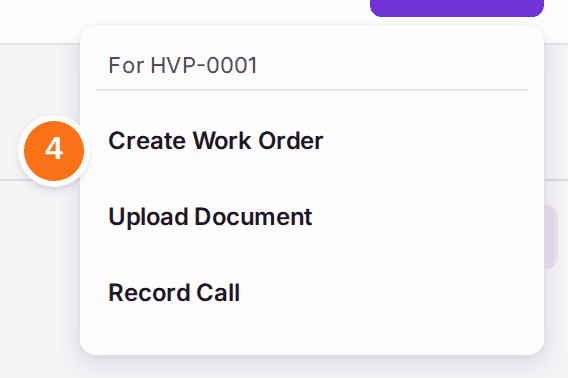
- Choose Create Work Order, listed under the ticket's number ("For HVP-0001"). The panel says "Attached to HVP-0001. The property comes from the ticket."
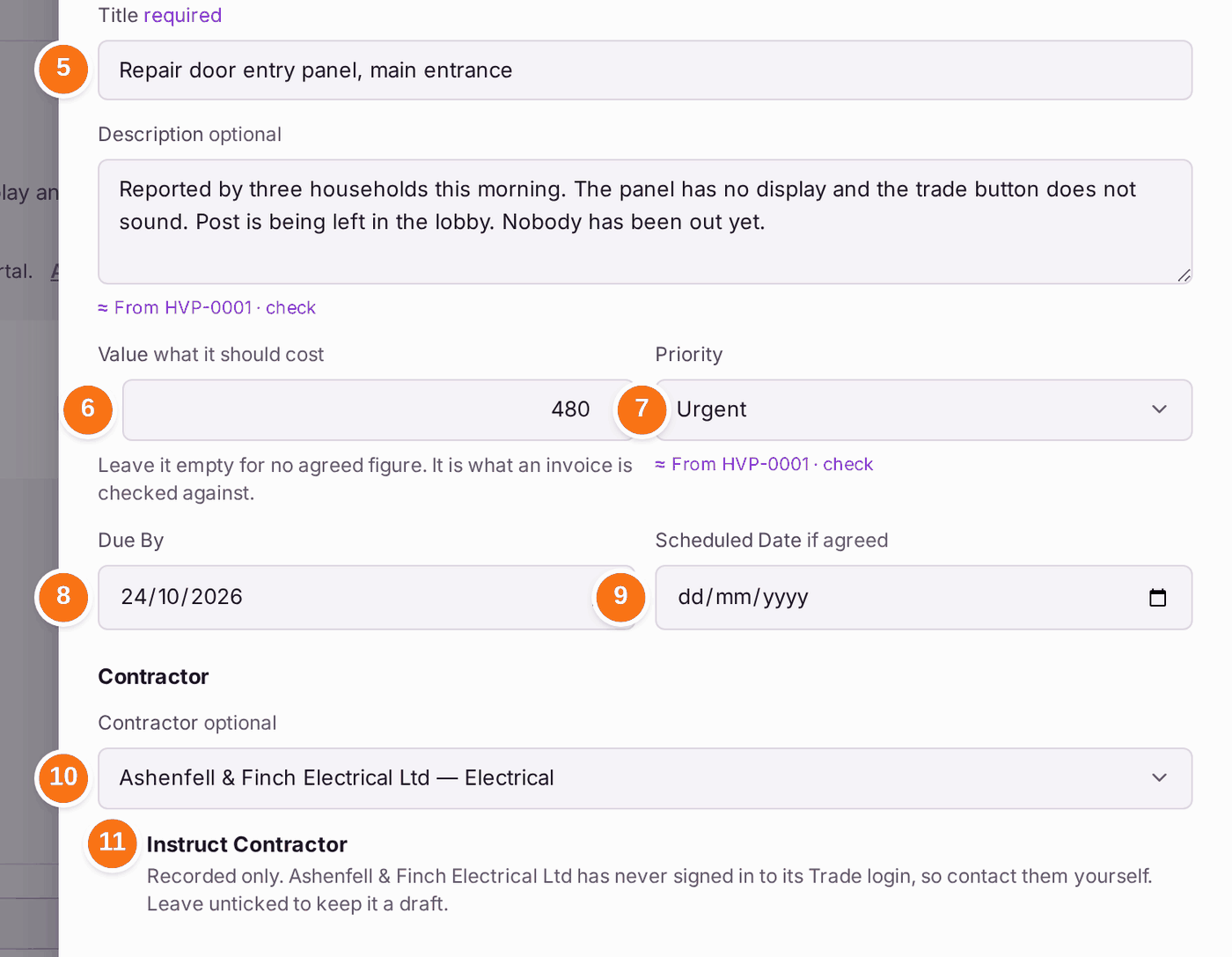
- Check the Title and Description: they are filled in from the ticket, and marked "From HVP-0001 · check" until you change them. Change the title to say what the firm is to do, such as "Repair door entry panel, main entrance".
- Type the Value: what the job should cost. "It is what an invoice is checked against."
- Check the Priority. It is filled in from the ticket's: Emergency and Urgent stay as they are, and High, Medium and Low become Routine (the mark says so, for example "From HVP-0001 (High) · check"). Due By fills itself from it (an urgent job is due in three days).
- Check Due By, and change it if you agreed another day.
- If you have agreed a day with the firm for the visit, choose it in Scheduled Date. Leave it empty if not.
- Choose the firm in Contractor. Each firm's trade is shown after its name, with a warning if its insurance has lapsed or is about to.
- Tick Instruct Contractor, and read the sentence under it. It says how the work will reach this firm. Leave it unticked to save the work order as a draft that nobody has been sent.
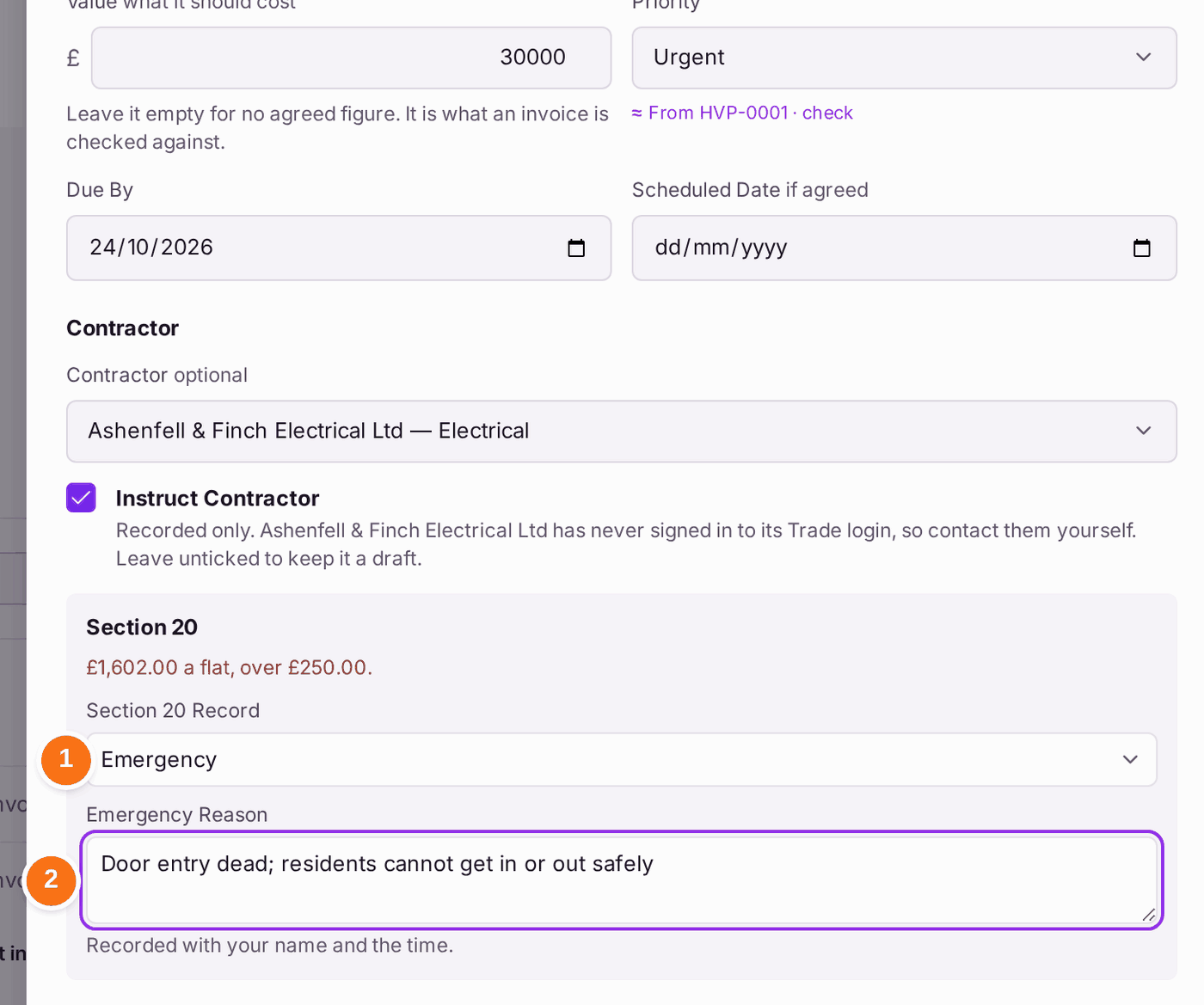
- If any leaseholder's share of the Value is over £250, a Section 20 box opens under it. Choose the Section 20 Record: Consultation (then the consultation, one with a notice served), Dispensation (the Tribunal Reference and the day it was Granted On) or Emergency (the Emergency Reason). It is recorded on the work order with your name and the time. If the Value is over the client's spending limit, a Client Approval box asks who approved it for the client (Approved By), how (Approved How: Email, Letter, Phone or In Person) and when (Approved On). Left blank, the work order is raised as a draft, Awaiting Client Approval.
- Press Create and Instruct.
The sentence says where the job goes, and claims the firm has it only where the firm can see it:
- "Sent to [firm]'s SynkroTech Trade Account, under Jobs" when the firm's own SynkroTech Trade account is connected to you (see Inviting a contractor onto SynkroTech Trade). The job is under Jobs on their account straight away.
- "Sent to [firm]'s SynkroTech Trade portal login" when the firm has a portal login and has signed in with it.
- "Recorded only. [firm] has never signed in to its Trade login, so contact them yourself." when the firm has a portal login nobody has ever signed in with. The job waits there, but nothing says the firm has seen it.
- "Recorded only. [firm] has no Trade login, so contact them yourself." when the firm has neither.
For the two "Recorded only" lines nothing reaches the firm from SynkroTech: phone or email them and give them the work order reference.
For a job nobody has reported as a ticket, go to Work → Work Orders & Quotes and press Create Work Order. The same panel opens, with a Property box at the top for you to choose. When the register is filtered to one property, that property is already chosen.
A value marked "From … · check" is SynkroTech's best guess from the record you came from, not a fact: check it, and change it if it is wrong. Once you change it, the mark goes.
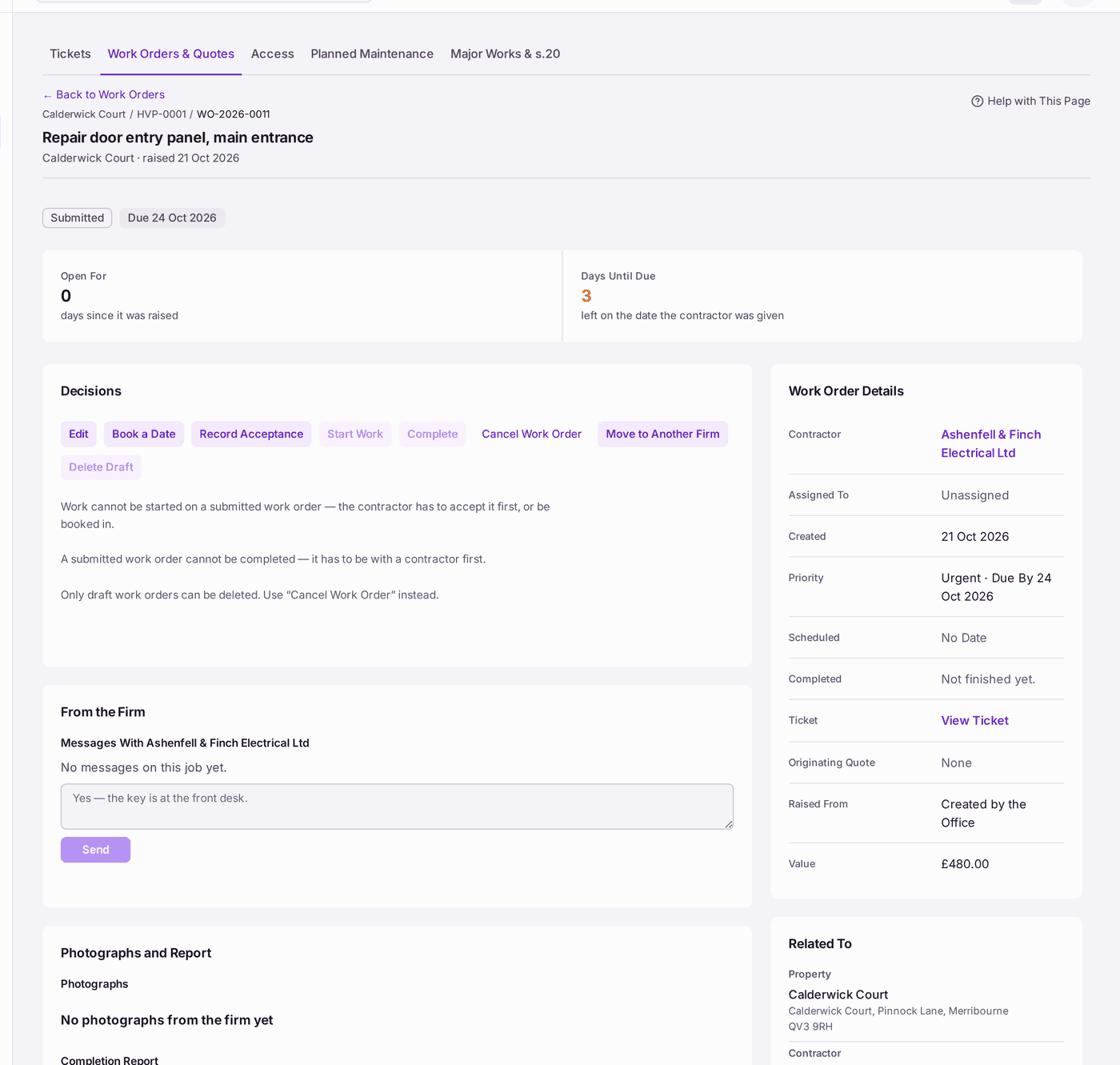
You'll know it worked when: a message at the bottom of the screen reads, for example, "WO-2026-0011 raised. [firm] has it under Jobs on its SynkroTech Trade Account." (or says it is recorded only), and the work order appears on the ticket's activity. Open it from Work → Work Orders & Quotes: its status reads Submitted (or Scheduled if you gave a date), and Work Order Details names the firm, the priority with its due date, the value and the ticket.
When the firm agrees to do the job, press Record Acceptance on the work order. When they give you a day, press Book a Date. Until one of those is done, Start Work and Complete stay greyed, and the page says why. Booking never moves Due By: the top of the work order then reads, for example, "Due 17 Oct 2026" and "Booked Fri 16 Oct 2026". A firm on SynkroTech Trade does these itself, from its Jobs: it accepts the job, asks for a day with Request Date, and reads and answers what you send under Messages With the firm.
When the work order is completed and its ticket is still open, the top of the work order reads Ticket Still Open, and the ticket reads Work Completed · Ticket Still Open, each with Resolve Ticket: press it once the repair is done for the people who reported it. Resolving tells them, so SynkroTech never does it on its own. When the firm sends its invoice through SynkroTech Trade, the work order shows Invoice to Review with Review Invoice, which opens its review, filled in from the firm's invoice and with the firm's own file. When the firm's invoice for the work order is paid, a work order not yet marked complete is completed, with the payment as the reason on its Decisions.
The work order's Activity opens on Whole Job: the ticket, the work order, its visits, quotes, invoices and payment, oldest first, with what it cost (see Seeing everything that happened with a repair, and what it cost).
If something's wrong:
Instruct Contractor will not tick, because the firm's insurance has lapsed. Under it: "[firm]'s public liability cover has lapsed, so the work cannot be released. A draft is still allowed while the renewal is chased." Save it as a draft with Create Work Order, and ask the firm for their renewal certificate. When it comes, open the firm under Contacts → Contractors, press Add Certificate under Compliance Wallet, choose Public Liability Insurance, enter the new Cover Expires date, then press Save. Only public liability releases work; the panel says so. Then open the draft work order and press Instruct Contractor. If the firm cannot renew in time, press Move to Another Firm on the draft instead.

The firm's name in the list ends "insurance lapsed", and the tick box is greyed with the reason under it. 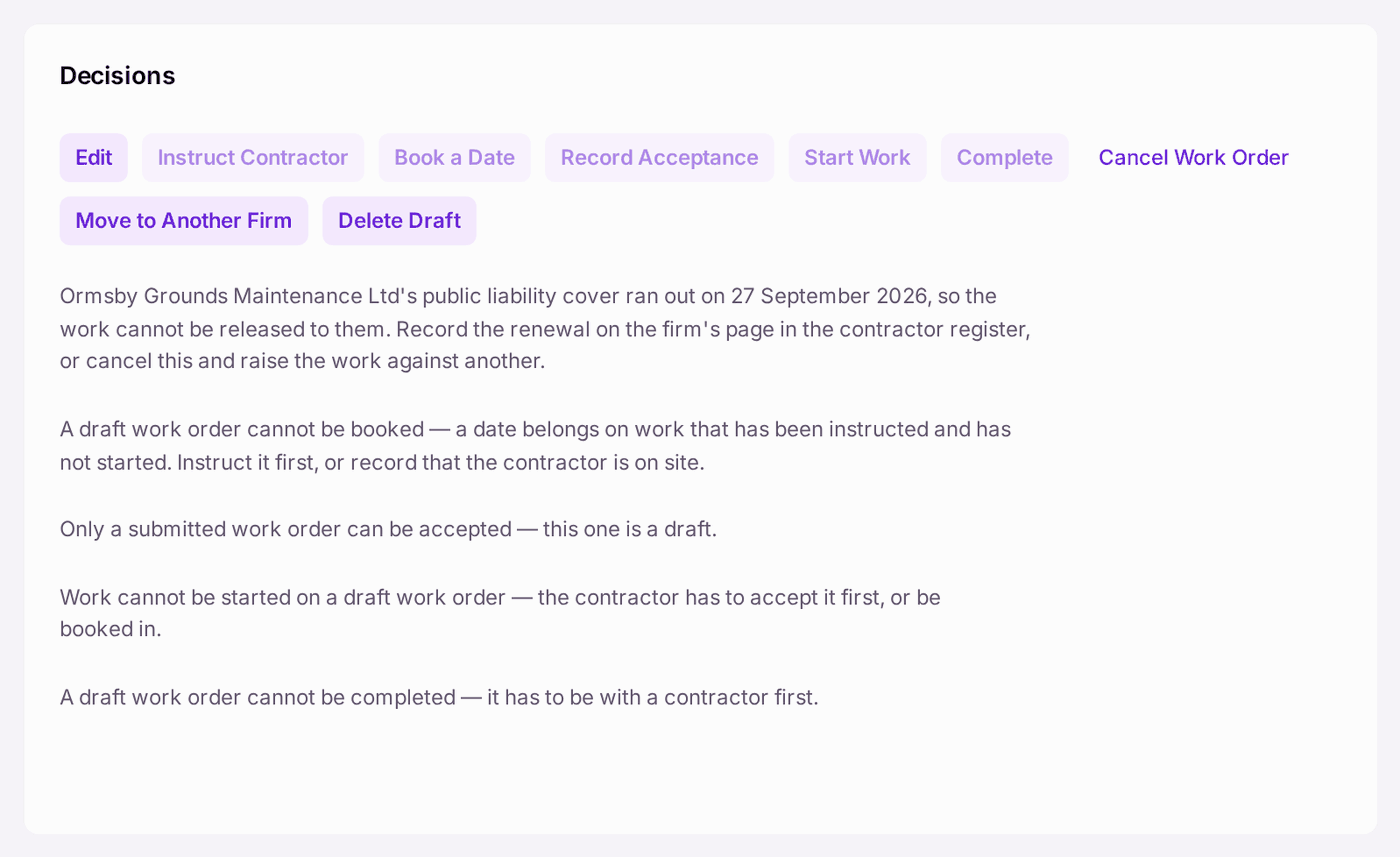
On the draft, Instruct Contractor stays greyed and the sentence under the buttons gives the date the cover ran out and the two ways forward. - Instruct Contractor will not tick, because the firm is suspended. "[firm] is suspended and cannot be given work. Create it as a draft, or reinstate the firm on the contractor register first." Choose another firm, or reinstate this one from its page under Contacts → Contractors if the suspension is over.
- Create Work Order stays greyed. The panel says what is missing: "Give the work order a title." or "Choose the property the work is on."
- The firm is marked "insurance expiring soon". You can still instruct them. Chase the renewal now: the contractor list says "Cover expiring — chase the renewal certificate now", and once it lapses you cannot send them more work.
"Recorded only. [firm] has no Trade login, so contact them yourself." The firm is not on SynkroTech Trade, so nothing is sent to them. Phone or email them with the work order reference. To have future jobs reach them in the app, invite them (see Inviting a contractor onto SynkroTech Trade).

The work order is still raised; only the sending is up to you. "Recorded only. [firm] has never signed in to its Trade login, so contact them yourself." The firm was given a portal login but has never used it, so it has not seen the job. Phone or email them, and ask them to sign in (or invite them onto SynkroTech Trade).

The same as no login at all, until the firm signs in. A Section 20 warning appears under Value on a draft. For example: "At £30,000.00 the highest leaseholder share is £1,602.00, over the £250.00 Section 20 threshold. Consult the leaseholders (or obtain dispensation) before instructing, or recovery from each is capped at £250.00." The draft is saved; it is instructed only with a Section 20 record (step 12). Run the consultation first where you can (see Running a Section 20 consultation for major works).
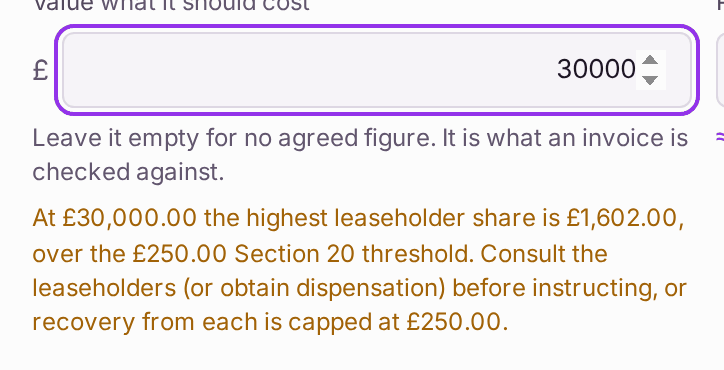
The share is worked out from the property's residential schedule. A building whose leases record no share cannot be tested, and is treated as over £250. - Instruct Contractor on a draft is refused: "Section 20 applies: one leaseholder's share of … is …, over £250.00. Link a consultation, record a dispensation or give an emergency reason." Press Instruct Contractor on the work order: its panel asks for the Section 20 Record, as in step 12. A consultation with no notice served is refused: "[consultation]: no notice served yet. Serve the Notice of Intention first."
- The work order reads Awaiting Client Approval. Its value is over the client's spending limit and nobody has recorded the client's approval. When the client says yes, press Record Client Approval on the work order and fill in Approved By, Approved How and Approved On: it is kept on the work order's Activity with your name. Then press Instruct Contractor. A value raised later past the approved figure asks again.
The new work order is already late. A Scheduled Date in the past is warned about under the field: "In the past: the work order is overdue from the day it is raised." It is saved anyway and shows as overdue from the start.
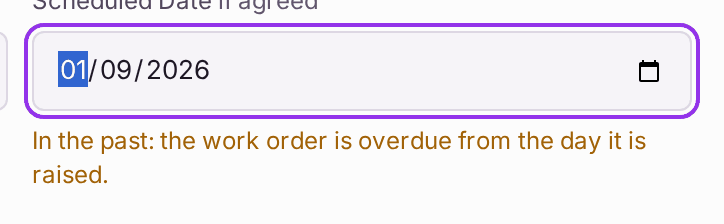
Check the year as well as the day. To fix one already saved, open the work order and press Book a Date to give the real date. Edit cannot change the date; its panel says "To change the booked date, use “Book a Date”."
- The value is refused. A value below zero is refused with "Value must be greater than or equal to 0." Type the cost in pounds, or leave the box empty.